

How to model a warehouse drawer
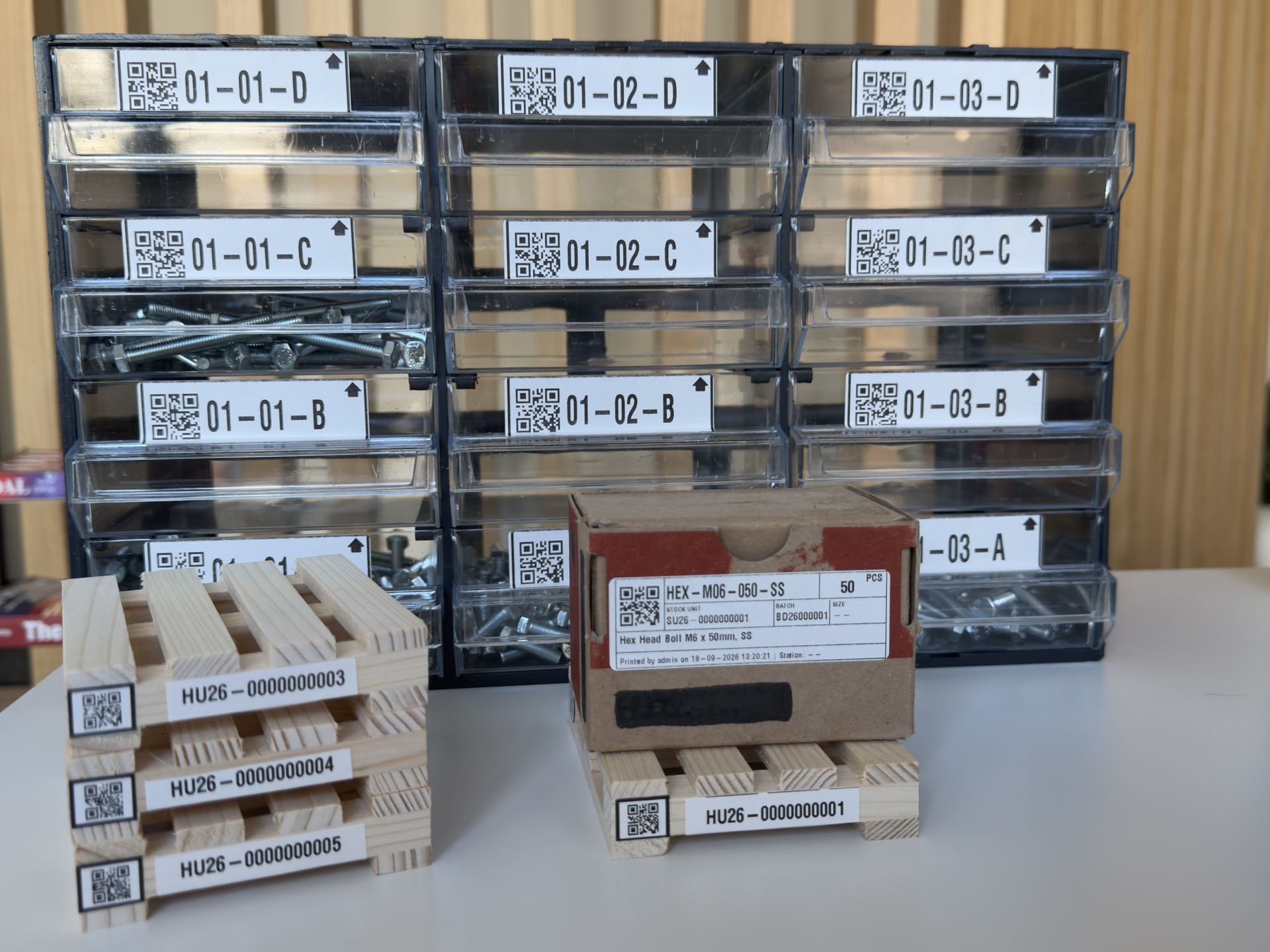
Today we are going to learn how to model a warehouse drawer using our WMS solution. A warehouse drawer is a pull-out storage compartment designed for high-density organization of small, loose, or valuable items that would waste space or get lost on standard warehouse shelving.
In this exercise we are going to satisfy the following requirements:
- Inventory allocated to drawer-level storage must be trackable without the use of physical labels.
- The WMS must support a configurable location policy Single Material / Single-Batch that restricts a drawer to a single SKU and batch number.
- The WMS must support a configurable location policy Single Material / Multi-Batch that restricts a drawer to a single SKU while allowing differing batch numbers.
Modeling drawer locations
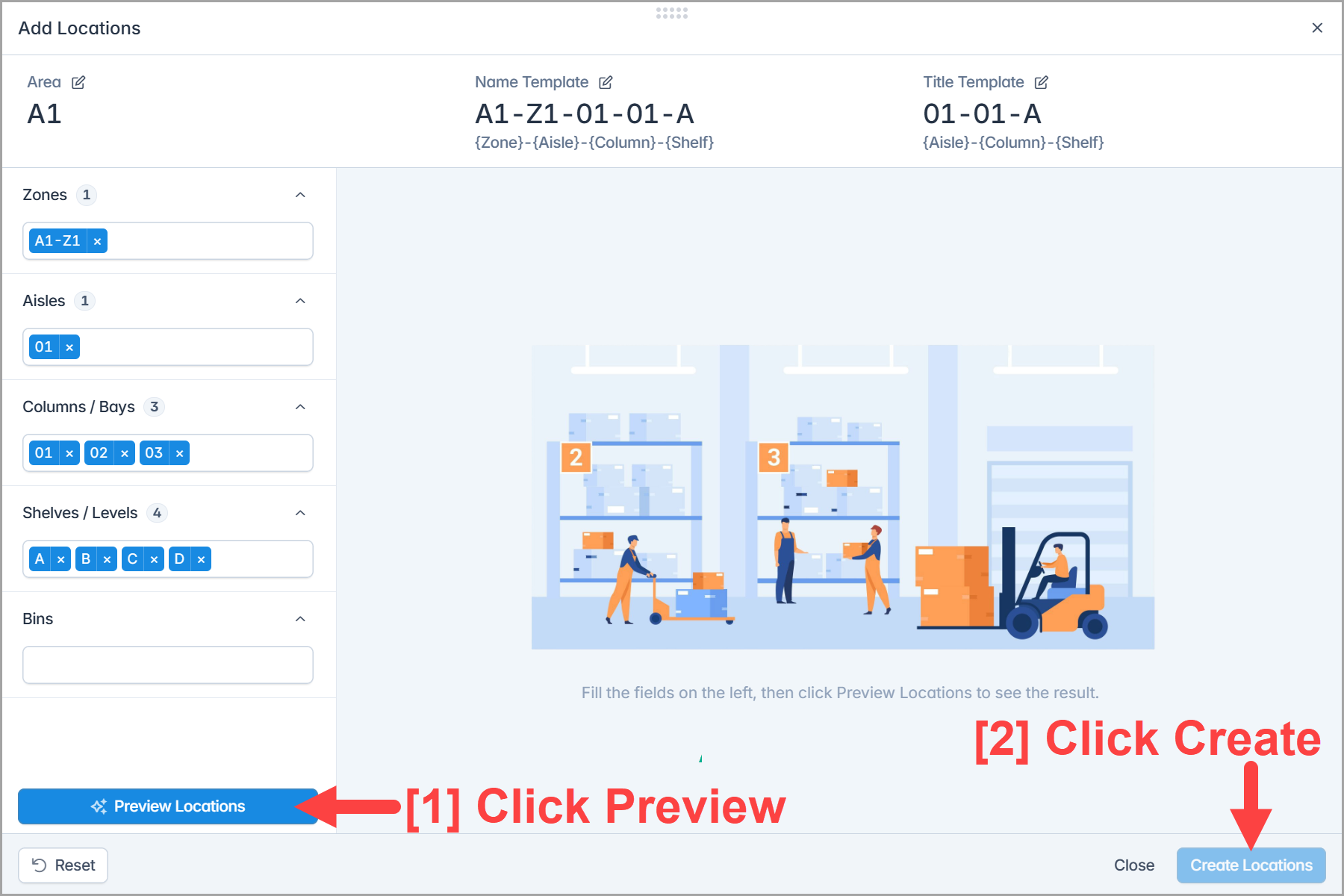
Every compartment within the drawer must be assigned a unique location name and labeled with its designated location barcode, we can use the Add Bulk Locations functionality to quickly create our desired locations as shown in the Figure 1 below, refer to this post for more details on creating locations and printing their barcodes.
Note
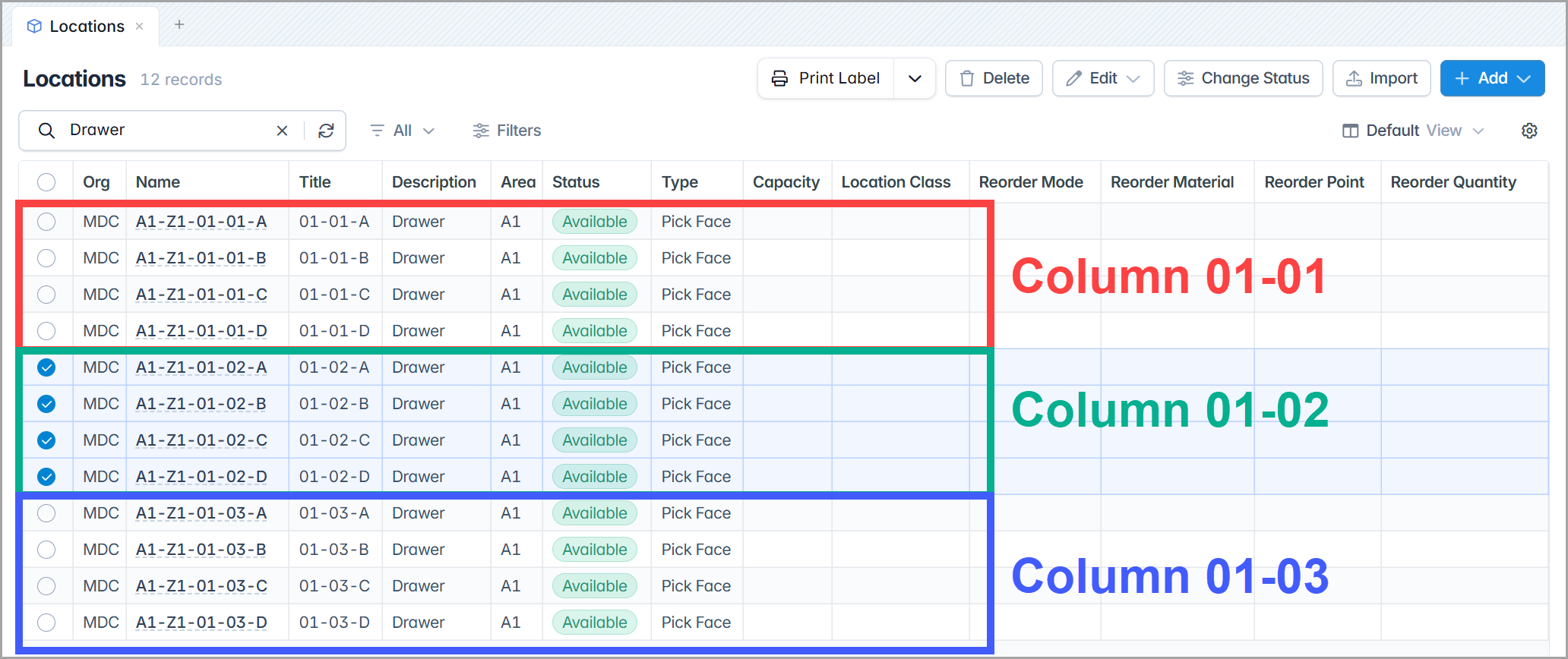
To keep this tutorial simple, we’ll use a 3x4 drawer layout as our example. The exact same process works for any size drawer—larger ones just take a bit more time to label 😊.
The end result is that we get the following 12 locations that represent our 3x4 drawer bins.
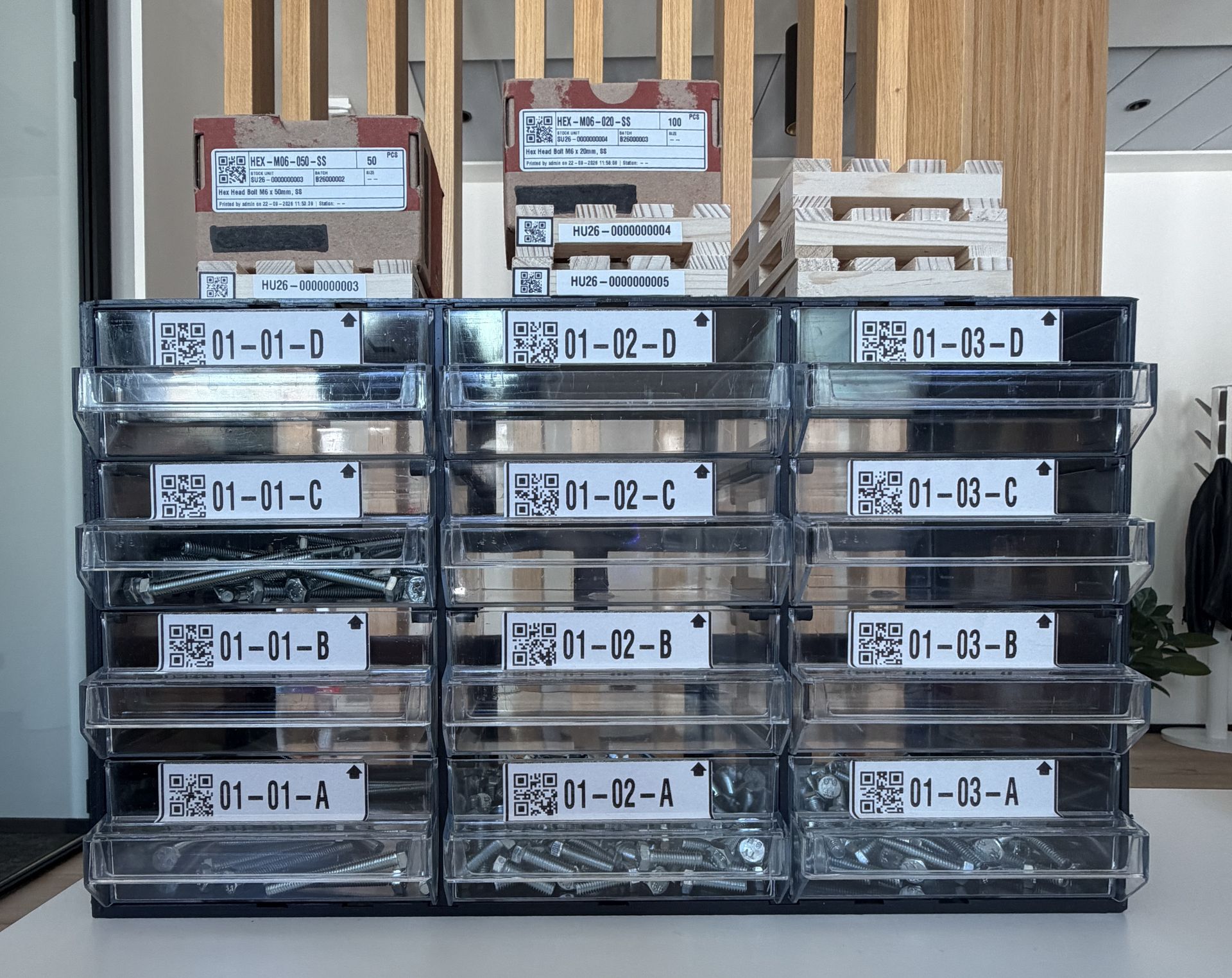
Now that we created the locations in our system, we can print their labels and physically apply them to the drawer bins, the final result is something similar to Figure 3, we can observe the following:
- The drawer is composed of three columns 01-01, 01-02, and 01-03.
- Each column is composed of four bins A, B, C and D.
Business rules
A Business Rule is a configurable policy attached to a location (or a location class) that the system fires automatically whenever a relevant warehouse action happens, for example when someone relocates stock into that location. Business rules can by used to execute:
- Checks before/after an action is executed, for example making sure that the relocated stock unit has the same bin material.
- Actions before/after an action is executed, for example merging the relocated stock unit into the bin stock unit.
Business Rules can be assigned to locations however in a real scenario a single drawer might have hundreds of locations, thus it is generally suggested to configure them at a higher level following this process:
- Create a Location Class for example SB-DRAWER-BIN for bins that accept single batches.
- Assign the desired business rules to the location class.
- Assign the class to the desired locations.
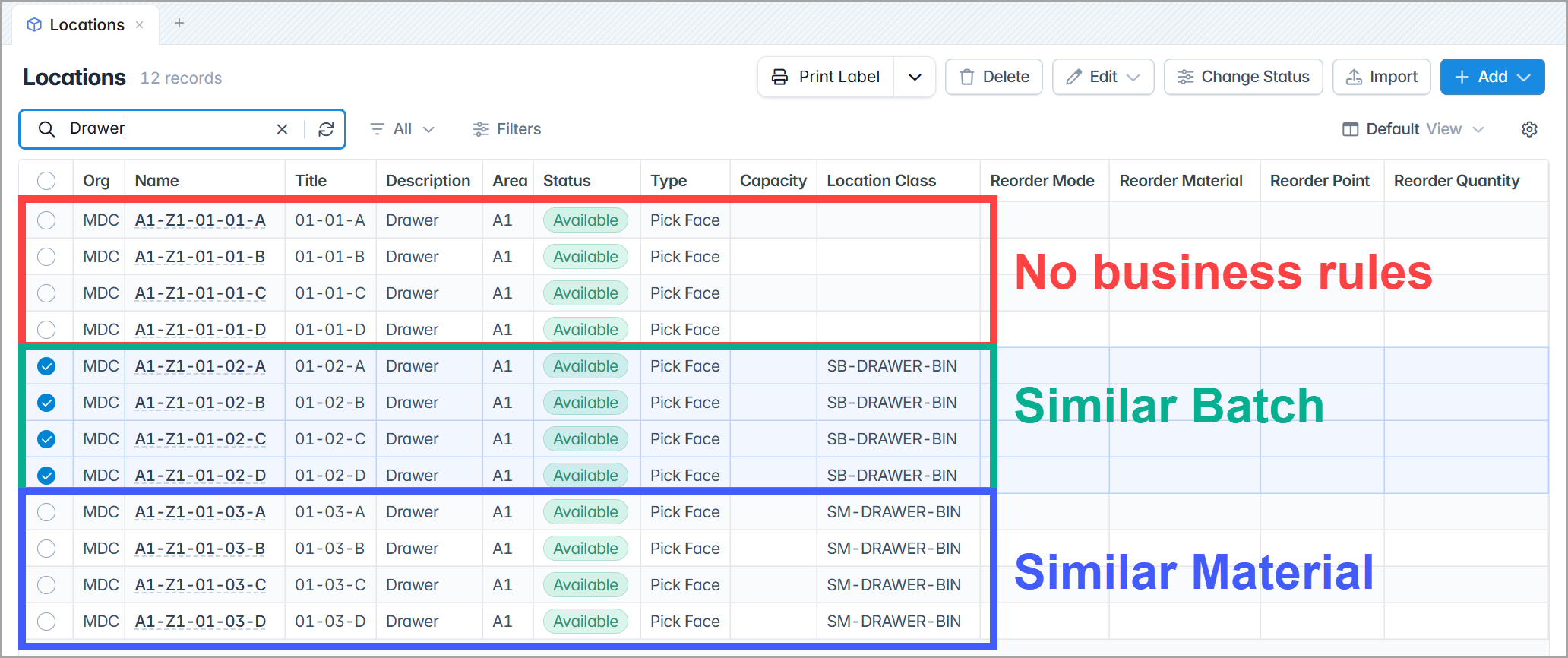
As you can see in Figure 4 we assigned classes as follows:
- Column 01-01 locations -> No location class, thus they act as normal locations.
- Column 01-02 locations -> SB-DRAWER-BIN thus the Single-Batch rule is enforced.
- Column 01-03 locations -> SM-DRAWER-BIN thus the Single-Material rule is enforced.
Testing
To test the system behavior lets create 4 stock units in an initial storage location, for example A1-T01.
- SU#1, SU#2 have the same material and batch.
- SU#3 has the same material as SU#1 and SU#2 but with a different batch number.
- SU#4 has a different material.
| ID | StockUnit | Material | Batch | Quantity |
|---|---|---|---|---|
| SU#1 | SU26-0000000001 | HEX-M06-050-SS | B26000001 | 100 PCS |
| SU#2 | SU26-0000000002 | HEX-M06-050-SS | B26000001 | 100 PCS |
| SU#3 | SU26-0000000003 | HEX-M06-050-SS | B26000002 | 100 PCS |
| SU#4 | SU26-0000000004 | HEX-M06-020-SS | B26000003 | 100 PCS |
No business rules
If you recall, column 01-01 bins are configured with no business rules, which could represent a scenario in which we want to put multiple bags in a single bin but maintain a strict stock separation.
Lets use the mobile Move app to relocate both SU#1 and SU#2 to location 01-01-A and see what happens.
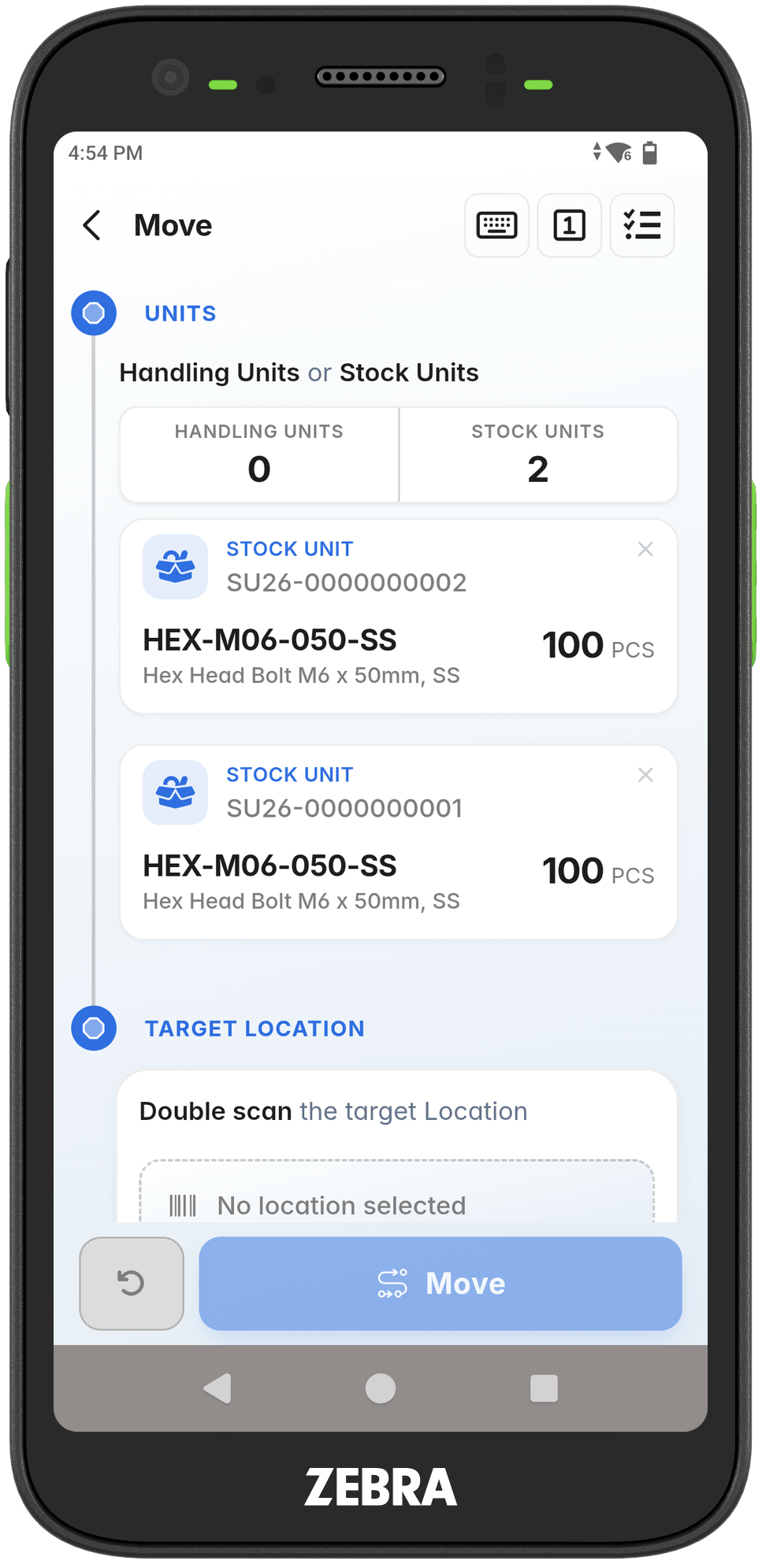
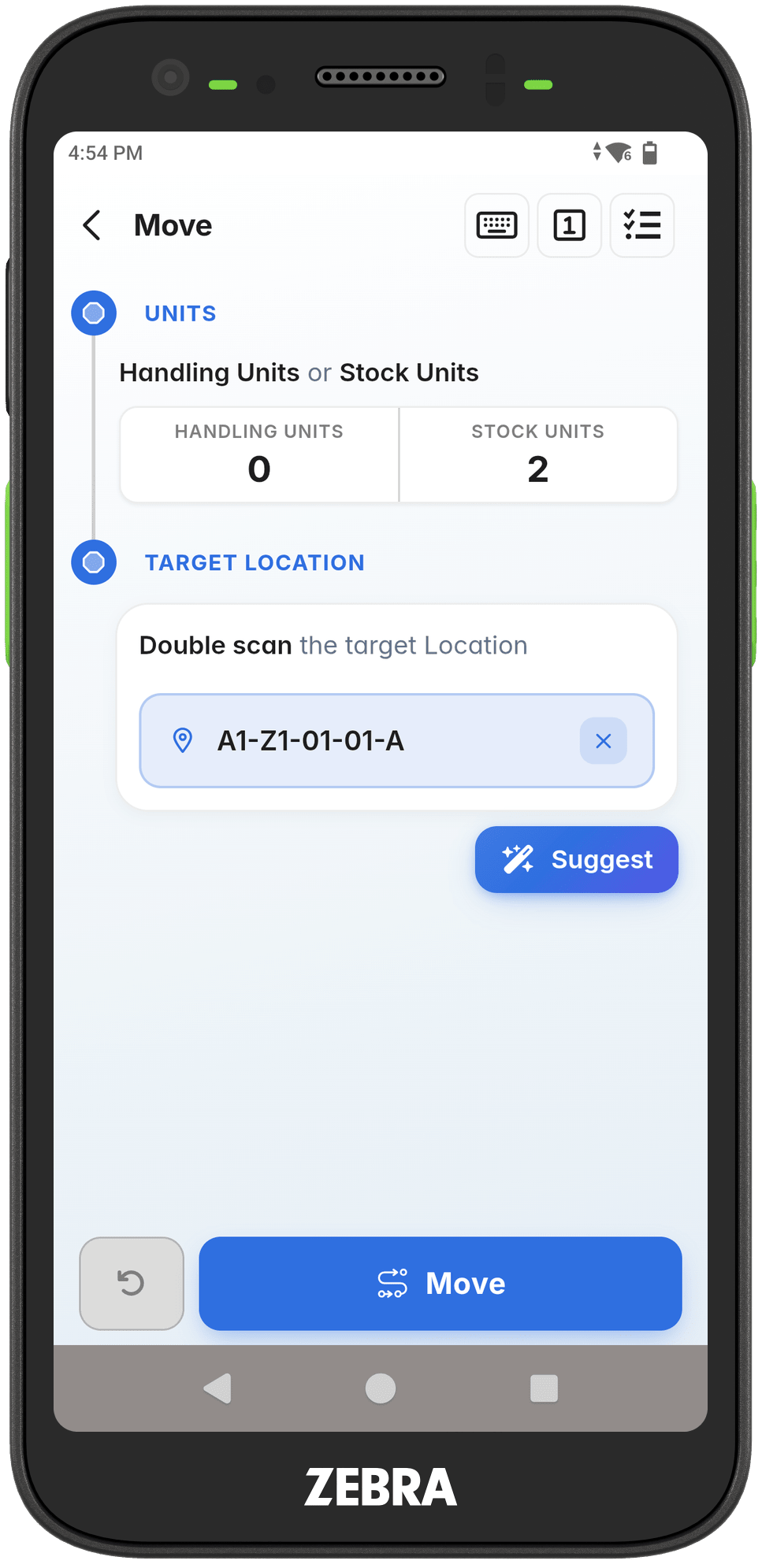
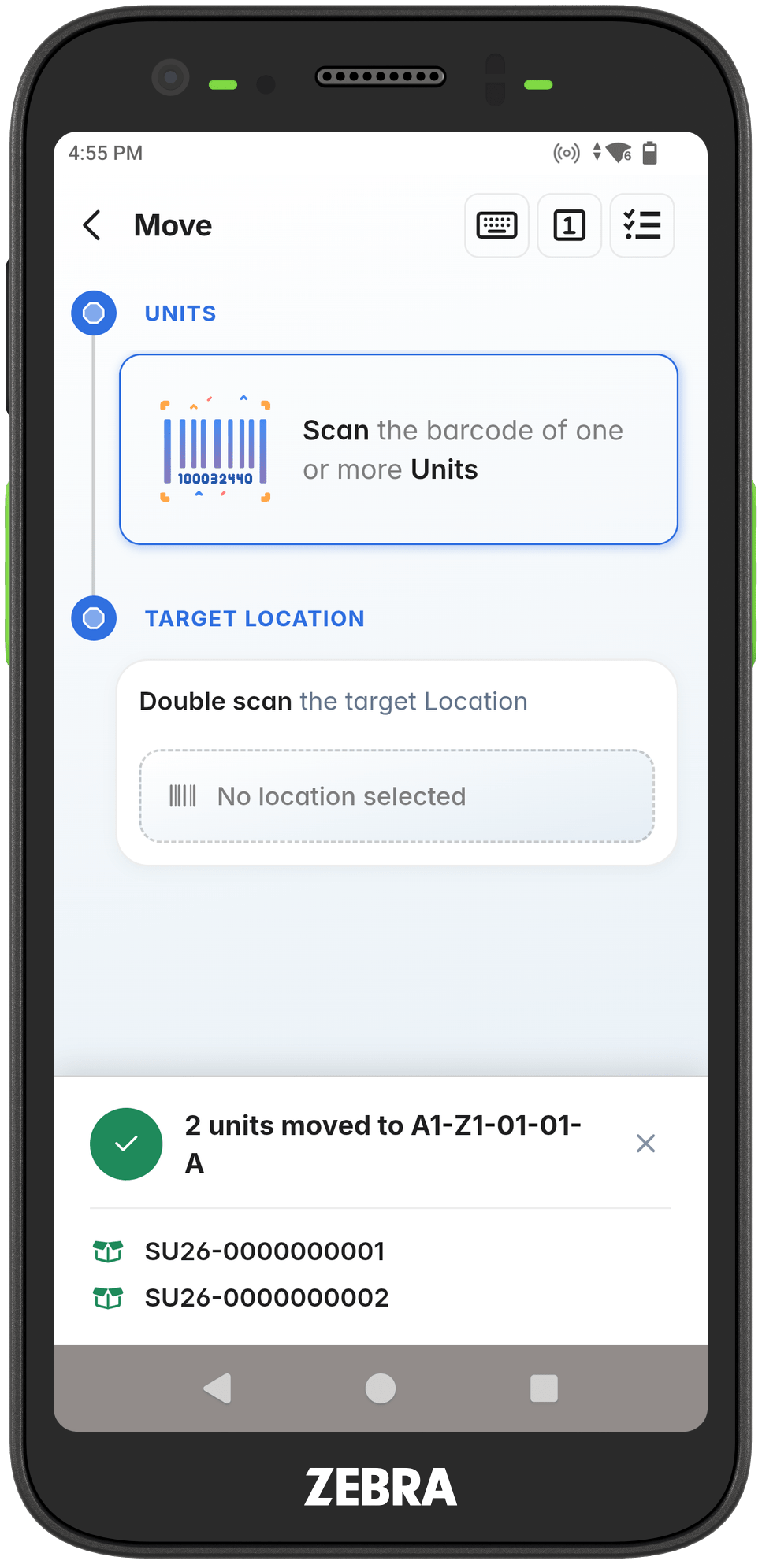
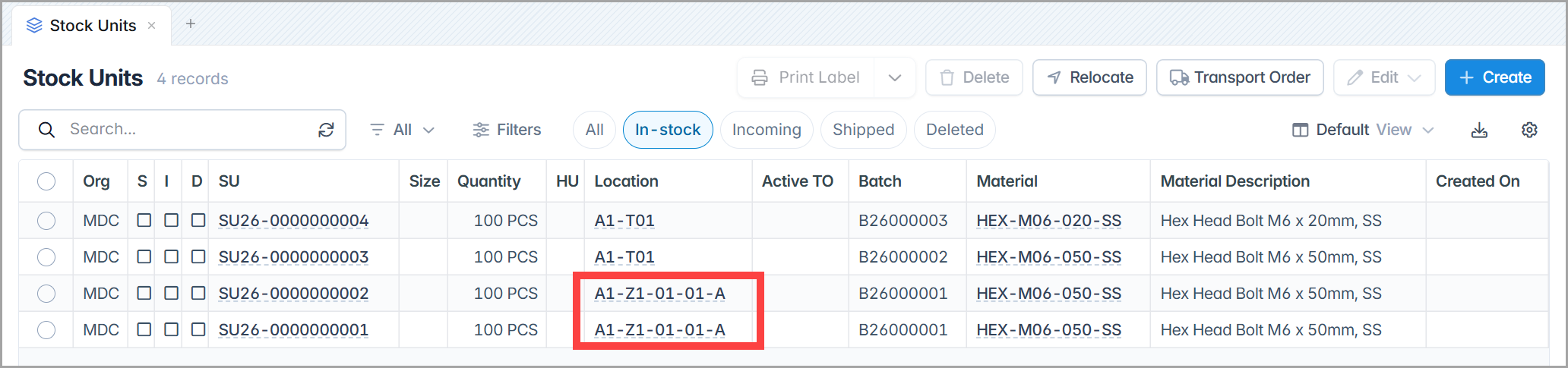
As you can see in Figure 5, nothing special happened, both SU#1 and SU#2 simply changed location from A1-T01 -> 01-01-A, however they remained intact.
Similar batch
Drawer column 01-02 represents the scenario in which we don’t want to allow mixing stock of different batches in the same bin, in other words we can store both SU#1 and SU#2 in the same bin because they have the same material and batch number B26000001, however we cannot store SU#3 in the same bin because although it is of the same material HEX-M06-050-SS its batch B26000002 is different.
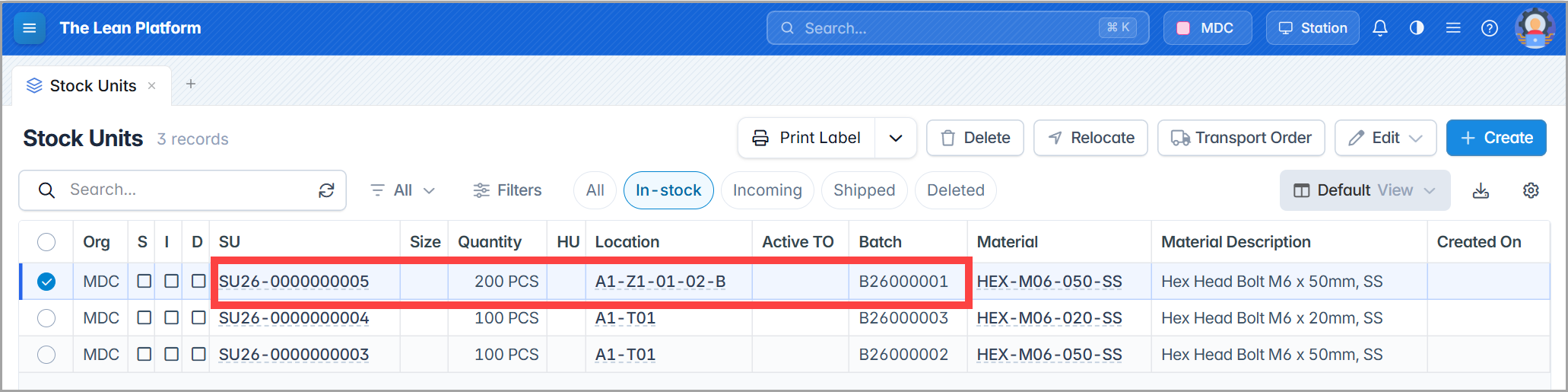
Figure 6 illustrates the end-result of moving SU#1 and SU#2 to 01-02-B, here is what happened:
- The Move transaction was accepted because both stock units have the same material and batch.
- A new stock unit SU26-0000000005 was automatically created in 01-02-B, the new stock unit inherited the same material HEX-M06-050-SS and batch number B26000001 of the moved stock-units.
- The quantities of SU#1 and SU#2 was transferred to SU26-0000000005 which has the quantity of 200 PCS.
- Stock-units SU#1 and SU#2 where logically deleted since their quantity became 0 PCS, and they are not visible anymore.
Note
Selecting the Deleted filter in the search bar will show both SU#1 and SU#2, their quantity will be displayed as 0 PCS.
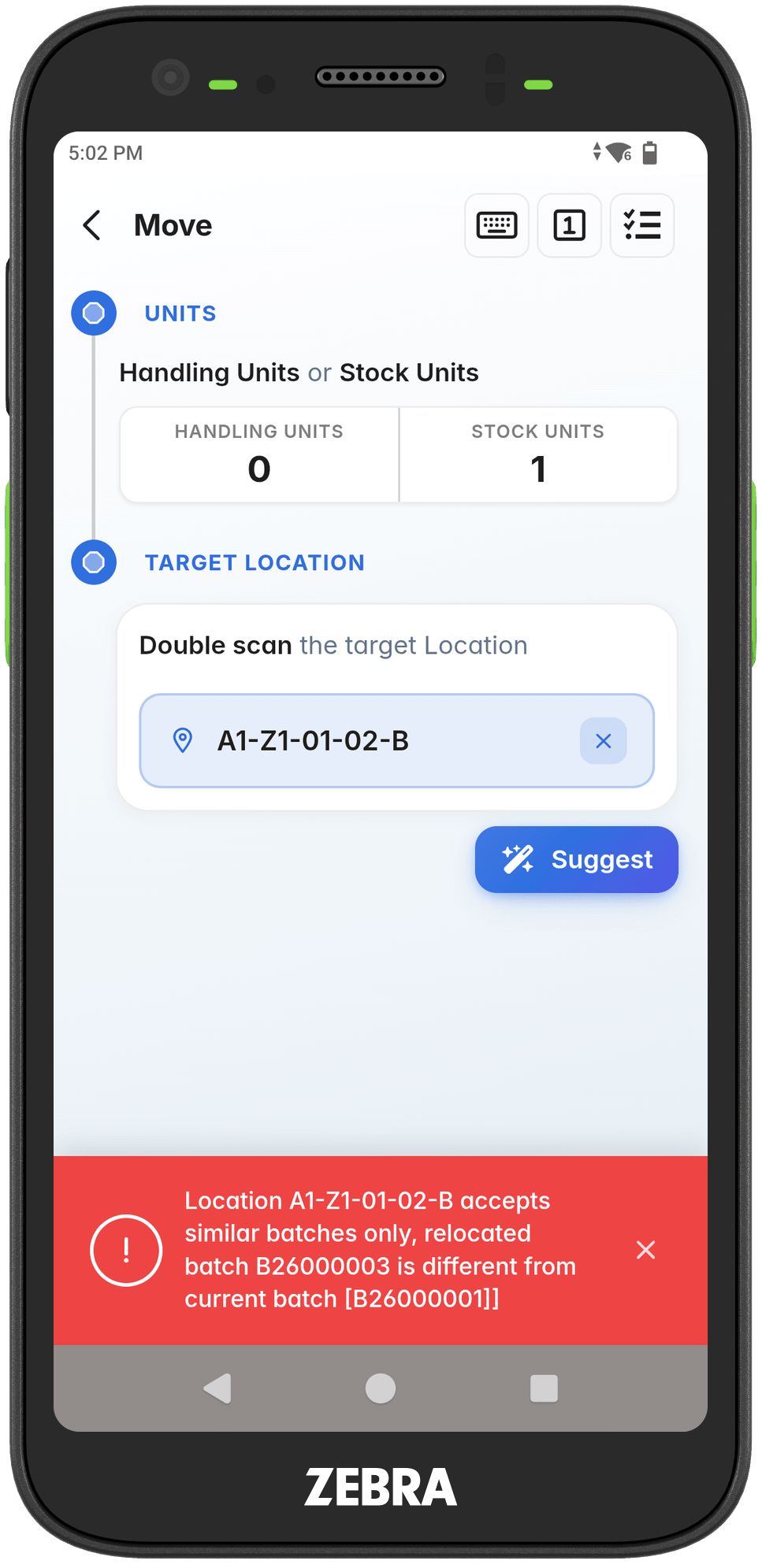
But what happens if we try to move SU#3 to the same bin 01-02-B?
Since the stock unit has a different batch the system generates an error preventing the user from executing such action, the error says: Location A1-Z1-01-02-B accepts similar batches only, relocated batch B26000002 is different from current batch B26000001.
Similar material
Drawer column 01-03 represents the scenario in which we want to allow mixing stock of the same material even though they have different batches, so differently from the previous case we should be able to store SU#3 and SU#5 in the same bin even though they have different batches, however we cannot store SU#4 in the same bin because it has a different material HEX-M06-020-SS.
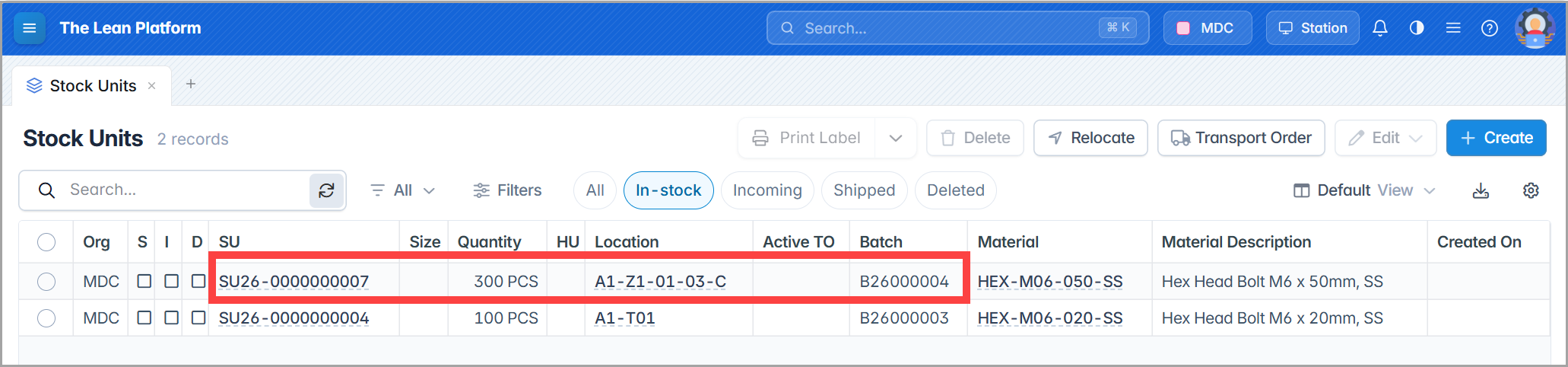
Figure 7 illustrates the end-result of moving SU#3 and SU#5 to 01-03-C, here is what happened:
- The Move transaction was accepted because both stock units have the same material.
- A new stock unit SU26-0000000007 was automatically created in 01-03-C, the new stock unit inherited the same material HEX-M06-050-SS.
- Since the moved stock units had different batches, a new batch B26000004 was created.
- The quantities of SU#3 and SU#5 was transferred to SU26-0000000007 which has the quantity of 300 PCS.
- Stock-units SU#3 and SU#5 where logically deleted since their quantity became 0 PCS, and they are not visible anymore.
Note
Inspecting the genealogy of batch B26000004 you will see that it is made of 200 PCS of batch B26000001 and 100 PCS of batch B26000002.
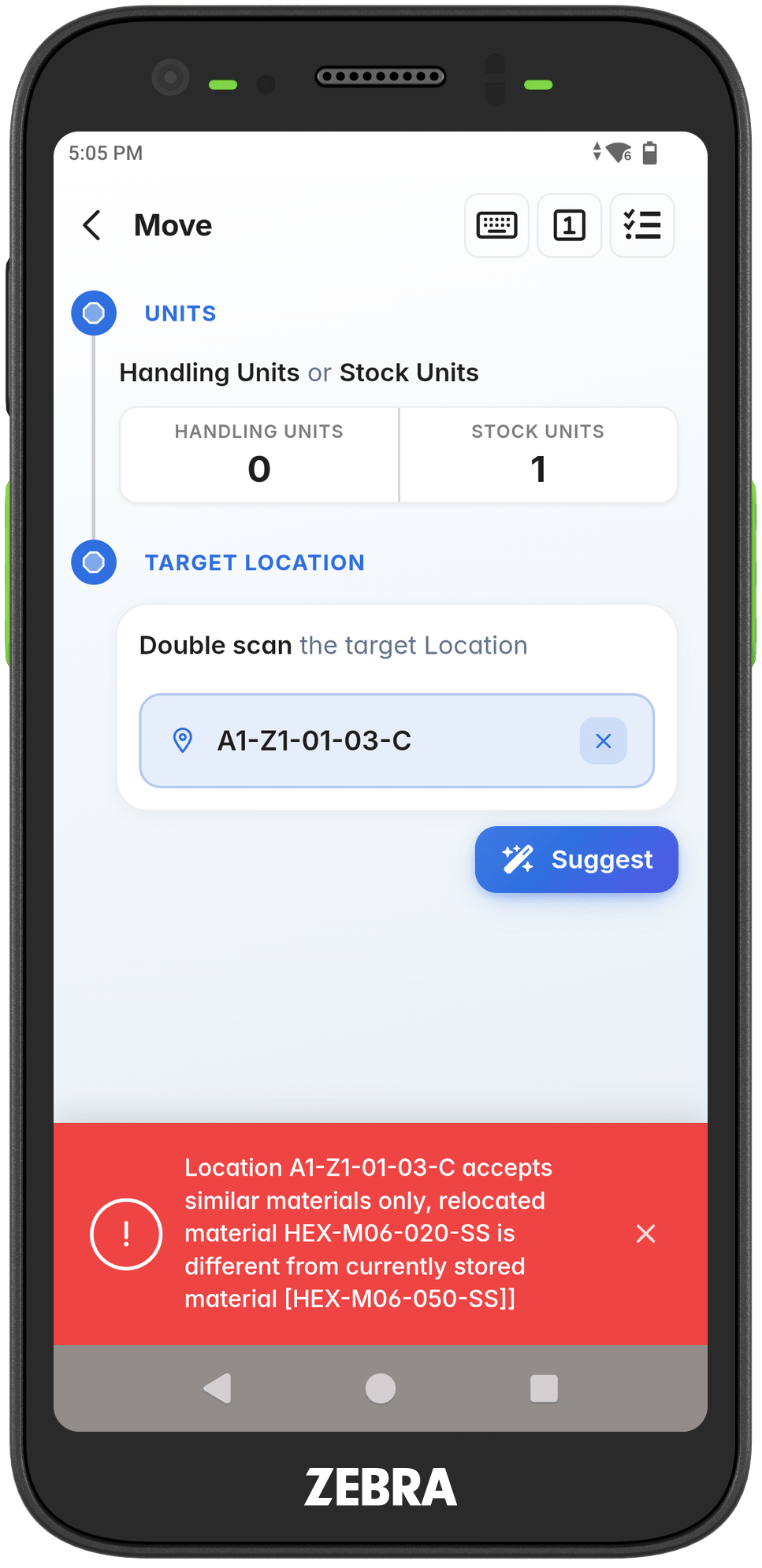
Now if we try to move stock unit SU#4 to bin 01-03-C we get the following error because the system does not allow mixing different materials in the same bin: Location A1-Z1-01-03-C accepts similar materials only, relocated material HEX-M06-020-SS is different from currently stored material HEX-M06-050-SS.
Summary
In this tutorial we modeled a warehouse drawer in our WMS solution and used business rules to control how its bins behave. The key takeaways are:
- Drawers are just locations. Each bin is modeled as its own location with a barcode label, and Add Bulk Locations creates an entire drawer in a few clicks.
- Business rules enforce policies at the location level. Some rules run checks, such as rejecting a batch or material that doesn’t belong in a bin, while others run actions, such as merging incoming stock units into a single one.
- Location classes keep configuration manageable. Rather than attaching rules to hundreds of individual bins, you define a class such as SB-DRAWER-BIN once, assign its rules, and apply it to every bin that shares the same policy.
With these building blocks, modeling a drawer in TLP WMS is quick, and the system keeps it consistent: stock stays where it belongs, and operators get clear feedback on their mobile devices when a move would break the rules.
— Omar