

Printing Labels Over the Internet
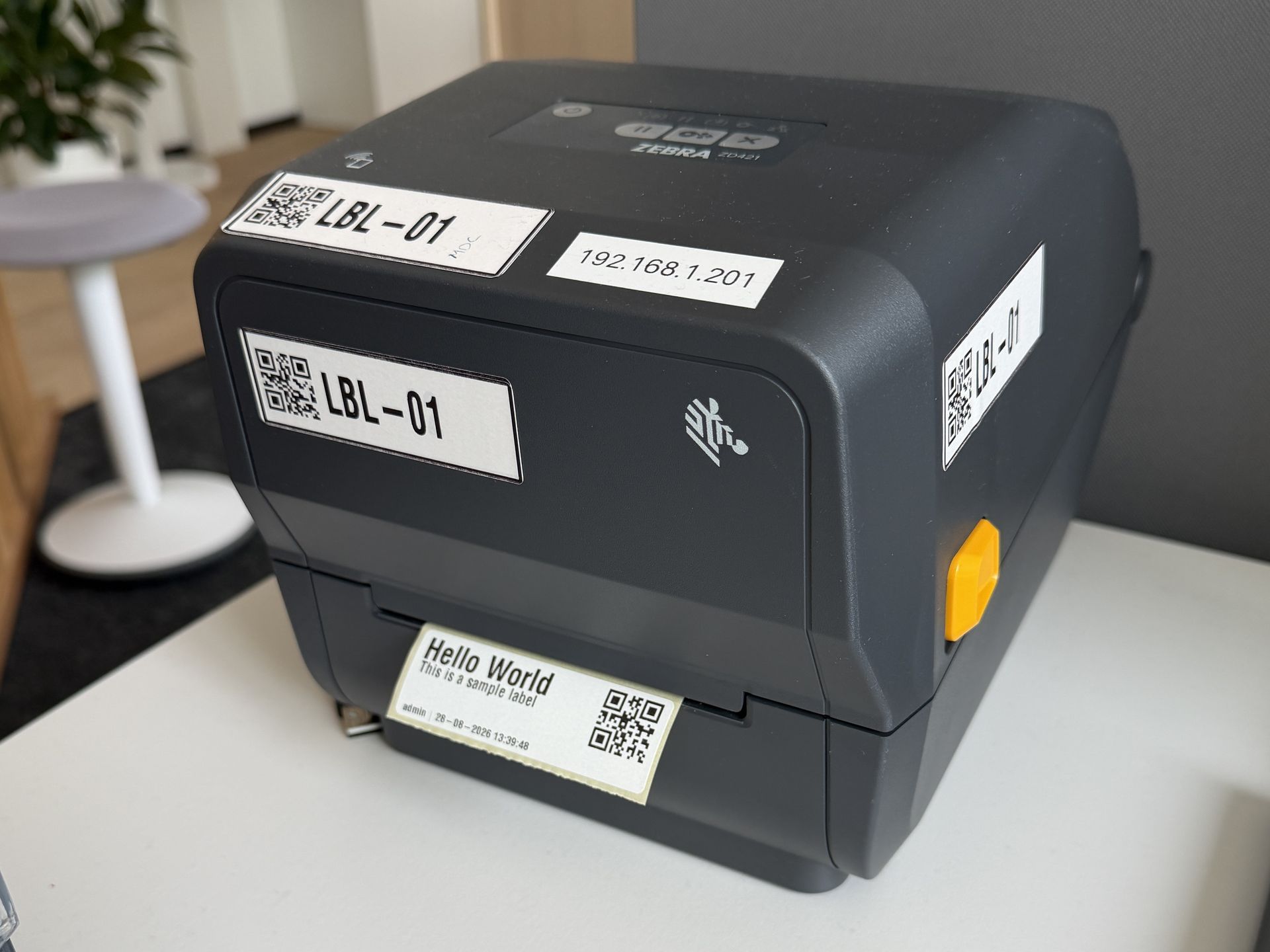
The TLP platform can be installed on premise or on the cloud, when installed on premise the server can typically communicate directly with printers however when installed on the cloud the server might not be able to communicate directly with printers, so how can we print labels on local printers when installing TLP on cloud?
In todays post we are going to see how to enable label printing on a Zebra ZD421 printer for the following deployment scenario:
- A local Zebra ZD421 label printer configured with IP address 192.168.1.201.
- The TLP Server is installed on the cloud.
- The TLP Server cannot communicate directly with the label printer.
Deployment architecture
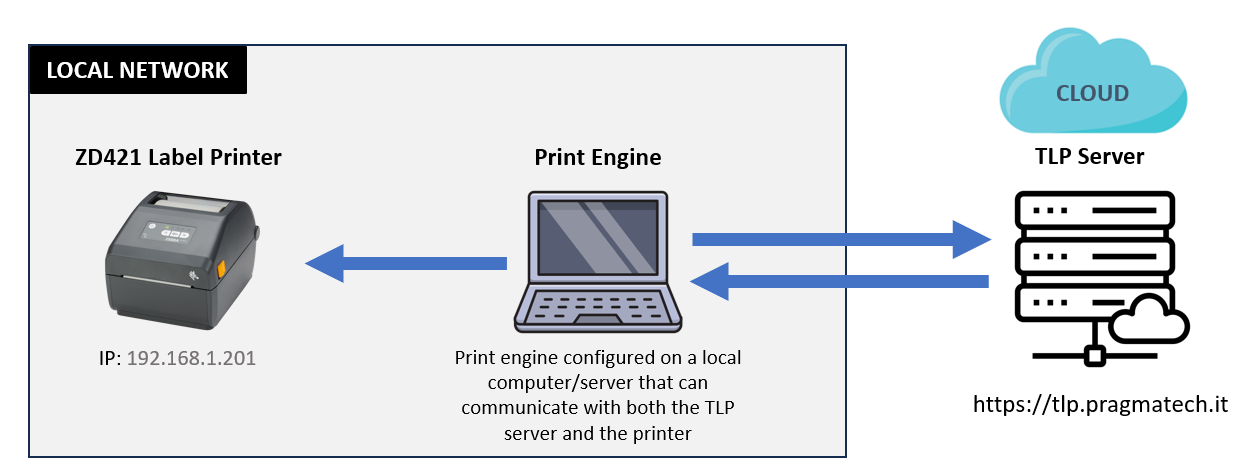
Since the TLP Server cannot communicate directly with our printer we need to install and configure an external print-engine on an on-prem computer, in our example I will install the print-engine on my laptop.
As you can see in Figure 1, my laptop can communicate with both the TLP Server (installed on the cloud) and the ZD421 Printer, the print-engine will pull print jobs scheduled on the printer and print them on the label printer.
Printer configuration
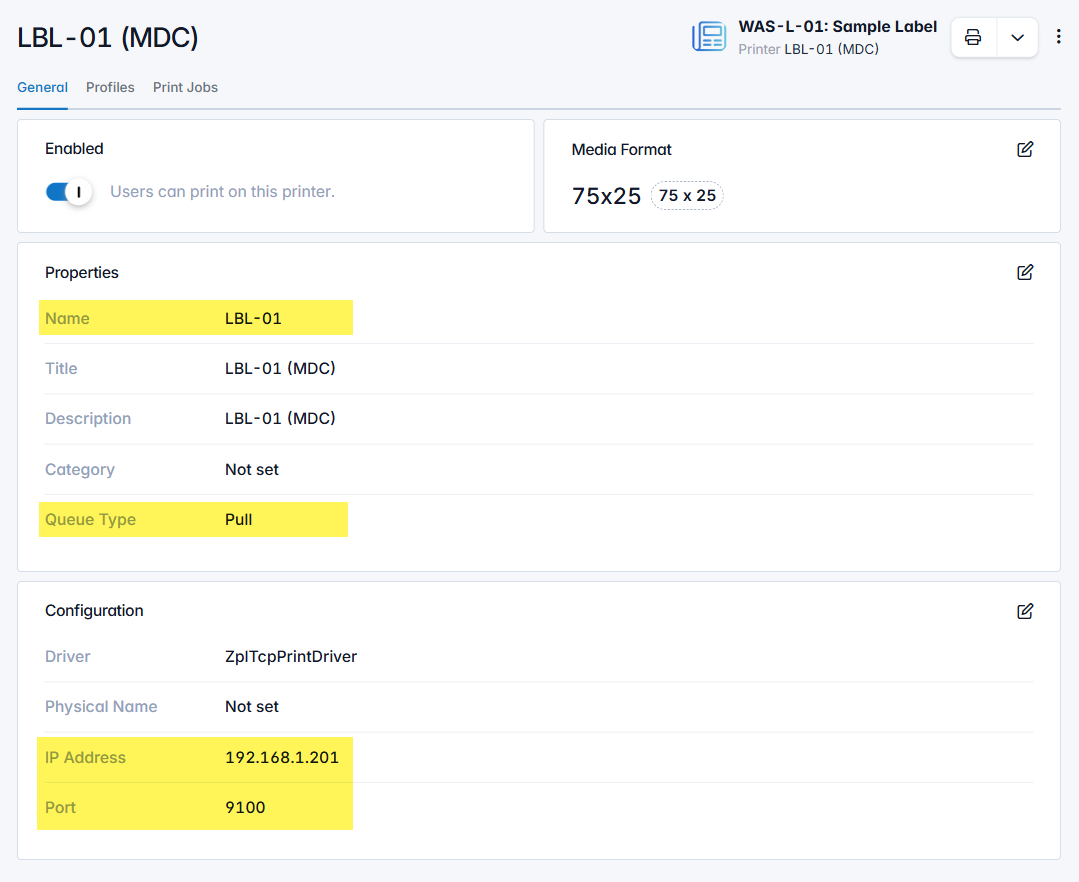
To create the printer in the system I logged to the MDC organization and from the Printers application I created a new printer named LBL-01 and configured it as follows:
- Specified the name LBL-01.
- Specified the queue type to be Pull which means that print jobs will be pulled by the print-engine instead of being pushed by the server.
- Specified the IP address of my printer as 192.168.1.201 and port 9100.
Note
The created printer LBL-01 belongs to the MDC organization thus its global name is org[MDC].LBL-01.
The Pull queue type is required because in our scenario the server cannot push print jobs directly to the printer, it is the print-engine running on my laptop that will periodically pull print jobs from the server.
Print first label
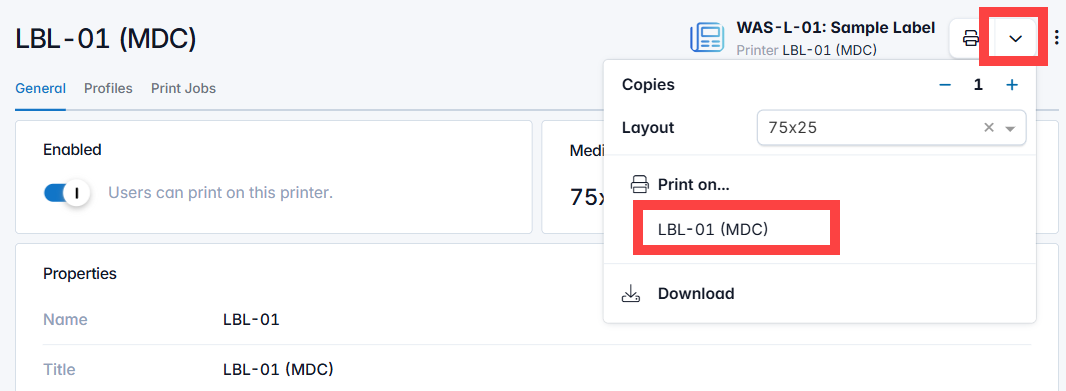
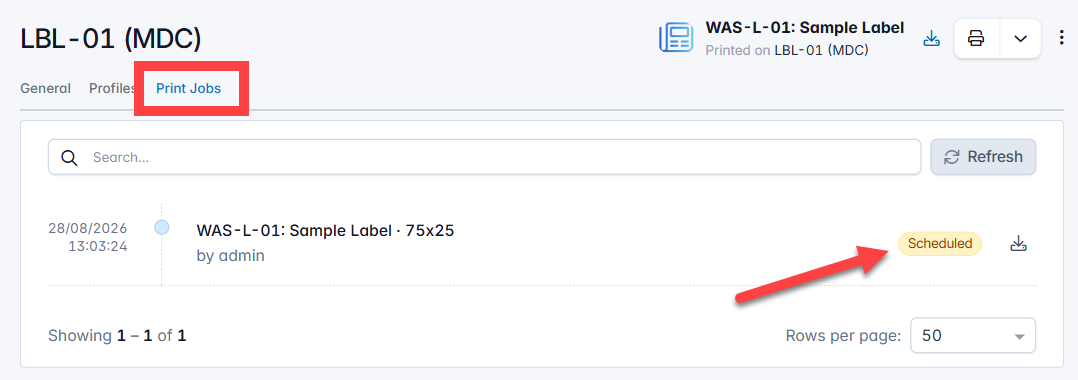
Lets print our first label following the instructions shown in Figure 3, and then navigate to the Print Jobs tab to see the generated print job.
The print job was created and is currently marked as Scheduled. This is expected because the print-engine is not yet configured. Once the engine is configured and started, the label will be printed.
Configure the print-engine
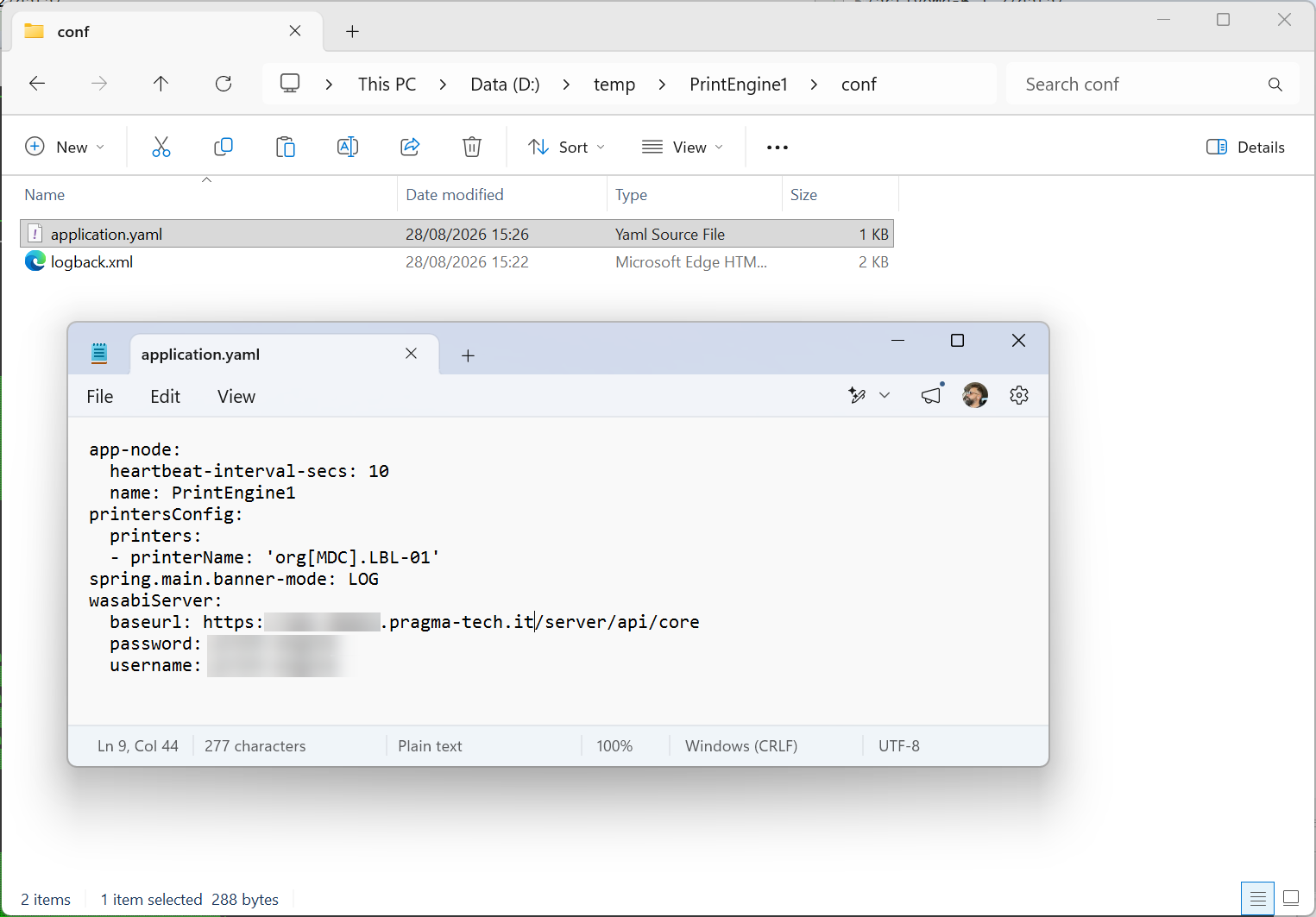
On my local computer I downloaded the print-engine and installed it under D:/temp/PrintEngine1 and using a text editor I modified the configuration file as shown in Figure 5 specifying:
- The global name of our printer org[MDC].LBL-01.
- The baseUrl, username, and password of the TLP server.
Starting the print-engine
The print-engine can either be installed as a service or run manually, since we are conducting a test we will simply run it manually by double clicking the /bin/start.cmd command.
As soon as the engine starts it will poll the TLP server for print jobs scheduled on the configured printer org[MDC].LBL-01 and print them. Figure 6 shows the engine logs in which we can observe that the print job was processed successfully.

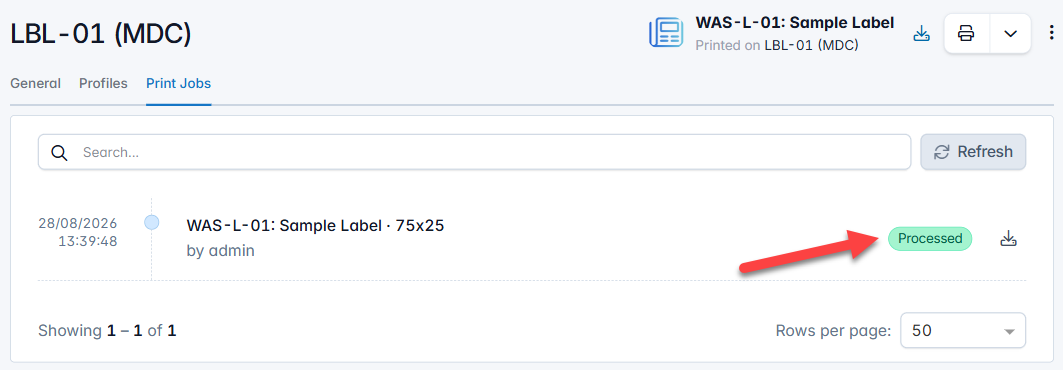
We can also observe that the print job status changed from Scheduled to Processed as shown in the image below.
Summary
The TLP Platform is designed taking in consideration different deployment scenarios, wether its installed on premise or on the cloud or as a saas it should be possible to easily configure printers and print labels and reports on them.
In this post we illustrated how easy it is to configure and print labels on a local printer in a hypothetical deployment scenario in which the TLP Server is running on the cloud and cannot communicate directly with a local printer, hence an external print-engine was used to allow printing.
Also, we observed that even if the print-engine is not running, print jobs are not lost, they are scheduled by the system and printed as soon as the engine is started, system administrators can see exactly what, who, and when print jobs where printed on a printer.
— Omar