

Barcode Integration Overview
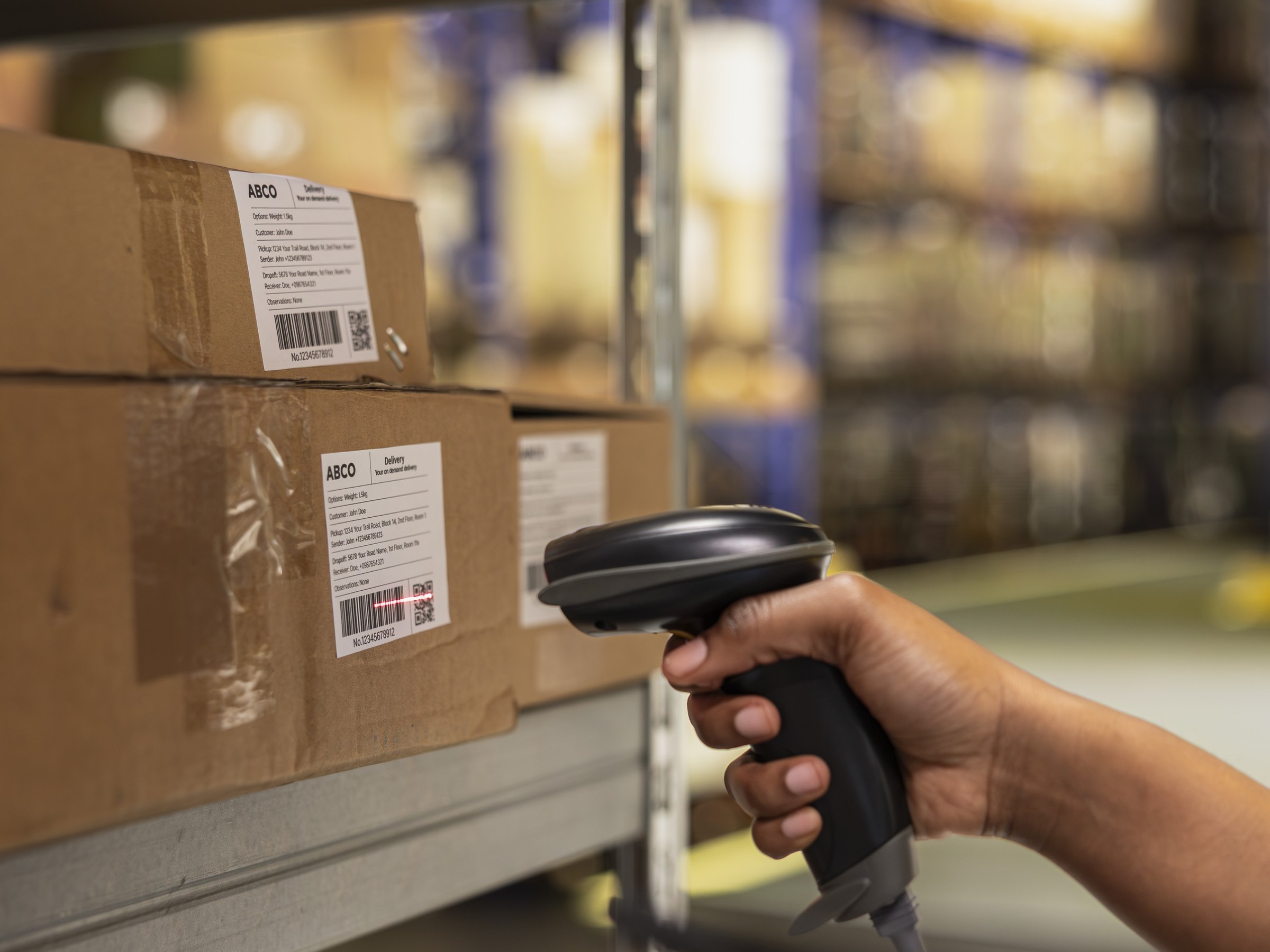
Barcodes are essential to shop floor operations, so we designed The Lean Platform (TLP) to work effortlessly with barcode scanners on any device, whether you’re on desktop, tablet, or mobile. In today’s post we will explore how the TLP platform handles barcodes.
To illustrate this integration concept, we will use a simple warehouse process: relocating stock to a new storage location.
Mobile
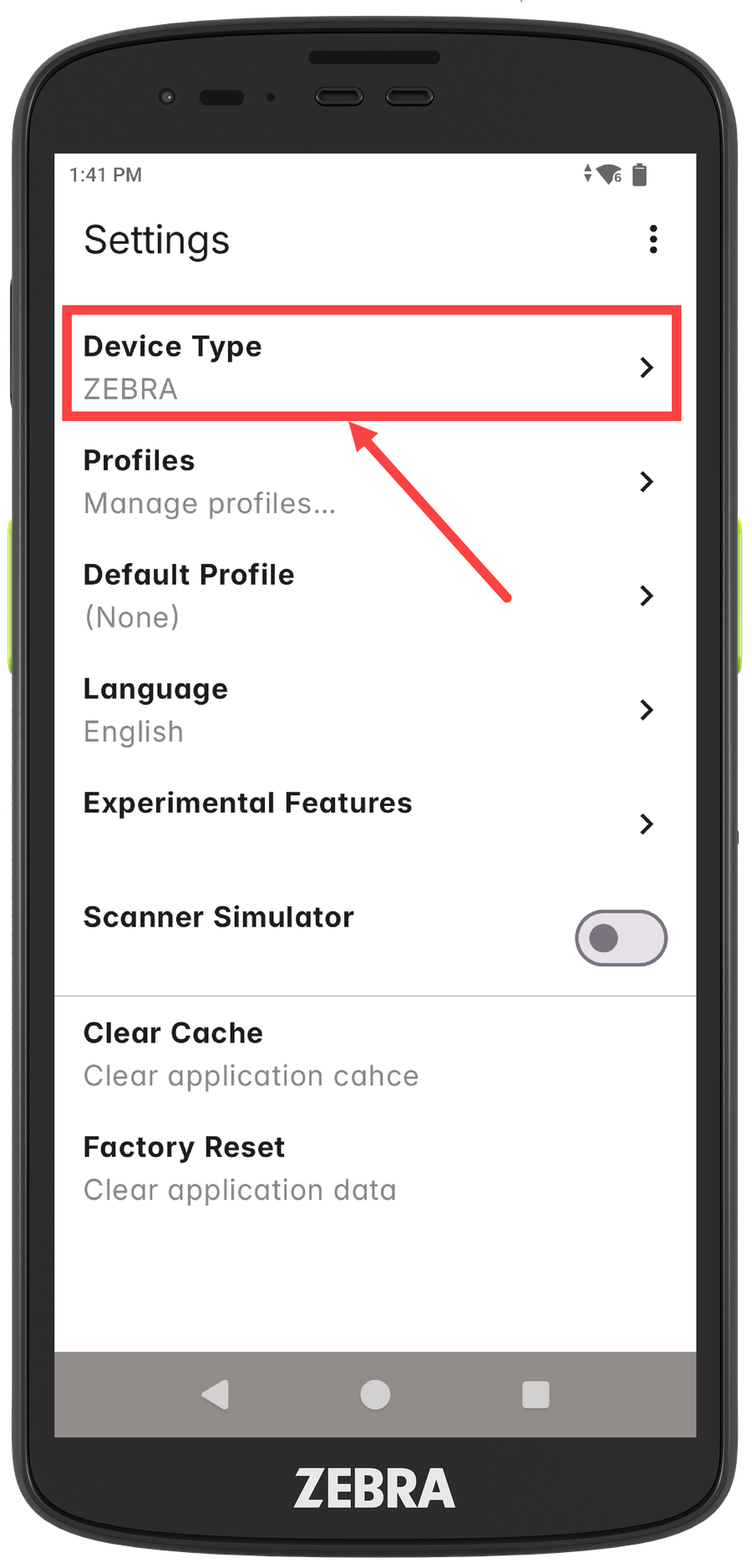
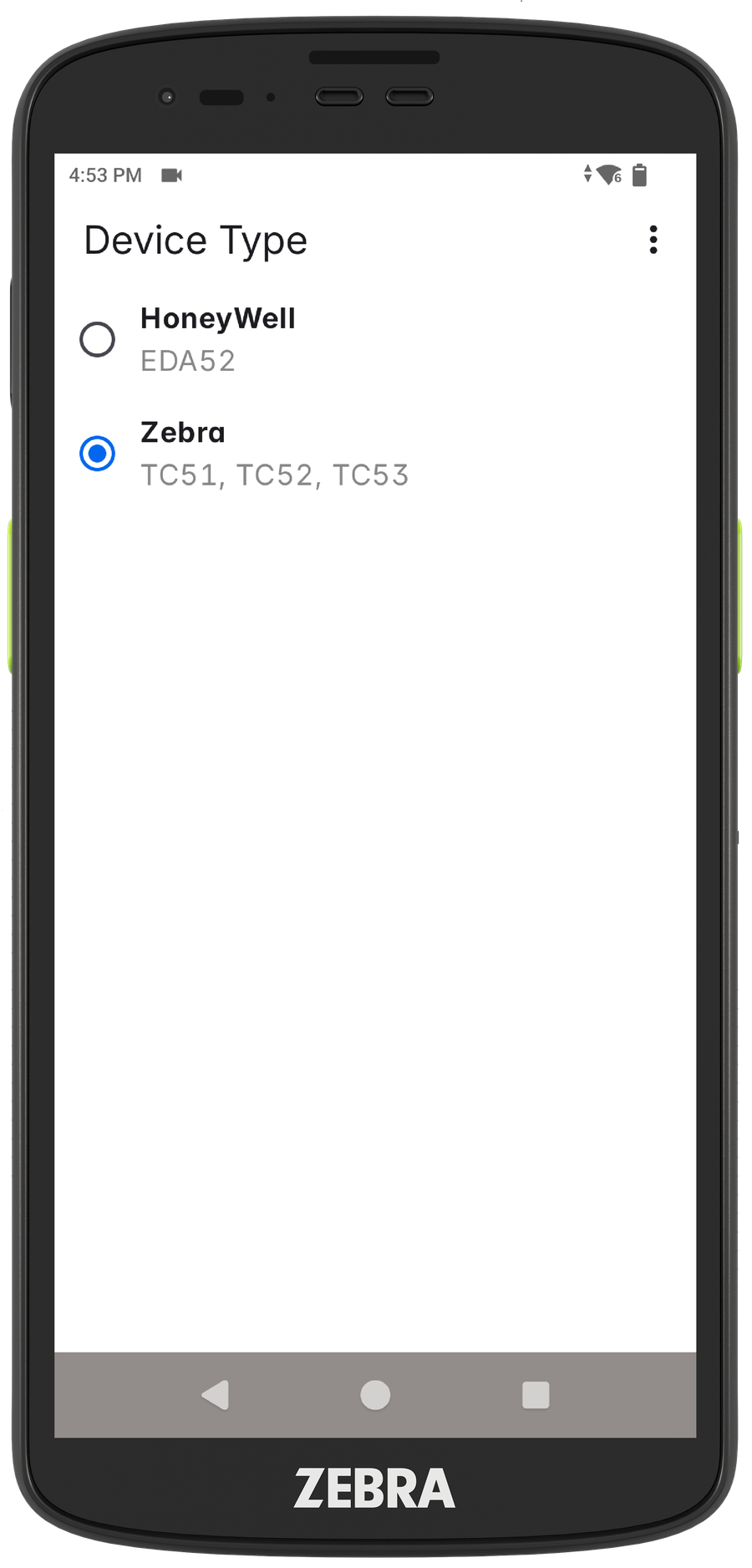
Industrial mobile devices used on the shop floor are generally equipped with 1D/2D barcode scanners. TLP integrates seamlessly with such devices to properly receive and process scanned barcodes. How barcode scans are managed depends on the mobile device — for example, ZEBRA handles them differently from HONEYWELL — so we need to make sure the device type is correctly set in the application settings, which in our demo is a Zebra TC5x device.
Note
TLP mobile currently supports both ZEBRA and HONEYWELL devices, but it is designed to be easily enhanced to support other devices as well. The device type is automatically detected when the TLP application is installed.
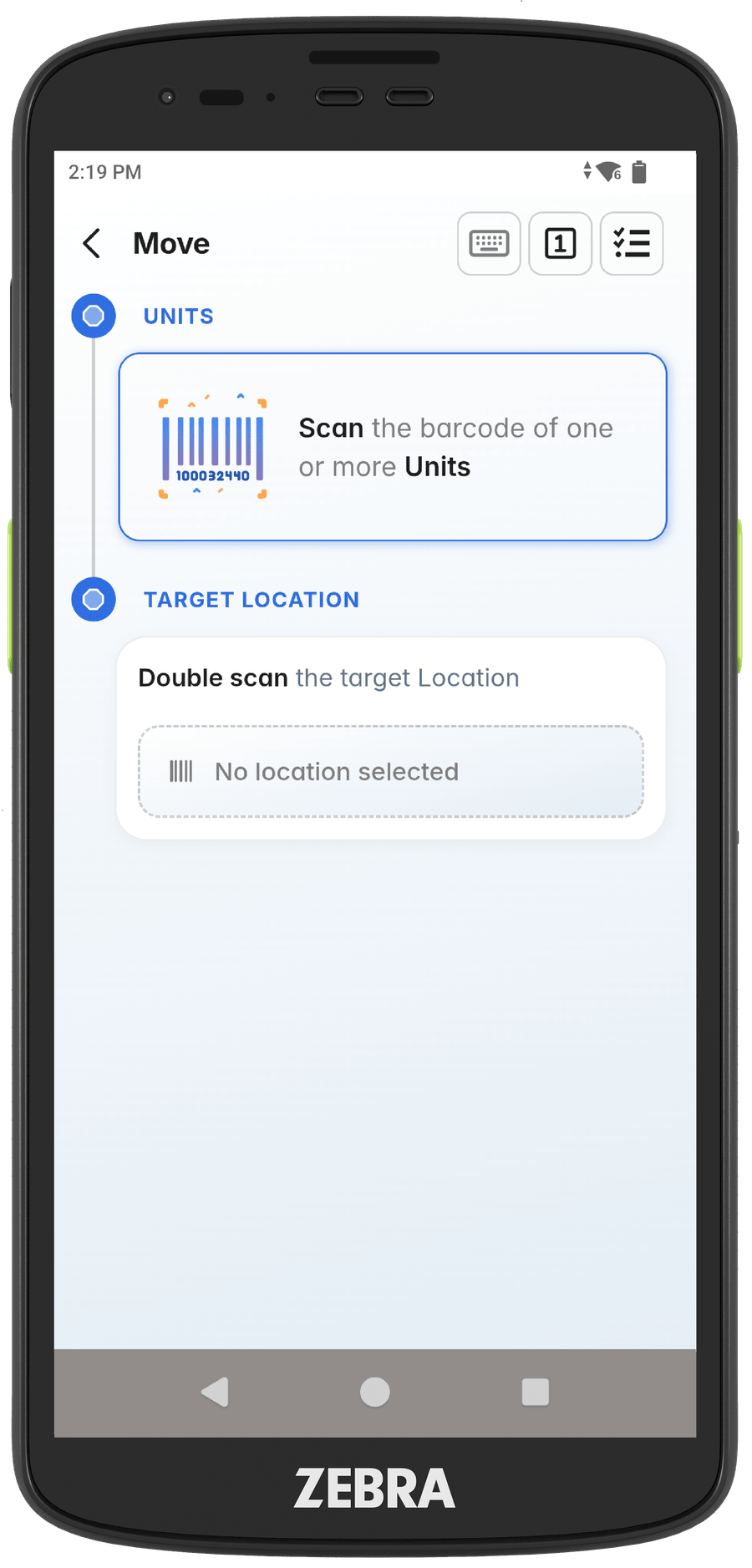
To test the barcode scanner we will use the warehouse Relocate application to relocate two stock units to location DOCK-02, using the application you can observe the following:
- Users can start scanning stock units immediately upon opening the app, there is no need to select the desired field before scanning.
- Scanning each stock unit increases the counter, showing the total number of items that will be relocated.
- The application automatically recognizes different barcode types; for example, scanning a location barcode immediately populates the Target Location field.
- The application includes built-in action triggers; for instance, scanning a storage location barcode twice (referred to as Double Scan) executes a transaction confirmation.
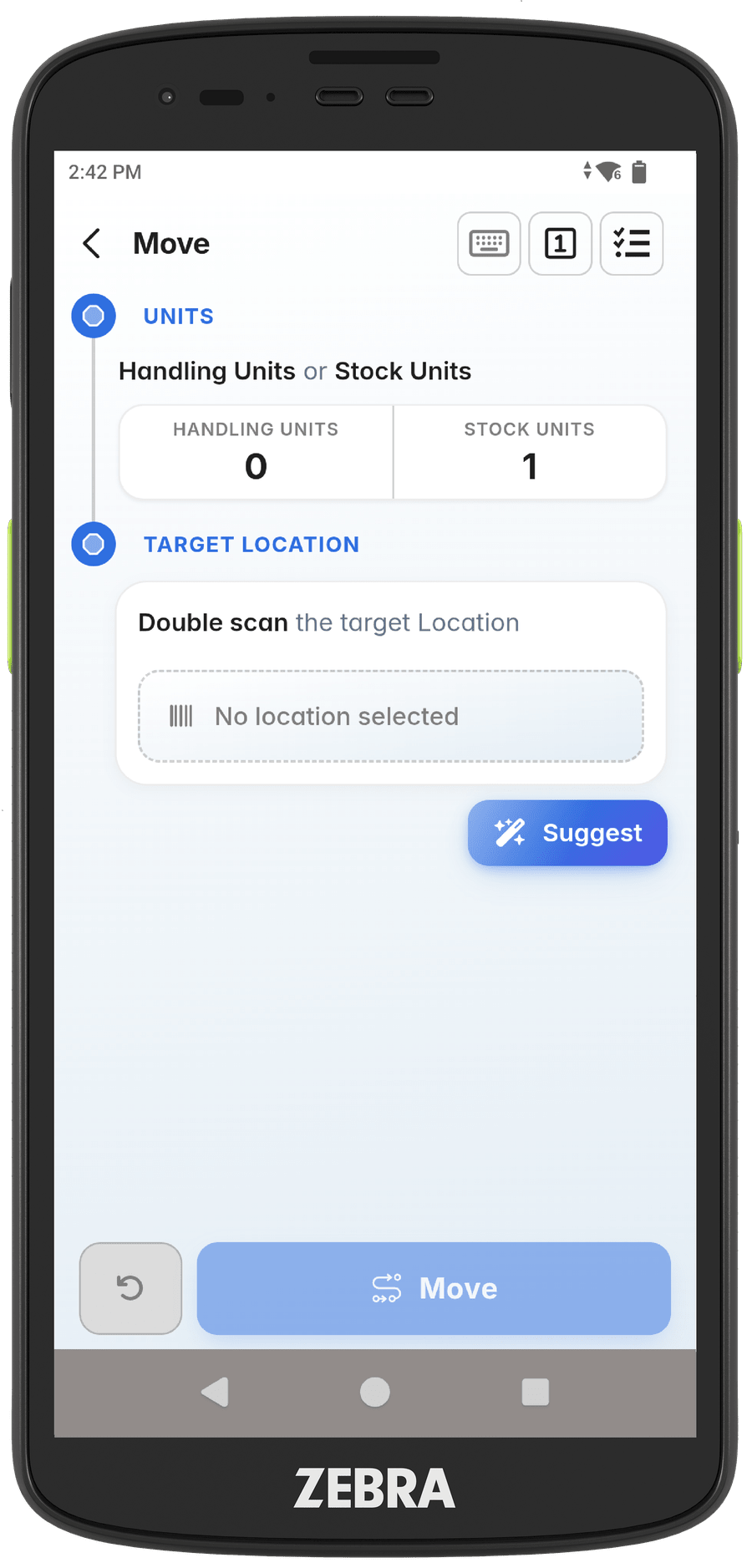
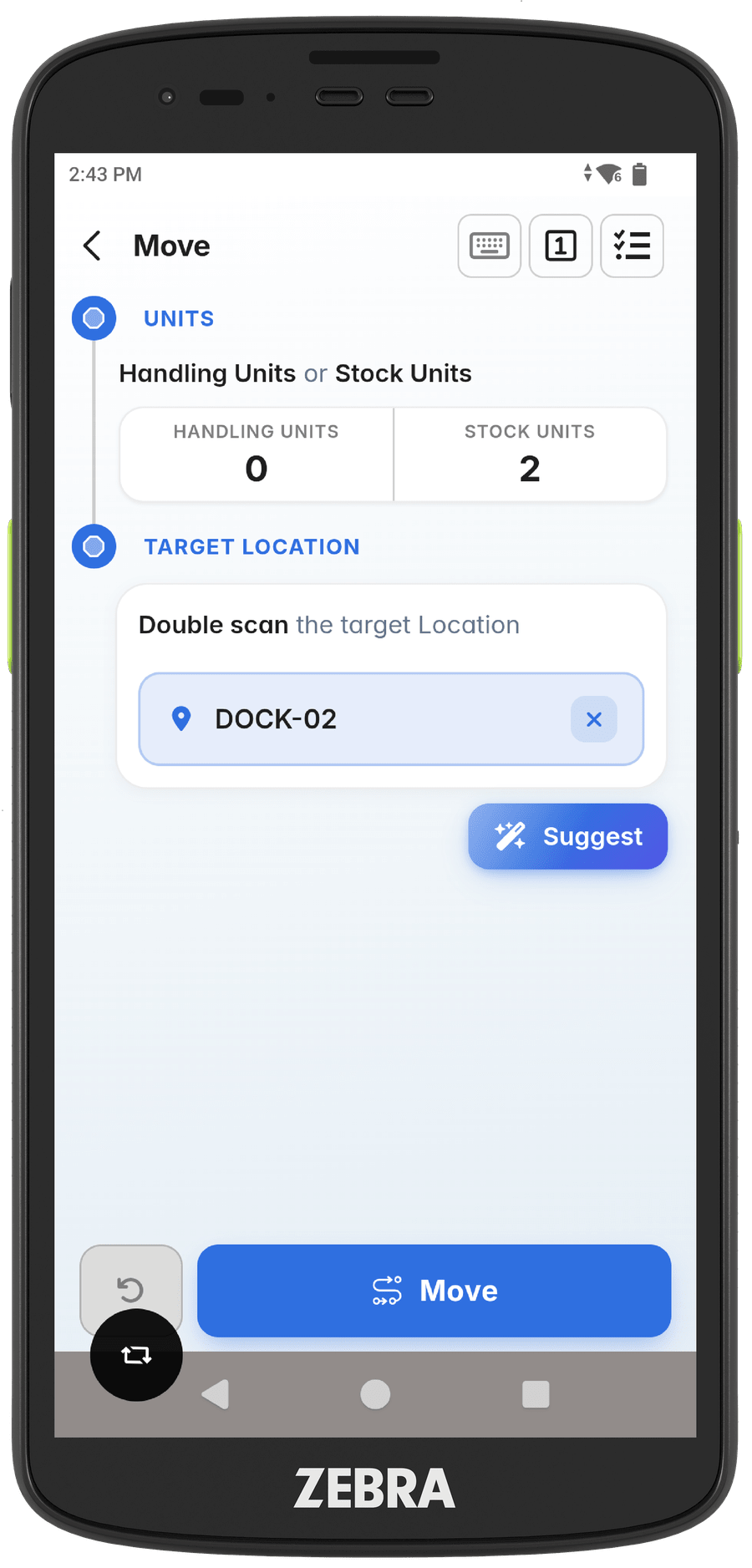
The following is a video that illustrates how barcodes are scanned when relocating stock-units in your warehouse.
Manual Input
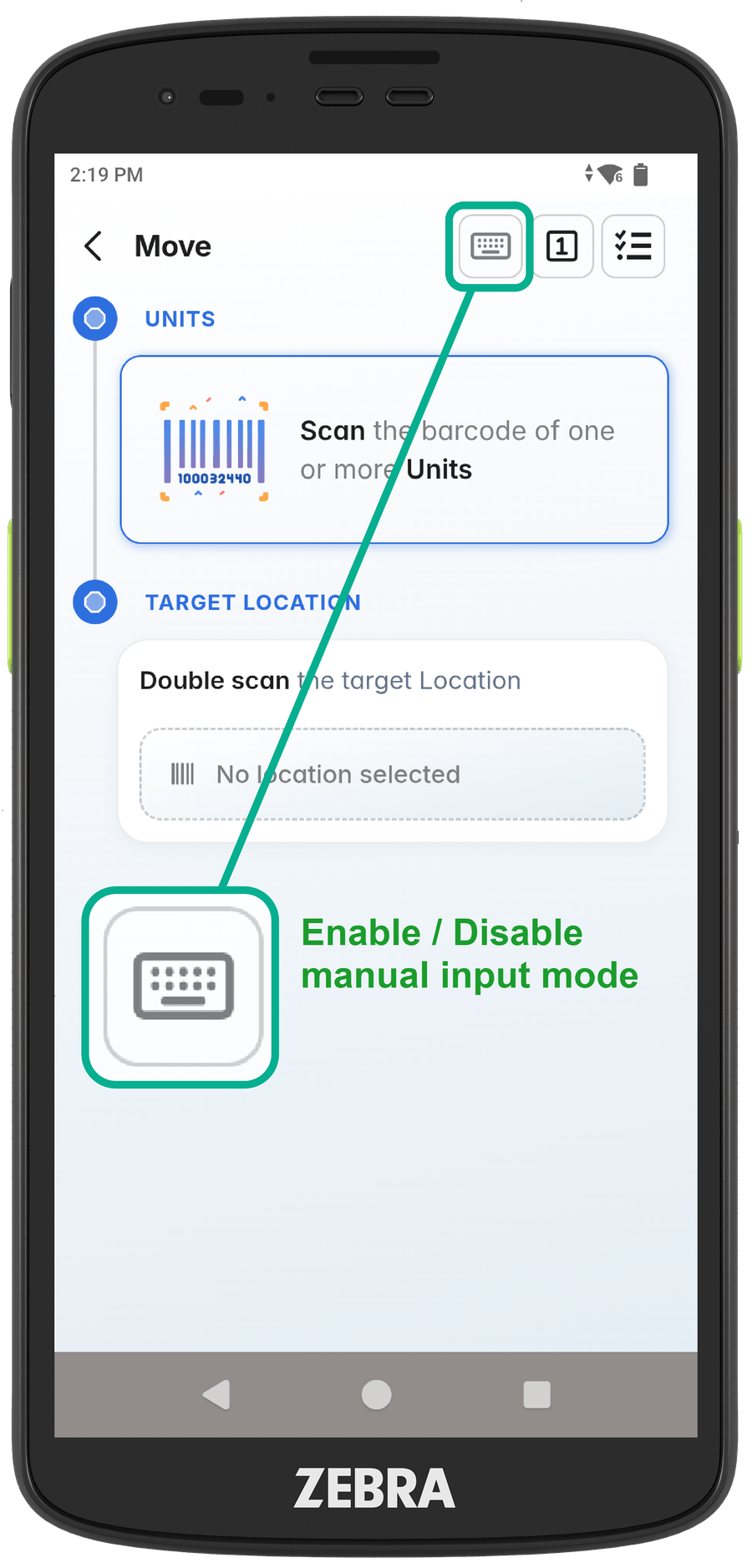
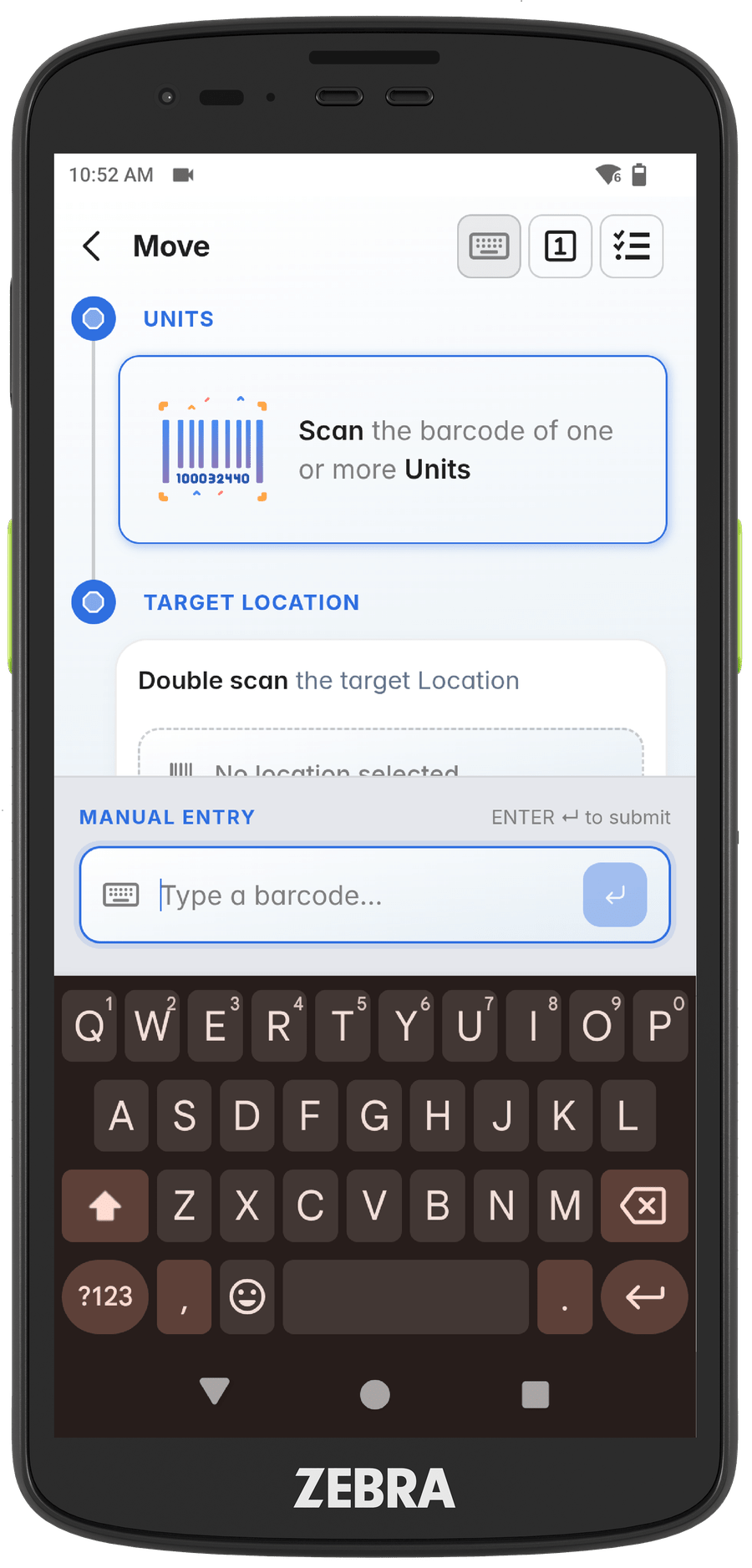
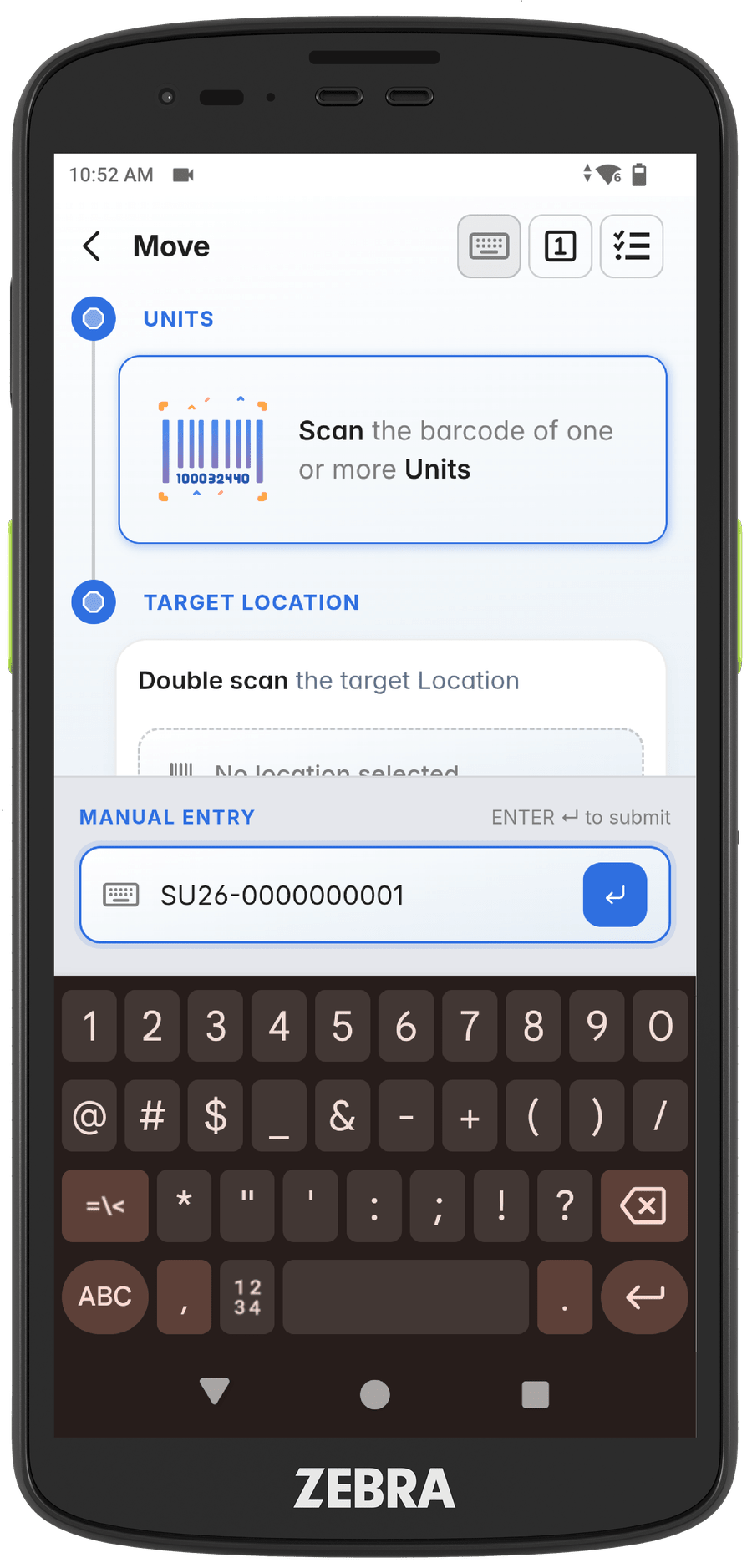
On those rare occasions (for example because the barcode is damaged) you might need to enter the barcode value manually instead of scanning it. In such a case, you have to tap the manual input icon in the header, which opens a bottom sheet that lets you enter the value using the keyboard.
Desktop
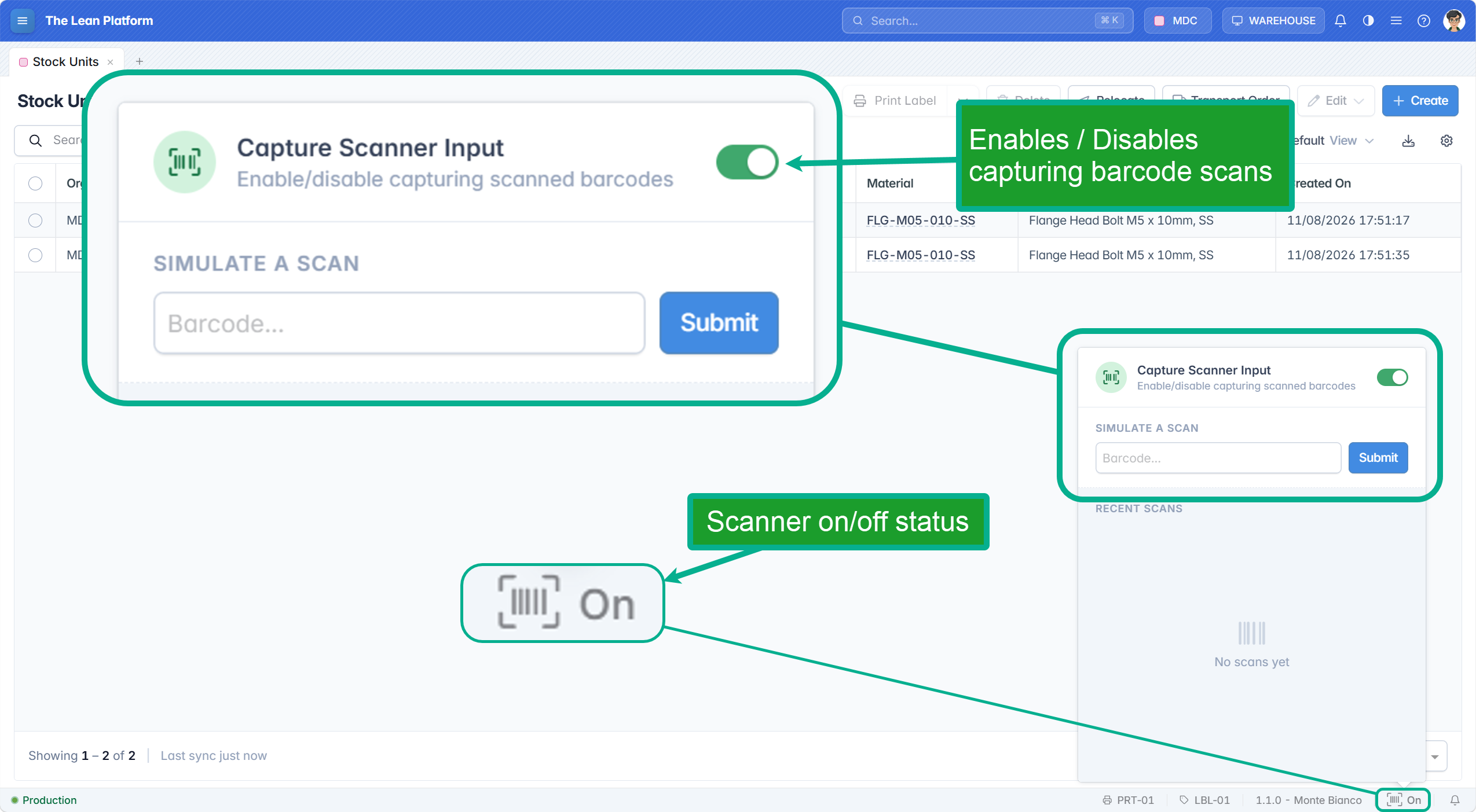
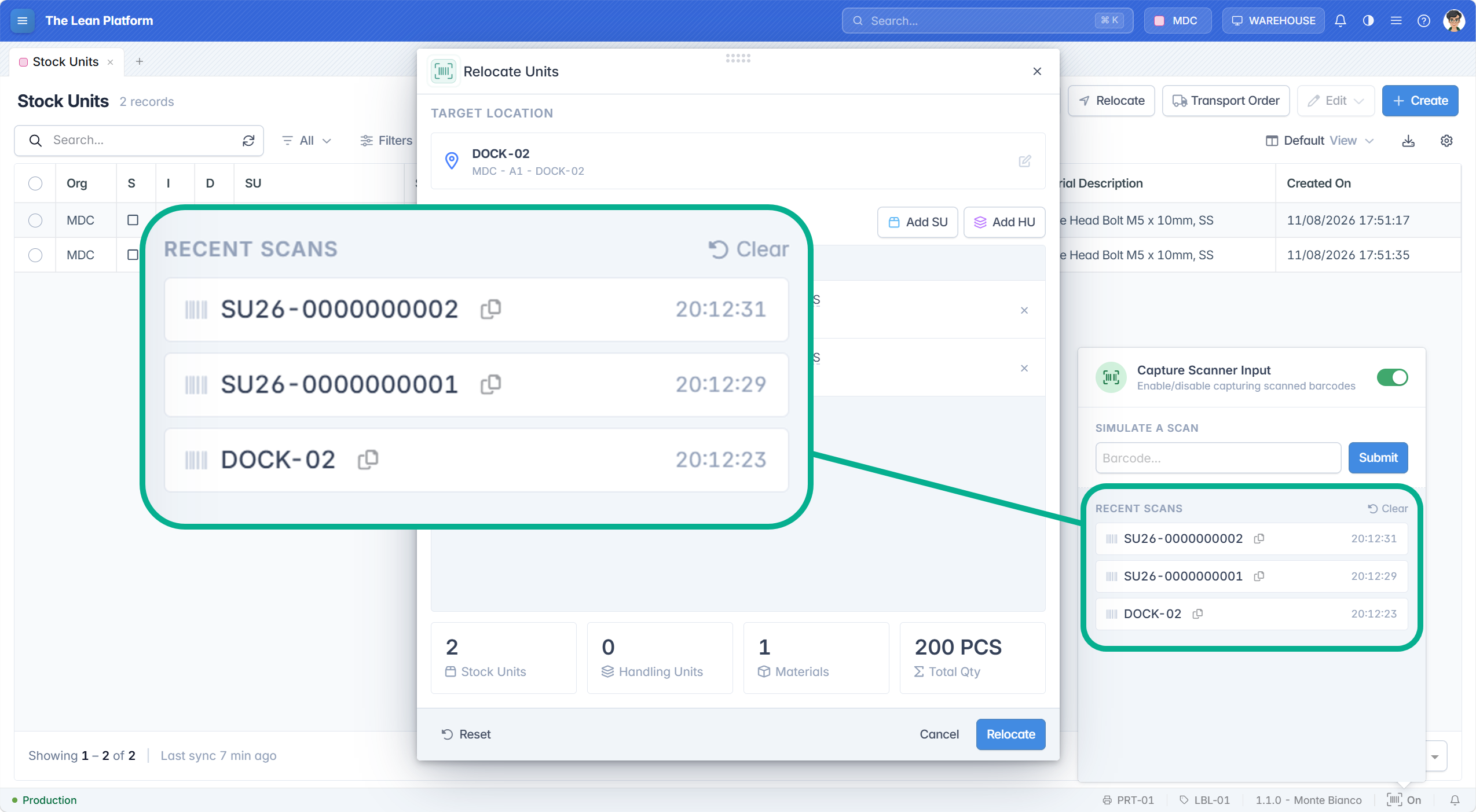
On the desktop side, barcode integration is more interesting because some functionalities are barcode aware while others are not. The first step is to make sure that barcode scanning is enabled, which is visible in the footer as shown in the image below. Clicking on the barcode icon opens the Scanner Settings popup, from which you can:
- Enable / Disable capturing scanned barcodes.
- Manually simulate scans if required.
- See a history of the last scanned barcodes.
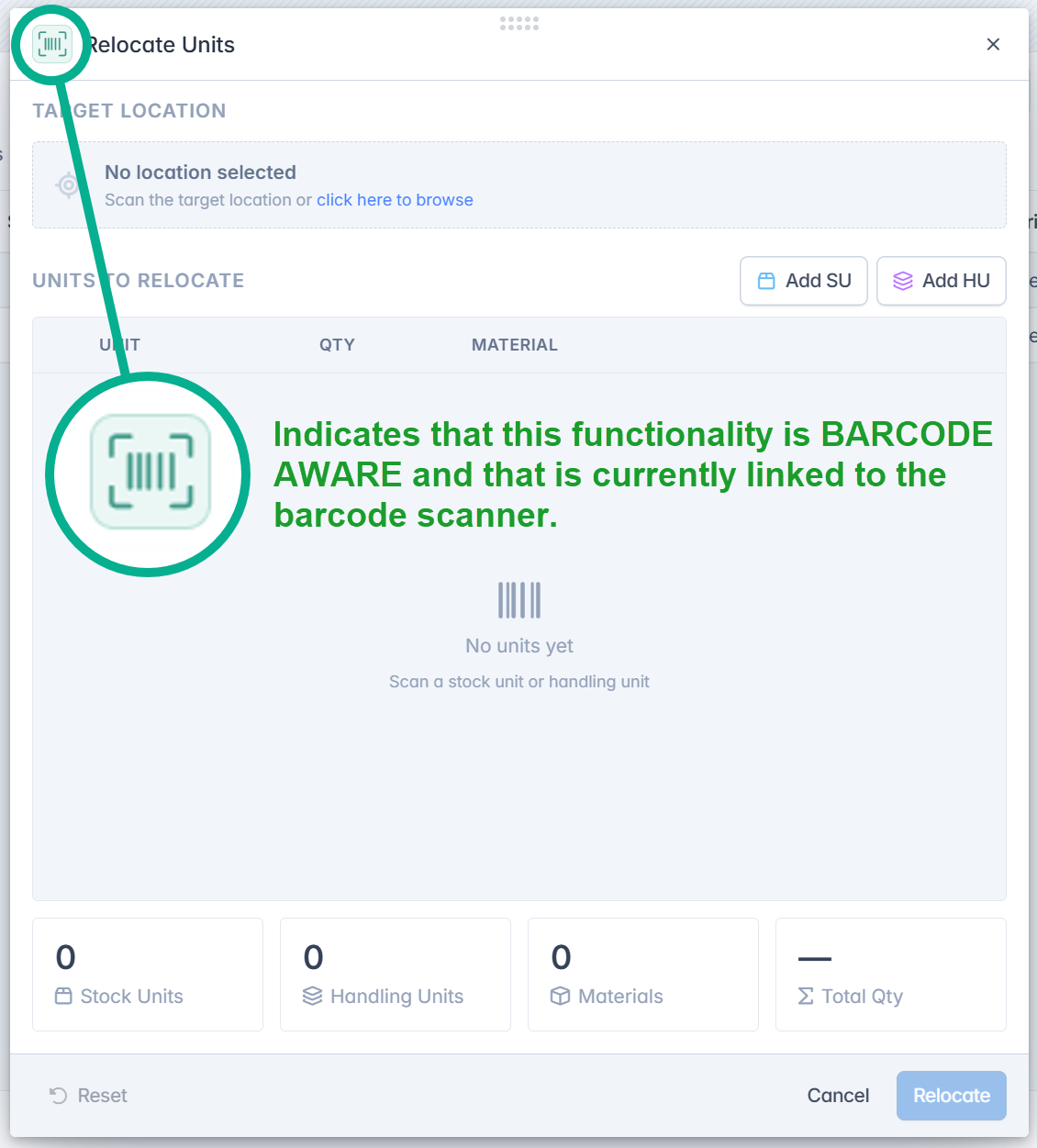
Opening the Relocate functionality, you can notice a small barcode icon on the top left, which indicates:
- The functionality is barcode aware.
- The pulsing green background indicates that it is currently linked to the scanner, thus scanned barcodes will be captured and processed by this popup.
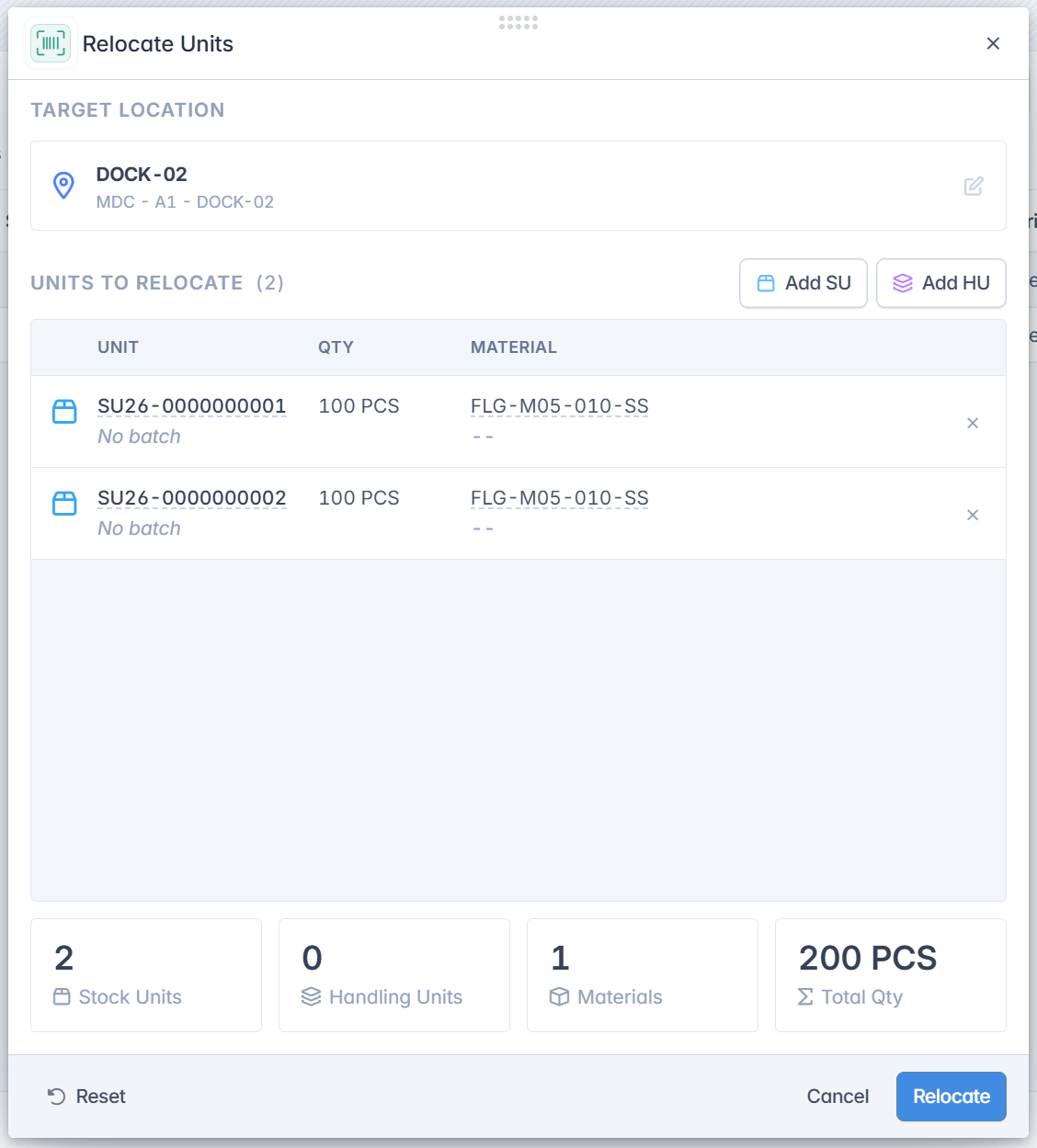
Scanning the barcodes DOCK-02, SU26-0000000001, and SU26-0000000002 will automatically populate the screen as shown in the image below, you can observe that DOCK-02 populated the TARGET LOCATION field, while the other two barcodes populated the list of UNITS TO RELOCATE.
If we open the Scanner Settings popup from the footer we can see the list of scanned barcodes from the previous transaction.
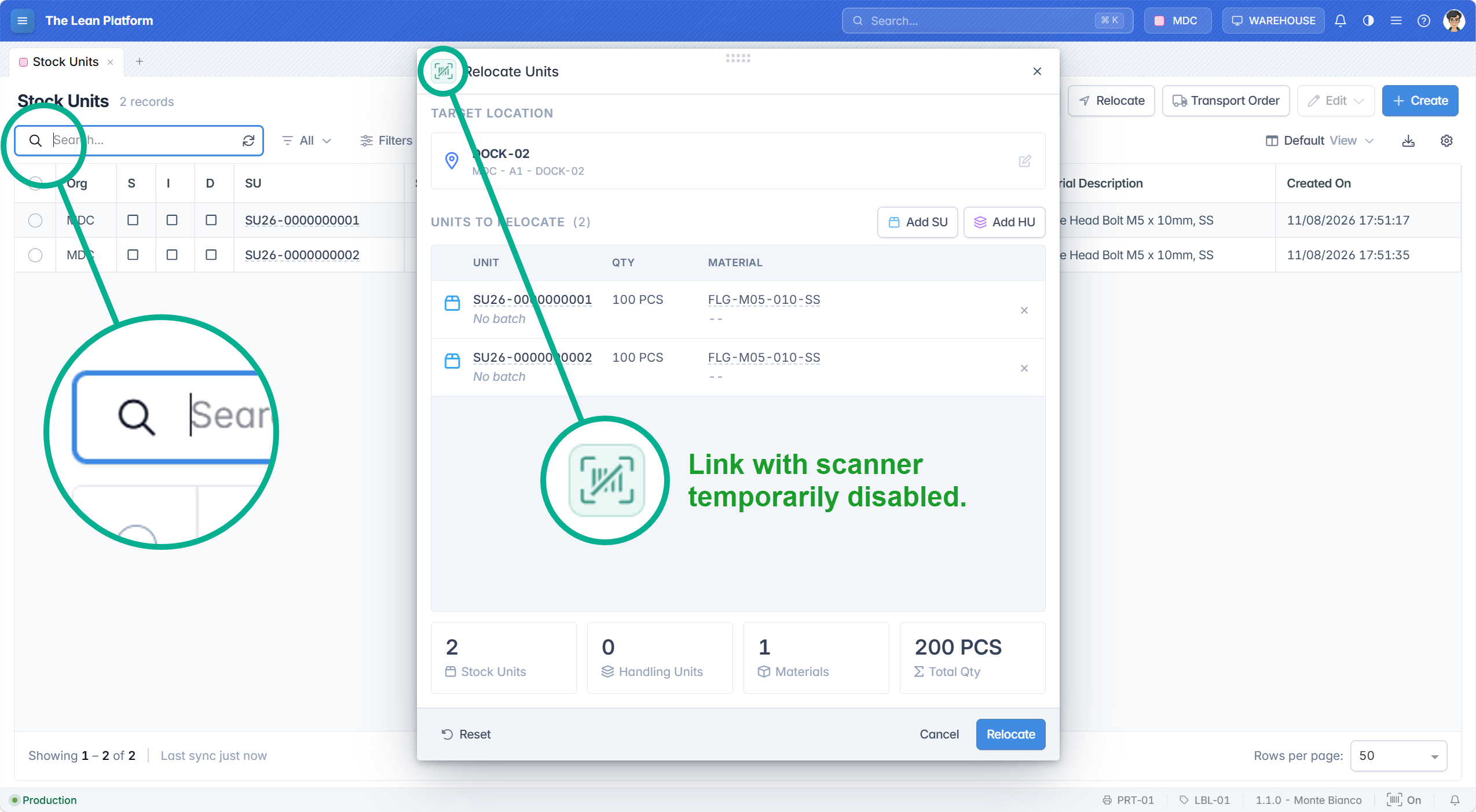
Finally, if we focus a text field — for example, the Search field in the main screen — the popup will be temporarily disconnected from the scanner, allowing the user to scan values directly into the focused field, as shown in the image below.
Summary
The TLP platform is designed for the shop floor, where fast data entry and minimal human error are essential, barcode scanning is central to that goal. The key takeaways are:
- Device-aware handling, mobile scanning behavior adapts to the connected device (ZEBRA or HONEYWELL), configured once in the application settings.
- No field selection needed, on mobile, operators can start scanning immediately; the barcode type is recognized automatically and routed to the right field.
- Double Scan confirmation, scanning a location barcode twice executes the action, letting operators confirm transactions without touching the screen.
- Manual fallback, when a barcode is damaged or unreadable, its value can be entered manually from the same screens used for scanning.
- Barcode-aware desktop popups, functionalities like Relocate can link to the scanner to populate fields directly from scans, and automatically release that link when a text field is focused so operators can type or scan into it directly.
This barcode integration consolidates our countless years of experience on how shop floor applications should be designed.
— Omar