

TLP Mobile Configuration & Testing
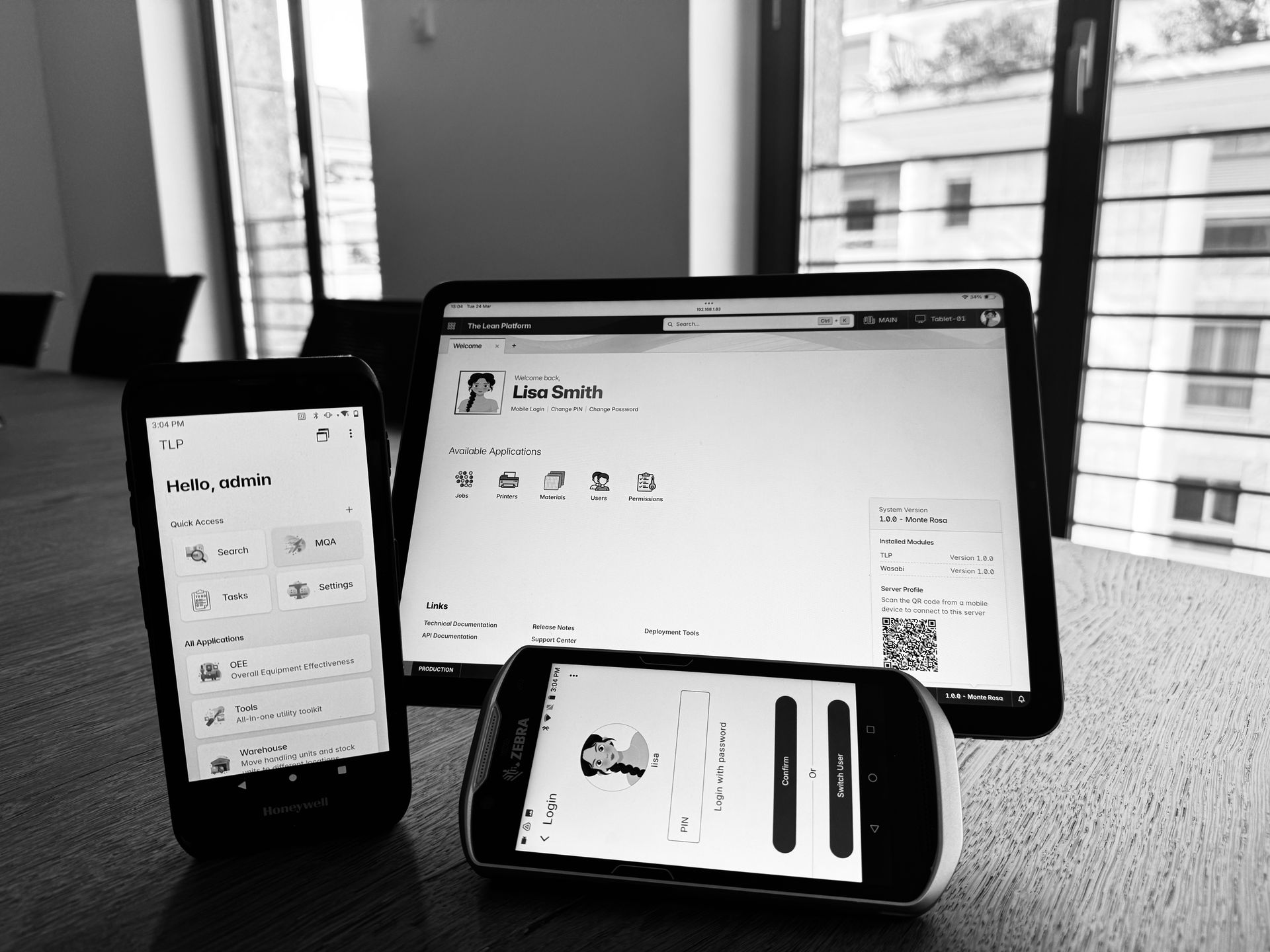
If there’s one thing we’ve learned from years on the shop floor, it’s this: the most powerful WMS or MES solution is only as good as the device in the operator’s hand. too often, handheld integration is treated as an afterthought, for this reason we designed and built TLP Mobile to be straightforward to configure and seamless to operate.
In this post, I will walk you through the installation, configuration, and initial setup of TLP Mobile, along with some key concepts. As always, if you are in a hurry here is a quick video:
Installation
TLP Mobile is an Android application shipped as an APK file within the TLP distribution. While it can be installed directly on a handheld device, companies using MDM tools like Microsoft Intune, VMware Workspace ONE, or ManageEngine can distribute it automatically by:
- Uploading the APK to the MDM’s app repository.
- Assigning it to the relevant device groups.
- Setting the installation type to “Required” or “Silent Install”.
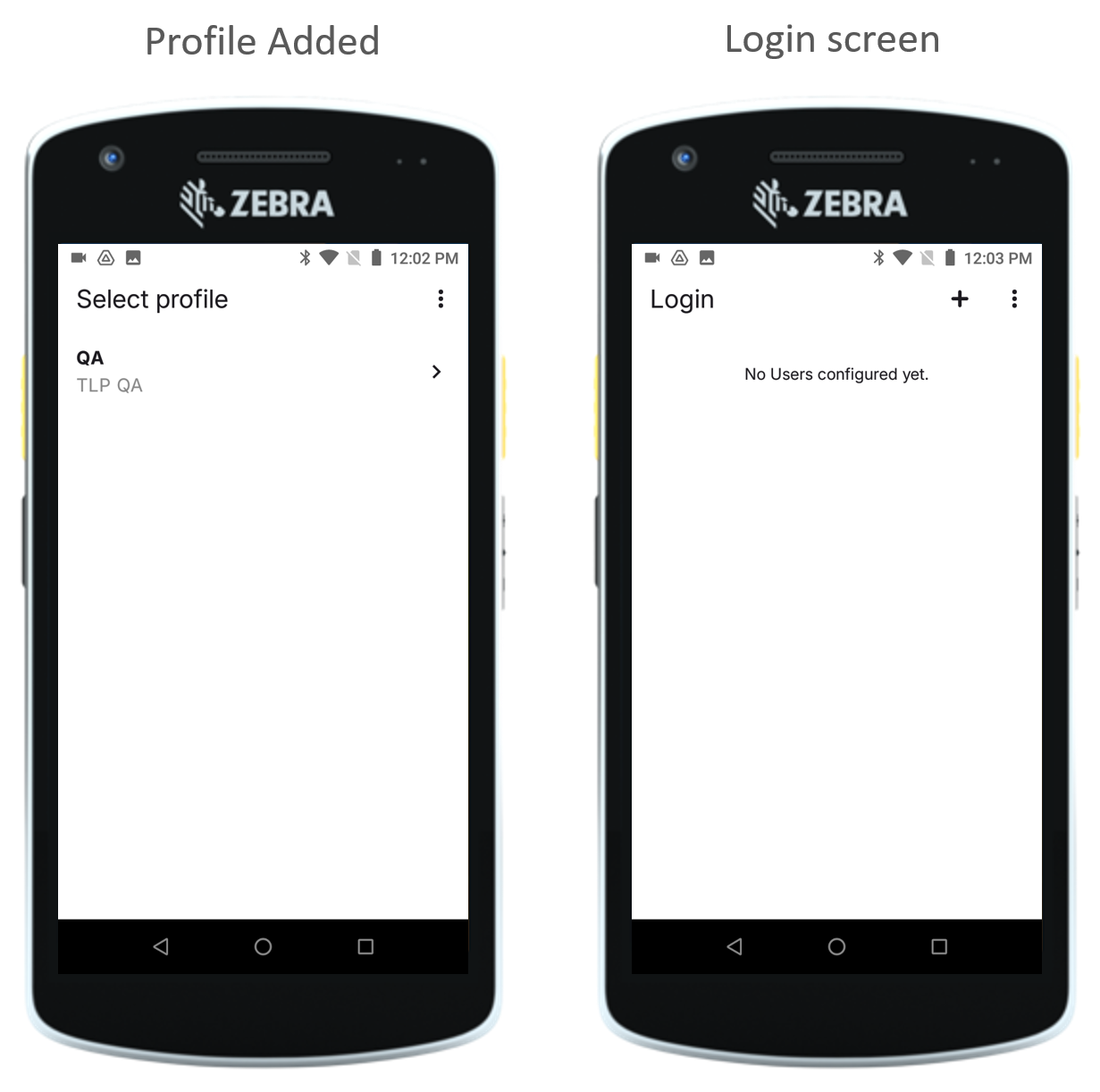
Once installed, tap the application to open it. You will be taken to the Select Profile screen, if you see it, the installation was successful.
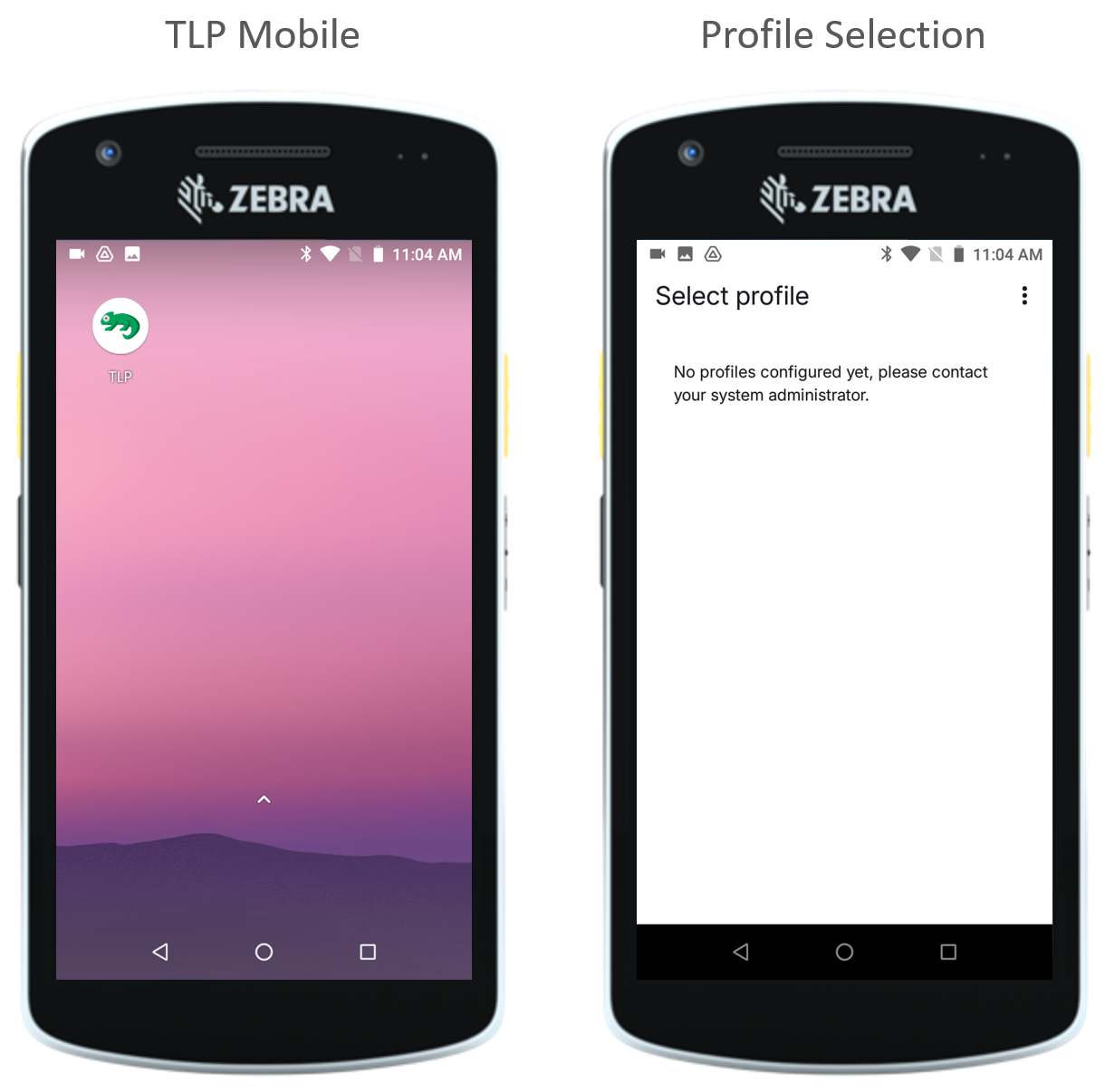
Note
In PragmaTech we tested TLP Mobile with both Zebra TC5x (https://www.zebra.com) and Honeywell EDA52(https://automation.honewell.com) models, but we can integrate new models if needed.
Configuration
Add Profile
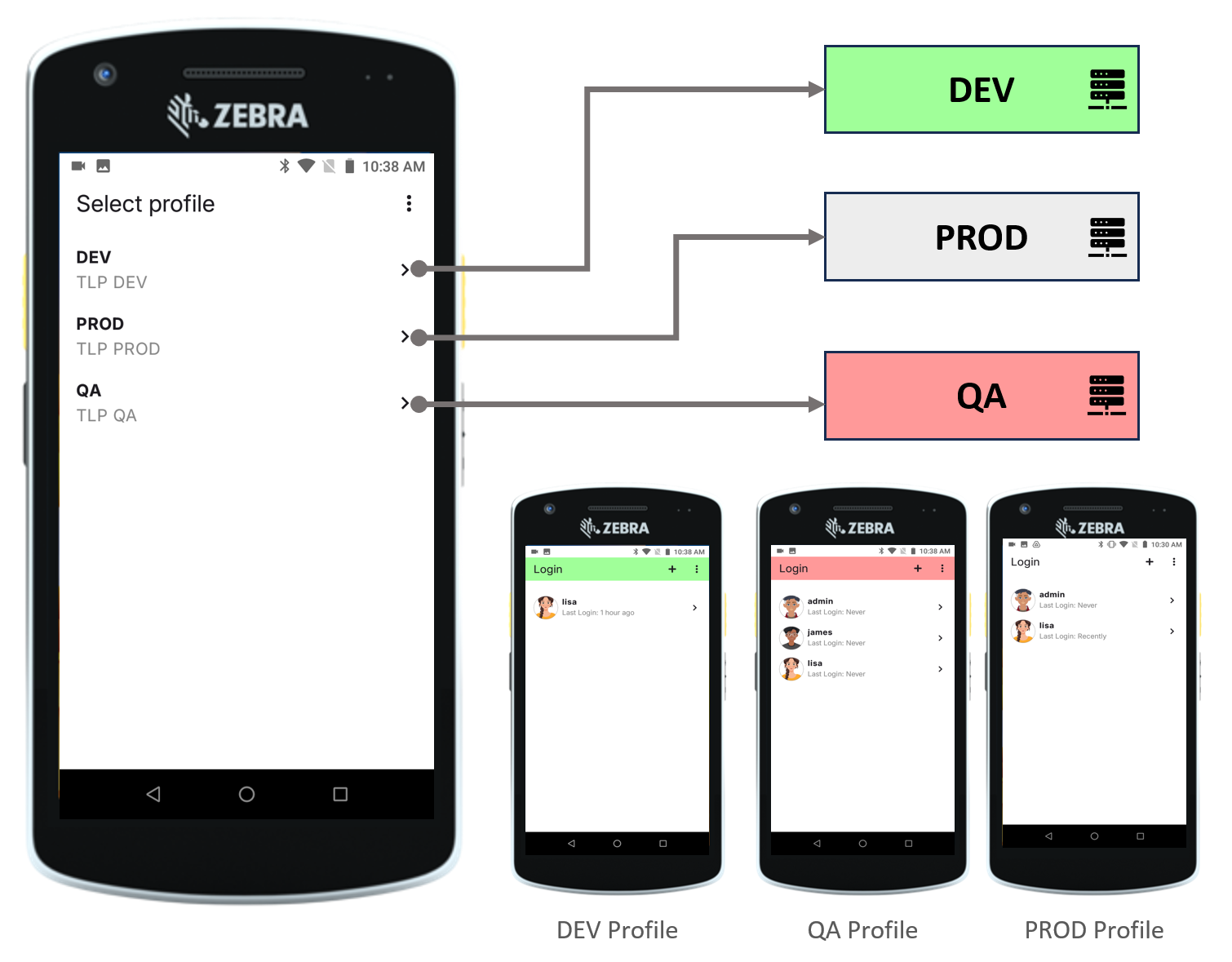
You might be wondering — what is a Profile? A profile tells the mobile application which TLP Server to connect to. In most cases, a handheld device connects to a single server (the production server), but during implementation and testing you will typically point it to a Dev or Test server first.
The following image illustrates a mobile configured to connect to three different environments, Dev, QA, and Prod, to avoid logging on the wrong profile it is possible to configure each profile with a dedicated color.
Adding a profile is straightforward. An IT administrator logs into the TLP desktop application, clicks on the system version shown in the footer to reveal a QR code, and then scans it from the handheld device as shown in the example below.
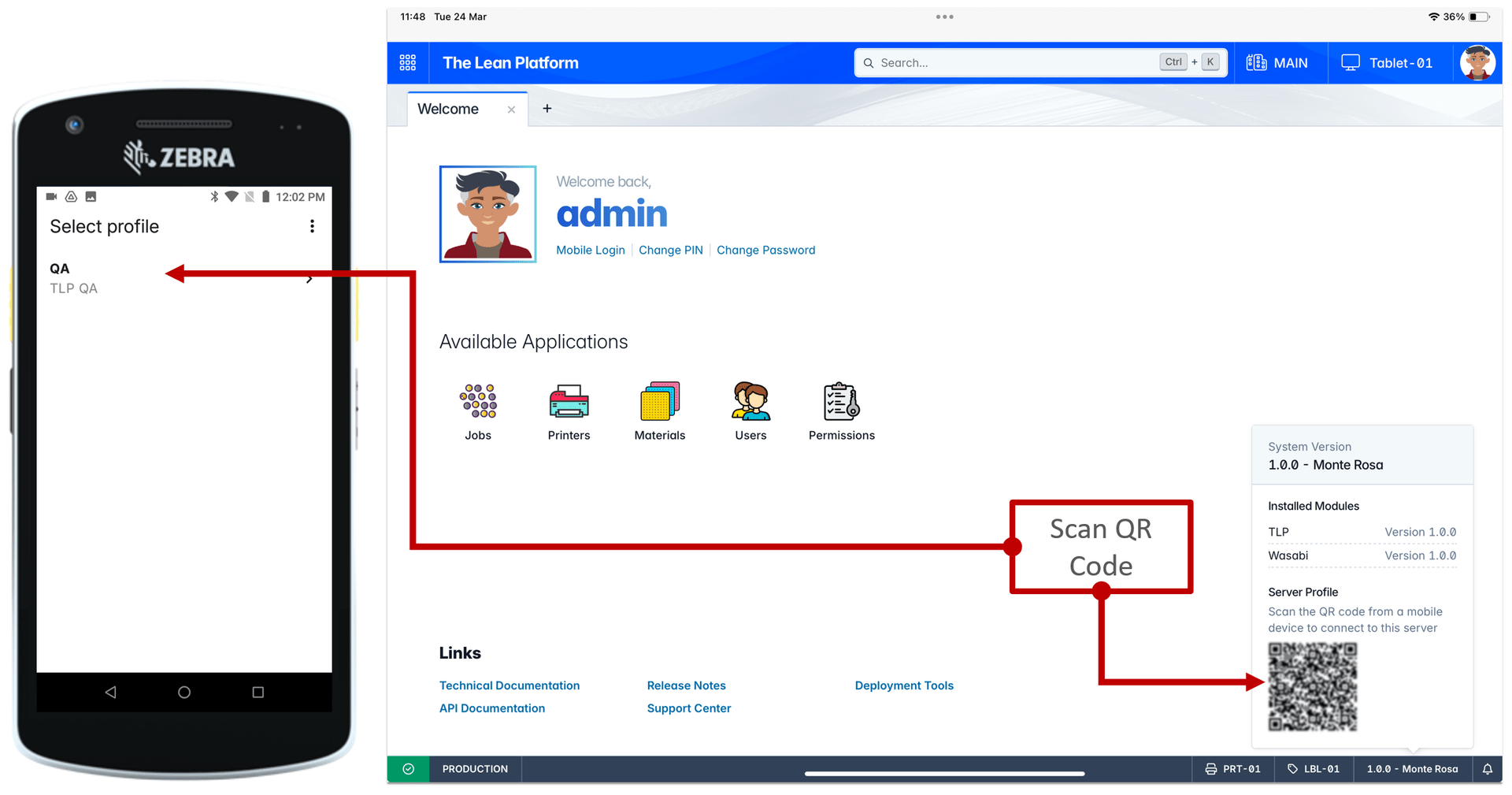
After scanning the QR code, you will see the new profile added to the list — in this example, it is called QA. Tap on it to proceed to the login step.
Add Login
Adding a login (or user) is also straightforward, the user — in this example we will use lisa, logs into the TLP desktop application using her credentials, clicks on the Mobile Login to reveal a QR code that represents a PAT (Personal Access Token), and then scans it from the handheld device. See the example below.
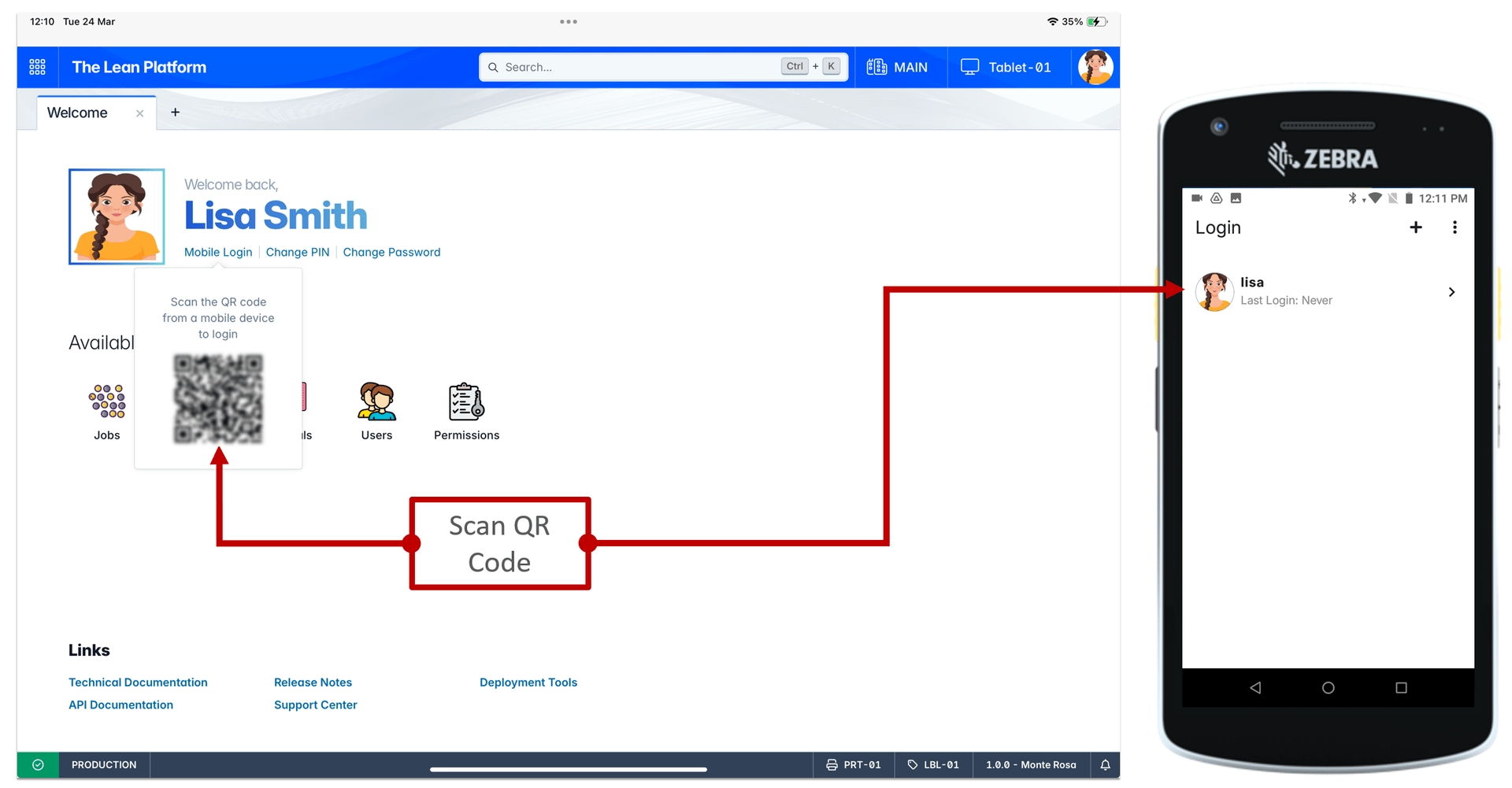
After scannng the QR code, you will see the new user added to the list. Tap on it and specify either the PIN or password to login to the mobile application.
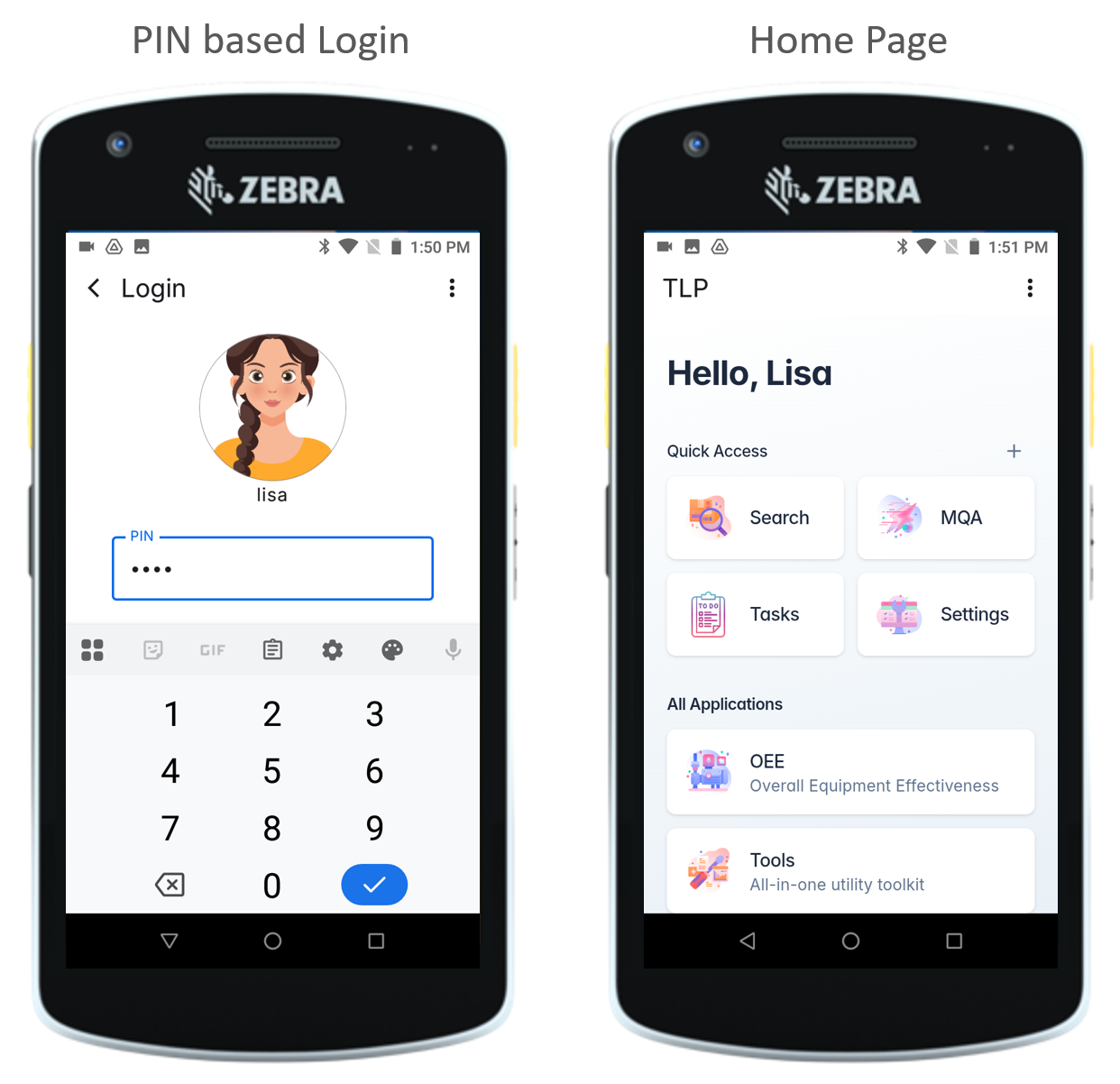
Congratulations! you just installed and configured the TLP mobile application.
Testing
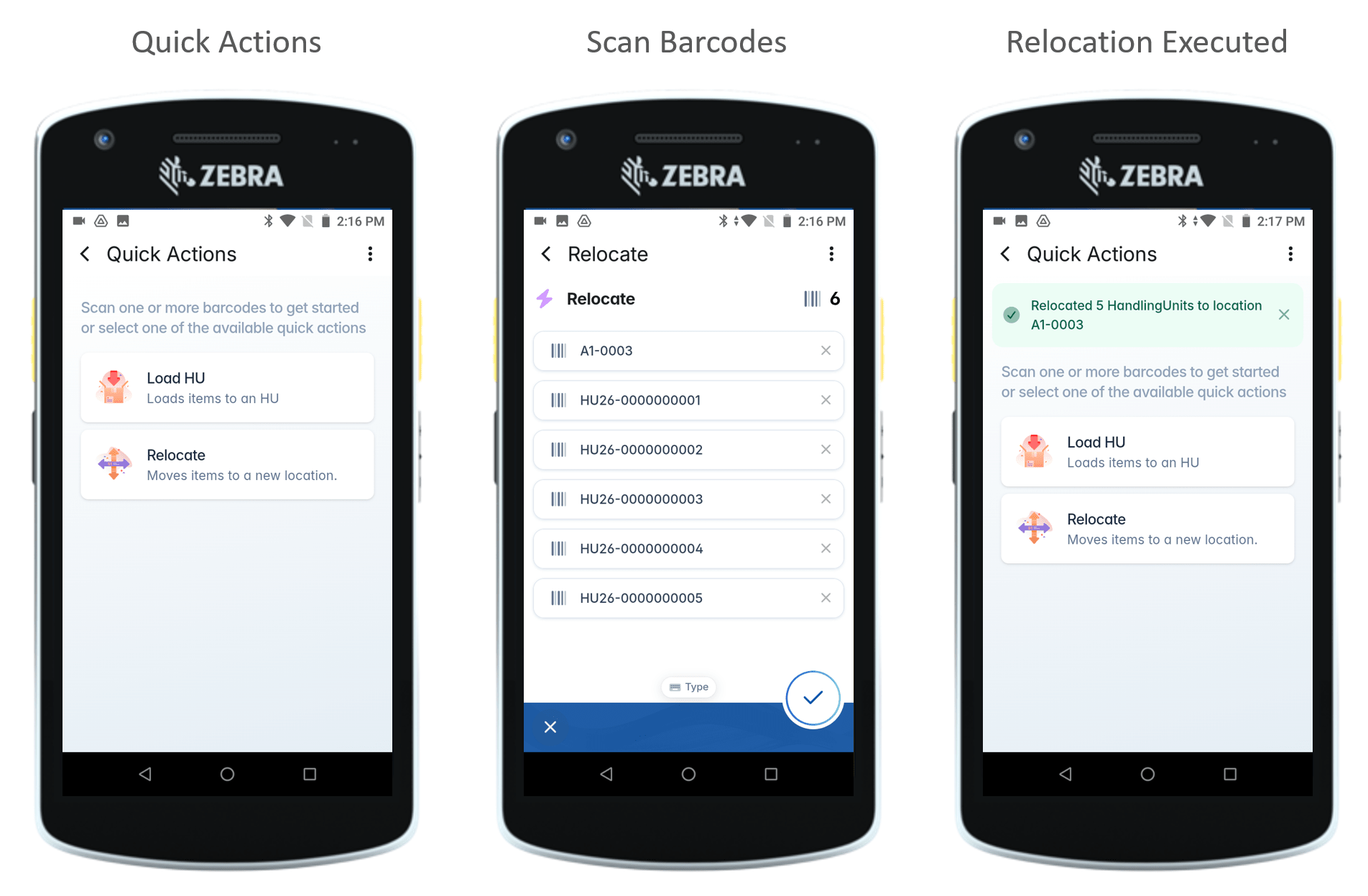
To test the mobile lets try to relocate multiple handling units HU(s) using the MQA (Mobile Quick Action) application, here is what we will do:
- Open the MQA application
- Scan the barcodes of the handling units to relocate
- Scan the barcode of the target location
- Scan the barcode of the desired action — in our case Relocate
- Scan the barcode of the desired action — in our case Relocate a second time to confirm the operation
Note
Mobile Quick Actions or simply MQA is a barcode-driven mobile application designed to allow executing configurable actions, any shop-floor action that could be represented by a sequence of scanned barcodes could be configured as an MQA, we will explain them in a future post.
Summary
TLP Mobile is a core module of our TLP platform, we designed it to maximize operator efficiency in the shop-floor. It supports both handheld devices (eg. Zebra and Honeywell), as well as vehicle-mounted devices (VMDs).
— Omar