

Things Module - Pallettizer Integration

In todays tutorial we will explore how the TLP Things module can be used to easily implement integration scenarios that require communication with level2 layer.
The key benefits of this module are:
- Ease of use and configuration, things can be created from UI or via XML.
- Thing attributes can be wired to OPC tags or via MQTT topics (will be covered in another post).
- Possibility to act upon changes in Level2 layer using Thing Triggers.
- Possibility to act upon external changes using Thing Functions.
- Templates allow modularizing our things.
- Automatic tracking of attribute changes for historical and data analysis.
- Can be used as a standalone IoT solution or integrated with 3rd party systems via our REST API.
- Fast and easy!
As usual, the best way to explain something is through a simplified real case, so get ready because today we will be communicating with a PALLETIZER! or PALLETISER? anyway… If you are in a hurry, you can see the end result of this tutorial where labels are printed as a result of shrink wrapping pallets.
Palletizer Scenario
In our scenario we will satisfy the following requirements that describe a simple, yet a complete integration between a Palletizer and TLP platform, to add more spice we will also print some labels using TLP Print module.
| REQ | Description |
|---|---|
| 001 | Starting a palletizing order shall communicate relevant data such as (order number, batch, customer, packaging layout) to the palletizer controller. Starting an order must be allowed only if the palletizer status is READY |
| 002 | Palletizer status changes such as (READY, SETUP, WORK, PAUSE) shall be tracked by the system for historical and data analysis |
| 003 | When palettizer shrink wrappes a pallet (i.e. pallet is complete) a label shall be printed. Label layout might be different based on the customer |
| 004 | System shall manage multiple palletizers, installing new palletizers with similar characteristics to the facility shall be possible with minimal configurations, no additional developments shall be required |
The sequence diagram below describes interactions between the Palletizer and TLP, the process begins when a user starts a production order. To better demonstrate how TLP can easily integrate with 3rd party systems, we will assume that the start order input comes from an external system through a REST request.
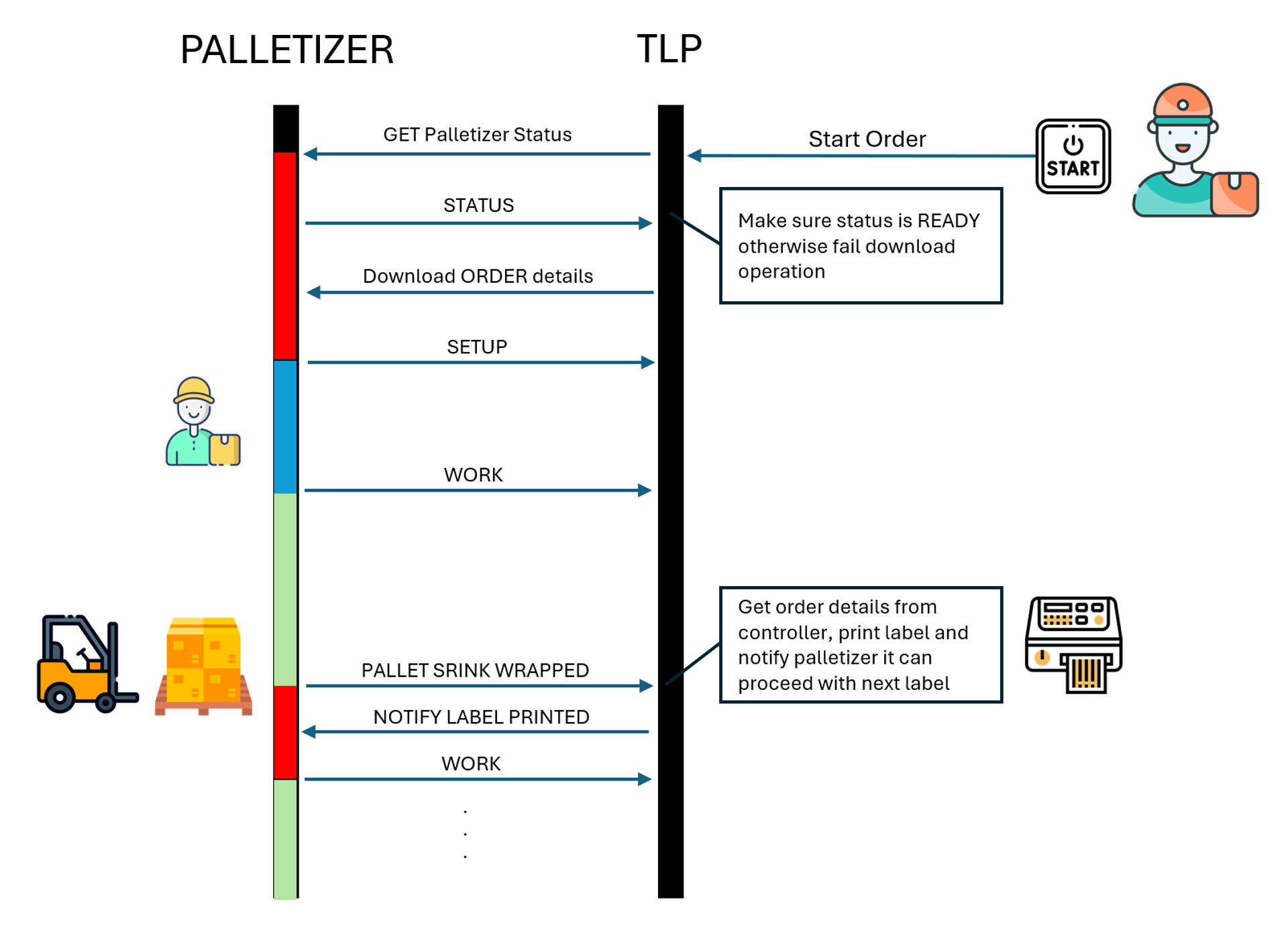
Finally, the following table describes the PLC tags exposed by the Palletizer, their data type, which system manages their value and a short description about their purpose.
| TAG Name | TYPE | OWNER | Description |
|---|---|---|---|
| Status | Short | PLC | Palletizer satus, possible values are
|
| PalletSwrinkWrapped | Boolean | PLC | Goes ON when the pallet is shrink wrapped thus a label should be printed by TLP |
| LabelPrinted | Boolean | TLP | Goes ON once the label is printed thus the palletizer can start working on the next pallet |
| WeightKg | Double | PLC | Actual weight of the pallet |
| ProdOrder | String | TLP | Name of the production order, displayed on the Palletizer HMI |
| Batch | String | TLP | Production order batch, displayed on the Palletizer HMI |
| Material | String | TLP | Production order material, displayed on the Palletizer HMI |
| PalletLayout | short | TLP | How items should be layed on the pallet |
Modelling the Palletizer Thing in TLP
TLP provides the possibility to model physical world objects as Things and manage their state for us, a Thing is composed of three main components:
Attributes: for example the palletizer status is modeled as an attribute namedStatusin our thing, same for all other tags such as PalletShrinkWrapped, ProductionOrder, Batch ... etc. Thing attributes are not always wired to PLC tags, for example we will use an attribute namedLabelPrinterto specify on which printer labels should be printed.Triggers: Used to execute logic when the value of an attribute changes, for example when thePalletShrinkWrappedattribute value changes totruethe triggerDownloadOrderwill be executed to print a label.Functions: Used to execute logic due to external factors, for example when an order is started we want to execute theDownloadOrderfunction.
If you recall, requirement 004 explicitly mentioned that new palletizers should be easily added to the system, for this reason we will use another feature of TLP known as TLP Templates. Simply put, we will define attributes, triggers, and functions in a template named Palletizer and let our palletizer things extend it.
To satisfy requirement 002 which is related to storing changes we flag attributes: Status, PalletShrinkWrapped, WeightKg, and ProductionOrder as auditable which means that changes are stored in a historical table known as TAVA (Thing Attribute Value Audit). Differently, non-auditable attributes keep track of the last value only.
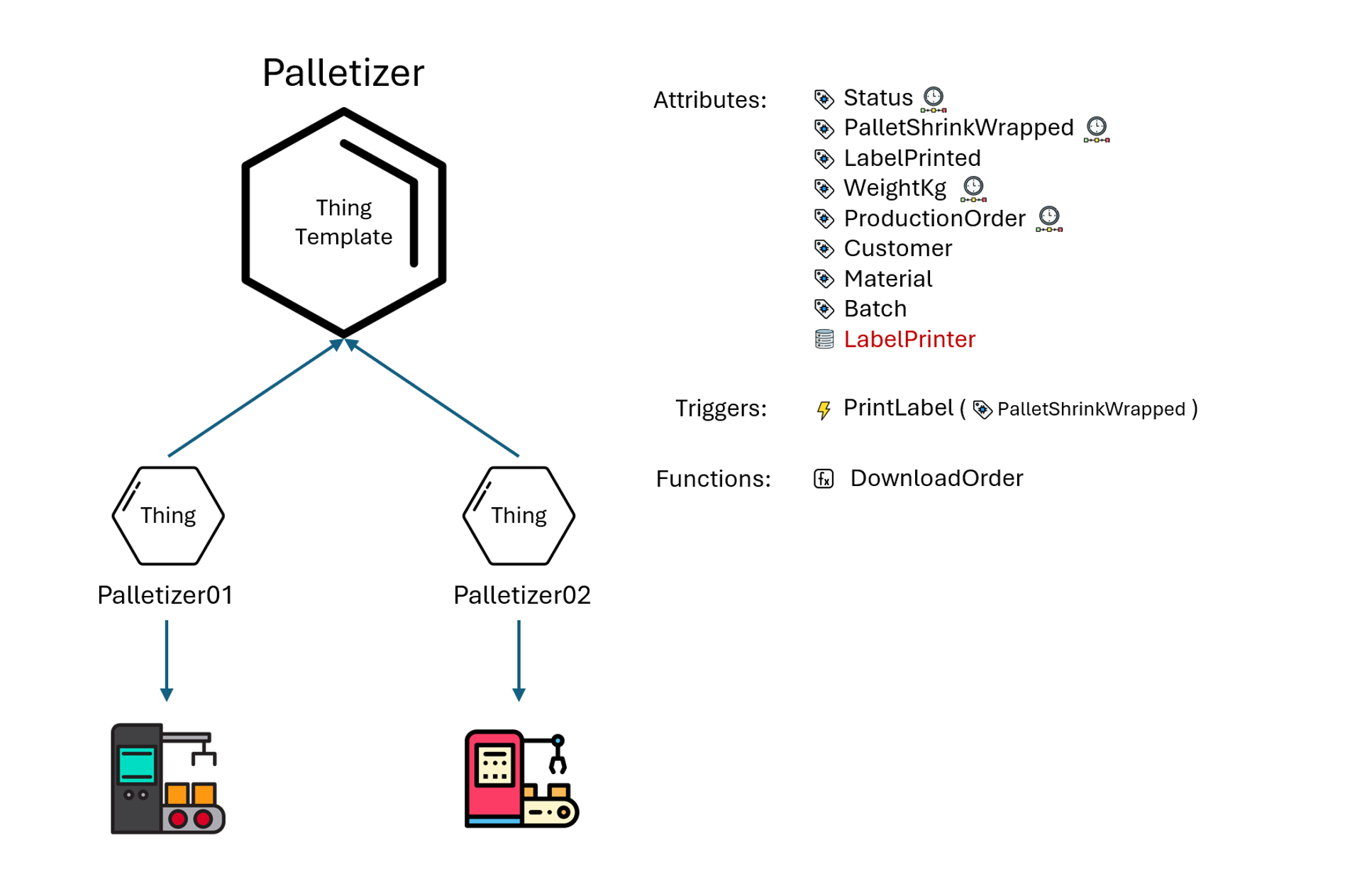
To create the ThingTemplate and Thing entities you can either use the UI or define them in XML and import them, we generally suggest creating them in XML mainly for the following reasons:
- You can place the XML files under a version control system, such as
gitto track changes over time. - You can easily export them through your
DEV-->TEST-->PRODenvironments. - Its faster ( At least for software engineers 😊).
Here is the XML, it is so simple that we believe there is no need to explain it, you should easily find a one-to-one correlation between the XML and the previous image.
<?xml version="1.0" encoding="UTF-8"?>
<Things>

	<ThingTemplate Name="Palletizer">
		<Attributes>
			<Attribute Name="Status" TagName="Status" DataType="INTEGER" Auditable="true"/>
			<Attribute Name="PalletShrinkWrapped" TagName="PalletClosed" DataType="BOOLEAN" Auditable="true"/>
			<Attribute Name="WeightKg" TagName="WeightKg" DataType="DECIMAL" Auditable="true"/>
			<Attribute Name="ProductionOrder" TagName="ProdOrder.Name" DataType="STRING" Auditable="true"/>
			<Attribute Name="Customer" TagName="ProdOrder.Customer" DataType="STRING" />
			<Attribute Name="Material" TagName="ProdOrder.Material" DataType="STRING" />
			<Attribute Name="Batch" TagName="ProdOrder.Batch" DataType="STRING" />
			<Attribute Name="LabelPrinted" TagName="LabelPrinted" DataType="BOOLEAN"/>
			<Attribute Name="LabelPrinter" DataType="STRING"/>
		</Attributes>

		<Triggers>
			<Trigger Name="PrintLabel">
				<Attribute>PalletShrinkWrapped</Attribute>
				<Processor>it.acme.palletizer.PrintLabelTrigger</Processor>
				<Idx>10</Idx>
				<Enabled>true</Enabled>
			</Trigger>
		</Triggers>

		<Functions>
			<Function Name="DownloadOrder">
				<Processor>it.acme.palletizer.DownloadOrderFunction</Processor>
				<Enabled>true</Enabled>
			</Function>
		</Functions>
	</ThingTemplate>

	<Thing Name="Palletizer01">
		<ThingTemplateName>Palletizer</ThingTemplateName>
		<BaseTagName>Acme.Palletizer01.</BaseTagName>
	</Thing>

	<Thing Name="Palletizer02">
		<ThingTemplateName>Palletizer</ThingTemplateName>
		<BaseTagName>Acme.Palletizer02.</BaseTagName>
	</Thing>

</Things>
Tip
Observe how some attributes are wired to the corresponding PLC tags, for example the attribute ProductionOrder is wired to PLC tag ProdOrder.Name.
DownloadOrder Function
From the sequence diagram, when an order is started we should download its details to the palletizer controller. The requirement is satisfied by defining a Thing Function whose logic could be implemented either in java or groovy, moreover a function expects to receive a payload with any required data necessary to complete its action, in our case, since we don’t manage production orders directly in TLP but receive them from an external system, we expect a json string similar to the following:
{
  "ProductionOrder": "PO25-00001",
  "Customer": "Contoso",
  "Batch": "B25080001",
  "Material": "123654"
}
Tip
json is typically the best format to use for representing functions payloads.
The following code is an example of the logic of our function, at high level it initializes a ThingProxy to read current status of the palletizer and make sure its in status READY before sending order details as received from the function payload.
class DownloadOrderFunction implements ThingFunctionProcessor {

	static final int STATUS_READY = 1;

	@Override
	public void execute(FunctionInvocationCtx ctx) {

		var thing = ctx.getThing();
		var proxy = new ThingProxy(ctx.getThing()).init();
		var status = proxy.getAttributeValue("Status").asInteger(0);
		var data = WasabiJsonUtils.jsonToMap(ctx.getPayload());


		if (status != STATUS_READY) {
			log.error("Palletizer {} status {} does not allow downloading orders", thing.getName(), status);
			return;
		}

		// Download production order data
		proxy.setAttributeValue("ProductionOrder", data.get("ProductionOrder"));
		proxy.setAttributeValue("Customer", data.get("Customer"));
		proxy.setAttributeValue("Batch", data.get("Batch"));
		proxy.setAttributeValue("Material", data.get("Material"));

		// Send data to controller
		proxy.flush();

	}
}
Testing the DownloadOrder Function
We reached a good point, its time to verify that our Thing is properly configured and that we can download orders to the palletizer, in this short video we will:
- Use the curl command to simulate receiving a start order request, the first time it fails because the palletizer Status is 0 which is not READY.
- Change the Status of the palletizer to READY and send the start order request again, and observe that the production order related tags are updated.
- As last step, we modify the request to download a different production order PO25-00002 and batch B25080002 and execute the start order again.
Note
We used the following curl command to execute the StartOrder function, the URL contains the thing and function names
curl -X POST http://server/api/core/tlp-things/Palletizer01/functions/DownloadOrder/execute -u username:password –json @c:/temp/start-order.json
The following video demonstrats this process:
Printing the label
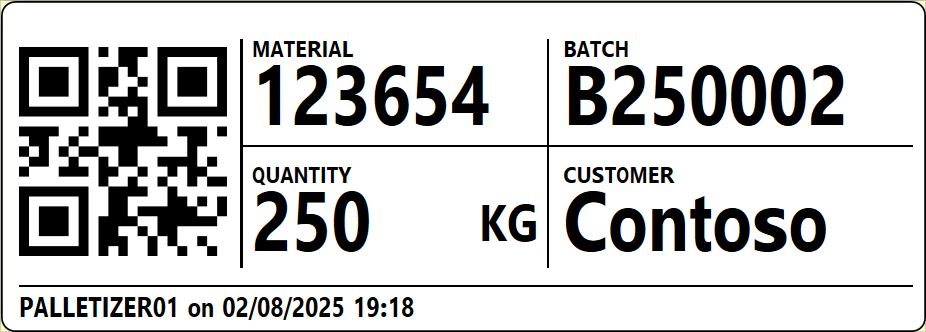
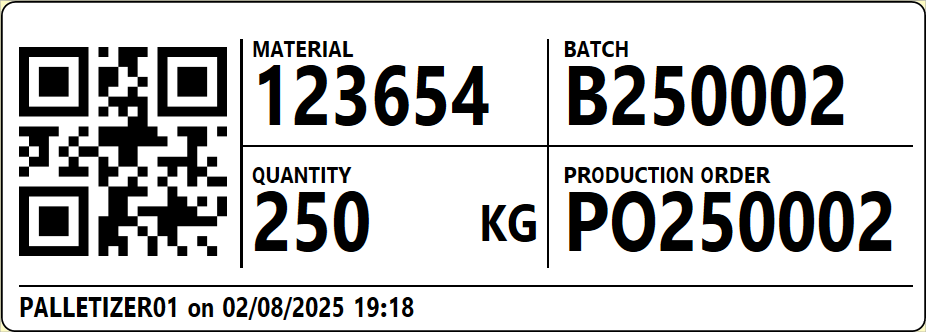
To print the pallet label we will first design two new labels similar to the following ones and import them to TLP, the report will be named TLP-L-02 while the report instances will be:
- TLP-L-02__75x25__v1 for pallets produced by Contoso, this version contains the customer name instead of the production order.
- TLP-L-02__75x25__v2 for all other customers, this version contains the production order instead of the customer.
 |
 |
Now lets see the logic related to the Thing Trigger. The logic is quite simple, when the PalletShrinkWrapped becomes true it will:
- Initialize a Thing Proxy to read current status of the palletizer.
- Decide the label version to use based on the customer, we use version v1 if customer is contoso and v2 for all other customres.
- Fill the report parameters based on data retrieved from the palletizer using the proxy.
- Generate and print the label on the printer defined in the LabelPrinter attribute of the thing.
- Update the LabelPrinted attribute value to true.
public class PrintLabelTrigger implements ThingTriggerProcessor {

	@Override
	public void execute(TriggerInvocationCtx ctx) {

		var palletShrinkWrapped = ctx.getOpcValue().asBoolean(false);
		if (!palletShrinkWrapped) {
			return;
		}

		var thing = ctx.getThing();
		var proxy = new ThingProxy(thing).init();

		// Initialize some variables
		var labelPrinter = proxy.getAttributeValue("LabelPrinter").asText("");
		var customer = proxy.getAttributeValue("Customer").asText("");
		var reportInstance = customer.equalsIgnoreCase("contoso")
			? "TLP-L-02__75X25__v1"
			: "TLP-L-02__75X25__v2";

		// Fill report parameters from palletizer attributes
		var reportParams = new HashMap<String, Object>();
		reportParams.put("ProductionOrder", proxy.getAttributeValue("ProductionOrder").asText(""));
		reportParams.put("Batch", proxy.getAttributeValue("Batch").asText(""));
		reportParams.put("Material", proxy.getAttributeValue("Material").asText(""));
		reportParams.put("WeightKg", proxy.getAttributeValue("WeightKg").asText(""));
		reportParams.put("Customer", customer);
		reportParams.put("PrintedBy", thing.getName() + " on ");

		// Print the report
		var printLabelCTX = new GenerateAndPrintReportCtx();
		printLabelCTX.setPrinter(printerCahce.getByIdentifier(labelPrinter));
		printLabelCTX.setReportInstance(reportInstanceCache.getByIdentifier(reportInstance));
		printLabelCTX.addReportParameters(reportParams);

		var cmd = reportService.generateAndPrint(printLabelCTX);
		cmd.publishPrintJobIfRequired();

		// Notify palletizer that label was printed
		proxy.setAttributeValue("LabelPrinted", true);
		proxy.flush();

	}
}
The following is a video to demonstrate the live behavior of the solution, as you can see as soon as the PalletShrinkWrapped is set to true a label is automatically printed, moreover we are printing different labels based on the customer.
Auditable attributes
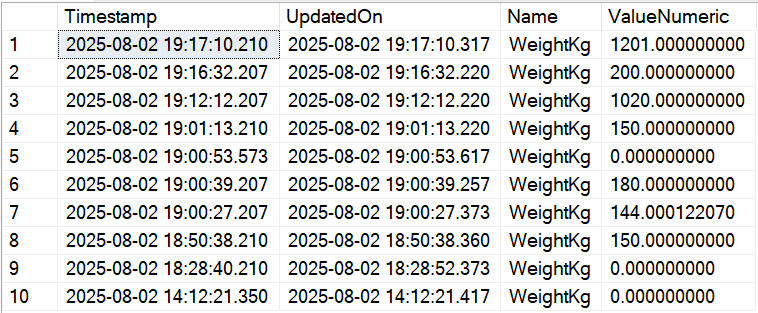
Another powerful feature of TLP Thing module is the ability to track attribute changes, any attribute flagged as auditable will be automatically stored in TAVA table, the following is a snapshot of the WeightKg attribute at the time the previous video was recorded.
The Timestamp is when the tag value changed in the controller, while the UpdatedOn is when the value got actually recorded in TLP, as you can observe it takes < 100 millis to process data changes, considering the fact that the scenario was run on a normal PC we can conclude that updates are processed very quickly.
Summary
What can I say? well we beilive that both modules of TLP the Print Module and Things Module are awesome! you can use them to build complex integration scenarios with level2 easily. Following our open philosophy in TLP the module can be integrated with 3rd party systems via our REST API.
Stay tuned for the next module, we got much more.
— Omar