

Introduction to TLP Installer
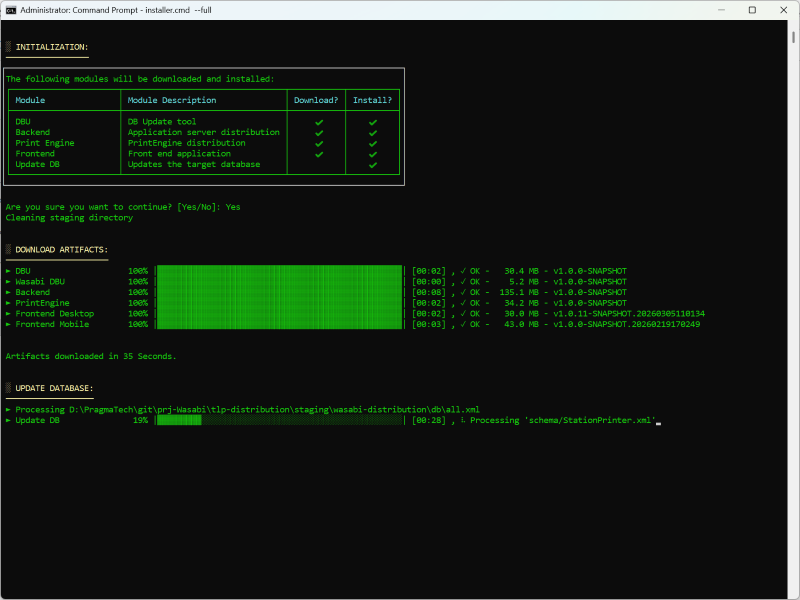
When we internally discussed about the installation process we had only one requirement, which was: Anyone, and we really meant ANYONE, should be able to install and run TLP in less than 5 minutes.
Today I am thrilled to show how easy it is to install TLP, and yes you can install a clustered TLP environment in less than 5 minutes, you can see it in action in the following video in which I show how to install a High Available TLP environment composed of:
- 3 Application Servers
- 2 Print Engines
- The Front-end application
- The Load Balancer.
Why?
We decided to simplify the installation process for several obvious reasons, but mainly for the following:
- Simplify the installation process to our customers, we wanted to enable our customers to be able to install and configure TLP quickly, very quickly!
- Our internal development process uses the installer to update our continuous integration (CI) and quality (QA) environments in a quick and efficient way.
- We hate lengthy and complex installations, if I want a fresh TLP environment I want it now!
- For validated environments, we wanted to have an IQ that can be printed on a single A4 page.
How?
To satisfy the above mentioned requirement, we crafted a command line tool named installer. The installer can execute several operations but most importantly a full installation. To better understand the whole process, lets walk through a full installation.
To trigger a FULL installation, all you need to do is execute the following command:
installer.cmd --full
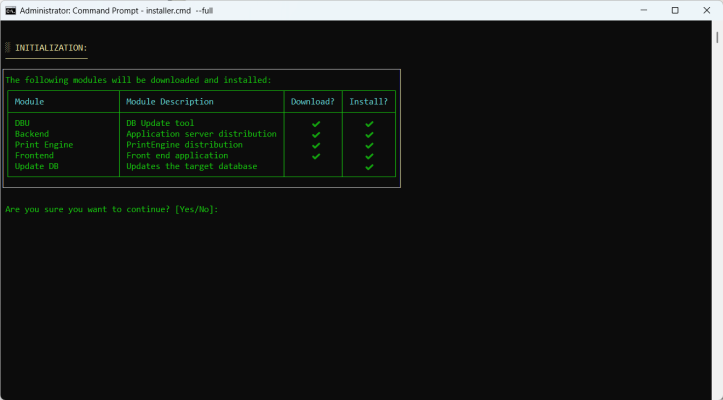
Soon after, you get an overview of what will be executed, if you don’t like it (maybe you typed the wrong command) you can abort by typing anything different from Yes.
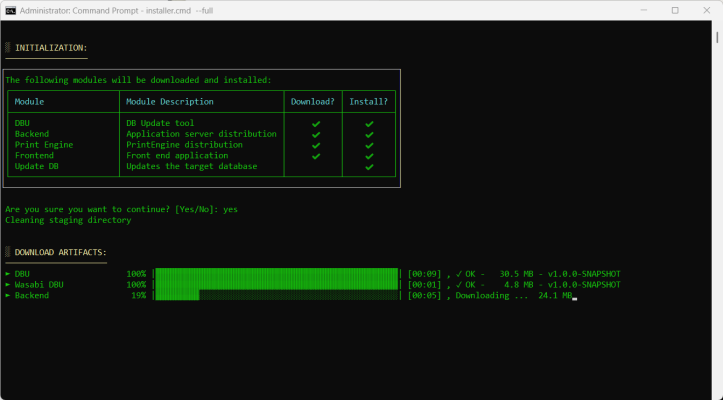
By confirmation that we want to continue, the installer downloads required modules to a staging directory, keep in mind that packages are downloaded from either a MVN repository or an NPM one.
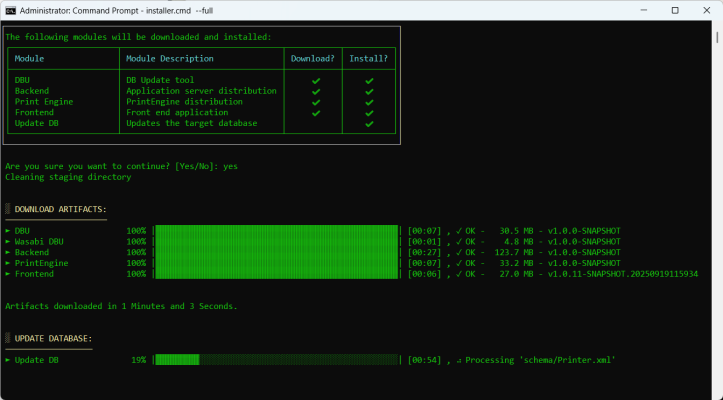
Once the download step is finished, the UPDATE DATABASE step is started, the installer will properly configure the DBU (Database Updater) tool to connect to the configured database and update it.
Once the database is updated, the installer moves to the next step which is: deploy the different artifacts, the steps differ based on the artifact type, for backend artifacts it does the following:
- Stop the corresponding service (if previously installed)
- Configure the application server, for example by specifying the port on which it should run (e.g. AppServer1 on port 8080)
- Deploy the new artifact to the server
- Install the corresponding service (if not yet installed)
- Start the service
- Wait until the app-server is up and running
Note
to guarantee a zero-downtime-deployment, the installer updates one application server at a time making sure the updated one goes online before moving on to the next application server.
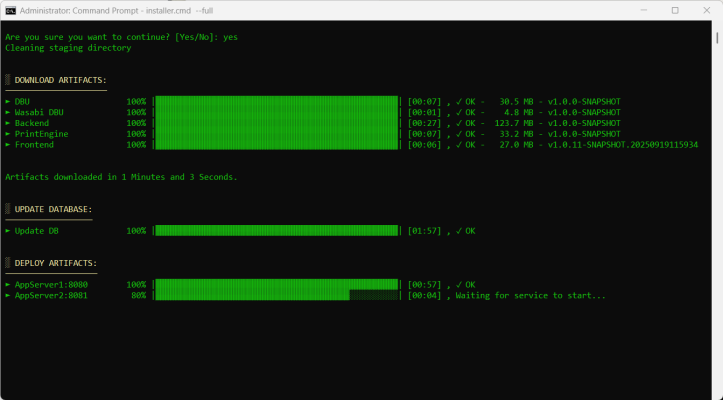
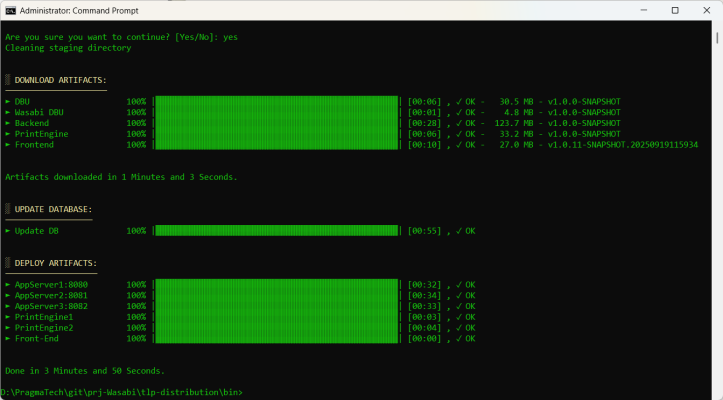
The end-result of the installation is that in less than 5 minutes! we got a complete TLP environment that consists of the following modules:
- 3 application servers running on ports 8080, 8081 and 8082
- 2 print engines
- A load balancer that acts as a reverse proxy in front of the 3 application servers
- The frontend application
Partial Updates
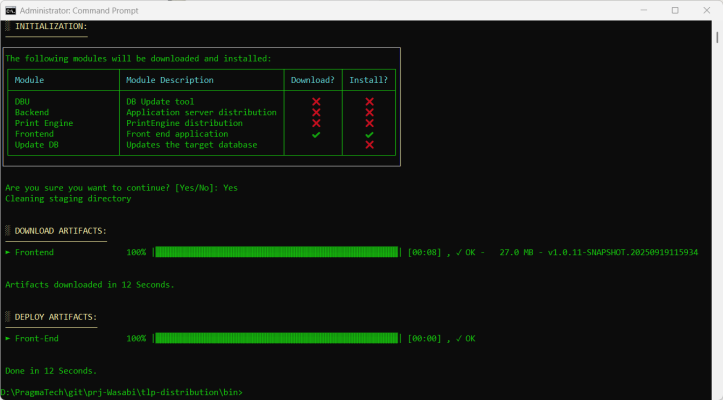
Sometimes, you might only need to update a specific module, for example only the frontend. In those scenarios instead of executing a –full installation you can specify the desired module or modules you want to install.
installer.cmd --frontend
In this case the installer downloads only the frontend artifact and deploys it, as you can see in such case it took only 12 seconds!
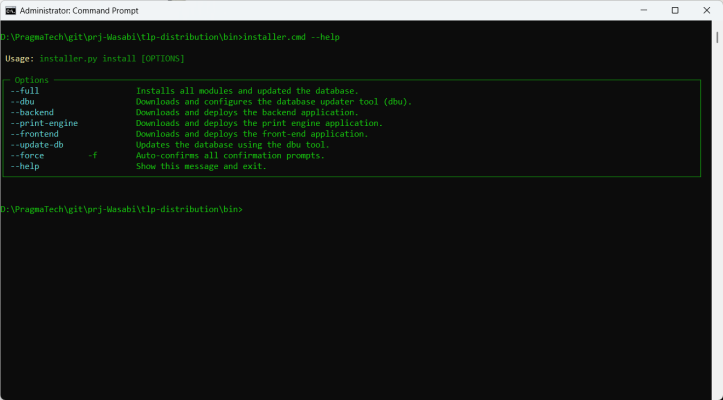
Finally, ass all command line tools, to know more about its usage you can use the –help option.
Summary
The TLP installer is yet another example of our passion for great software, we love to craft elegant solutions that everybody loves.
In the next post I will introduce our Asynchronous Task Management module named JOB ZILLA, yes we named it this way because it is really a monster … stay tuned!
— Omar