

Print Module - Print Zebra Labels
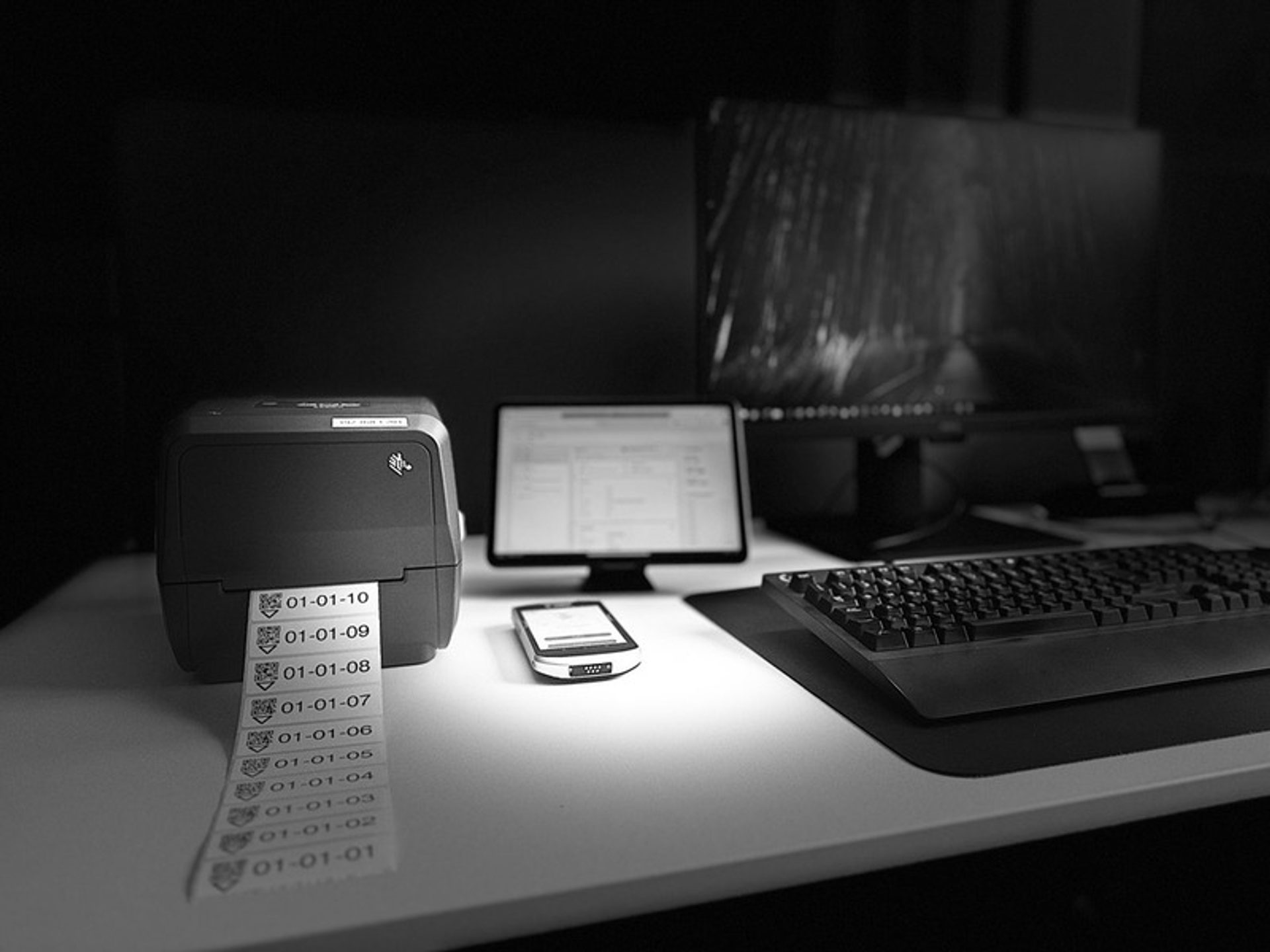
Labels play a vital role in manufacturing, they are essential for identification, tracking, compliance, and communication throught the production and distribution process. Labels can include barcodes, QR codes, RFID tags and printed information such as part numbers, serial numbers, expiration dates, and safety instructions.
TLP provides a powerful reporting and printing module that allows you to generate complex labels and reports and print them on your printers. TLP can be used as a standalone solution or be securely integrated with third-party systems (e.g., MES and ERP) via our REST APIs.
Tutorial overview
To better understand TLP print module capabilities we will design and print the following shelve label:
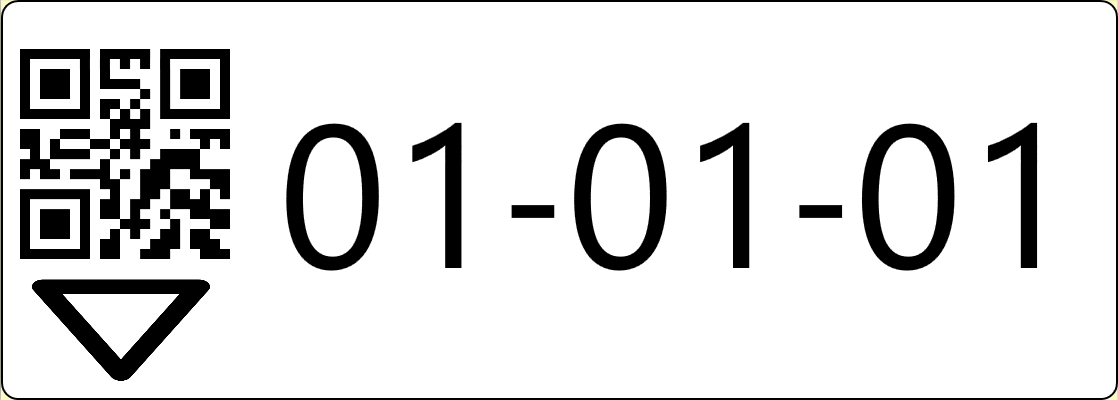
At high level in this tutorial we will do the following:
- Explain TLP print module architecture
- Design the label
- Configure the label printer in TLP
- Print a single label using curl
- Print multiple labels using a python script
Print module architecture
The print module is designed to support both basic and more advanced scenarios when needed. In the simplest scenario all you need is a TLP Print Engine connected to the TLP server. In more complex setups (as illustrated in the image below), you can deploy multiple print engines both within your local network or externally, in addition to the possibility to specify which printers are managed by which engine.
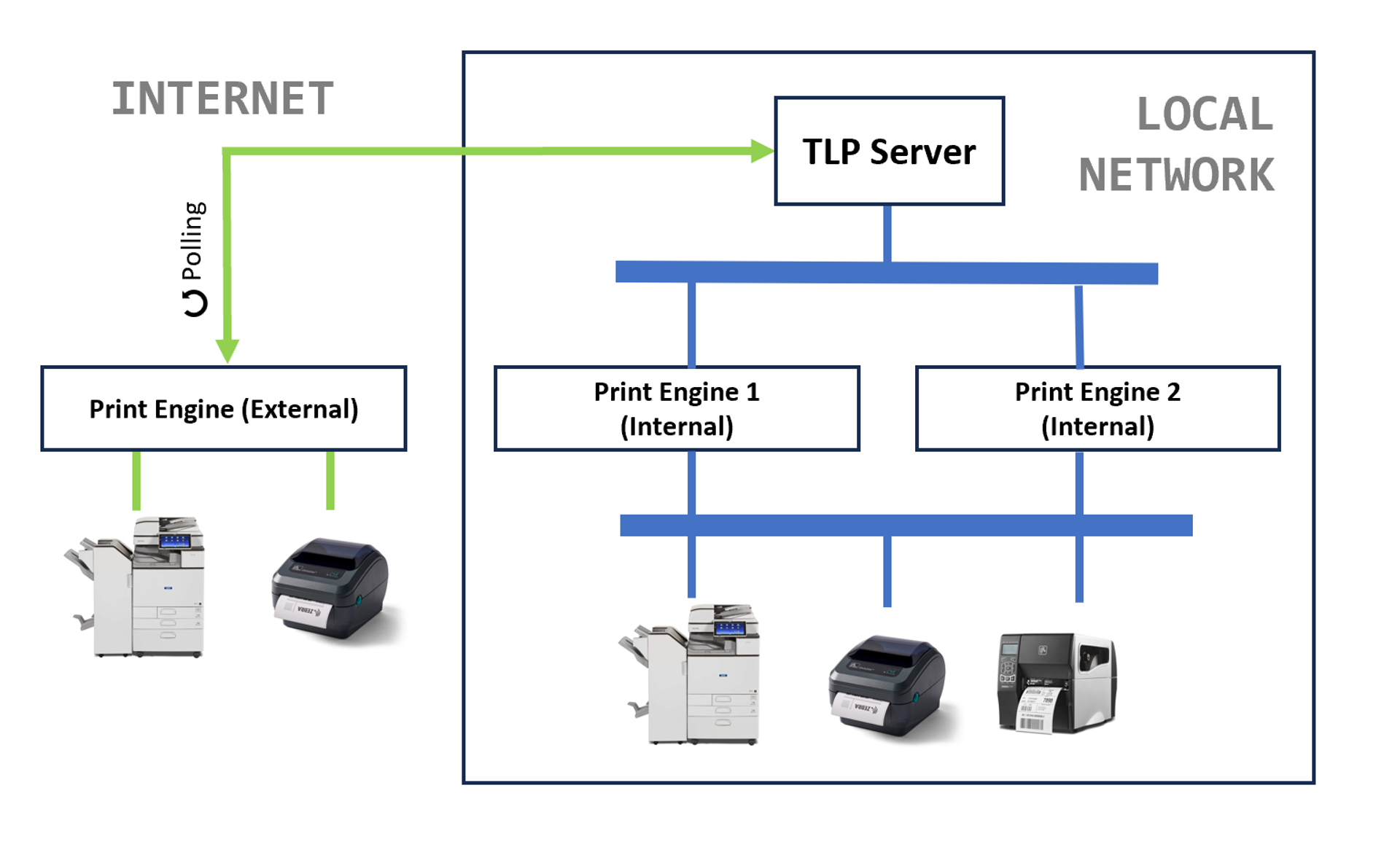
When you print a label or a report a Print Job is generated by the TLP Server and sent to one of the available Print Engines who in turn will print the job on the target printer.
In a local network the TLP Server will push print jobs to the Print Engine, while if the Print Engine communicates with the server over the internet, it will use a pull approach.
Note
Multiple TLP Print Engine nodes are used when high-availability is required.
Design the label
As a preliminary step we configured our label printer and assigned it IP address 192.168.1.201, we are using a ZEBRA ZD421 with media format 75x25. Finally we designed our sample label template using Zebra Designer and printed it.
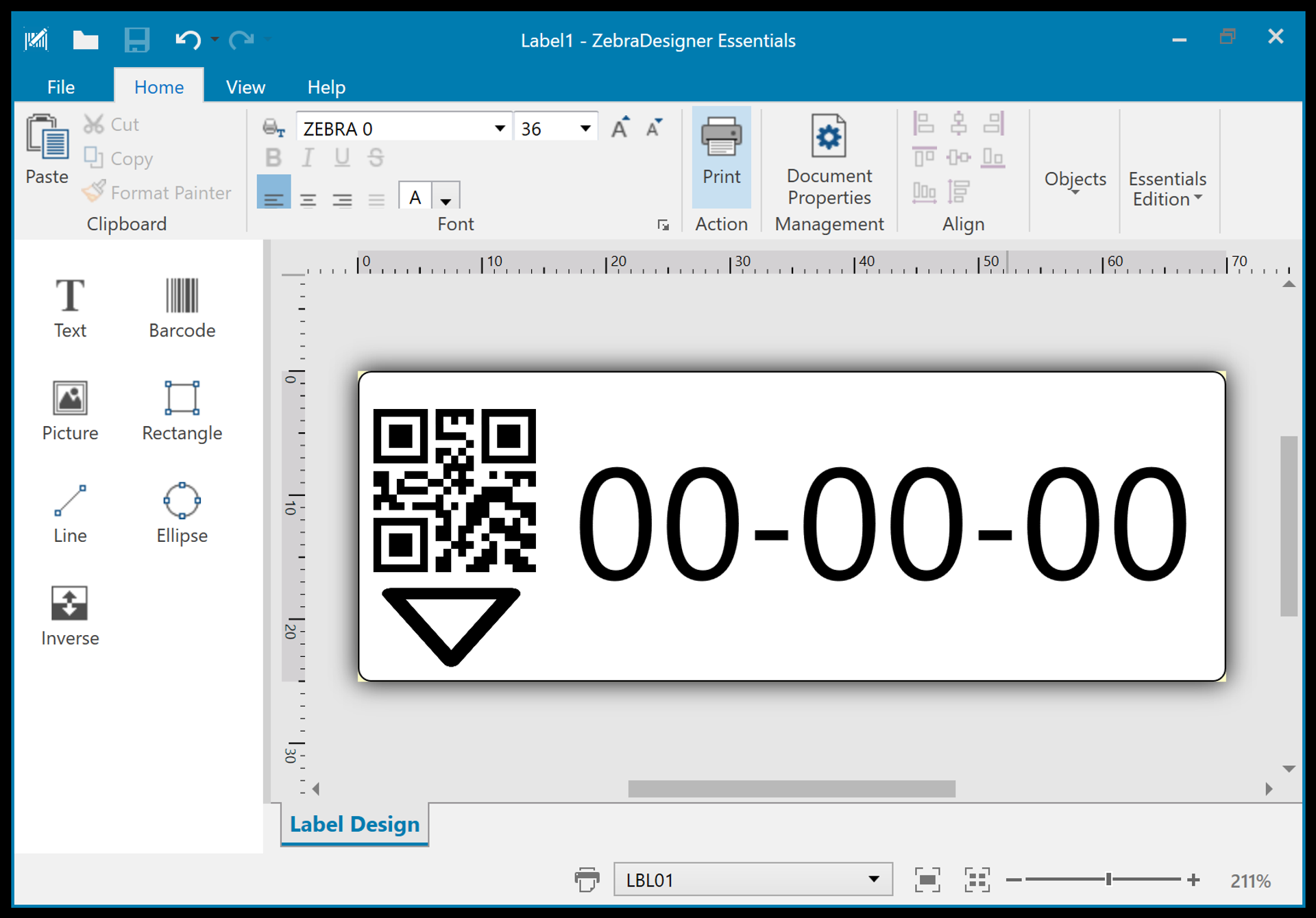
For our scenario we will print labels that are used to identify warehouse shelves, the label is composed of a QR code, shelve name and an arrow to better identify the shelve, using zebra designer we refined the design and printed some sample labels to make sure it fits our needs.
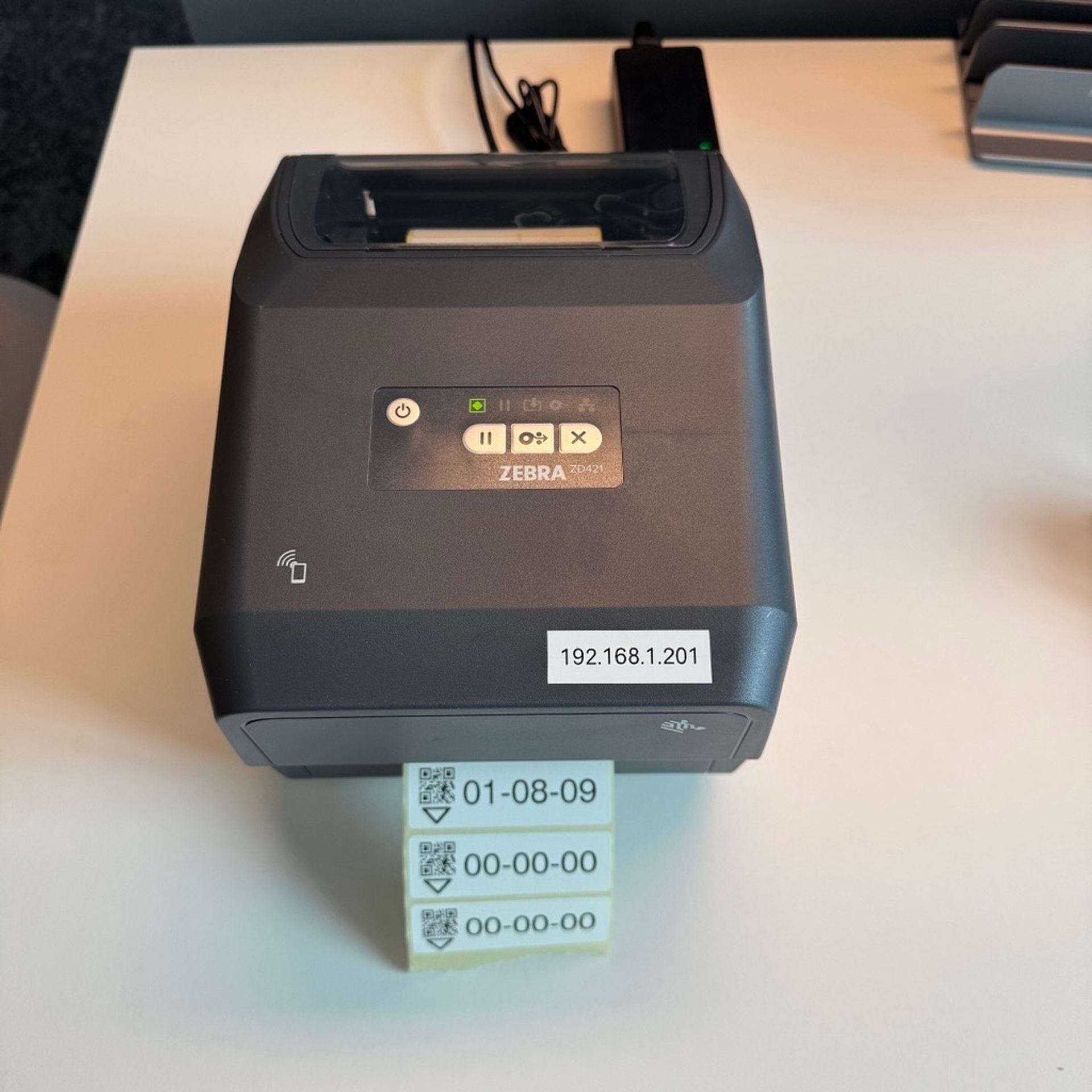
Finally, we created a Report TLP-L-01 and a report instance named TLP-L-01__75X25__v1 in TLP, the report instance expects a parameter named Name.
Note
we will explain how to create reports and report instances in a dedicated post.
Configure printer in TLP
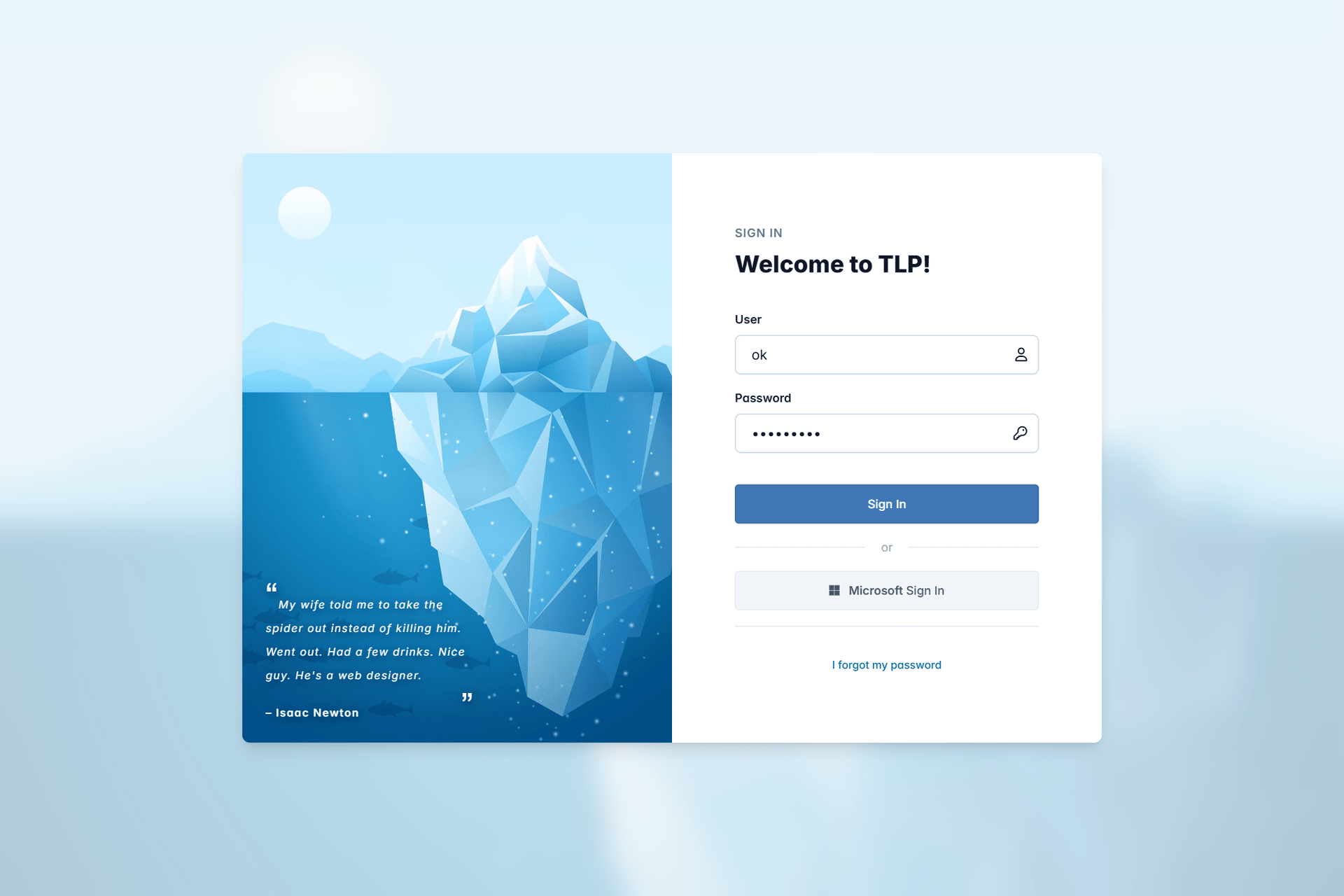
Now its time to configure our printer in TLP, so we fire our preferred browser and login to TLP using our username and password.
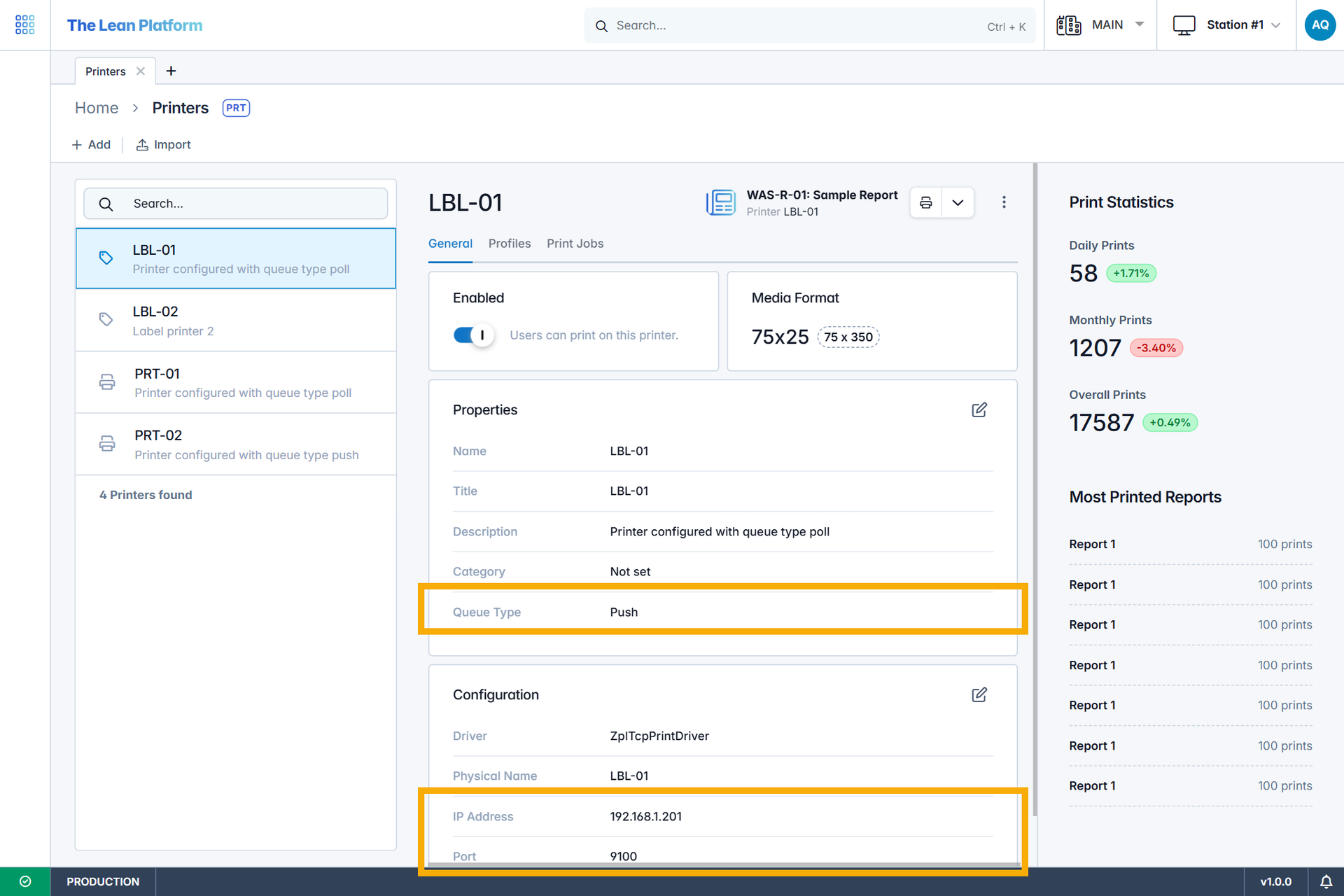
From the Printers application we created a new printer named LBL-01 and specified its IP address as 192.168.1.201
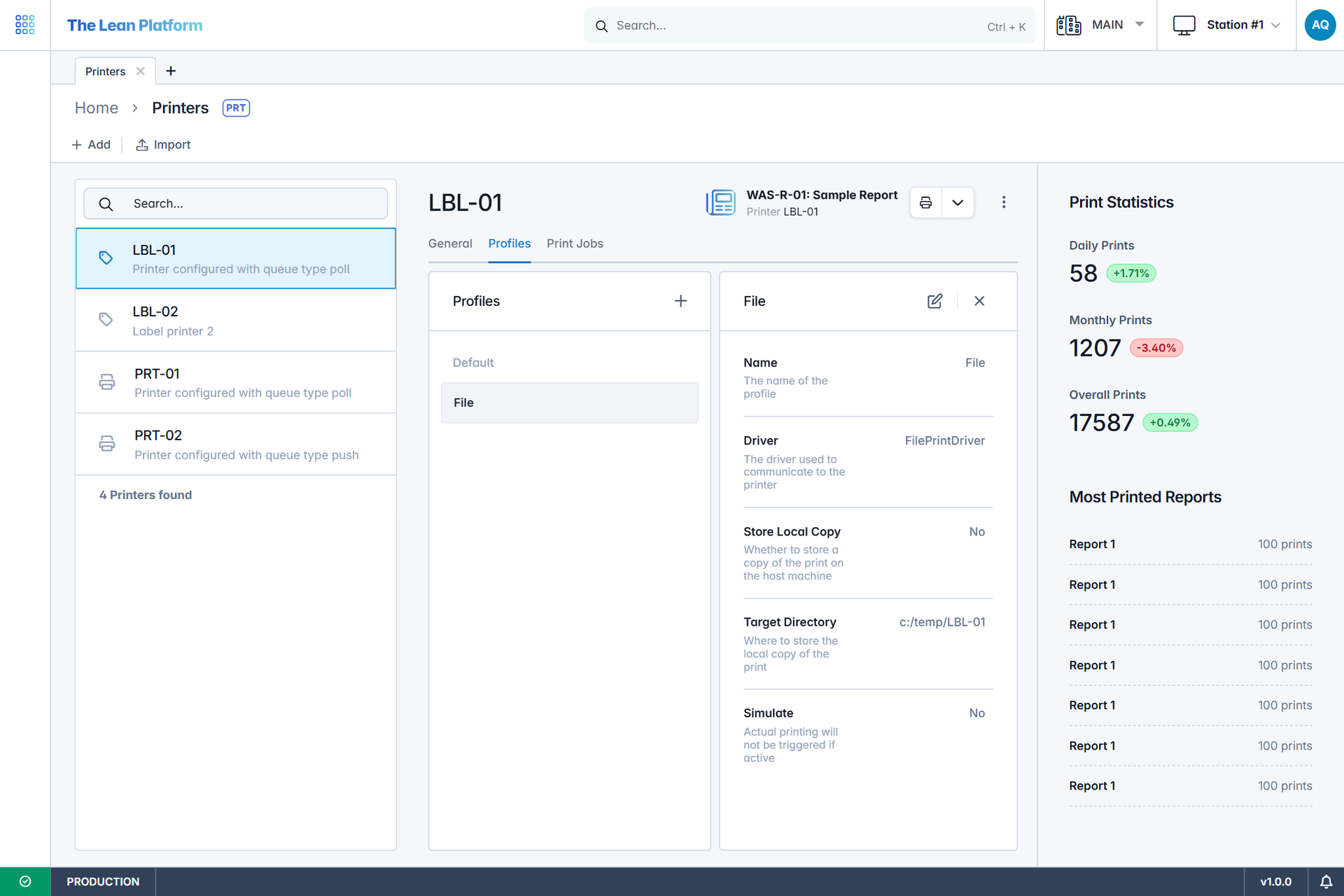
Each printer has a Default print profile, print profiles are used as a mechanism to override default printer settings, they could be used for different scenarios such as:
- Developers can use a File print profile that stores generated reports in the file system instead of actually printing them on the printer.
- Special use cases might require stapling printed reports, or using paper from a specific tray of the printer, thus a dedicated profile might be used.
Note
Print Profiles will be explained in a dedicated blog post.
Printing the label
TLP offers different options to print labels and reports, including our powerful print button displayed below. However, in this tutorial, we’ll demonstrate how external systems or clients can interact with TLP’s print module programmatically, so we will use a curl command.
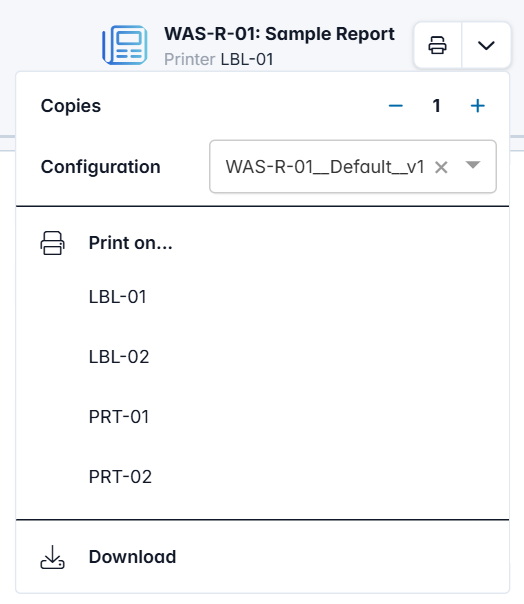
Lets store our request in a json file named C:/temp/print-req-1.json, the request must specify the following minimum information:
- The report instance
- The printer name.
- Dynamic data passed as report parameters, for example the shelve name.
{
  "reportInstance": "TLP-L-01__75x25__v1",
  "reportParameters": {
    "Name": "01-01-01"
  },
  "printer": "LBL-01"
}
Tip
During report generation, TLP can connect to external data-sources to retrieve additional data. For example for a handling unit label we might pass only the SSCC identifier and TLP will use it to retrieve additional information (e.g. material code, batch, quantity) from WMS system.
Execute the following command to print our first label using TLP.
curl -X POST http://tlp-server/api/core/reports/print
-u USERNAME:PASSWORD
--json @c:/temp/print-req-1.json
What happens is:
- TLP generates a report using the specified report instance TLP-L-01__75x25__v1 and report shelve name 01-01-01 and,
- Sends a print job to print the generated report on printer LBL-01
- The Print Engine receives the job and executes it.
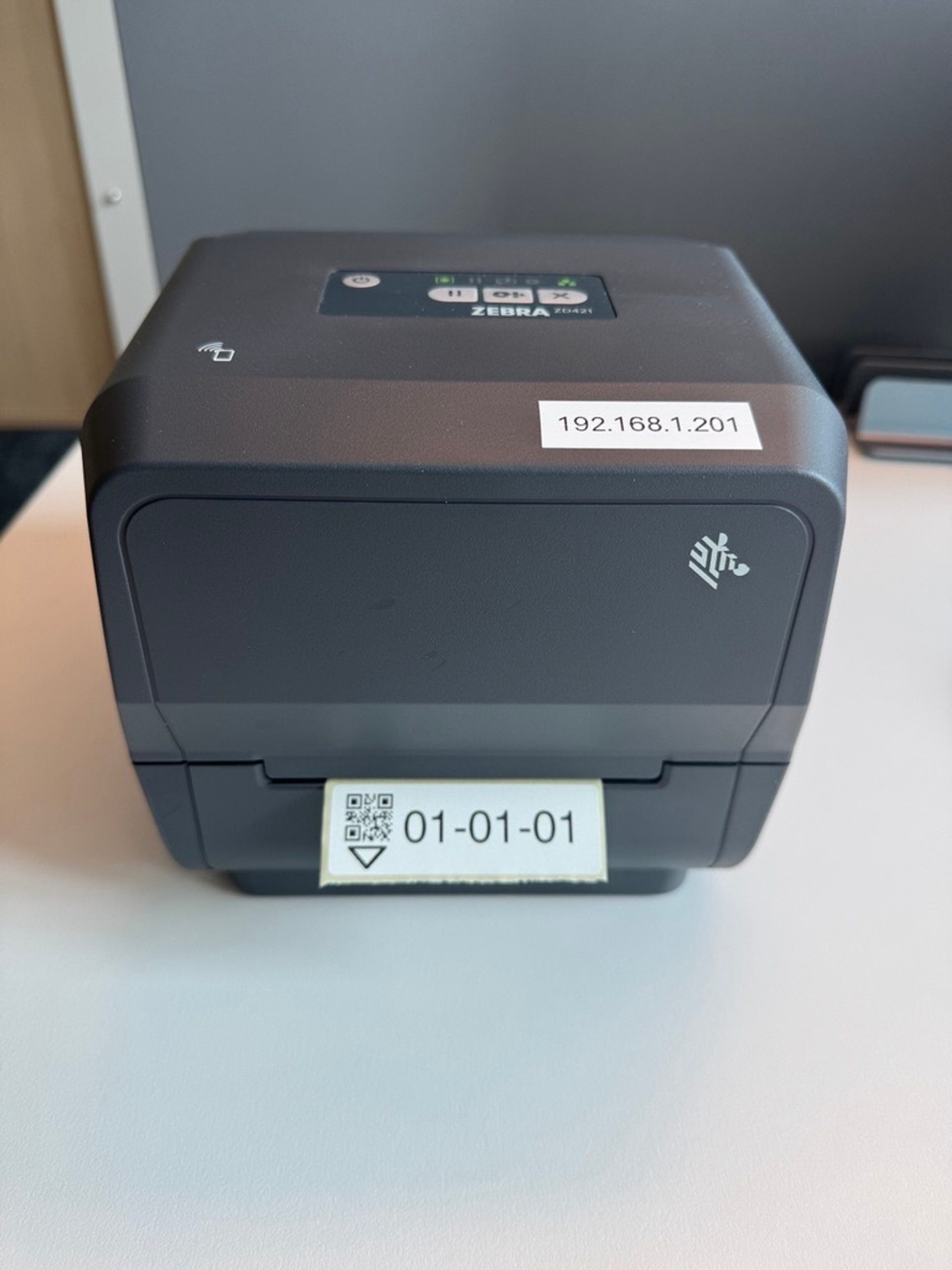
End end result, is that we got our first label printed! As you might have noticed the label was generated with shelve name 01-01-01 instead of 00-00-00.
Printing from python
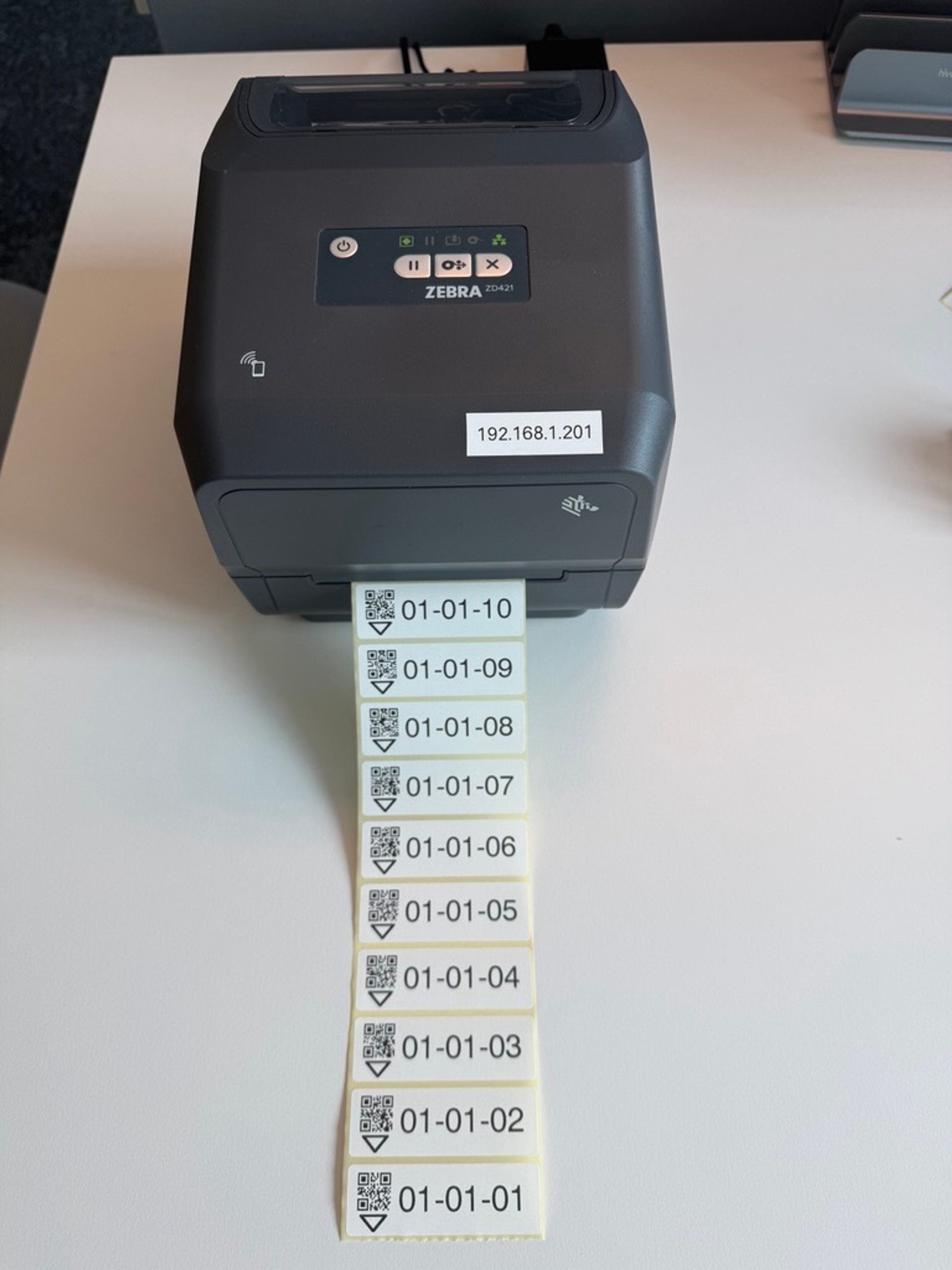
Lets simulate the case in which we want to print multiple labels which could be obtained from an Excel or CSV file, for the sake of simplicity we will generate the names programmatically lets assume we want to print labels for the following shelves from 01-01-01 to 01-01-10.
The following python script is all we need to dynamically generate the requests and send them to TLP, store it under C:/temp/print-labels.py
import requests
import json
from datetime import datetime

URL = "http://tlp-server/api/core/reports/print"

for i in range(1, 11):
	shelve = "01-01-" + f"{i:02d}"
	time = datetime.now().time()
	print(f"{time} Printing label: {shelve}")

	req = {
	  "reportInstance": "TLP-L-01__75x25__v1",
	  "reportParameters": {
	    "Name": shelve
	  },
	  "printer": "LBL-01"
	}

	requests.post(URL, auth=("username", "password"), json=req)
To run the script open a cmd and execute the following command, the script will log the timestamp of each request as you can see requests are processed quickly.
python C:/temp/print-labels.py

15:14:06.408681 Printing label: 01-01-01
15:14:06.459703 Printing label: 01-01-02
15:14:06.513562 Printing label: 01-01-03
15:14:06.558680 Printing label: 01-01-04
15:14:06.609696 Printing label: 01-01-05
15:14:06.652984 Printing label: 01-01-06
15:14:06.704665 Printing label: 01-01-07
15:14:06.746424 Printing label: 01-01-08
15:14:06.787975 Printing label: 01-01-09
15:14:06.841270 Printing label: 01-01-10
— Omar