<?xml version="1.0" encoding="utf-8"?><feed xmlns="http://www.w3.org/2005/Atom" ><generator uri="https://jekyllrb.com/" version="4.4.1">Jekyll</generator><link href="https://www.pragmatech.it/feed.xml" rel="self" type="application/atom+xml" /><link href="https://www.pragmatech.it/" rel="alternate" type="text/html" /><updated>2026-10-19T07:38:53+00:00</updated><id>https://www.pragmatech.it/feed.xml</id><title type="html">PragmaTech</title><subtitle>PragmaTech S.r.l — We craft elegant solutions for the manufacturing industry. Specialists in MES, WMS, and OEE systems.</subtitle><entry><title type="html">Meet Jarod, the TLP AI Assistant</title><link href="https://www.pragmatech.it/blog/2026/10/16/tlp-jarod.html" rel="alternate" type="text/html" title="Meet Jarod, the TLP AI Assistant" /><published>2026-10-16T00:00:00+00:00</published><updated>2026-10-16T00:00:00+00:00</updated><id>https://www.pragmatech.it/blog/2026/10/16/tlp-jarod</id><content type="html" xml:base="https://www.pragmatech.it/blog/2026/10/16/tlp-jarod.html"><![CDATA[<p><strong>Jarod</strong>, our AI assistant, is now available right inside the TLP platform to simplify your everyday tasks. Here are some of the practical ways Jarod can help:</p>

<ul>
  <li><strong>Saves Time on Daily Tasks</strong>: Handles routine, repetitive operations so you can complete everyday workflows faster.</li>
  <li><strong>Supports Dev &amp; Testing Teams</strong>: Quickly prepares test data and scenarios, saving engineering and QA teams time on setup.</li>
  <li><strong>Locate Missing Stock</strong>: You don’t find a pallet in your warehouse? ask Jarod to track its latest movements.</li>
  <li><strong>Extracts Data &amp; Reports</strong>: Quickly retrieves the information and reports you need without manual searching.</li>
  <li><strong>Executes Admin Tasks &amp; Analysis</strong>: Handles administrative duties and performs deep data analysis on demand.</li>
</ul>

<div class="markdown-alert markdown-alert-note"><p class="markdown-alert-title"><svg data-component="Octicon" class="octicon octicon-info" viewBox="0 0 16 16" version="1.1" width="16" height="16" aria-hidden="true"><path d="M0 8a8 8 0 1 1 16 0A8 8 0 0 1 0 8Zm8-6.5a6.5 6.5 0 1 0 0 13 6.5 6.5 0 0 0 0-13ZM6.5 7.75A.75.75 0 0 1 7.25 7h1a.75.75 0 0 1 .75.75v2.75h.25a.75.75 0 0 1 0 1.5h-2a.75.75 0 0 1 0-1.5h.25v-2h-.25a.75.75 0 0 1-.75-.75ZM8 6a1 1 0 1 1 0-2 1 1 0 0 1 0 2Z"></path></svg> Note</p><p><strong>Why Jarod?</strong> The name Jarod was influenced by the main character of a TV Series named <strong>The Pretender</strong>, the series follows <em>Jarod</em>, a young man who is a “Pretender”, a genius impostor able to quickly master the complex skill sets necessary to impersonate a member of any profession… <a href="https://en.wikipedia.org/wiki/The_Pretender_(TV_series)">read more</a></p>
</div>

<p>As usual, if you prefer watching a video instead of reading check it out here:</p>

<iframe width="100%" height="450" src="https://www.youtube.com/embed/qE4HrE5-0sU?si=0rHURO2AsvomODCY" title="YouTube video player" frameborder="0" allow="accelerometer; autoplay; clipboard-write; encrypted-media; gyroscope; picture-in-picture; web-share" referrerpolicy="strict-origin-when-cross-origin" allowfullscreen=""></iframe>

<h1 id="before-we-start">Before we start</h1>

<p>We integrated <strong>Jarod</strong> natively into our <strong>TLP</strong> platform so that every solution built on top of TLP, such as our <strong>WMS</strong> can automatically leverage its capabilities, here are some key-decisions we took in the design of Jarod:</p>

<ol>
  <li><strong>Jarod</strong> operates using your current user permissions. If your account is restricted from adjusting stock units, Jarod is subject to the exact same restriction..</li>
  <li>We integrate with multiple LLM providers such as: Claude, Gemini, DeepSeek, and OpenAI.</li>
  <li>To manage costs effectively, system administrators can assign specific LLMs by user role; for example, granting managers access to top-tier OpenAI and Claude models while restricting operators to DeepSeek.</li>
  <li><strong>Jarod</strong> is environment-aware. In development and quality environments, it has greater operational freedom, for instance, allowing users to manually create batches. In production, however, Jarod capabilities are restricted by business rules. Actions like creating batches cannot be performed manually in production, as those records must be imported directly from SAP.</li>
</ol>

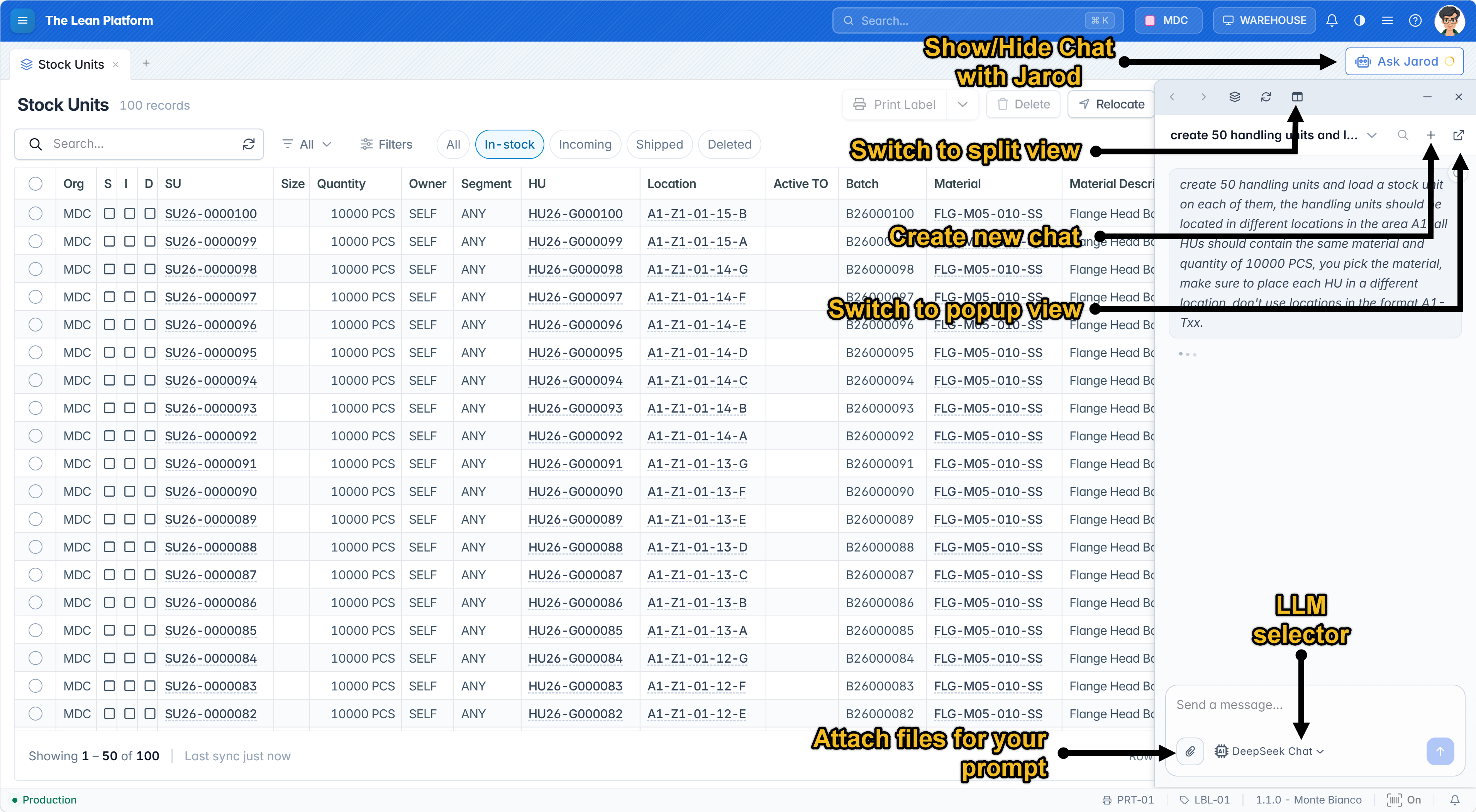
<p><strong>Jarod</strong> is always accessible from the top-right corner, directly below your avatar image (as shown in <strong>Figure 1</strong>). Simply click the button to open the panel. You can choose to view the panel as an overlay on top of your content (My preferred view), side-by-side, or as a pop-up window.</p>

<figure>
	<img width="100%" class="center" src="/assets/blog/tlp-jarod/jarod-01.png" />
	<figcaption><strong>Figure 1.</strong> Jarod panel displayed as overlay</figcaption>
</figure>

<h1 id="todays-scenario">Todays Scenario</h1>
<p>In this post I will show you a concrete example related to <strong>stock unit genealogy</strong>, but to be able to request a genealogy we need to first do some material transfers between stock units and since we are talking about <strong>AI</strong> why not let <strong>Jarod</strong> prepare the data for us :)</p>

<h2 id="data-preparation">Data Preparation</h2>
<p>To prepare the genealogy data I will first ask Jarod to create an initial stock unit, run a series of splits and transfers, and print the labels of the generated stock units too on a label printer.</p>

<p>Here is the prompt:</p>

<pre><code class="language-AI-prompt">- Create a stock unit of 100 PCS (you choose the material and the location). This will be our INITIAL stock - unit.
- From the INITIAL stock unit split 11, 21, and 51 pieces.
- From the stock unit with 51 pieces split 5, 12, and 17 pieces.
- Transfer 3 pieces from the stock unit with 17 pieces to the INITIAL stock unit.
- Merge the stock units with quantities 5 and 12 into a new stock unit, then transfer 8 pieces from it to the INITIAL stock unit.
- Print all the labels on printer LBL-01.
- Show me a summary of what you did, including the stock unit code, initial quantity, current quantity, and notes.
</code></pre>

<p>In this video you can see the prompt (in italian) and how stock units are created by Jarod and labels printed on the physical printer.</p>

<iframe width="100%" height="450" src="https://www.youtube.com/embed/qE4HrE5-0sU?si=dAsE8anehgd6j4v4&amp;start=74&amp;end=100" title="YouTube video player" frameborder="0" allow="accelerometer; autoplay; clipboard-write; encrypted-media; gyroscope; picture-in-picture; web-share" referrerpolicy="strict-origin-when-cross-origin" allowfullscreen=""></iframe>

<p>The end-result of the previous prompt is that Jarod created an initial stock unit <strong>SU26-0000000001</strong> and then executed several splits, transfers, and merges starting from this unit. The following table summarizes what happened:</p>

<table>
  <caption>Table 1: Stock units created by Jarod</caption>
  <thead>
    <tr>
      <th>ID</th>
      <th>Initial Quantity</th>
      <th>Current Quantity</th>
      <th>Notes</th>
    </tr>
  </thead>
  <tbody>
    <tr>
      <td>SU#1</td>
      <td>100 PCS</td>
      <td>28 PCS</td>
      <td>INITIAL stock unit. Split 11, 21, 51 and received 3 + 8 PCS back.</td>
    </tr>
    <tr>
      <td>SU#2</td>
      <td>11 PCS</td>
      <td>11 PCS</td>
      <td>Split from SU#1.</td>
    </tr>
    <tr>
      <td>SU#3</td>
      <td>21 PCS</td>
      <td>21 PCS</td>
      <td>Split from SU#1.</td>
    </tr>
    <tr>
      <td>SU#4</td>
      <td>51 PCS</td>
      <td>17 PCS</td>
      <td>Split from SU#1, then split 5, 12, 17.</td>
    </tr>
    <tr>
      <td>SU#5</td>
      <td>5 PCS</td>
      <td>0 PCS</td>
      <td>Split from SU#4, merged into SU#8.</td>
    </tr>
    <tr>
      <td>SU#6</td>
      <td>12 PCS</td>
      <td>0 PCS</td>
      <td>Split from SU#4, merged into SU#8.</td>
    </tr>
    <tr>
      <td>SU#7</td>
      <td>17 PCS</td>
      <td>14 PCS</td>
      <td>Split from SU#4, transferred 3 PCS to SU#1.</td>
    </tr>
    <tr>
      <td>SU#8</td>
      <td>17 PCS</td>
      <td>9 PCS</td>
      <td>Merge of SU#5 and SU#6, transferred 8 PCS to SU#1.</td>
    </tr>
  </tbody>
</table>

<h2 id="testing-the-genealogy">Testing the genealogy</h2>

<p>Now that our scenario is ready, we can move on to the actual test. so we ask Jarod the following prompt:</p>

<pre><code class="language-AI-prompt">Show me the forward genealogy of the INITIAL stock unit.
</code></pre>

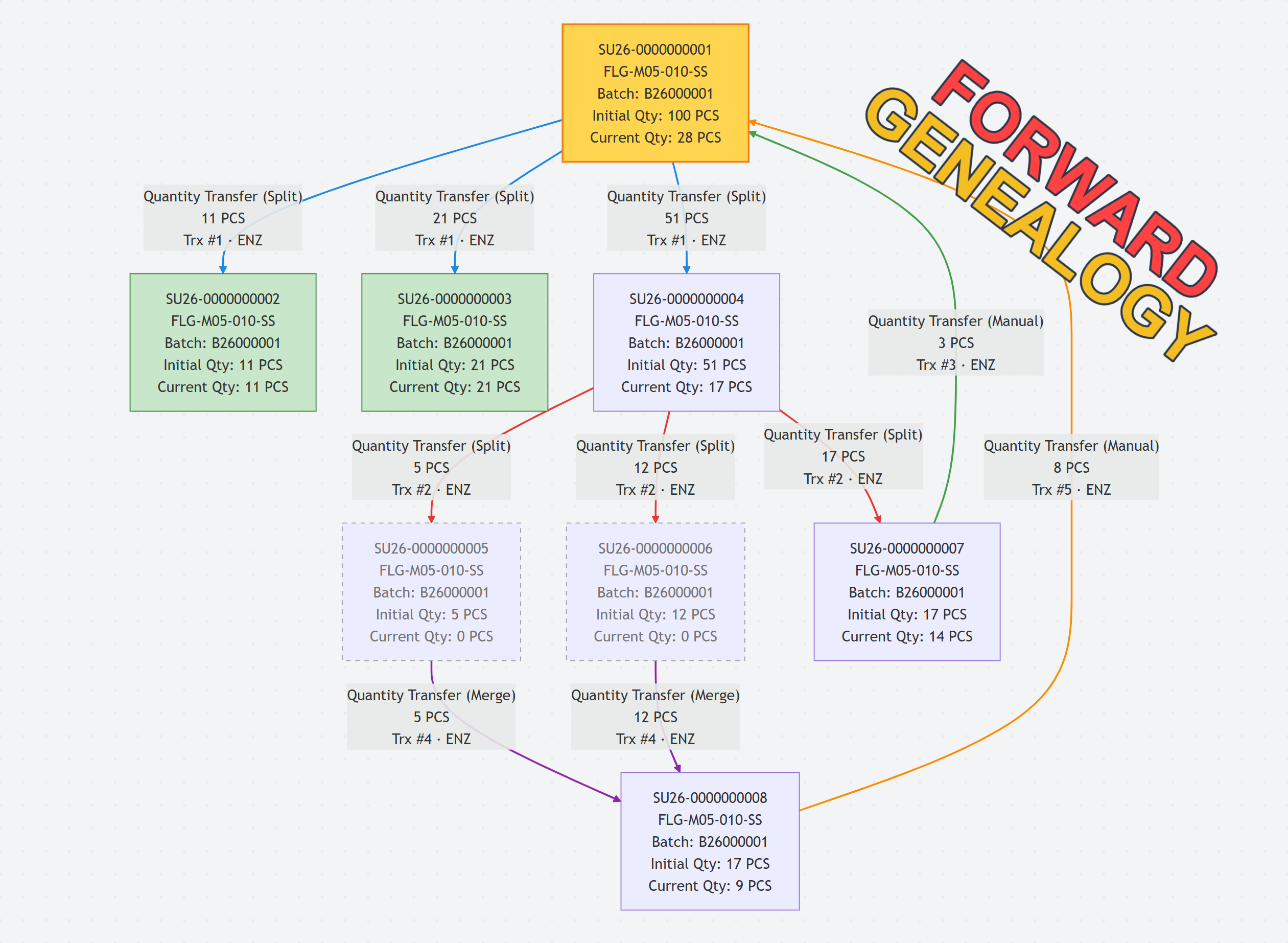
<p>And the answer of Jarod is the flowchart shown in <strong>Figure 2</strong>, Let’s walk through the graph in <strong>Figure 3</strong> to see what happened:</p>

<ul>
  <li>Starting from the <strong>INITIAL</strong> stock unit of 100 pieces, the user with trigram ENZ (which is Enzo) split 11, 21, and 51 pieces, which created three new stock units: <strong>SU#2</strong>, <strong>SU#3</strong>, and <strong>SU#4</strong>.</li>
  <li>Next, <strong>SU#4</strong> was split again into 5, 12, and 17 pieces, which created <strong>SU#5</strong>, <strong>SU#6</strong>, and <strong>SU#7</strong>.</li>
  <li>3 pieces were transferred from <strong>SU#7</strong> back to the <strong>INITIAL</strong> stock unit.</li>
  <li><strong>SU#5</strong> and <strong>SU#6</strong> (of 5 and 12 pieces) were merged into <strong>SU#8</strong> with 17 pieces.</li>
  <li>8 pieces were transferred from <strong>SU#8</strong> to the <strong>INITIAL</strong> stock unit.</li>
  <li>Matching arrow colors and labels (e.g., blue arrows marked Trx #1) indicate actions executed within the same transaction. Separate transactions are distinguished by different colors and updated transaction numbers.</li>
  <li>All the operations are registered under the logged-in user: <strong>enzo</strong>, not under a generic AI user, because Jarod always acts on behalf of the currently logged user.</li>
</ul>

<figure>
	<img width="100%" class="center" src="/assets/blog/tlp-jarod/fw-genealogy.png" />
	<figcaption><strong>Figure 2.</strong> Forward genealogy of the INITIAL stock unit.</figcaption>
</figure>

<h1 id="summary">Summary</h1>

<p>In this post we introduced <strong>Jarod</strong>, the AI assistant of the <strong>TLP</strong> platform. The key takeaways from todays post are:</p>

<ul>
  <li><strong>Describe it, don’t build it.</strong> Jarod turns a plain-language description into a complete test scenario in seconds, with stock units, splits, transfers, merges, it can even print labels!</li>
  <li><strong>Same permissions as the user.</strong> Jarod acts with the profile and permissions of the logged-in user, and in production its capabilities are restricted to respect business rules.</li>
  <li><strong>Your choice of model.</strong> Administrators decide which AI models (<strong>OpenAI</strong>, <strong>Claude</strong>, <strong>Gemini</strong>, <strong>DeepSeek</strong>) each user can use, which keeps costs and performance under control.</li>
  <li><strong>Platform-wide.</strong> Since Jarod lives in the <strong>TLP</strong> platform, every solution built on top of it, including custom ones, can use it.</li>
</ul>

<p>In the next posts I’ll show more use cases where artificial intelligence can make our operations simpler, faster, and more efficient. stay tuned!</p>]]></content><author><name>Omar Al Kababji</name></author><category term="TLP" /><category term="tlp" /><summary type="html"><![CDATA[Meet Jarod, the AI assistant built into the TLP platform, and see how it builds a stock unit genealogy test scenario in seconds.]]></summary><media:thumbnail xmlns:media="http://search.yahoo.com/mrss/" url="https://www.pragmatech.it/assets/blog/tlp-jarod/header.jpg" /><media:content medium="image" url="https://www.pragmatech.it/assets/blog/tlp-jarod/header.jpg" xmlns:media="http://search.yahoo.com/mrss/" /></entry><entry><title type="html">How to model a warehouse drawer</title><link href="https://www.pragmatech.it/blog/2026/09/22/tlp-wms-drawer.html" rel="alternate" type="text/html" title="How to model a warehouse drawer" /><published>2026-09-22T00:00:00+00:00</published><updated>2026-09-22T00:00:00+00:00</updated><id>https://www.pragmatech.it/blog/2026/09/22/tlp-wms-drawer</id><content type="html" xml:base="https://www.pragmatech.it/blog/2026/09/22/tlp-wms-drawer.html"><![CDATA[<p>Today we are going to learn how to model a warehouse drawer using our <strong>WMS</strong> solution. A warehouse drawer is a pull-out storage compartment designed for high-density organization of small, loose, or valuable items that would waste space or get lost on standard warehouse shelving.</p>

<p>In this exercise we are going to satisfy the following requirements:</p>

<ul>
  <li>Inventory allocated to drawer-level storage must be trackable without the use of physical labels.</li>
  <li>The WMS must support a configurable location policy <strong>Single Material</strong> / <strong>Single-Batch</strong> that restricts a drawer to a single SKU and batch number.</li>
  <li>The WMS must support a configurable location policy <strong>Single Material</strong> / <strong>Multi-Batch</strong> that restricts a drawer to a single SKU while allowing differing batch numbers.</li>
</ul>

<h1 id="modeling-drawer-locations">Modeling drawer locations</h1>
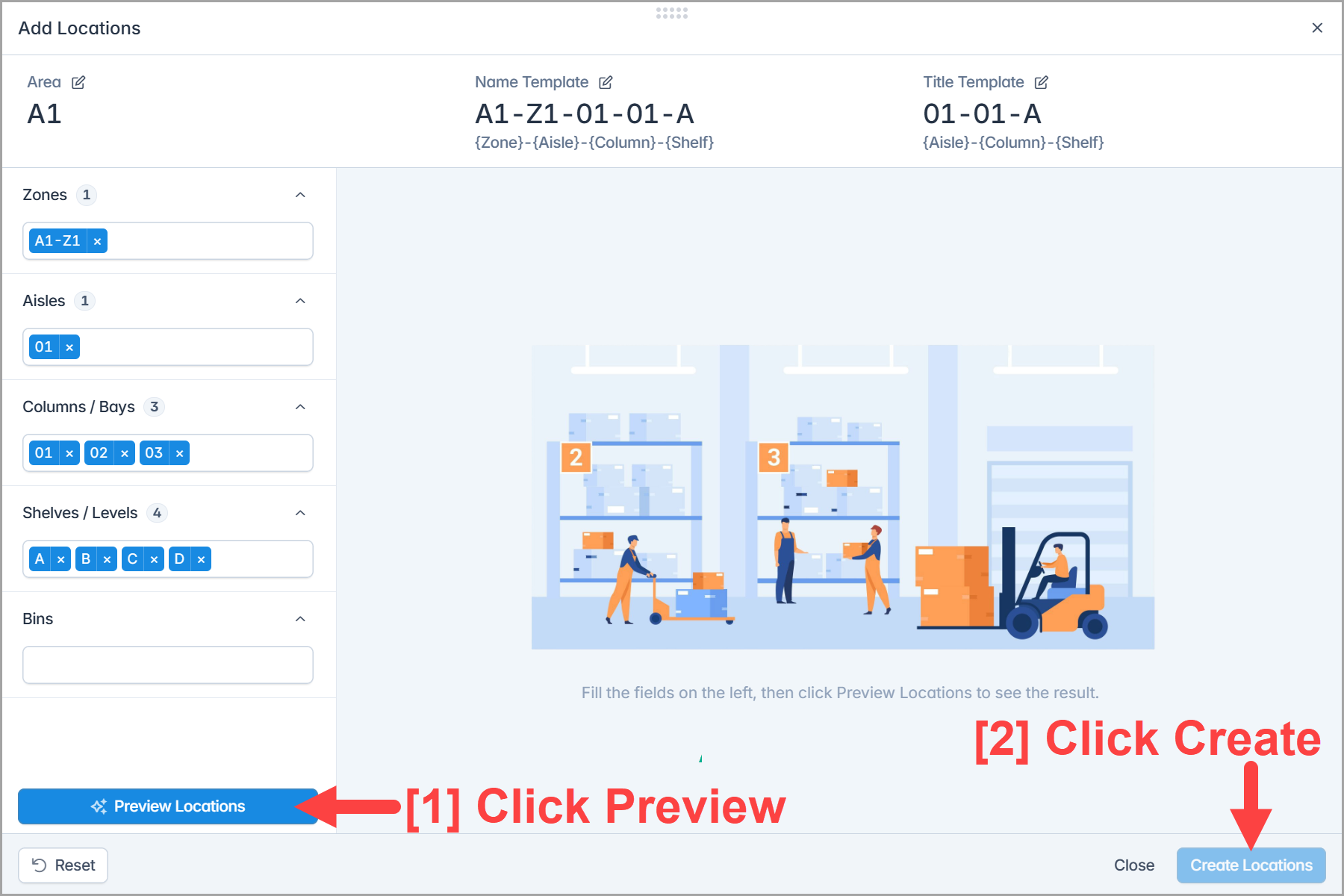
<p>Every compartment within the drawer must be assigned a unique location name and labeled with its designated location barcode, we can use the <strong>Add Bulk Locations</strong> functionality to quickly create our desired locations as shown in the <strong>Figure 1</strong> below, refer to <a href="/blog/2026/03/03/tlp-wms-1.html">this post</a> for more details on creating locations and printing their barcodes.</p>

<div class="markdown-alert markdown-alert-note"><p class="markdown-alert-title"><svg data-component="Octicon" class="octicon octicon-info" viewBox="0 0 16 16" version="1.1" width="16" height="16" aria-hidden="true"><path d="M0 8a8 8 0 1 1 16 0A8 8 0 0 1 0 8Zm8-6.5a6.5 6.5 0 1 0 0 13 6.5 6.5 0 0 0 0-13ZM6.5 7.75A.75.75 0 0 1 7.25 7h1a.75.75 0 0 1 .75.75v2.75h.25a.75.75 0 0 1 0 1.5h-2a.75.75 0 0 1 0-1.5h.25v-2h-.25a.75.75 0 0 1-.75-.75ZM8 6a1 1 0 1 1 0-2 1 1 0 0 1 0 2Z"></path></svg> Note</p><p>To keep this tutorial simple, we’ll use a <strong>3x4</strong> drawer layout as our example. The exact same process works for any size drawer—larger ones just take a bit more time to label 😊.</p>
</div>

<figure>
	<img width="100%" class="center" src="/assets/blog/tlp-wms-drawer/create-locations.png" />
	<figcaption><strong>Figure 1.</strong> Create Drawer Locations.</figcaption>
</figure>

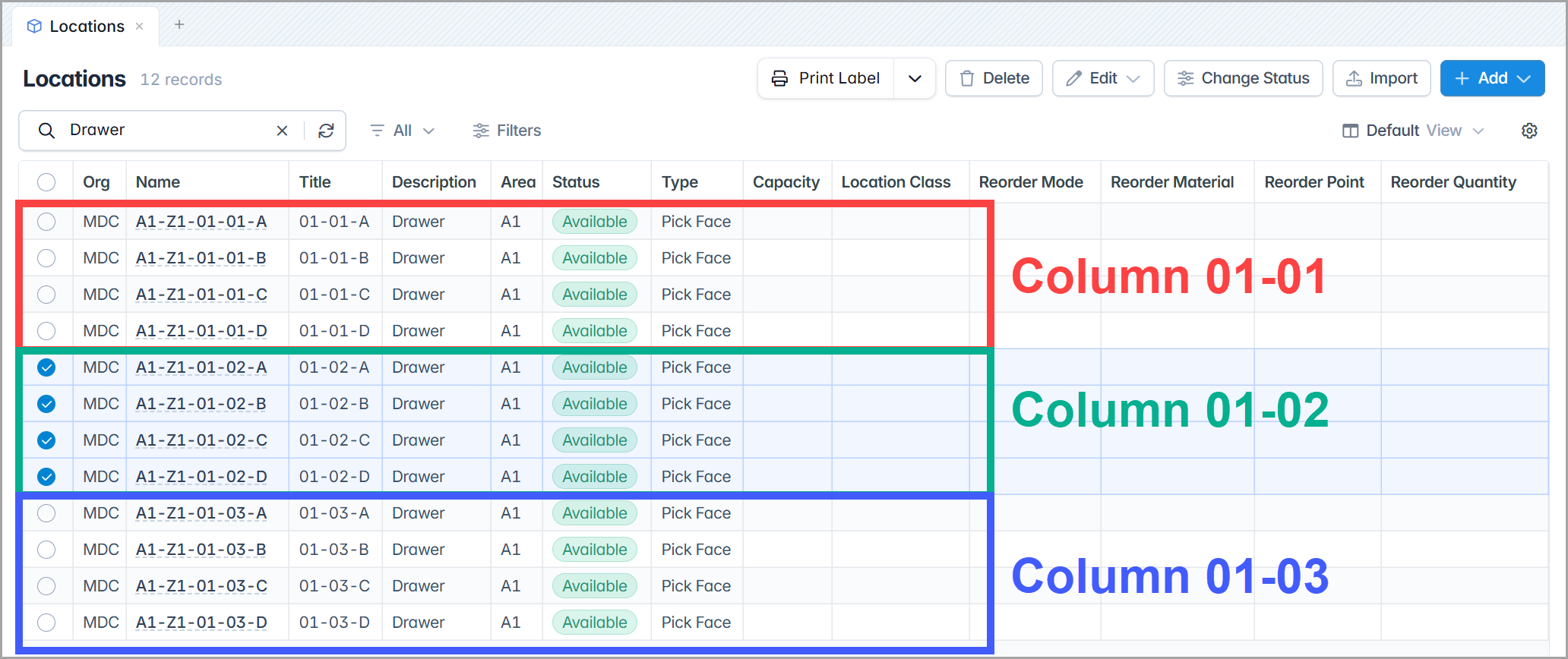
<p>The end result is that we get the following 12 locations that represent our <strong>3x4</strong> drawer bins.</p>

<figure>
	<img width="100%" class="center" src="/assets/blog/tlp-wms-drawer/locations.png" />
	<figcaption><strong>Figure 2.</strong> Drawer Locations.</figcaption>
</figure>

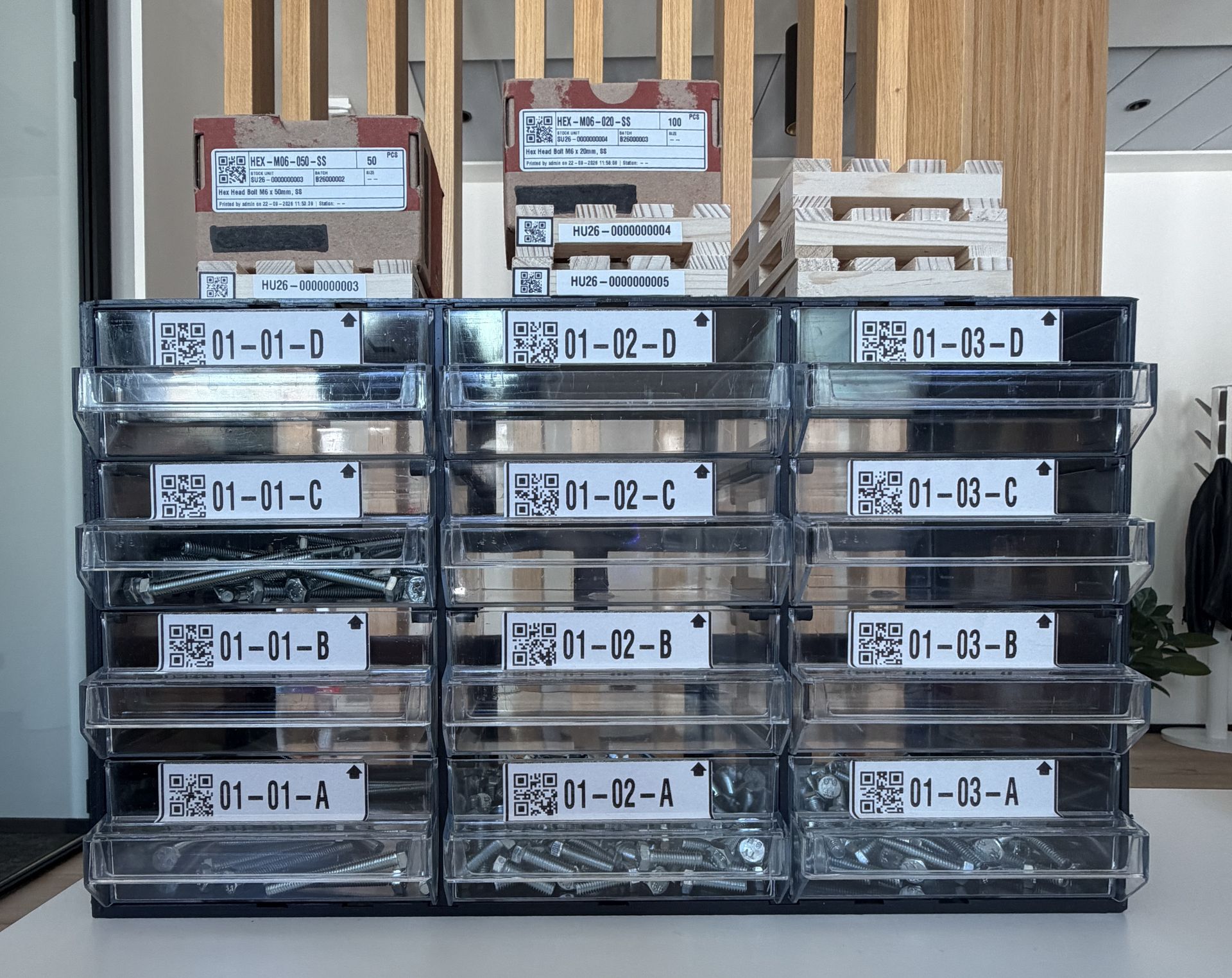
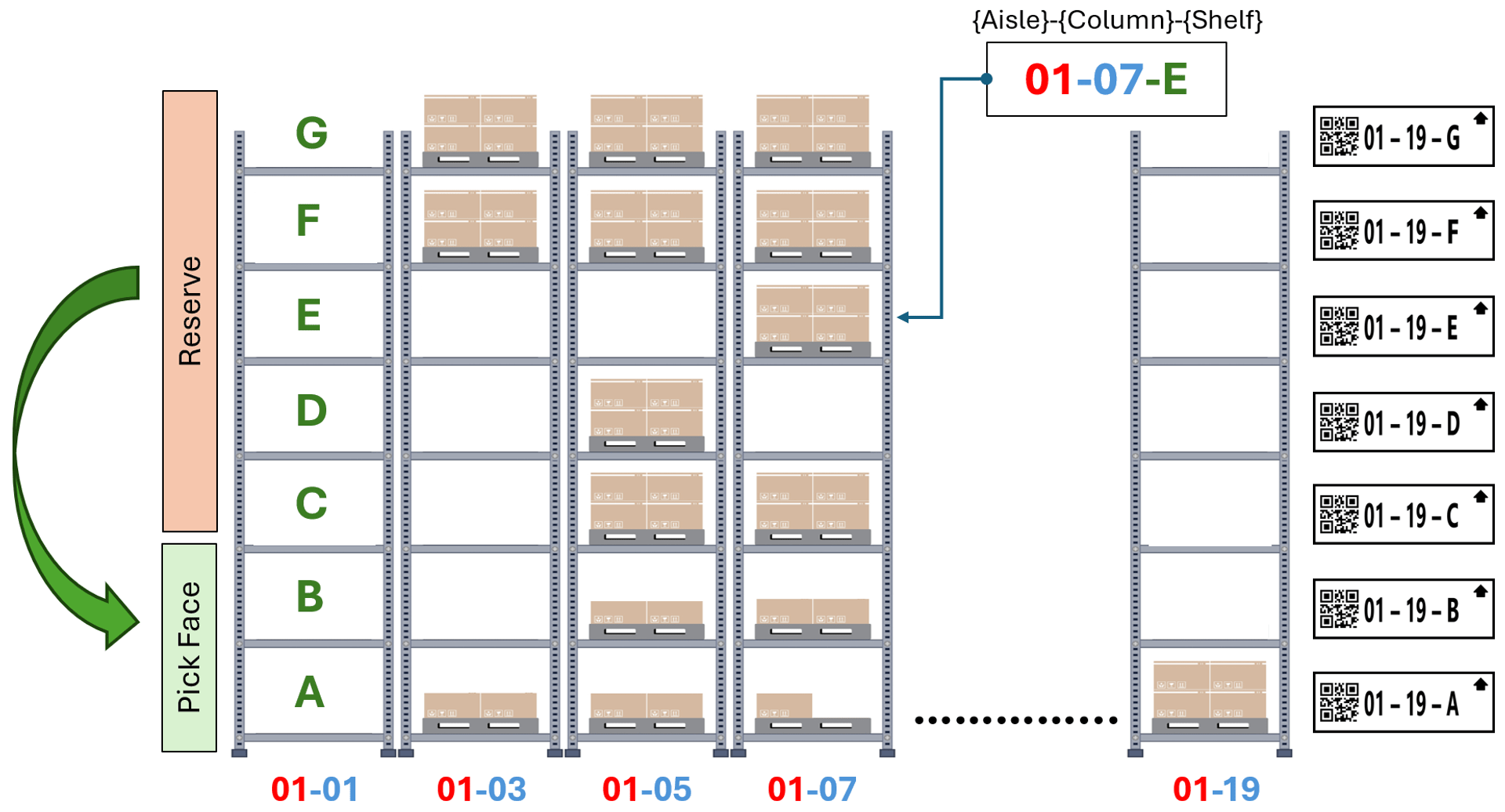
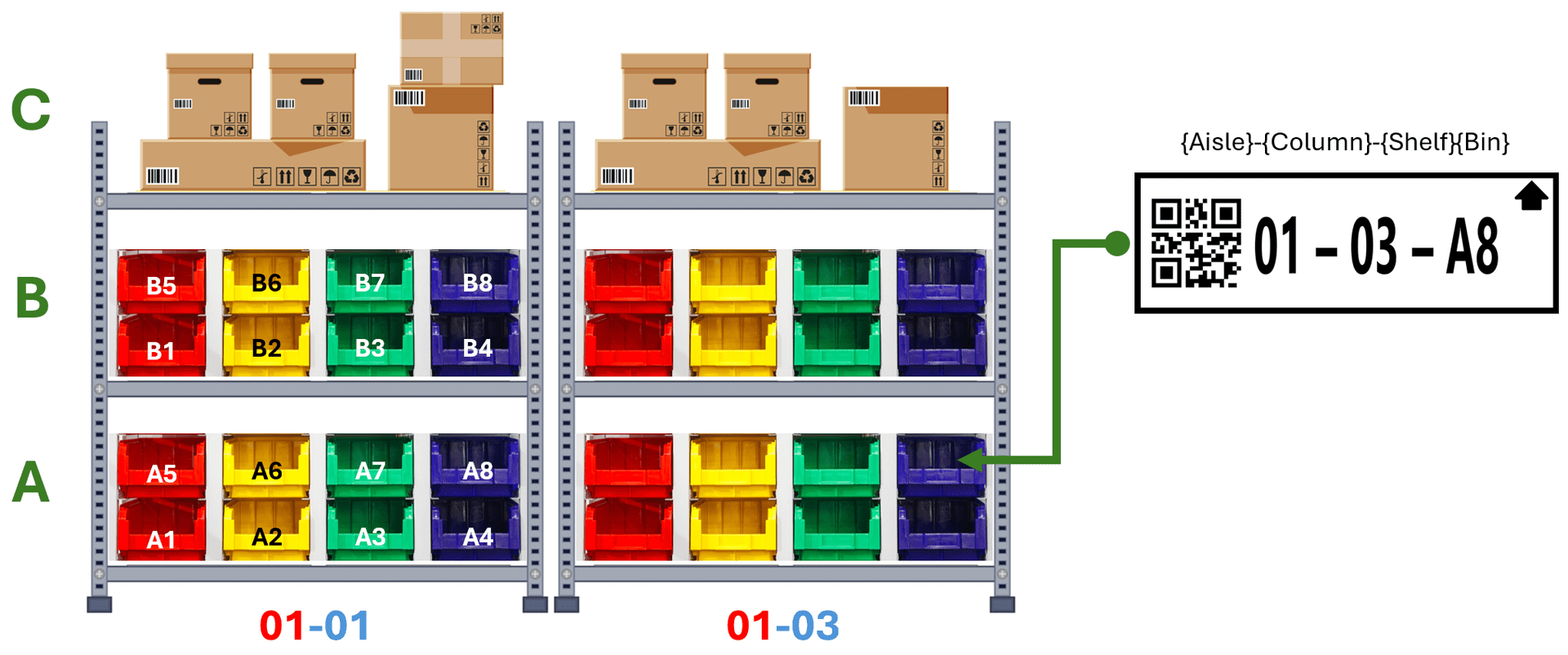
<p>Now that we created the locations in our system, we can print their labels and physically apply them to the drawer bins, the final result is something similar to <strong>Figure 3</strong>, we can observe the following:</p>

<ul>
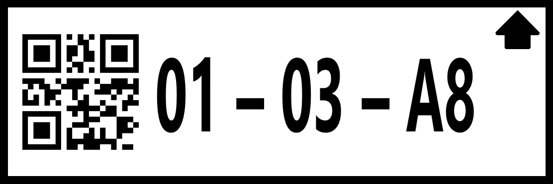
  <li>The drawer is composed of three columns <strong>01-01</strong>, <strong>01-02</strong>, and <strong>01-03</strong>.</li>
  <li>Each column is composed of four bins <strong>A</strong>, <strong>B</strong>, <strong>C</strong> and <strong>D</strong>.</li>
</ul>

<figure>
	<img width="100%" class="center" src="/assets/blog/tlp-wms-drawer/drawer-locations.jpg" />
	<figcaption><strong>Figure 3.</strong> Drawer with labels on each bin.</figcaption>
</figure>

<h1 id="business-rules">Business rules</h1>

<p>A <strong>Business Rule</strong> is a configurable <strong>policy</strong> attached to a <strong>location</strong> (or a <strong>location class</strong>) that the system fires automatically whenever a relevant warehouse action happens, for example when someone relocates stock into that location. Business rules can by used to execute:</p>
<ul>
  <li><strong>Checks</strong> before/after an action is executed, for example making sure that the relocated stock unit has the same bin material.</li>
  <li><strong>Actions</strong> before/after an action is executed, for example merging the relocated stock unit into the bin stock unit.</li>
</ul>

<p>Business Rules can be assigned to <strong>locations</strong> however in a real scenario a single drawer might have hundreds of locations, thus it is generally suggested to configure them at a higher level following this process:</p>

<ol>
  <li>Create a <strong>Location Class</strong> for example <strong>SB-DRAWER-BIN</strong> for bins that accept single batches.</li>
  <li>Assign the desired business rules to the location class.</li>
  <li>Assign the class to the desired locations.</li>
</ol>

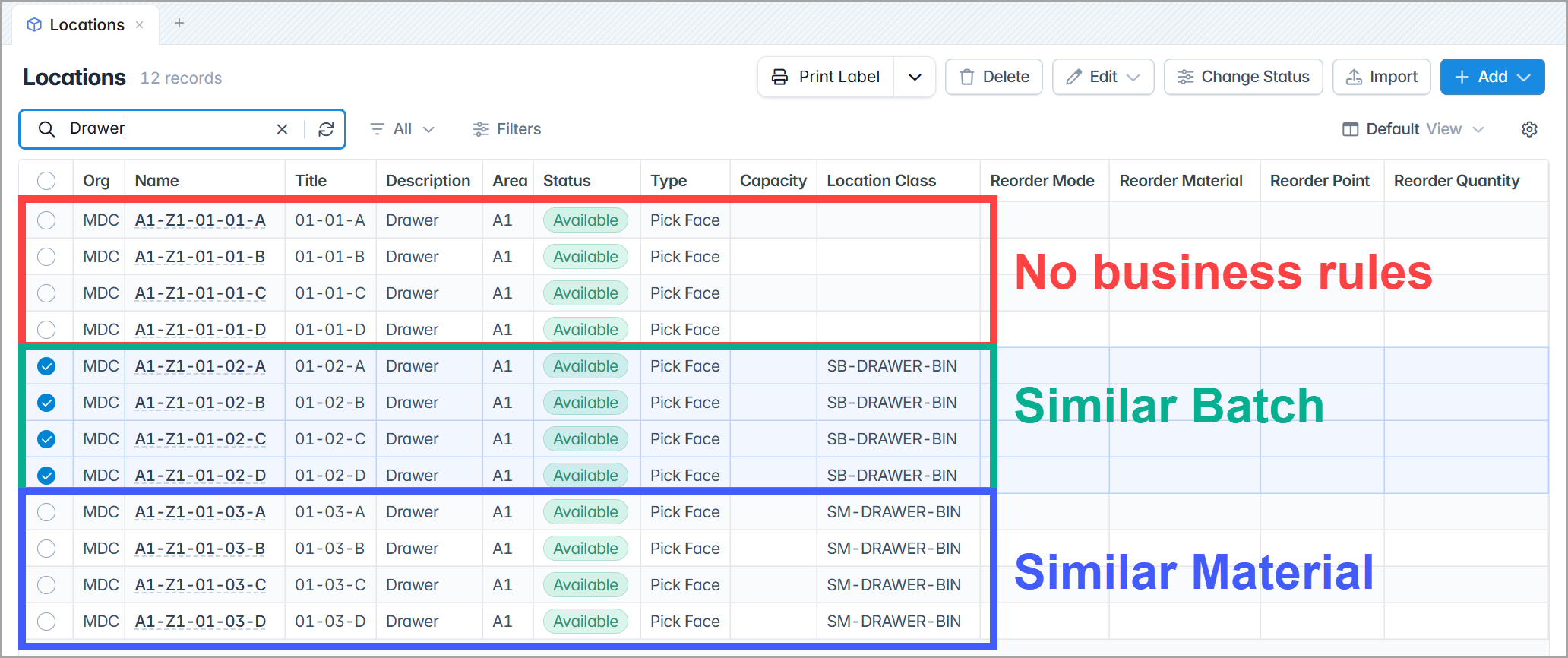
<p>As you can see in <strong>Figure 4</strong> we assigned classes as follows:</p>

<ul>
  <li>Column <strong>01-01</strong> locations -&gt; No location class, thus they act as normal locations.</li>
  <li>Column <strong>01-02</strong> locations -&gt; <strong>SB-DRAWER-BIN</strong> thus the <strong>Single-Batch</strong> rule is enforced.</li>
  <li>Column <strong>01-03</strong> locations -&gt; <strong>SM-DRAWER-BIN</strong> thus the <strong>Single-Material</strong> rule is enforced.</li>
</ul>

<figure>
	<img width="100%" class="center" src="/assets/blog/tlp-wms-drawer/locations-classes.png" />
	<figcaption><strong>Figure 4.</strong> Locations classes.</figcaption>
</figure>

<h1 id="testing">Testing</h1>

<p>To test the system behavior lets create 4 stock units in an initial storage location, for example <strong>A1-T01</strong>.</p>

<ul>
  <li><strong>SU#1</strong>, <strong>SU#2</strong> have the same material and batch.</li>
  <li><strong>SU#3</strong> has the same material as <strong>SU#1</strong> and <strong>SU#2</strong> but with a different batch number.</li>
  <li><strong>SU#4</strong> has a different material.</li>
</ul>

<table>
  <caption>Table 1: Test Stock Units</caption>
  <thead>
    <tr>
      <th>ID</th>
      <th>StockUnit</th>
      <th>Material</th>
      <th>Batch</th>
      <th>Quantity</th>
    </tr>
  </thead>
  <tbody>
    <tr style="background-color: #eaf4fb;">
      <td>SU#1</td>
      <td>SU26-0000000001</td>
      <td>HEX-M06-050-SS</td>
      <td>B26000001</td>
      <td>100 PCS</td>
    </tr>
    <tr style="background-color: #eaf4fb;">
      <td>SU#2</td>
      <td>SU26-0000000002</td>
      <td>HEX-M06-050-SS</td>
      <td>B26000001</td>
      <td>100 PCS</td>
    </tr>
    <tr style="background-color: #fdf6e3;">
      <td>SU#3</td>
      <td>SU26-0000000003</td>
      <td>HEX-M06-050-SS</td>
      <td>B26000002</td>
      <td>100 PCS</td>
    </tr>
    <tr style="background-color: #eef7ec;">
      <td>SU#4</td>
      <td>SU26-0000000004</td>
      <td>HEX-M06-020-SS</td>
      <td>B26000003</td>
      <td>100 PCS</td>
    </tr>
  </tbody>
</table>

<h2 id="no-business-rules">No business rules</h2>

<p>If you recall, column <strong>01-01</strong> bins are configured with no business rules, which could represent a scenario in which we want to put multiple bags in a single bin but maintain a strict stock separation.</p>

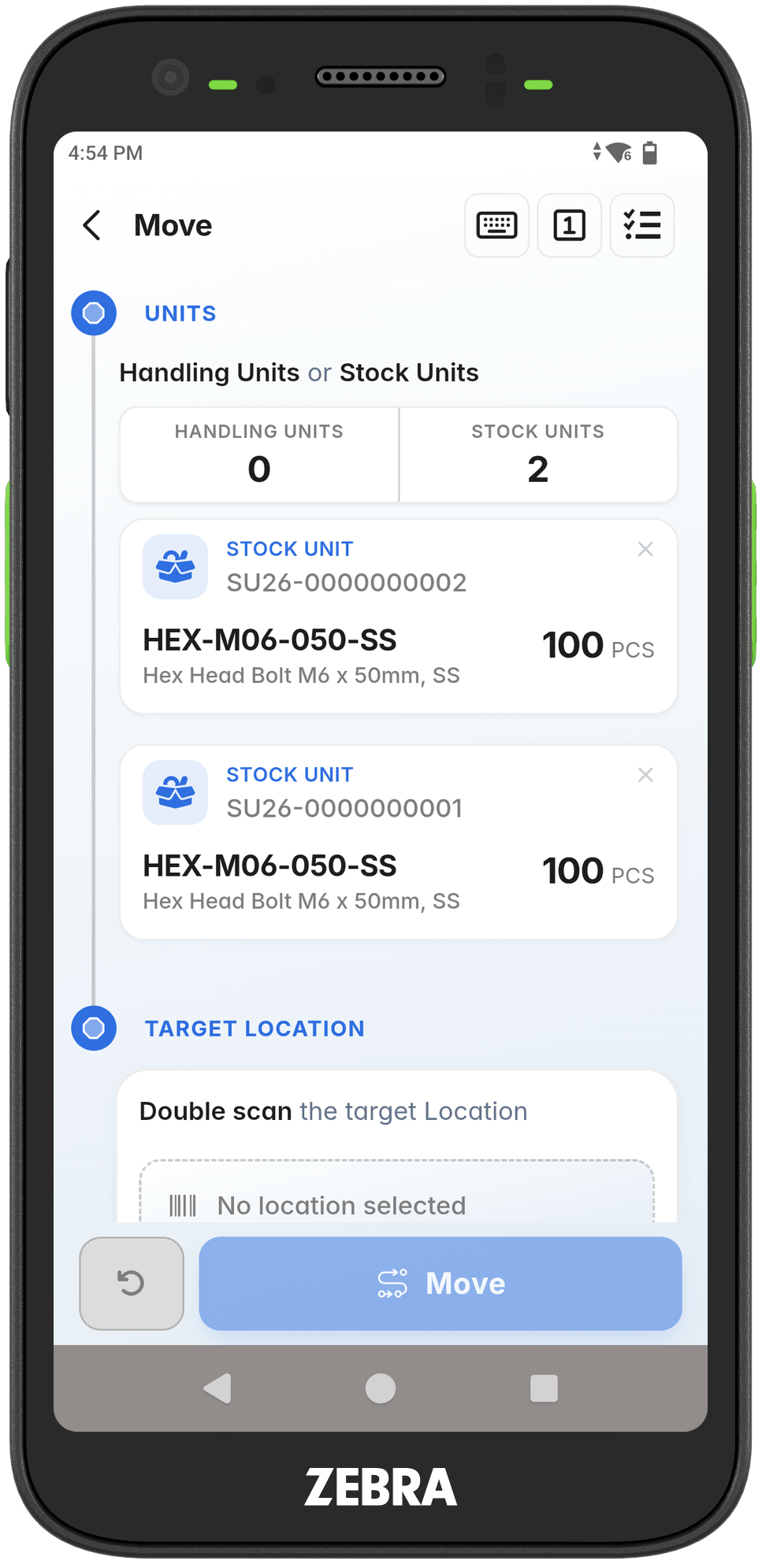
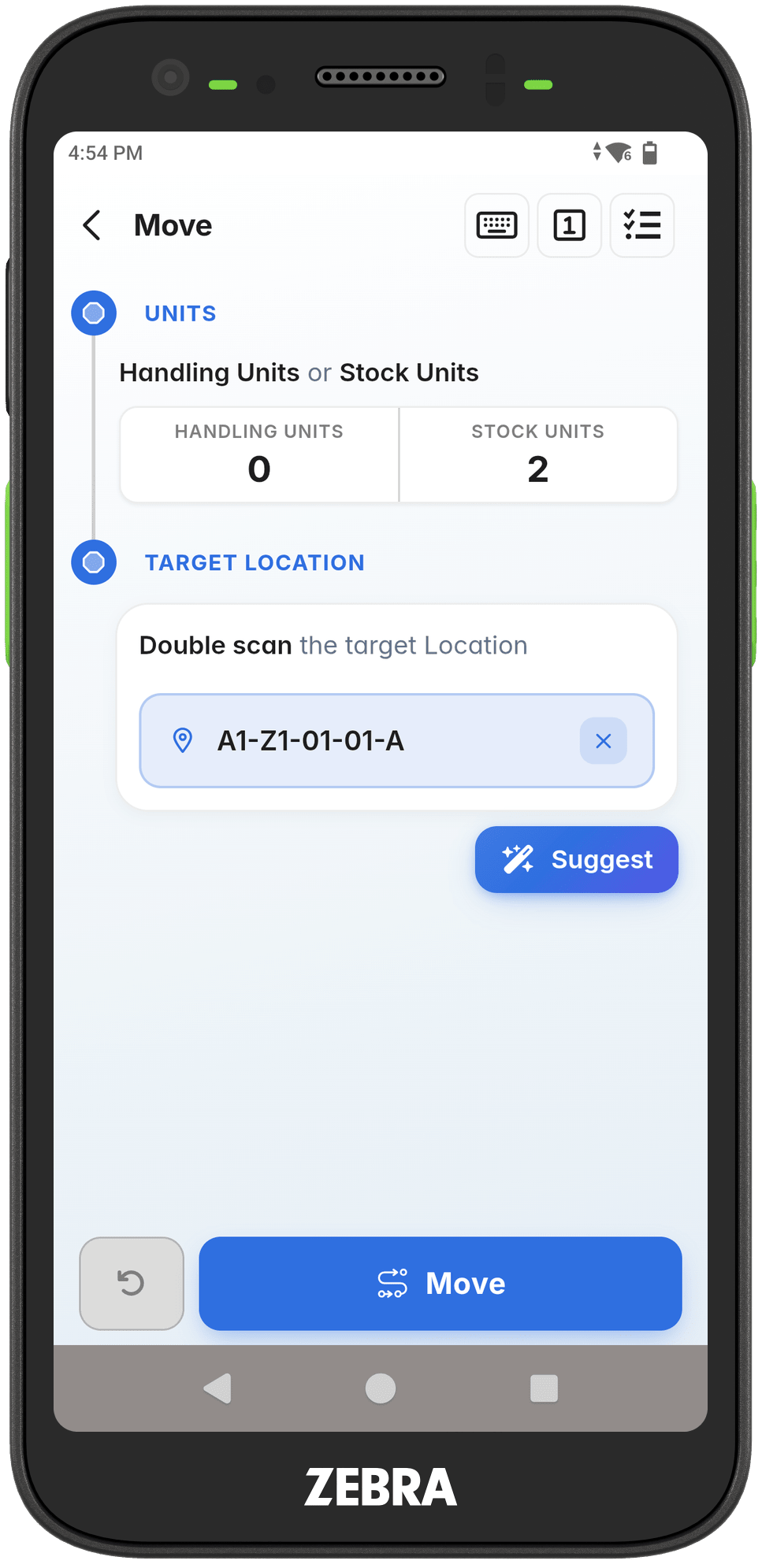
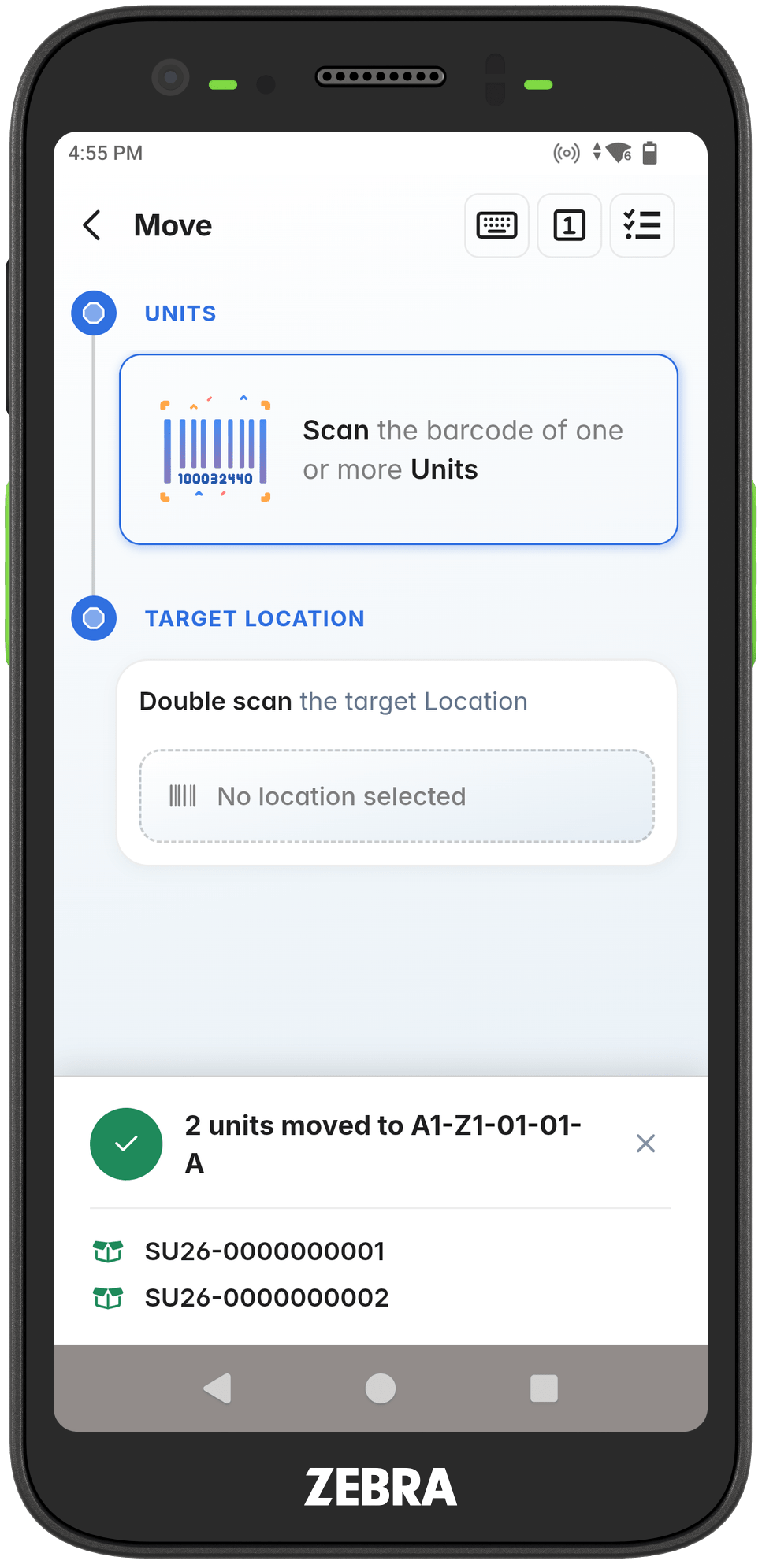
<p>Lets use the mobile <strong>Move</strong> app to relocate both <strong>SU#1</strong> and <strong>SU#2</strong> to location <strong>01-01-A</strong> and see what happens.</p>

<div class="grid-cell" style="display: flex; gap: 10px; justify-content: center;">
	<img width="33%" src="/assets/blog/tlp-wms-drawer/Move-A1.png" />
	<img width="33%" src="/assets/blog/tlp-wms-drawer/Move-A2.png" />
	<img width="33%" src="/assets/blog/tlp-wms-drawer/Move-A3.png" />
</div>

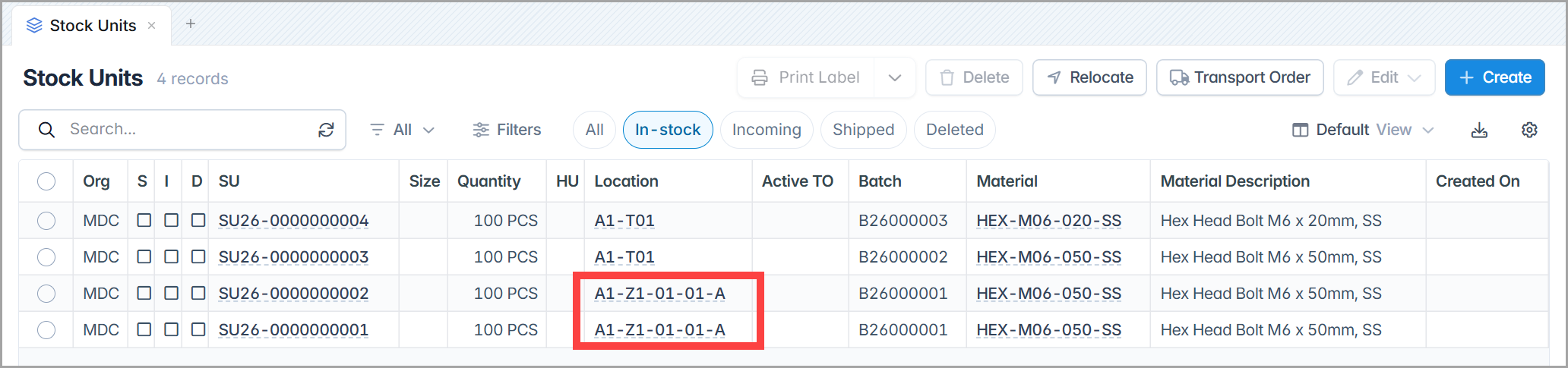
<p>As you can see in <strong>Figure 5</strong>, nothing special happened, both <strong>SU#1</strong> and <strong>SU#2</strong> simply changed location from <strong>A1-T01</strong> -&gt; <strong>01-01-A</strong>, however they remained intact.</p>

<figure>
	<img width="100%" class="center" src="/assets/blog/tlp-wms-drawer/move-1.png" />
	<figcaption><strong>Figure 5.</strong> SU#1 and SU#2 moved to location 01-01-A</figcaption>
</figure>

<h2 id="similar-batch">Similar batch</h2>

<p>Drawer column <strong>01-02</strong> represents the scenario in which we don’t want to allow mixing stock of different batches in the same bin, in other words we can store both <strong>SU#1</strong> and <strong>SU#2</strong> in the same bin because they have the same material and batch number <strong>B26000001</strong>, however we cannot store <strong>SU#3</strong> in the same bin because although it is of the same material <strong>HEX-M06-050-SS</strong> its batch <strong>B26000002</strong> is different.</p>

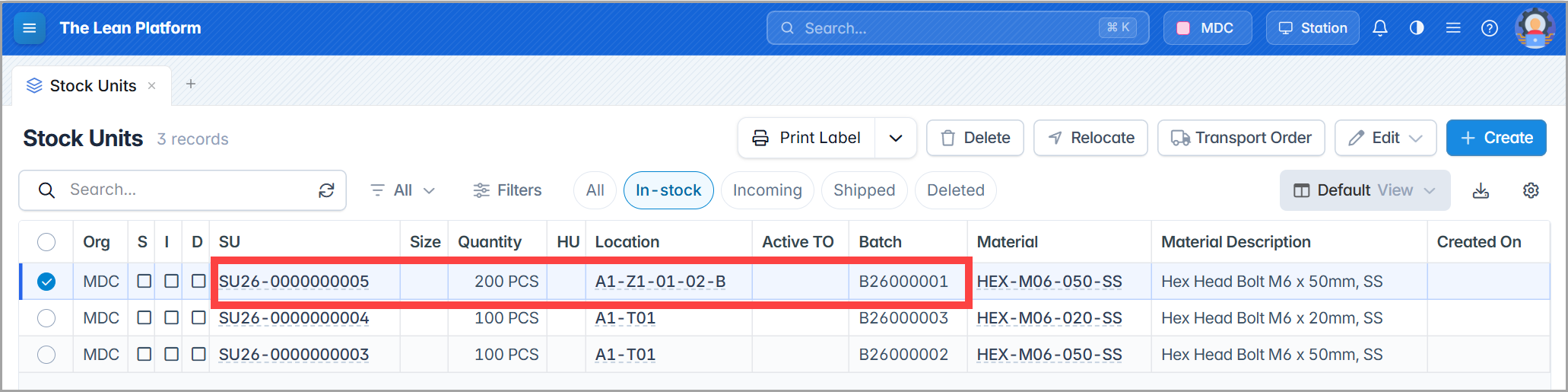
<p><strong>Figure 6</strong> illustrates the end-result of moving <strong>SU#1</strong> and <strong>SU#2</strong> to <strong>01-02-B</strong>, here is what happened:</p>

<ul>
  <li>The <strong>Move</strong> transaction was accepted because both stock units have the same material and batch.</li>
  <li>A new stock unit <strong>SU26-0000000005</strong> was automatically created in <strong>01-02-B</strong>, the new stock unit inherited the same material <strong>HEX-M06-050-SS</strong> and batch number <strong>B26000001</strong> of the moved stock-units.</li>
  <li>The quantities of <strong>SU#1</strong> and <strong>SU#2</strong> was transferred to <strong>SU26-0000000005</strong> which has the quantity of <strong>200 PCS</strong>.</li>
  <li>Stock-units <strong>SU#1</strong> and <strong>SU#2</strong> where logically deleted since their quantity became <strong>0 PCS</strong>, and they are not visible anymore.</li>
</ul>

<div class="markdown-alert markdown-alert-note"><p class="markdown-alert-title"><svg data-component="Octicon" class="octicon octicon-info" viewBox="0 0 16 16" version="1.1" width="16" height="16" aria-hidden="true"><path d="M0 8a8 8 0 1 1 16 0A8 8 0 0 1 0 8Zm8-6.5a6.5 6.5 0 1 0 0 13 6.5 6.5 0 0 0 0-13ZM6.5 7.75A.75.75 0 0 1 7.25 7h1a.75.75 0 0 1 .75.75v2.75h.25a.75.75 0 0 1 0 1.5h-2a.75.75 0 0 1 0-1.5h.25v-2h-.25a.75.75 0 0 1-.75-.75ZM8 6a1 1 0 1 1 0-2 1 1 0 0 1 0 2Z"></path></svg> Note</p><p>Selecting the <strong>Deleted</strong> filter in the search bar will show both <strong>SU#1</strong> and <strong>SU#2</strong>, their quantity will be displayed as <strong>0 PCS</strong>.</p>
</div>

<figure>
	<img width="100%" class="center" src="/assets/blog/tlp-wms-drawer/move2-result-desktop.png" />
	<figcaption><strong>Figure 6.</strong> Result of moving SU#1 and SU#2 to location 01-02-B</figcaption>
</figure>

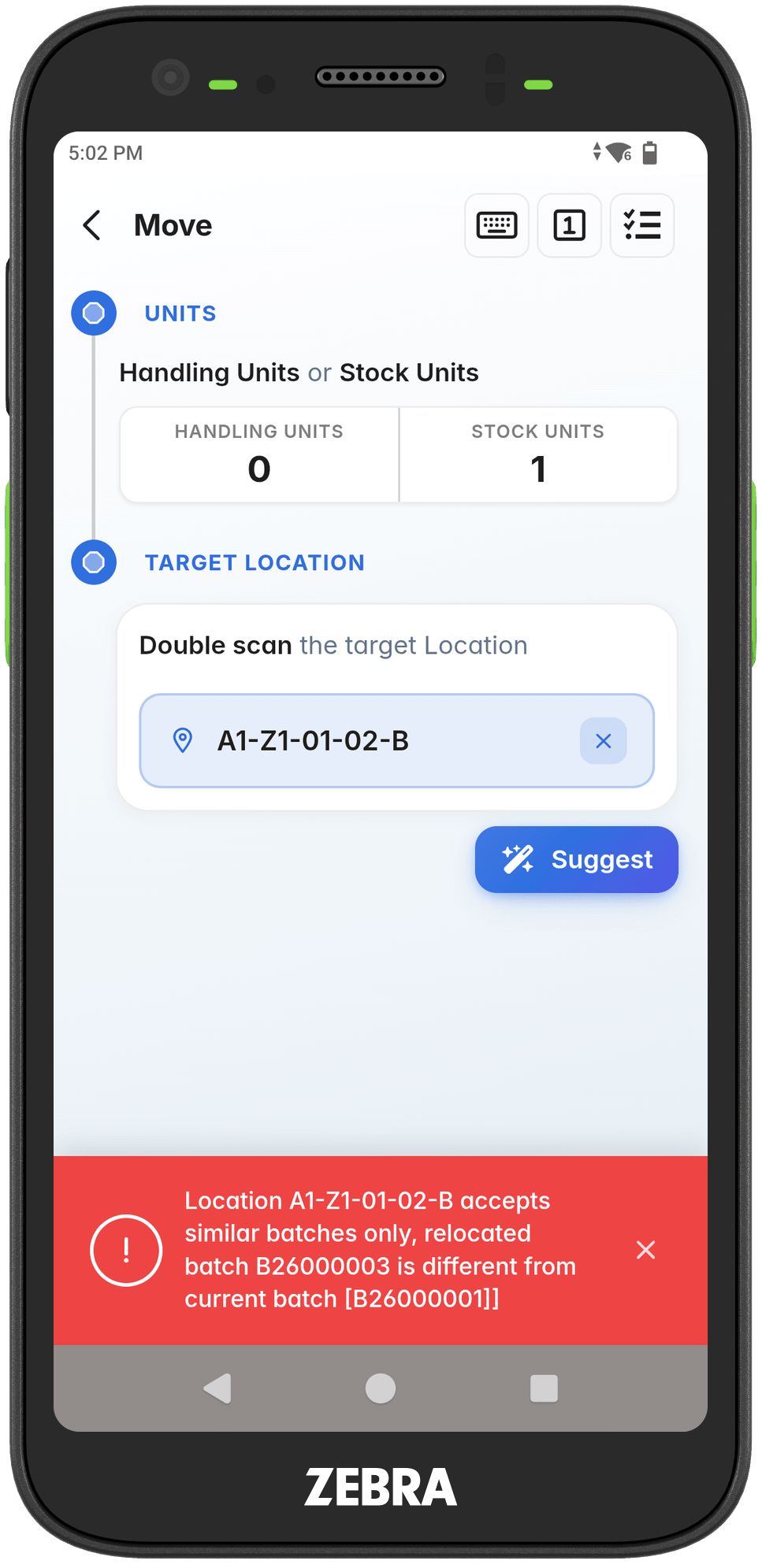
<p>But what happens if we try to move <strong>SU#3</strong> to the same bin <strong>01-02-B</strong>?</p>

<p>Since the stock unit has a different batch the system generates an error preventing the user from executing such action, the error says: <strong>Location A1-Z1-01-02-B accepts similar batches only, relocated batch B26000002 is different from current batch B26000001</strong>.</p>

<div class="grid-cell" style="display: flex; gap: 10px; justify-content: center;">
	<img width="45%" src="/assets/blog/tlp-wms-drawer/move2-mobile1.png" />
</div>

<h2 id="similar-material">Similar material</h2>

<p>Drawer column <strong>01-03</strong> represents the scenario in which we want to allow mixing stock of the same material even though they have different batches, so differently from the previous case we should be able to store <strong>SU#3</strong> and <strong>SU#5</strong> in the same bin even though they have different batches, however we cannot store <strong>SU#4</strong> in the same bin because it has a different material <strong>HEX-M06-020-SS</strong>.</p>

<p><strong>Figure 7</strong> illustrates the end-result of moving <strong>SU#3</strong> and <strong>SU#5</strong> to <strong>01-03-C</strong>, here is what happened:</p>

<ul>
  <li>The <strong>Move</strong> transaction was accepted because both stock units have the same material.</li>
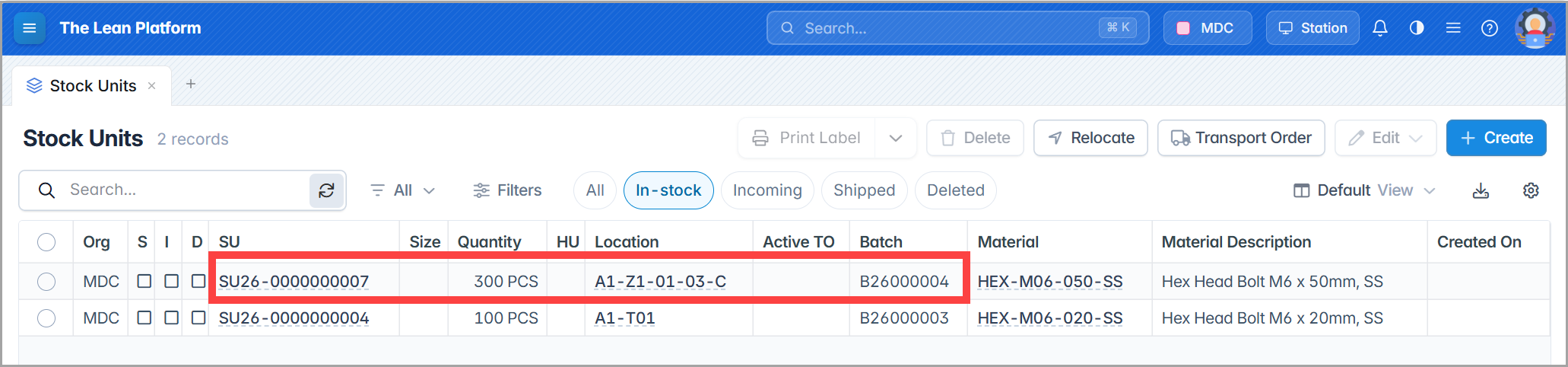
  <li>A new stock unit <strong>SU26-0000000007</strong> was automatically created in <strong>01-03-C</strong>, the new stock unit inherited the same material <strong>HEX-M06-050-SS</strong>.</li>
  <li>Since the moved stock units had different batches, a new batch <strong>B26000004</strong> was created.</li>
  <li>The quantities of <strong>SU#3</strong> and <strong>SU#5</strong> was transferred to <strong>SU26-0000000007</strong> which has the quantity of <strong>300 PCS</strong>.</li>
  <li>Stock-units <strong>SU#3</strong> and <strong>SU#5</strong> where logically deleted since their quantity became <strong>0 PCS</strong>, and they are not visible anymore.</li>
</ul>

<div class="markdown-alert markdown-alert-note"><p class="markdown-alert-title"><svg data-component="Octicon" class="octicon octicon-info" viewBox="0 0 16 16" version="1.1" width="16" height="16" aria-hidden="true"><path d="M0 8a8 8 0 1 1 16 0A8 8 0 0 1 0 8Zm8-6.5a6.5 6.5 0 1 0 0 13 6.5 6.5 0 0 0 0-13ZM6.5 7.75A.75.75 0 0 1 7.25 7h1a.75.75 0 0 1 .75.75v2.75h.25a.75.75 0 0 1 0 1.5h-2a.75.75 0 0 1 0-1.5h.25v-2h-.25a.75.75 0 0 1-.75-.75ZM8 6a1 1 0 1 1 0-2 1 1 0 0 1 0 2Z"></path></svg> Note</p><p>Inspecting the genealogy of batch <strong>B26000004</strong> you will see that it is made of <strong>200 PCS</strong> of batch <strong>B26000001</strong> and <strong>100 PCS</strong> of batch <strong>B26000002</strong>.</p>
</div>

<figure>
	<img width="100%" class="center" src="/assets/blog/tlp-wms-drawer/move3-result-desktop.png" />
	<figcaption><strong>Figure 7.</strong> Result of moving SU#3 and SU#5 to location 01-03-C</figcaption>
</figure>

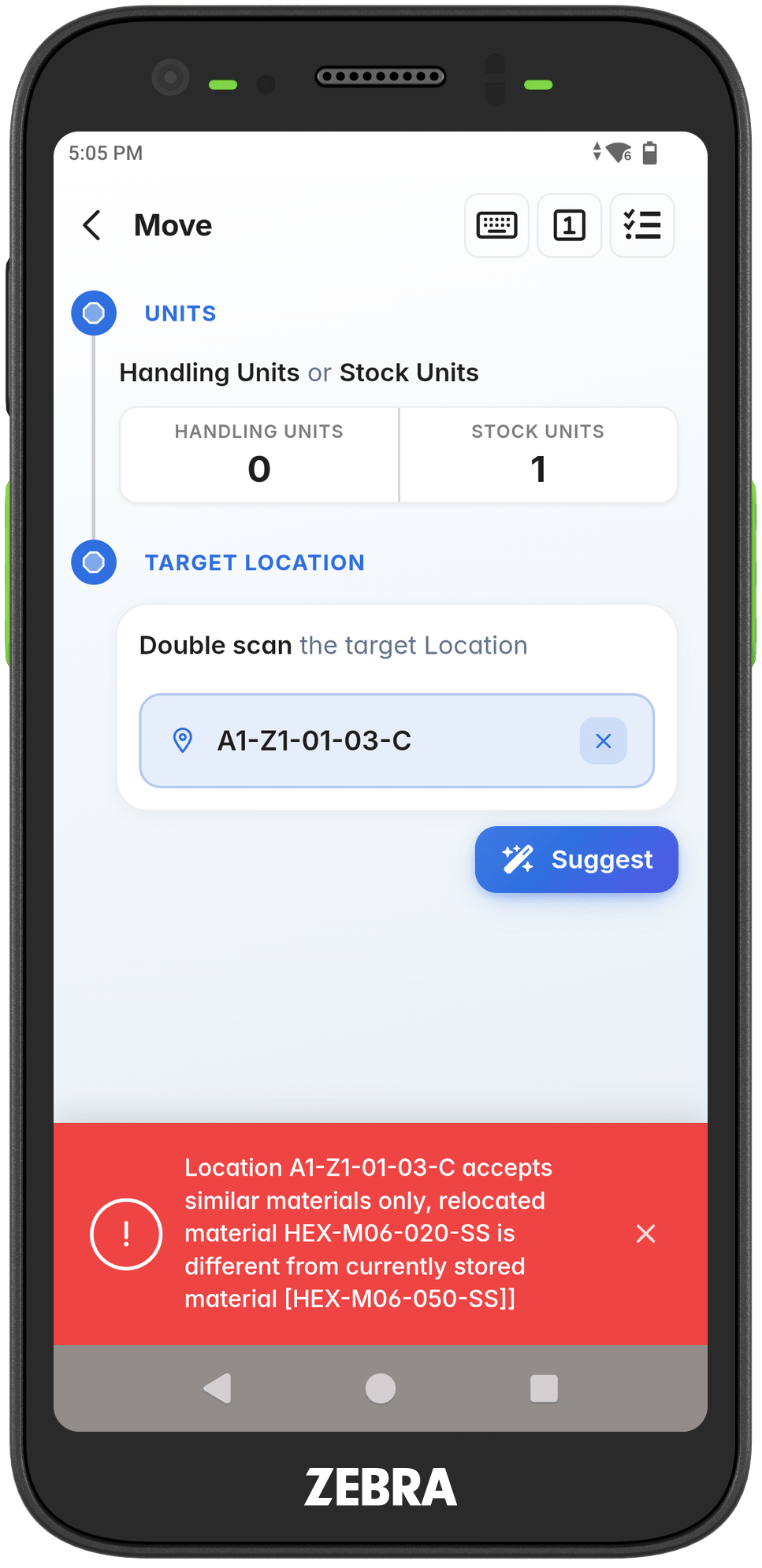
<p>Now if we try to move stock unit <strong>SU#4</strong> to bin <strong>01-03-C</strong> we get the following error because the system does not allow mixing different materials in the same bin: <strong>Location A1-Z1-01-03-C accepts similar materials only, relocated material HEX-M06-020-SS is different from currently stored material HEX-M06-050-SS.</strong></p>

<div class="grid-cell" style="display: flex; gap: 10px; justify-content: center;">
	<img width="45%" src="/assets/blog/tlp-wms-drawer/move3-mobile1.png" />
</div>

<h1 id="summary">Summary</h1>

<p>In this tutorial we modeled a warehouse drawer in our <strong>WMS</strong> solution and used business rules to control how its bins behave. The key takeaways are:</p>

<ul>
  <li><strong>Drawers are just locations.</strong> Each bin is modeled as its own location with a barcode label, and <strong>Add Bulk Locations</strong> creates an entire drawer in a few clicks.</li>
  <li><strong>Business rules enforce policies at the location level.</strong> Some rules run checks, such as rejecting a batch or material that doesn’t belong in a bin, while others run actions, such as merging incoming stock units into a single one.</li>
  <li><strong>Location classes keep configuration manageable.</strong> Rather than attaching rules to hundreds of individual bins, you define a class such as <strong>SB-DRAWER-BIN</strong> once, assign its rules, and apply it to every bin that shares the same policy.</li>
</ul>

<p>With these building blocks, modeling a drawer in <strong>TLP WMS</strong> is quick, and the system keeps it consistent: stock stays where it belongs, and operators get clear feedback on their mobile devices when a move would break the rules.</p>]]></content><author><name>Omar Al Kababji</name></author><category term="TLP" /><category term="tlp" /><summary type="html"><![CDATA[A step-by-step guide that explains how to model a warehouse drawer in TLP WMS.]]></summary><media:thumbnail xmlns:media="http://search.yahoo.com/mrss/" url="https://www.pragmatech.it/assets/blog/tlp-wms-drawer/header.jpg" /><media:content medium="image" url="https://www.pragmatech.it/assets/blog/tlp-wms-drawer/header.jpg" xmlns:media="http://search.yahoo.com/mrss/" /></entry><entry><title type="html">Printing Labels Over the Internet</title><link href="https://www.pragmatech.it/blog/2026/08/28/tlp-print-engine.html" rel="alternate" type="text/html" title="Printing Labels Over the Internet" /><published>2026-08-28T00:00:00+00:00</published><updated>2026-08-28T00:00:00+00:00</updated><id>https://www.pragmatech.it/blog/2026/08/28/tlp-print-engine</id><content type="html" xml:base="https://www.pragmatech.it/blog/2026/08/28/tlp-print-engine.html"><![CDATA[<p>The <strong>TLP</strong> platform can be installed on <strong>premise</strong> or on the <strong>cloud</strong>, when installed on <strong>premise</strong> the server can typically communicate directly with printers however when installed on the <strong>cloud</strong> the server might not be able to communicate directly with printers, so how can we print labels on local printers when installing <strong>TLP</strong> on cloud?</p>

<p>In todays post we are going to see how to enable label printing on a <strong>Zebra ZD421</strong> printer for the following deployment scenario:</p>

<ul>
  <li>A local <strong>Zebra ZD421</strong> label printer configured with IP address <strong>192.168.1.201</strong>.</li>
  <li>The <strong>TLP Server</strong> is installed on the cloud.</li>
  <li>The <strong>TLP Server</strong> cannot communicate directly with the label printer.</li>
</ul>

<h1 id="deployment-architecture">Deployment architecture</h1>

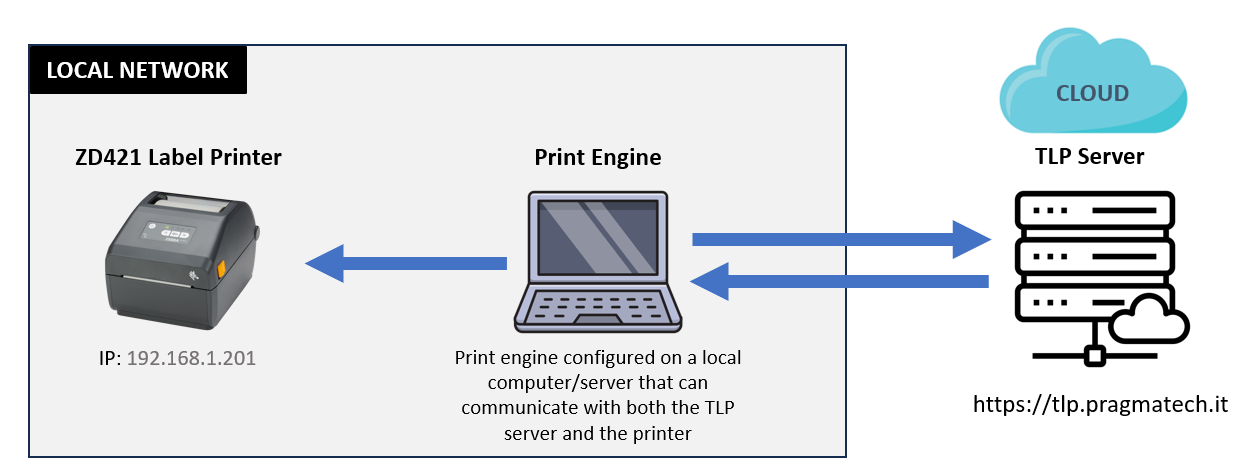
<p>Since the <strong>TLP Server</strong> cannot communicate directly with our printer we need to install and configure an external <strong>print-engine</strong> on an on-prem computer, in our example I will install the <strong>print-engine</strong> on my laptop.</p>

<p>As you can see in <strong>Figure 1</strong>, my laptop can communicate with both the <strong>TLP Server</strong> (installed on the cloud) and the <strong>ZD421 Printer</strong>, the <strong>print-engine</strong> will pull print jobs scheduled on the printer and print them on the label printer.</p>

<figure>
	<img width="100%" class="center" src="/assets/blog/tlp-print-engine/architecture.png" />
	<figcaption><strong>Figure 1.</strong> Deployment Architecture</figcaption>
</figure>

<h1 id="printer-configuration">Printer configuration</h1>

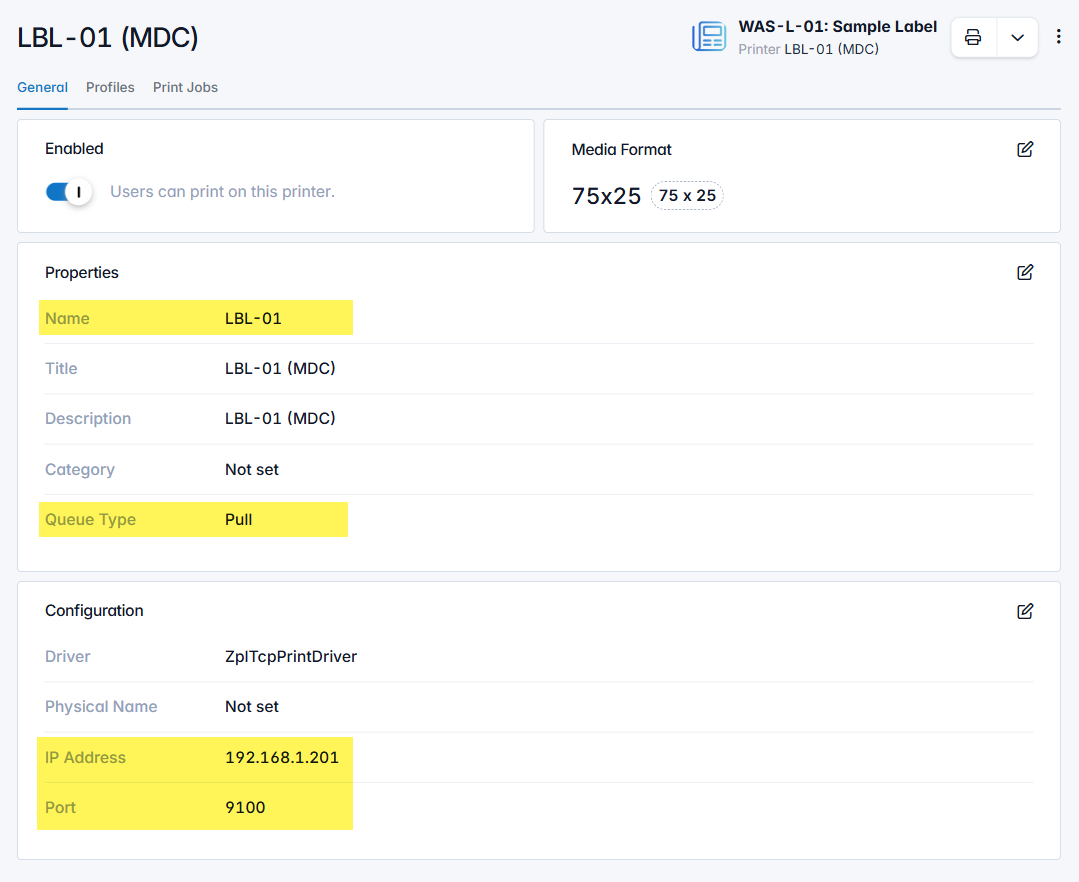
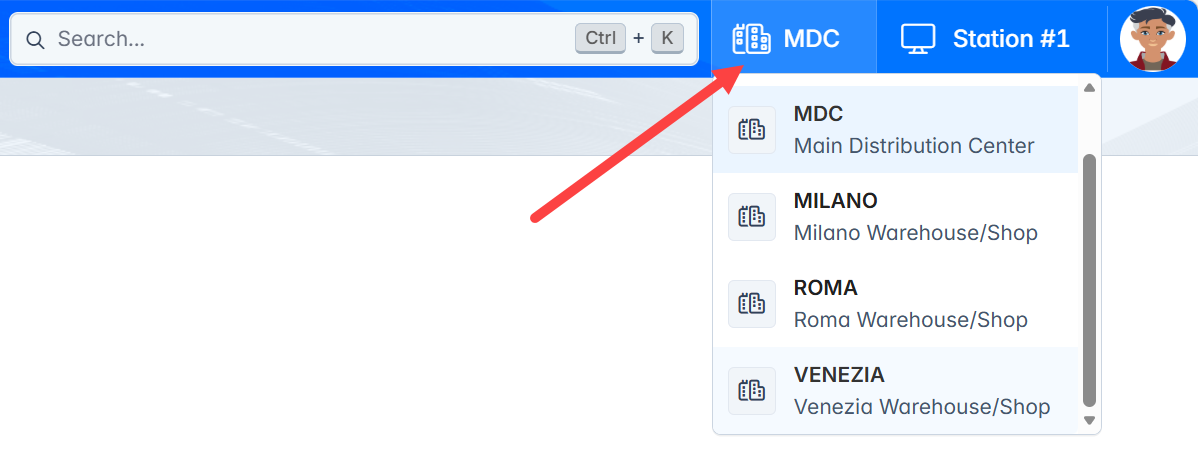
<p>To create the printer in the system I logged to the <strong>MDC</strong> organization and from the <strong>Printers</strong> application I created a new printer named <strong>LBL-01</strong> and configured it as follows:</p>

<ul>
  <li>Specified the name <strong>LBL-01</strong>.</li>
  <li>Specified the queue type to be <strong>Pull</strong> which means that print jobs will be pulled by the <strong>print-engine</strong> instead of being pushed by the server.</li>
  <li>Specified the <strong>IP address</strong> of my printer as <strong>192.168.1.201</strong> and port <strong>9100</strong>.</li>
</ul>

<div class="markdown-alert markdown-alert-note"><p class="markdown-alert-title"><svg data-component="Octicon" class="octicon octicon-info" viewBox="0 0 16 16" version="1.1" width="16" height="16" aria-hidden="true"><path d="M0 8a8 8 0 1 1 16 0A8 8 0 0 1 0 8Zm8-6.5a6.5 6.5 0 1 0 0 13 6.5 6.5 0 0 0 0-13ZM6.5 7.75A.75.75 0 0 1 7.25 7h1a.75.75 0 0 1 .75.75v2.75h.25a.75.75 0 0 1 0 1.5h-2a.75.75 0 0 1 0-1.5h.25v-2h-.25a.75.75 0 0 1-.75-.75ZM8 6a1 1 0 1 1 0-2 1 1 0 0 1 0 2Z"></path></svg> Note</p><p>The created printer <strong>LBL-01</strong> belongs to the <strong>MDC</strong> organization thus its global name is <strong>org[MDC].LBL-01</strong>.</p>
</div>

<p>The <strong>Pull</strong> queue type is required because in our scenario the server cannot push print jobs directly to the printer, it is the <strong>print-engine</strong> running on my laptop that will periodically pull print jobs from the server.</p>

<figure>
	<img width="100%" class="center" src="/assets/blog/tlp-print-engine/printer-configuration.png" />
	<figcaption><strong>Figure 2.</strong> Printer LBL-01 Configuration</figcaption>
</figure>

<h1 id="print-first-label">Print first label</h1>

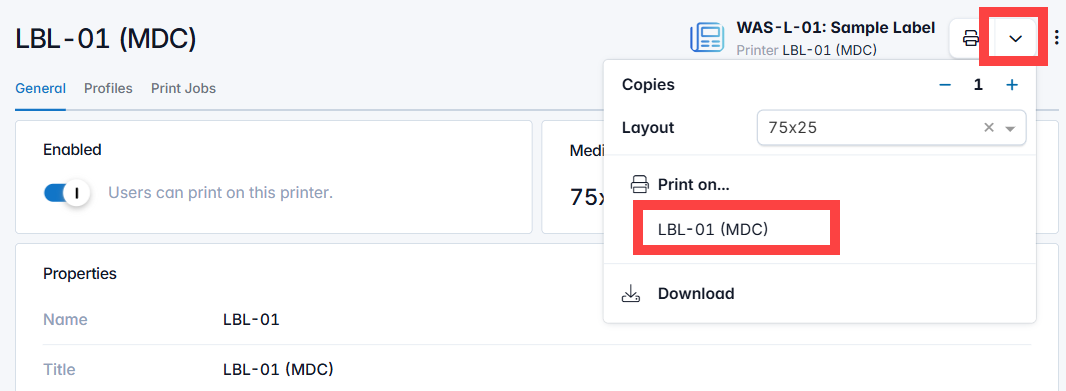
<p>Lets print our first label following the instructions shown in <strong>Figure 3</strong>, and then navigate to the <strong>Print Jobs</strong> tab to see the generated print job.</p>

<figure>
	<img width="100%" class="center" src="/assets/blog/tlp-print-engine/print-first-label.png" />
	<figcaption><strong>Figure 3.</strong> Print first Label</figcaption>
</figure>

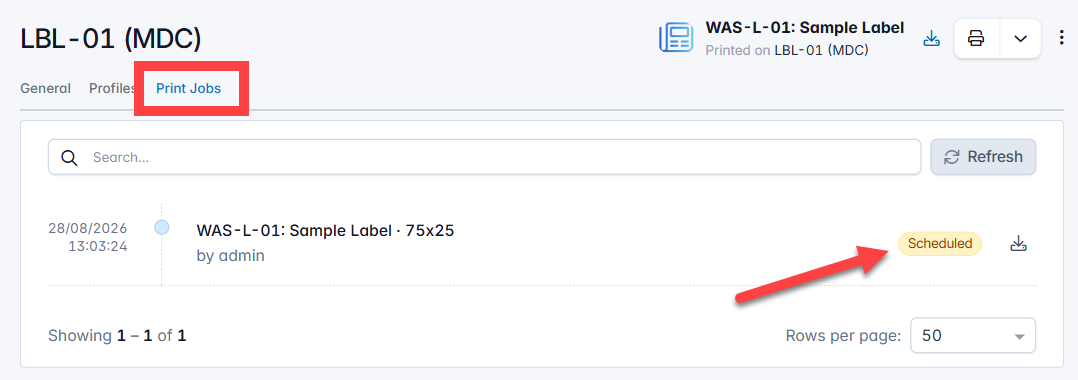
<p>The <strong>print job</strong> was created and is currently marked as <strong>Scheduled</strong>. This is expected because the <strong>print-engine</strong> is not yet configured. Once the engine is configured and started, the label will be printed.</p>

<figure>
	<img width="100%" class="center" src="/assets/blog/tlp-print-engine/first-label-print-job.png" />
	<figcaption><strong>Figure 4.</strong> First label Print Job</figcaption>
</figure>

<h1 id="configure-the-print-engine">Configure the print-engine</h1>

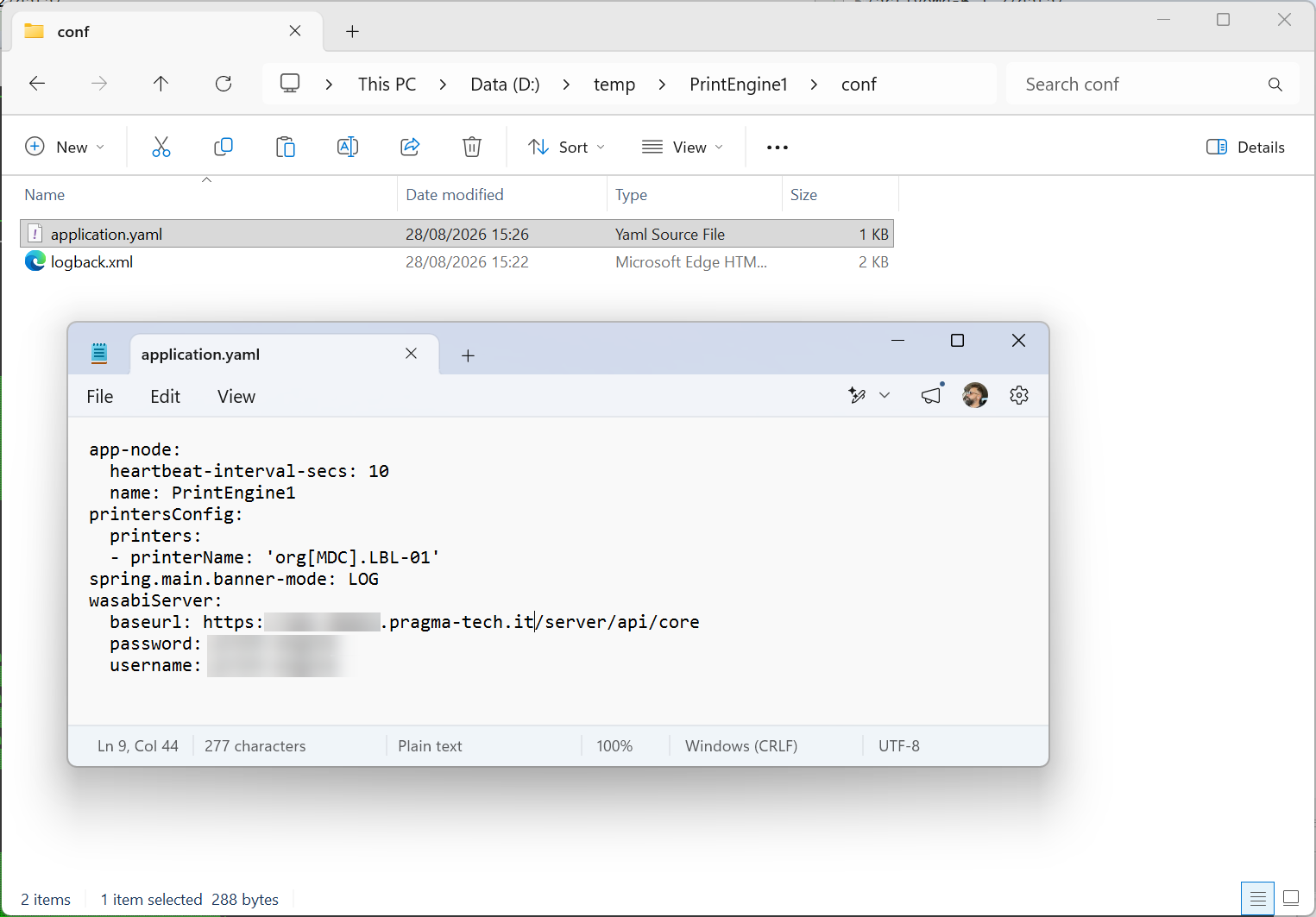
<p>On my local computer I downloaded the <strong>print-engine</strong> and installed it under <strong>D:/temp/PrintEngine1</strong> and using a text editor I modified the configuration file as shown in <strong>Figure 5</strong> specifying:</p>

<ul>
  <li>The global name of our printer <strong>org[MDC].LBL-01</strong>.</li>
  <li>The <strong>baseUrl</strong>, <strong>username</strong>, and <strong>password</strong> of the <strong>TLP server</strong>.</li>
</ul>

<figure>
	<img width="100%" class="center" src="/assets/blog/tlp-print-engine/print-engine-config.png" />
	<figcaption><strong>Figure 5.</strong> print-engine configuration</figcaption>
</figure>

<h1 id="starting-the-print-engine">Starting the print-engine</h1>

<p>The <strong>print-engine</strong> can either be installed as a service or run manually, since we are conducting a test we will simply run it manually by double clicking the <strong>/bin/start.cmd</strong> command.</p>

<p>As soon as the engine starts it will poll the <strong>TLP server</strong> for print jobs scheduled on the configured printer <strong>org[MDC].LBL-01</strong> and print them. <strong>Figure 6</strong> shows the engine logs in which we can observe that the print job was processed successfully.</p>

<figure>
	<img width="100%" class="center" src="/assets/blog/tlp-print-engine/print-engine-start.png" />
	<figcaption><strong>Figure 6.</strong> print-engine log</figcaption>
</figure>

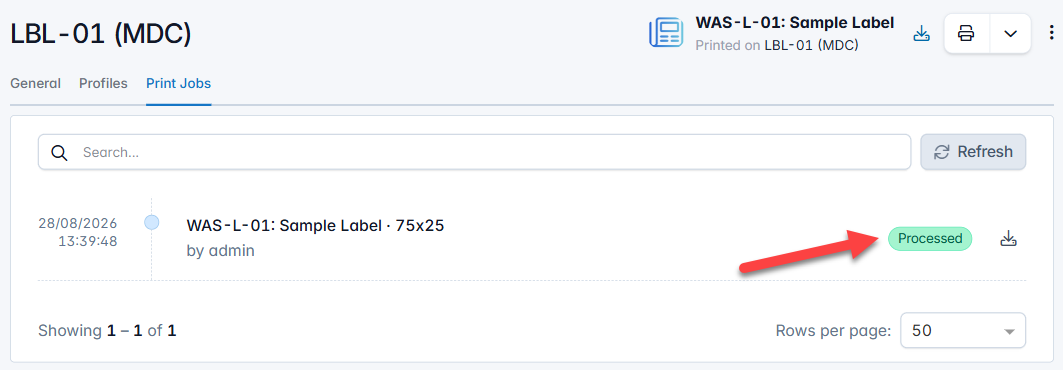
<p>We can also observe that the <strong>print job</strong> status changed from <strong>Scheduled</strong> to <strong>Processed</strong> as shown in the image below.</p>

<figure>
	<img width="100%" class="center" src="/assets/blog/tlp-print-engine/first-label-print-job2.png" />
	<figcaption><strong>Figure 7.</strong> print job status changed to processed</figcaption>
</figure>

<h1 id="summary">Summary</h1>

<p>The <strong>TLP Platform</strong> is designed taking in consideration different deployment scenarios, wether its installed on <strong>premise</strong> or on the <strong>cloud</strong> or as a <strong>saas</strong> it should be possible to easily configure printers and print labels and reports on them.</p>

<p>In this post we illustrated how easy it is to configure and print labels on a local printer in a hypothetical deployment scenario in which the <strong>TLP Server</strong> is running on the <strong>cloud</strong> and cannot communicate directly with a local printer, hence an external <strong>print-engine</strong> was used to allow printing.</p>

<p>Also, we observed that even if the <strong>print-engine</strong> is not running, print jobs are not lost, they are <strong>scheduled</strong> by the system and printed as soon as the engine is started, system administrators can see exactly what, who, and when print jobs where printed on a printer.</p>]]></content><author><name>Omar Al Kababji</name></author><category term="TLP" /><category term="tlp" /><summary type="html"><![CDATA[How to configure the TLP Print Engine to print labels over the internet]]></summary><media:thumbnail xmlns:media="http://search.yahoo.com/mrss/" url="https://www.pragmatech.it/assets/blog/tlp-print-engine/header.jpg" /><media:content medium="image" url="https://www.pragmatech.it/assets/blog/tlp-print-engine/header.jpg" xmlns:media="http://search.yahoo.com/mrss/" /></entry><entry><title type="html">Barcode Integration Overview</title><link href="https://www.pragmatech.it/blog/2026/08/11/tlp-barcodes.html" rel="alternate" type="text/html" title="Barcode Integration Overview" /><published>2026-08-11T00:00:00+00:00</published><updated>2026-08-11T00:00:00+00:00</updated><id>https://www.pragmatech.it/blog/2026/08/11/tlp-barcodes</id><content type="html" xml:base="https://www.pragmatech.it/blog/2026/08/11/tlp-barcodes.html"><![CDATA[<p>Barcodes are essential to shop floor operations, so we designed The Lean Platform (<strong>TLP</strong>) to work effortlessly with barcode scanners on any device, whether you’re on desktop, tablet, or mobile. In today’s post we will explore how the <strong>TLP</strong> platform handles barcodes.</p>

<p>To illustrate this integration concept, we will use a simple warehouse process: relocating stock to a new storage location.</p>

<h1 id="mobile">Mobile</h1>

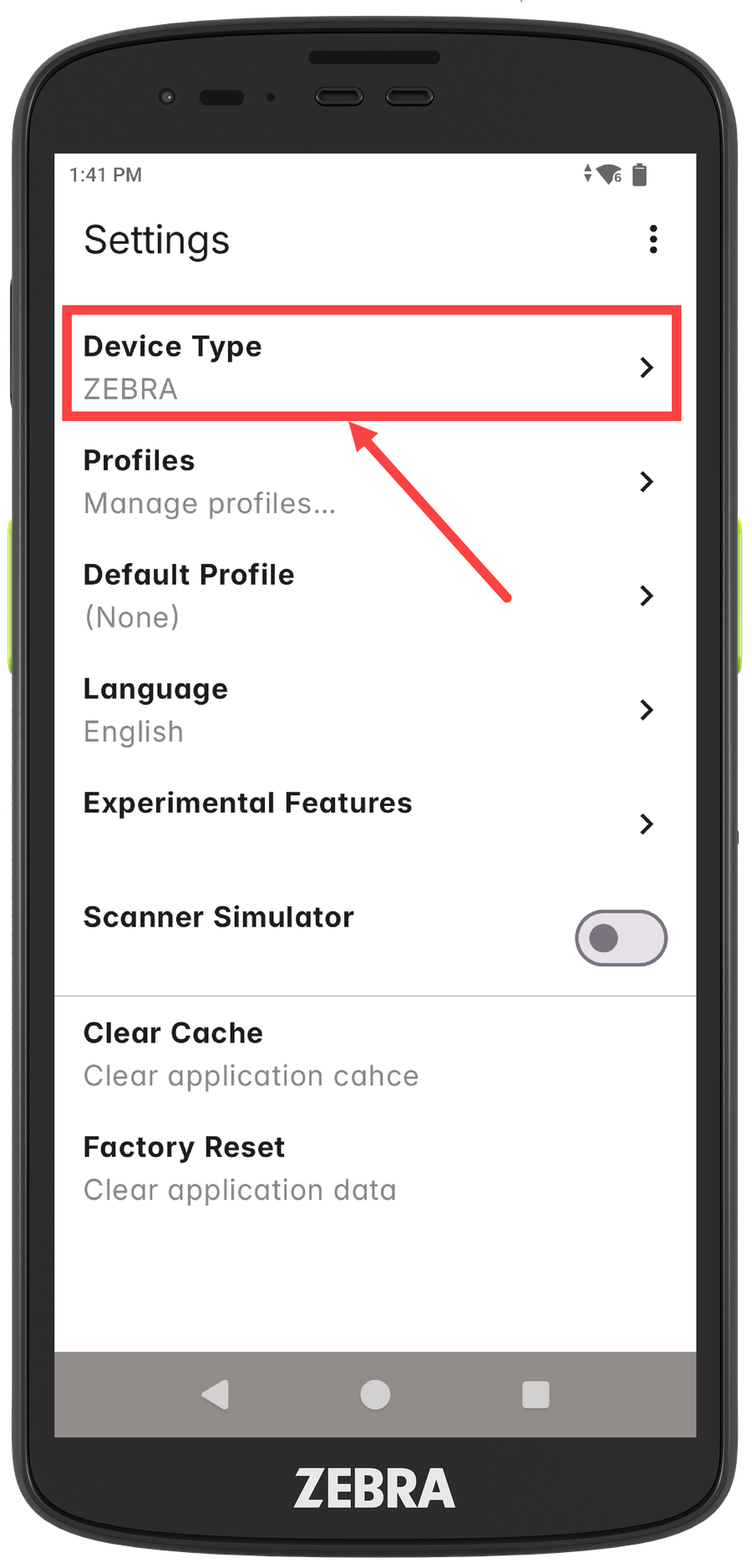
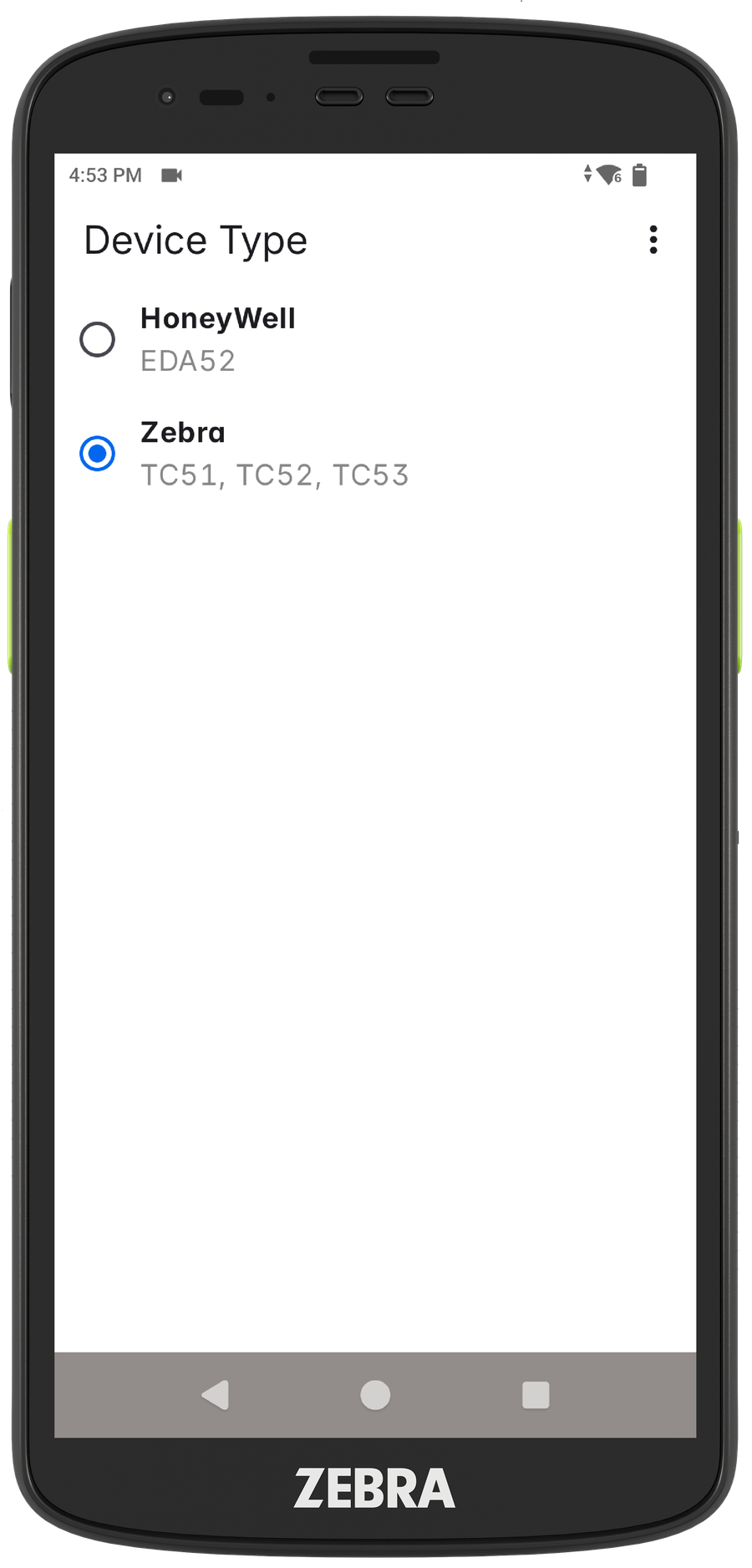
<p>Industrial mobile devices used on the shop floor are generally equipped with 1D/2D barcode scanners. <strong>TLP</strong> integrates seamlessly with such devices to properly receive and process scanned barcodes. How barcode scans are managed depends on the mobile device — for example, <strong>ZEBRA</strong> handles them differently from <strong>HONEYWELL</strong> — so we need to make sure the device type is correctly set in the application settings, which in our demo is a <strong>Zebra TC5x</strong> device.</p>

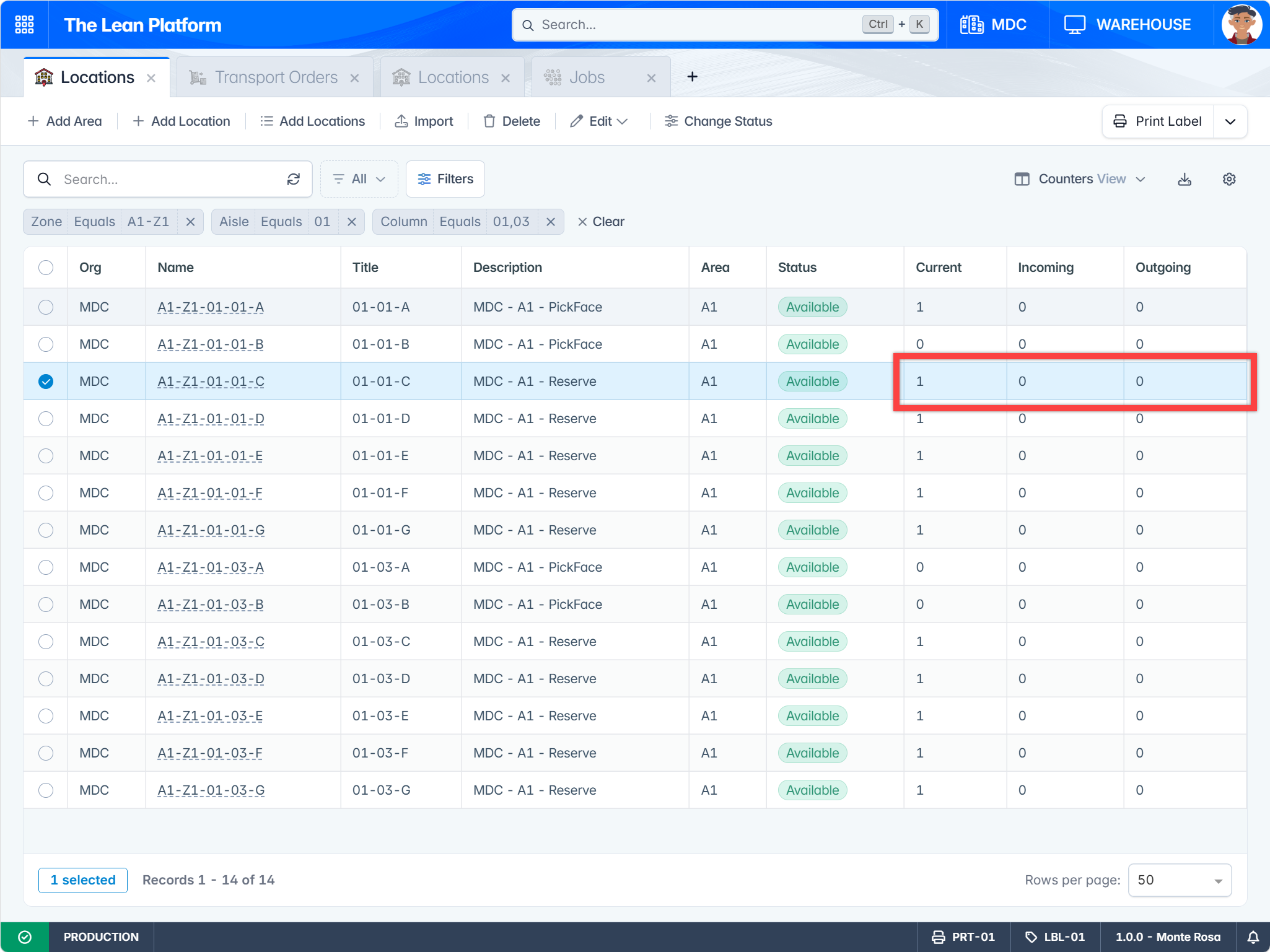
<div class="markdown-alert markdown-alert-note"><p class="markdown-alert-title"><svg data-component="Octicon" class="octicon octicon-info" viewBox="0 0 16 16" version="1.1" width="16" height="16" aria-hidden="true"><path d="M0 8a8 8 0 1 1 16 0A8 8 0 0 1 0 8Zm8-6.5a6.5 6.5 0 1 0 0 13 6.5 6.5 0 0 0 0-13ZM6.5 7.75A.75.75 0 0 1 7.25 7h1a.75.75 0 0 1 .75.75v2.75h.25a.75.75 0 0 1 0 1.5h-2a.75.75 0 0 1 0-1.5h.25v-2h-.25a.75.75 0 0 1-.75-.75ZM8 6a1 1 0 1 1 0-2 1 1 0 0 1 0 2Z"></path></svg> Note</p><p>TLP mobile currently supports both <strong>ZEBRA</strong> and <strong>HONEYWELL</strong> devices, but it is designed to be easily enhanced to support other devices as well. The device type is automatically detected when the TLP application is installed.</p>
</div>

<div class="grid-cell" style="display: flex; gap: 10px; justify-content: center;">
	<img width="33%" src="/assets/blog/tlp-barcodes/settings.png" />
	<img width="33%" src="/assets/blog/tlp-barcodes/mobile-devices.png" />
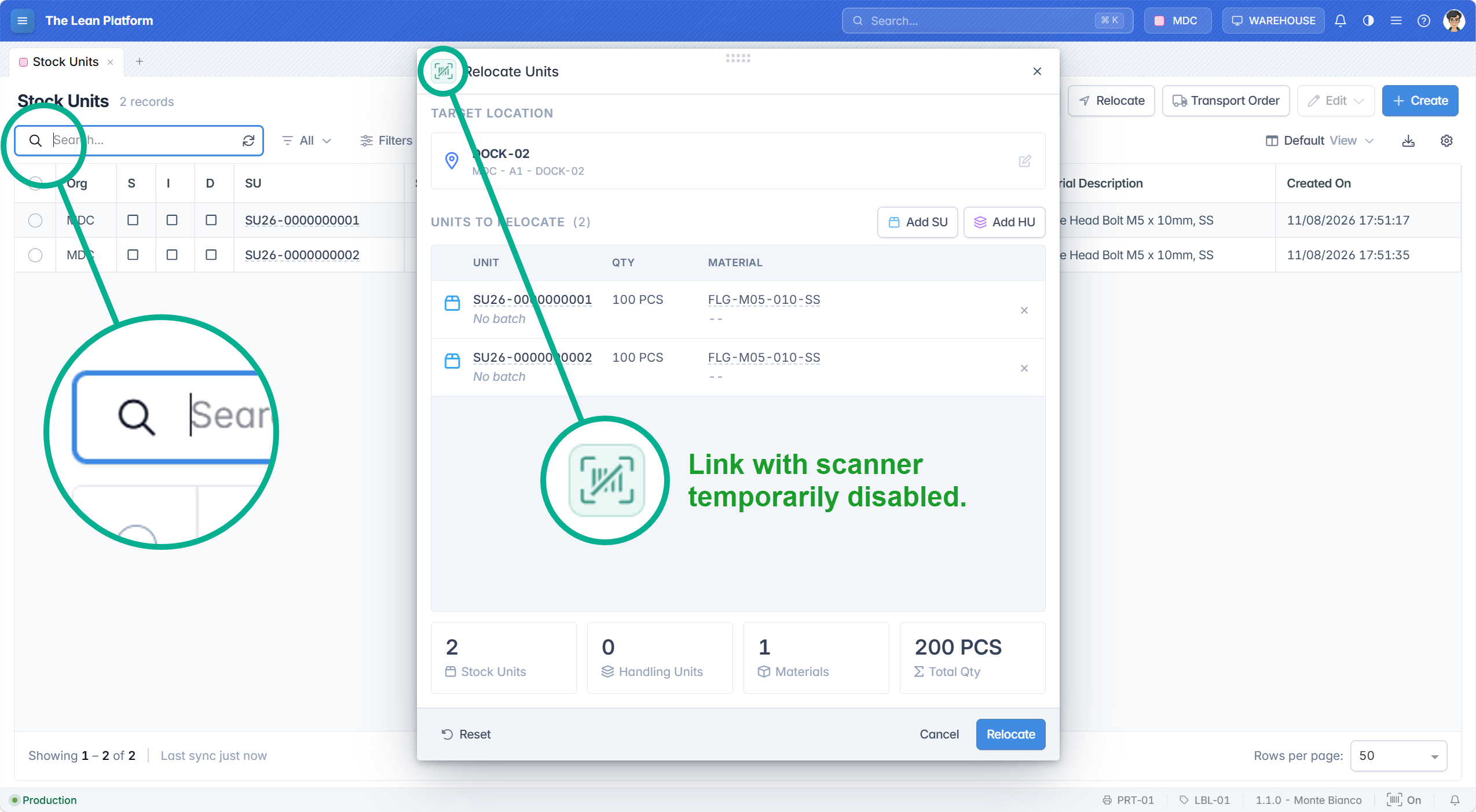
</div>

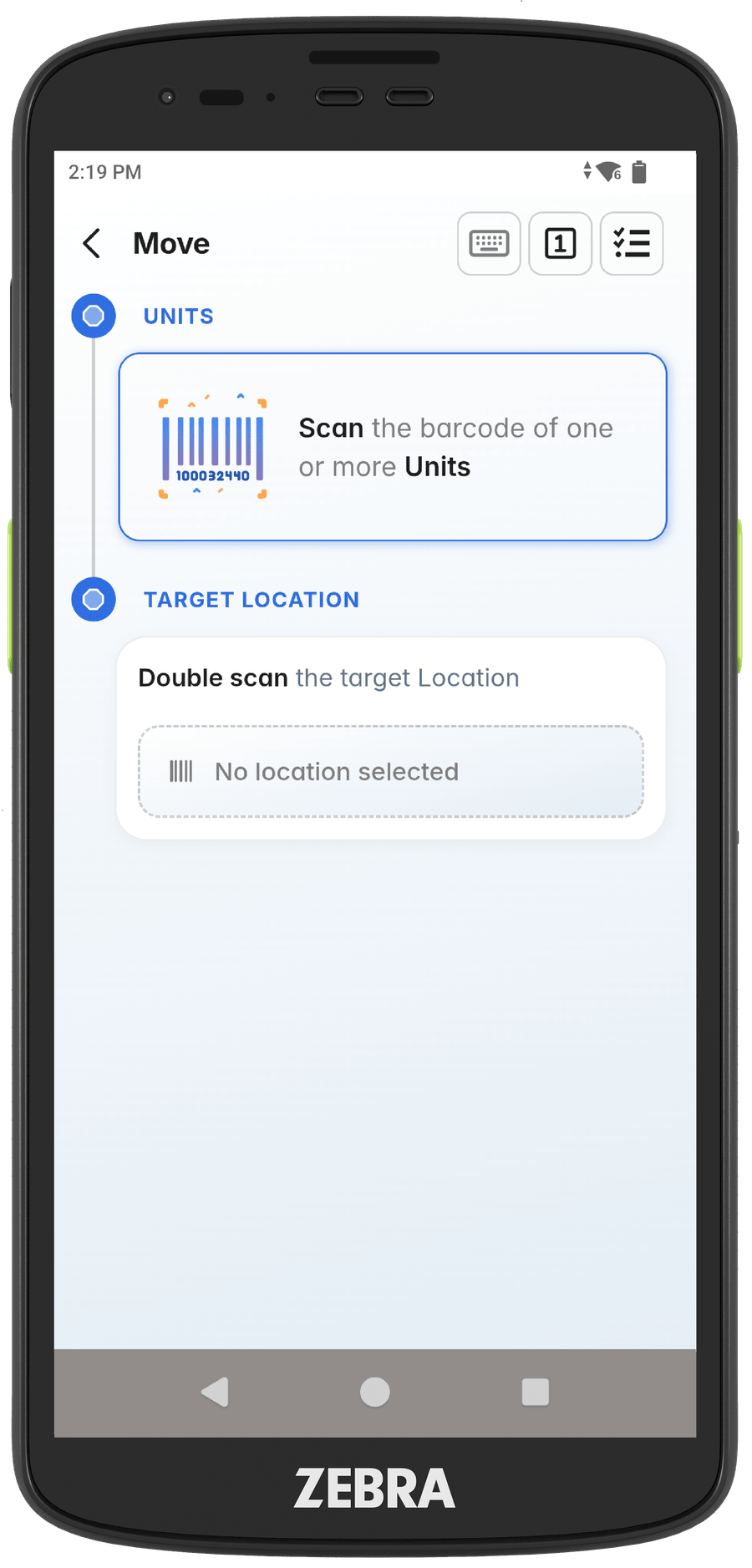
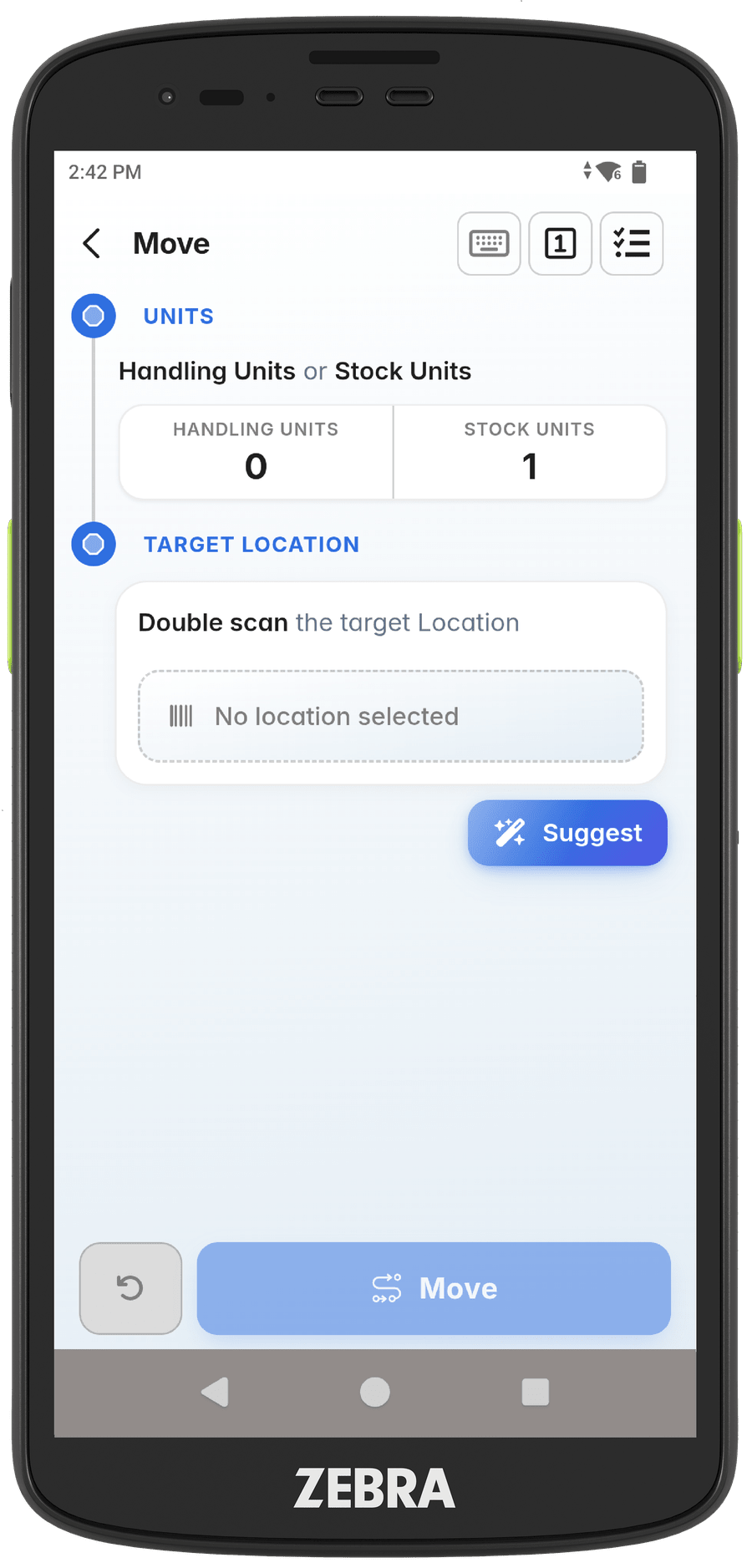
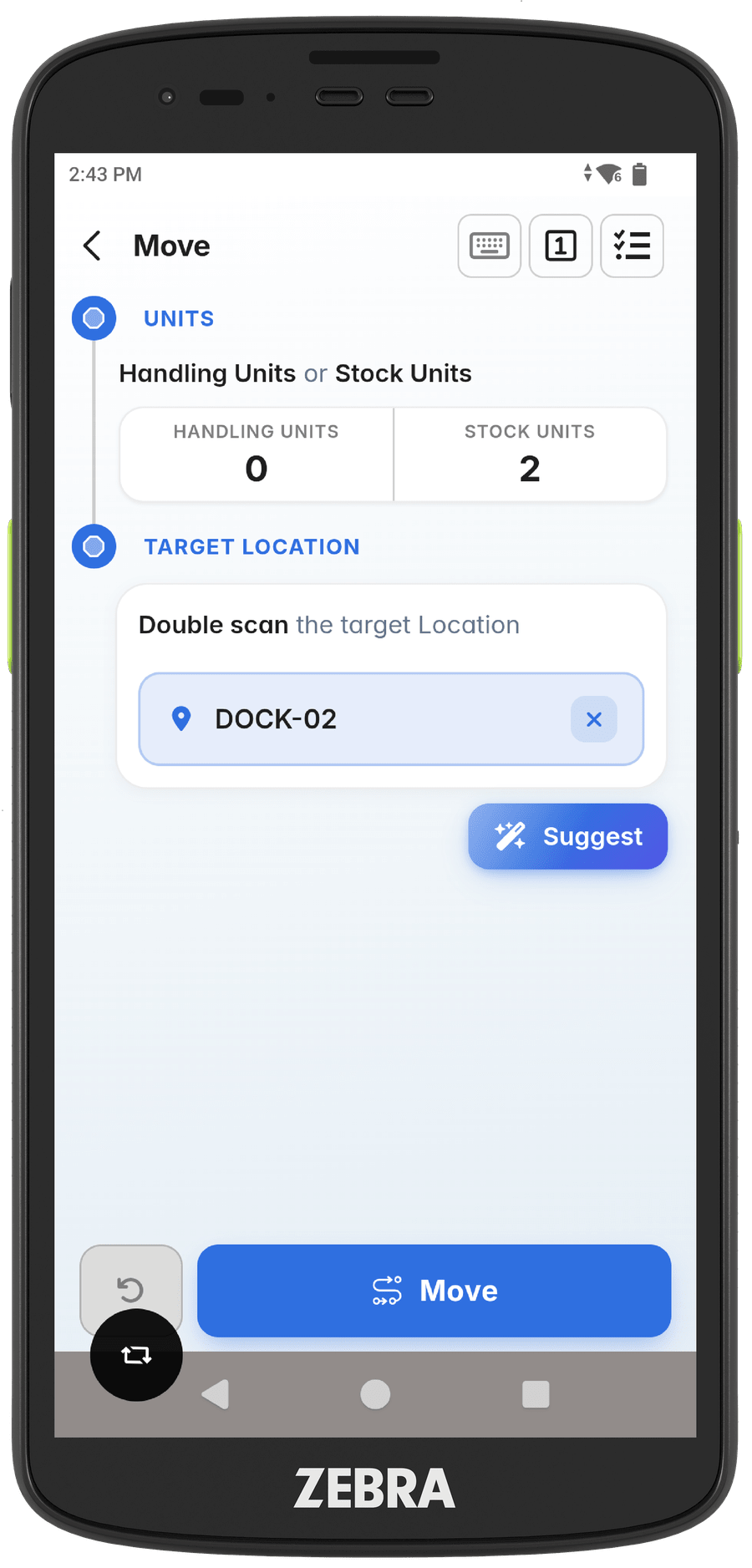
<p>To test the barcode scanner we will use the warehouse <strong>Relocate</strong> application to relocate two stock units to location <strong>DOCK-02</strong>, using the application you can observe the following:</p>

<ul>
  <li>Users can start scanning stock units immediately upon opening the app, there is no need to select the desired field before scanning.</li>
  <li>Scanning each stock unit increases the counter, showing the total number of items that will be relocated.</li>
  <li>The application automatically recognizes different barcode types; for example, scanning a location barcode immediately populates the <strong>Target Location</strong> field.</li>
  <li>The application includes built-in action triggers; for instance, scanning a storage location barcode twice (referred to as <strong>Double Scan</strong>) executes a transaction confirmation.</li>
</ul>

<div class="grid-cell" style="display: flex; gap: 10px; justify-content: center;">
	<img width="33%" src="/assets/blog/tlp-barcodes/move1.png" />
	<img width="33%" src="/assets/blog/tlp-barcodes/move2.png" />
	<img width="33%" src="/assets/blog/tlp-barcodes/move4.png" />
</div>

<p>The following is a video that illustrates how barcodes are scanned when relocating stock-units in your warehouse.</p>

<iframe width="100%" height="350" src="https://www.youtube.com/embed/PBQ11BhKCFU?si=qu7ycnfQRKJYeZUk" title="YouTube video player" frameborder="0" allow="accelerometer; autoplay; clipboard-write; encrypted-media; gyroscope; picture-in-picture; web-share" referrerpolicy="strict-origin-when-cross-origin" allowfullscreen=""></iframe>

<h2 id="manual-input">Manual Input</h2>

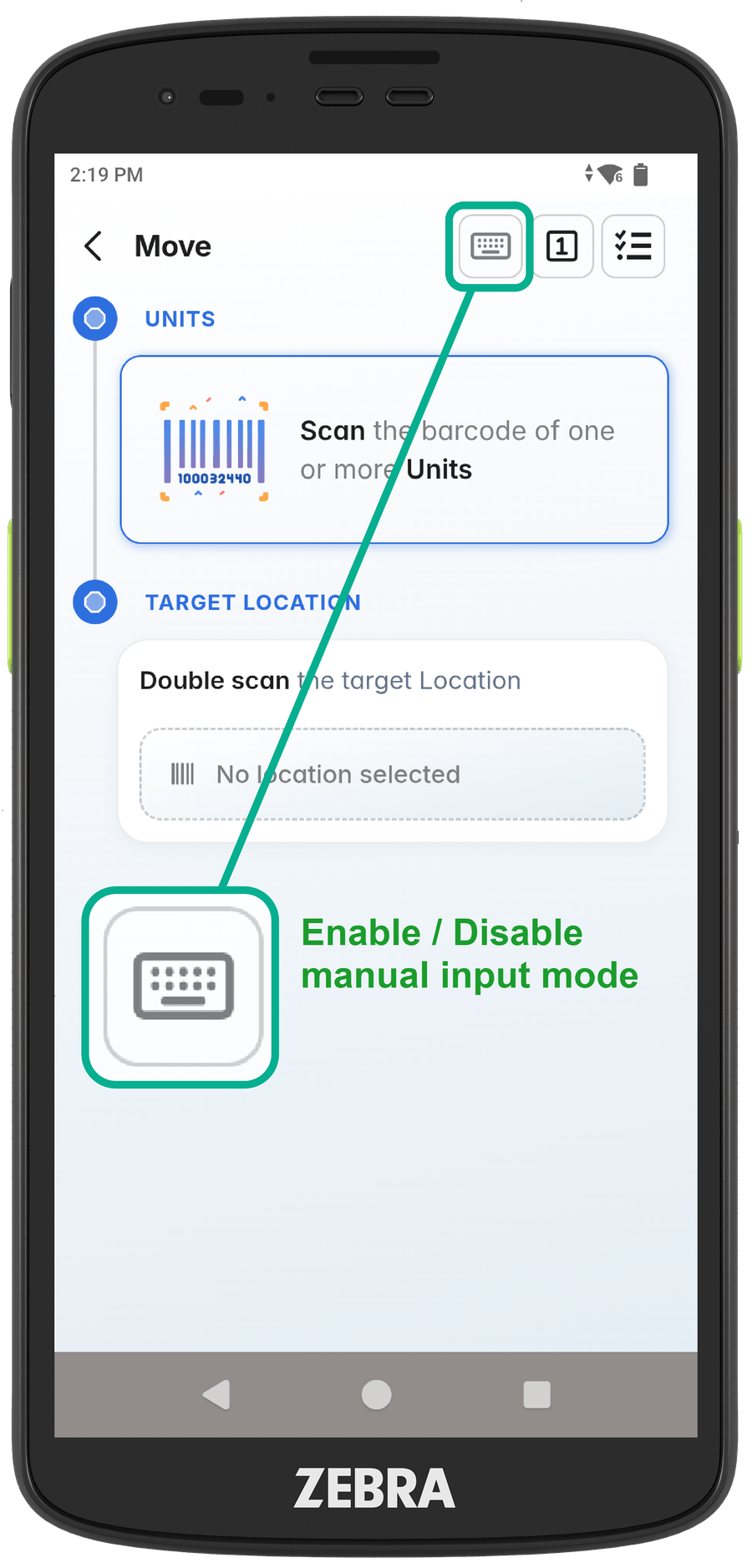
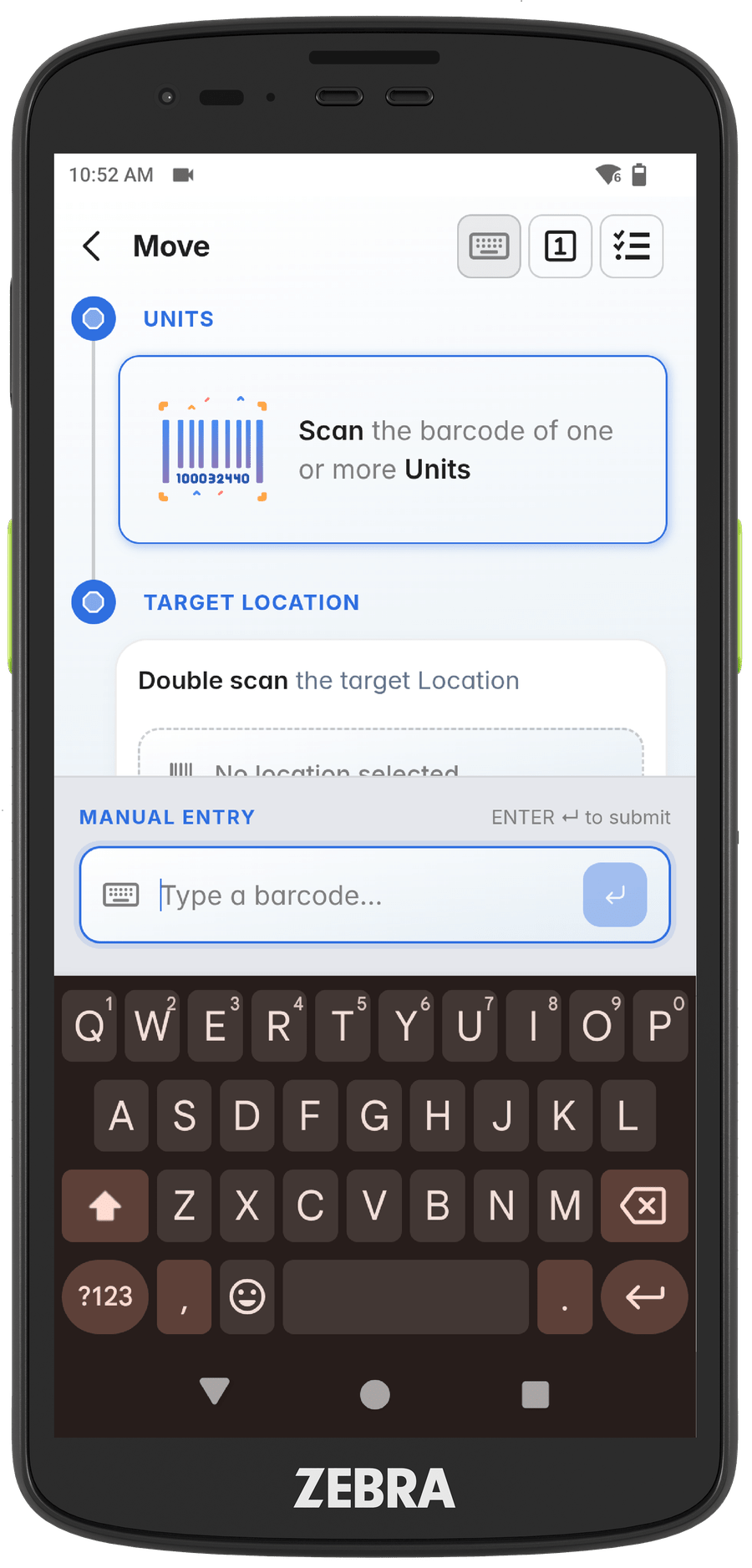
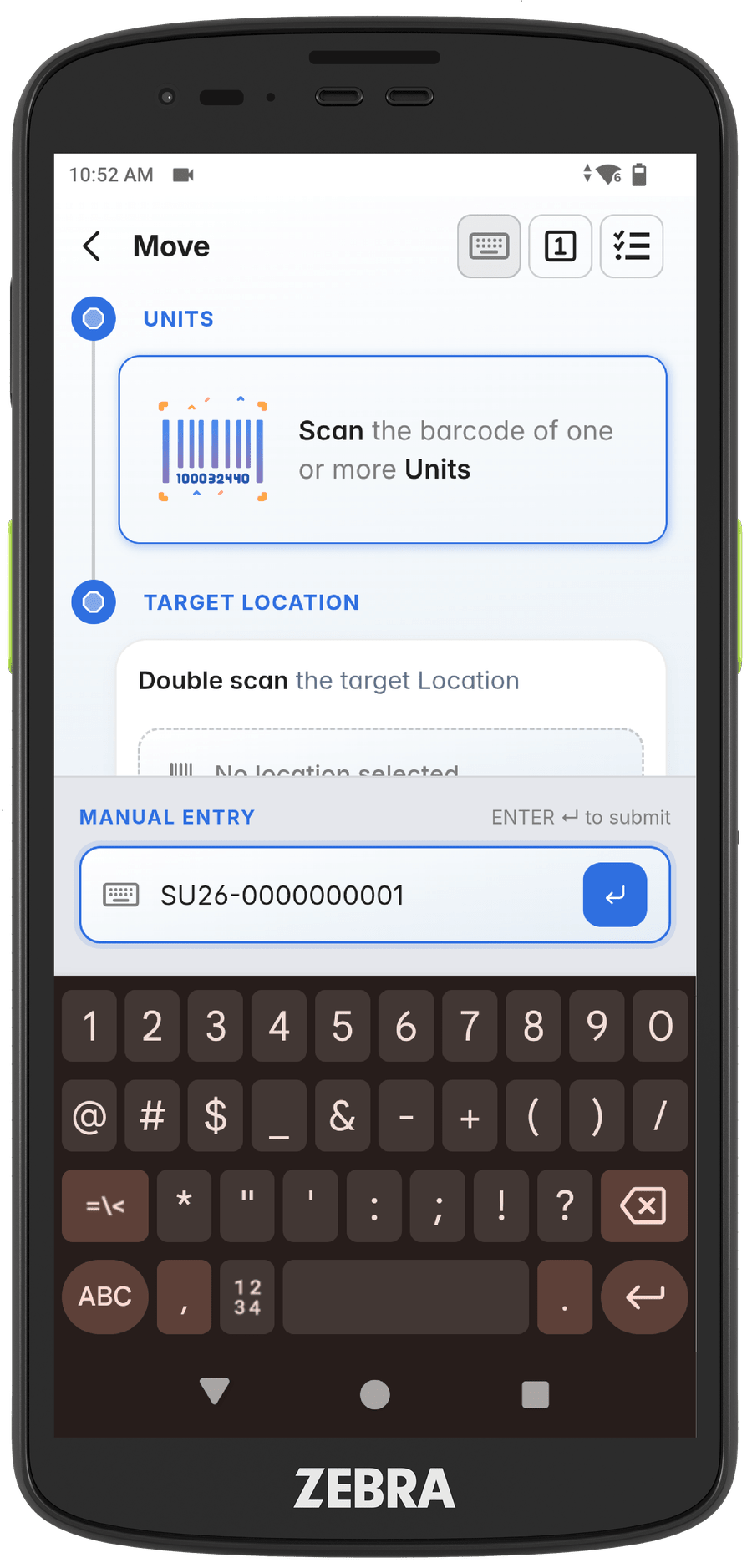
<p>On those rare occasions (for example because the barcode is damaged) you might need to enter the barcode value manually instead of scanning it. In such a case, you have to tap the manual input icon in the header, which opens a bottom sheet that lets you enter the value using the keyboard.</p>

<div class="grid-cell" style="display: flex; gap: 10px; justify-content: center;">
	<img width="33%" src="/assets/blog/tlp-barcodes/manual1.png" />
	<img width="33%" src="/assets/blog/tlp-barcodes/manual2.png" />
	<img width="33%" src="/assets/blog/tlp-barcodes/manual3.png" />
</div>

<h1 id="desktop">Desktop</h1>

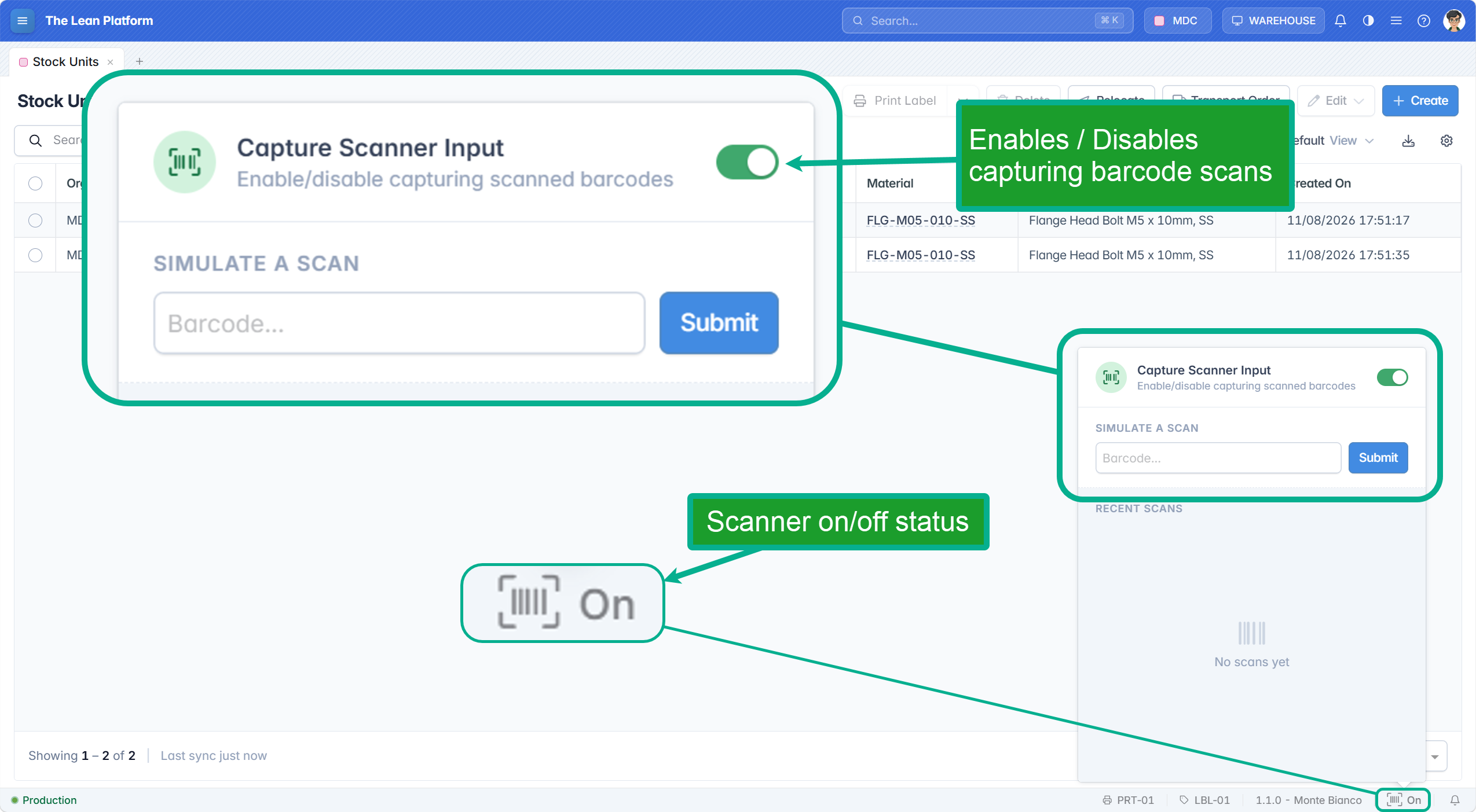
<p>On the desktop side, barcode integration is more interesting because some functionalities are barcode aware while others are not. The first step is to make sure that barcode scanning is enabled, which is visible in the footer as shown in the image below. Clicking on the barcode icon opens the <strong>Scanner Settings</strong> popup, from which you can:</p>

<ul>
  <li>Enable / Disable capturing scanned barcodes.</li>
  <li>Manually simulate scans if required.</li>
  <li>See a history of the last scanned barcodes.</li>
</ul>

<p><img width="100%" src="/assets/blog/tlp-barcodes/desktop1.png" /></p>

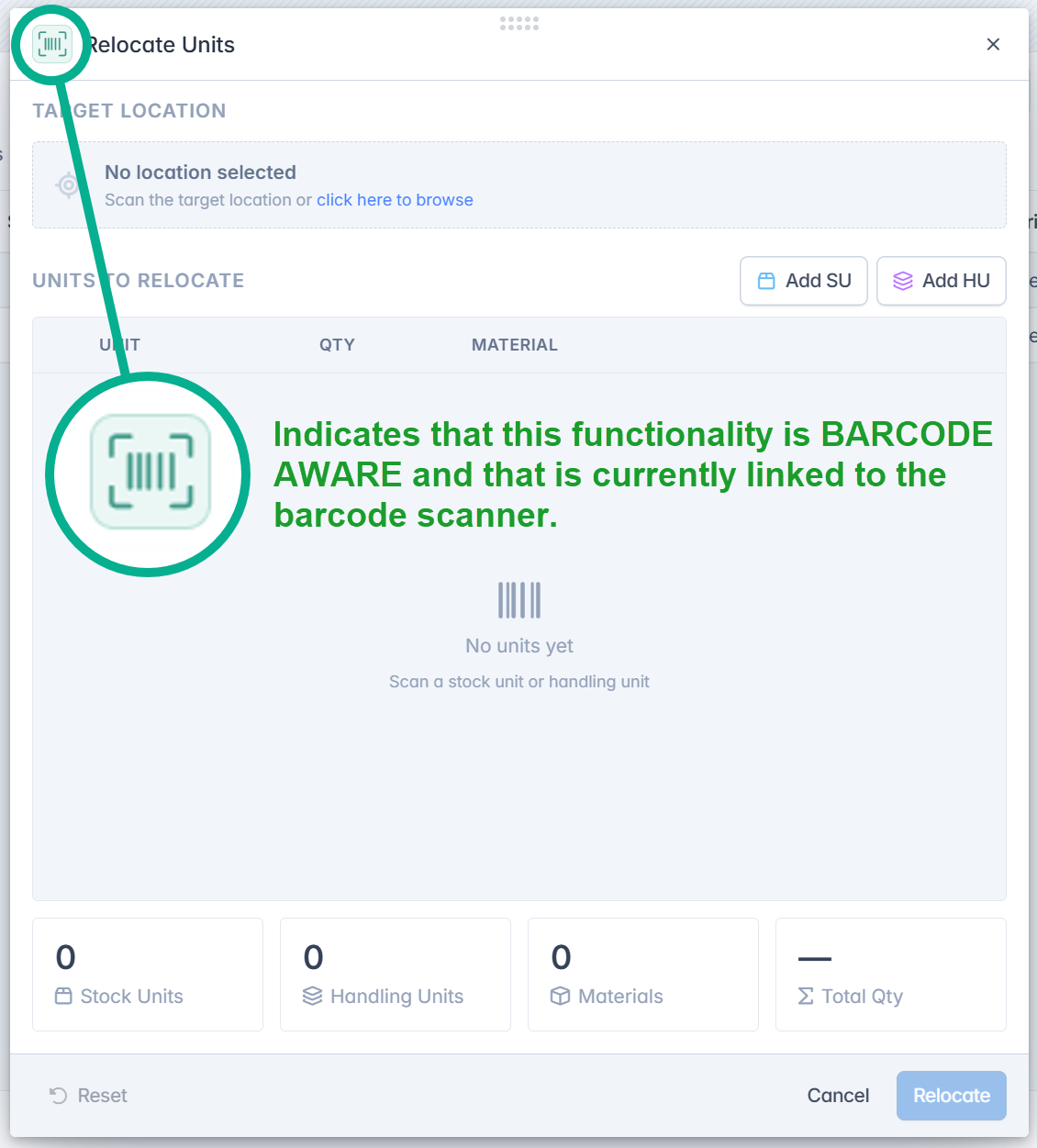
<p>Opening the <strong>Relocate</strong> functionality, you can notice a small barcode icon on the top left, which indicates:</p>

<ul>
  <li>The functionality is barcode aware.</li>
  <li>The pulsing green background indicates that it is currently linked to the scanner, thus scanned barcodes will be captured and processed by this popup.</li>
</ul>

<p><img height="500" class="center" src="/assets/blog/tlp-barcodes/desktop2.png" /></p>

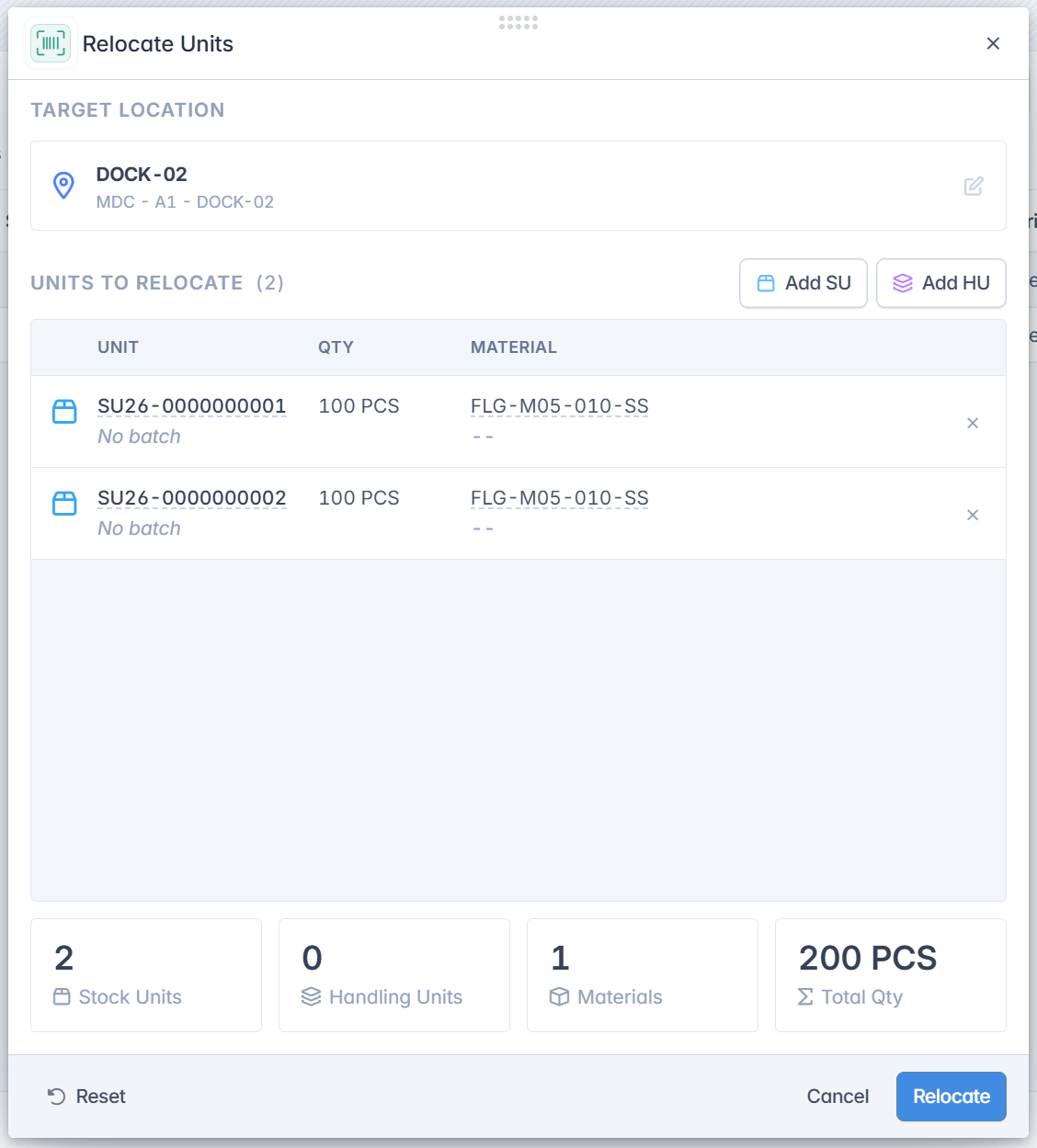
<p>Scanning the barcodes <strong>DOCK-02</strong>, <strong>SU26-0000000001</strong>, and <strong>SU26-0000000002</strong> will automatically populate the screen as shown in the image below, you can observe that <strong>DOCK-02</strong> populated the <strong>TARGET LOCATION</strong> field, while the other two barcodes populated the list of <strong>UNITS TO RELOCATE</strong>.</p>

<p><img height="500" class="center" src="/assets/blog/tlp-barcodes/desktop3.png" /></p>

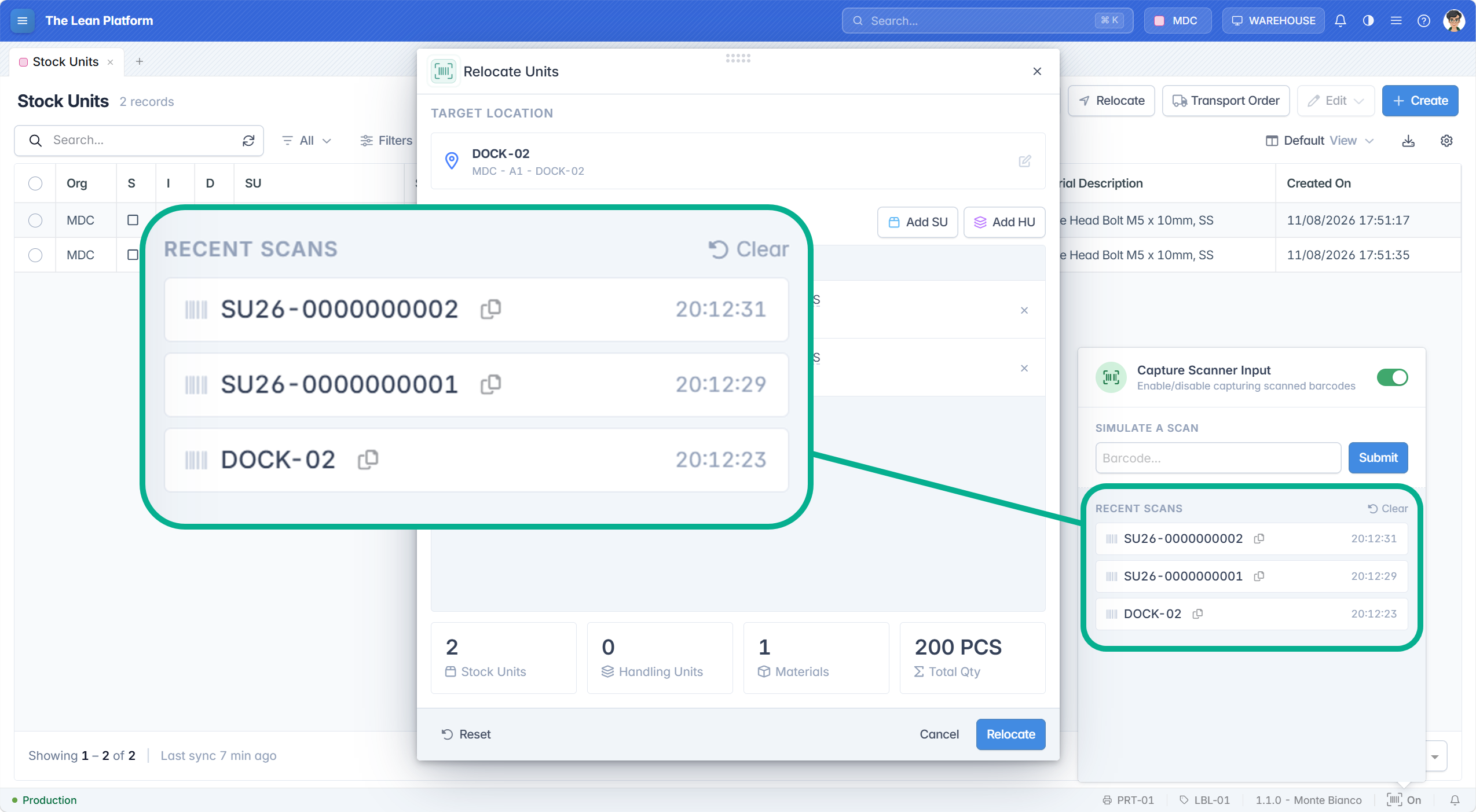
<p>If we open the <strong>Scanner Settings</strong> popup from the footer we can see the list of scanned barcodes from the previous transaction.</p>

<p><img width="100%" class="center" src="/assets/blog/tlp-barcodes/desktop4.png" /></p>

<p>Finally, if we focus a text field — for example, the <strong>Search</strong> field in the main screen — the popup will be temporarily disconnected from the scanner, allowing the user to scan values directly into the focused field, as shown in the image below.</p>

<p><img width="100%" class="center" src="/assets/blog/tlp-barcodes/desktop5.png" /></p>

<h1 id="summary">Summary</h1>

<p>The <strong>TLP</strong> platform is designed for the shop floor, where fast data entry and minimal human error are essential, barcode scanning is central to that goal. The key takeaways are:</p>

<ul>
  <li><strong>Device-aware handling</strong>, mobile scanning behavior adapts to the connected device (<strong>ZEBRA</strong> or <strong>HONEYWELL</strong>), configured once in the application settings.</li>
  <li><strong>No field selection needed</strong>, on mobile, operators can start scanning immediately; the barcode type is recognized automatically and routed to the right field.</li>
  <li><strong>Double Scan confirmation</strong>,  scanning a location barcode twice executes the action, letting operators confirm transactions without touching the screen.</li>
  <li><strong>Manual fallback</strong>, when a barcode is damaged or unreadable, its value can be entered manually from the same screens used for scanning.</li>
  <li><strong>Barcode-aware desktop popups</strong>,  functionalities like <strong>Relocate</strong> can link to the scanner to populate fields directly from scans, and automatically release that link when a text field is focused so operators can type or scan into it directly.</li>
</ul>

<p>This barcode integration consolidates our countless years of experience on how shop floor applications should be designed.</p>]]></content><author><name>Omar Al Kababji</name></author><category term="TLP" /><category term="tlp" /><summary type="html"><![CDATA[An overview of how the TLP platform is integrated with barcode scanners on both mobile and desktop applications.]]></summary><media:thumbnail xmlns:media="http://search.yahoo.com/mrss/" url="https://www.pragmatech.it/assets/blog/tlp-barcodes/header.jpg" /><media:content medium="image" url="https://www.pragmatech.it/assets/blog/tlp-barcodes/header.jpg" xmlns:media="http://search.yahoo.com/mrss/" /></entry><entry><title type="html">TLP now supports PostgreSQL</title><link href="https://www.pragmatech.it/blog/2026/04/17/tlp-postgres.html" rel="alternate" type="text/html" title="TLP now supports PostgreSQL" /><published>2026-04-17T00:00:00+00:00</published><updated>2026-04-17T00:00:00+00:00</updated><id>https://www.pragmatech.it/blog/2026/04/17/tlp-postgres</id><content type="html" xml:base="https://www.pragmatech.it/blog/2026/04/17/tlp-postgres.html"><![CDATA[<p>We believe our customers should have the flexibility to choose the infrastructure that best fits their goals. That’s why we are officially introducing support for PostgreSQL.</p>

<p>While many of our users love the robust features of MSSQL, we know that the open-source community and the flexibility of PostgreSQL are high priorities for modern engineering teams.</p>

<h2 id="why-this-matters">Why this matters:</h2>

<ul>
  <li><strong>Open Source Freedom</strong>: Leverage the power of a community-driven database without being locked into proprietary licenses.</li>
  <li><strong>Cost Efficiency</strong>: Reduce overhead costs by utilizing high-performance, open-source infrastructure.</li>
  <li><strong>Advanced Features</strong>: Benefit from Postgres’ rich support for complex data types, JSONB, and extensibility.</li>
  <li><strong>Choice</strong>: Whether you prefer the reliability of MSSQL or the agility of Postgres, the choice is now yours.</li>
</ul>

<p>Our mission is to meet you where your data lives. By adding Postgres to our supported ecosystems, we’re making it easier for you to scale on your own terms.</p>]]></content><author><name>Omar Al Kababji</name></author><category term="TLP,NEWS" /><category term="tlp" /><summary type="html"><![CDATA[Big News, TLP platform now supports both MSSQL and PostgreSQL databases!]]></summary><media:thumbnail xmlns:media="http://search.yahoo.com/mrss/" url="https://www.pragmatech.it/assets/blog/tlp-postgres/header.jpg" /><media:content medium="image" url="https://www.pragmatech.it/assets/blog/tlp-postgres/header.jpg" xmlns:media="http://search.yahoo.com/mrss/" /></entry><entry><title type="html">TLP Mobile Quick Actions</title><link href="https://www.pragmatech.it/blog/2026/04/08/tlp-mqa.html" rel="alternate" type="text/html" title="TLP Mobile Quick Actions" /><published>2026-04-08T00:00:00+00:00</published><updated>2026-04-08T00:00:00+00:00</updated><id>https://www.pragmatech.it/blog/2026/04/08/tlp-mqa</id><content type="html" xml:base="https://www.pragmatech.it/blog/2026/04/08/tlp-mqa.html"><![CDATA[<p><strong>TLP</strong> stands for <strong>The Lean Platform</strong> and <strong>Lean</strong> is an important term for us, we want to give our customers a platform that enables them to quickly integrate their lean initiatives and avoid waiting weeks or even months to introduce new changes.</p>

<p>Today we are glad to introduce our <strong>Mobile Quick Actions</strong> application that is designed to solve a common shopfloor need in an elegant way, the key benefits of <strong>Mobile Quick Actions</strong> are:</p>

<ol>
  <li>Super fast scanning.</li>
  <li>Can be added through configurations (no development needed).</li>
  <li>Can be configured with minimal effort (hours).</li>
</ol>

<p>As always, for those in a hurry here is a video that DEMOs the functionality.</p>

<iframe width="100%" height="400" src="https://www.youtube.com/embed/gdaw0if-Yac?si=mDKEyfZ-2J_d2Sn3" title="YouTube video player" frameborder="0" allow="accelerometer; autoplay; clipboard-write; encrypted-media; gyroscope; picture-in-picture; web-share" referrerpolicy="strict-origin-when-cross-origin" allowfullscreen=""></iframe>

<h1 id="mobile-quick-actions">Mobile Quick Actions</h1>

<p>If you think about it, many shopfloor operations can be represented as a sequence of barcode scans, and most importantly over time operators develop a <strong>muscle-memory</strong> for these sequences much like a typist whose fingers find the keys instinctively without conscious thought.</p>

<p>Lets for example think about the process of relocating a handling unit in a warehouse, it could be represented in the following sequence:</p>

<figure>
	<img width="500" class="center" src="/assets/blog/tlp-mqa/sequence-1.png" />
	<figcaption><strong>Figure 1.</strong> Relocate Sequence</figcaption>
</figure>

<p><strong>Step 3</strong> is the interesting one, we asked ourselves a question: why don’t we represent such action with a barcode an operator can scan to tell the system his intent? so we did! and we called it a <strong>Mobile Quick Action</strong> or simply <strong>MQA</strong>, so the original sequence to relocate a handling unit became:</p>

<figure>
	<img width="500" class="center" src="/assets/blog/tlp-mqa/sequence-2.png" />
	<figcaption><strong>Figure 2.</strong> Relocate Sequence with an MQA</figcaption>
</figure>

<p>Iterating over and over the original concept we refined it more as follows:</p>

<ul>
  <li>Allow scanning multiple <strong>Handling Units</strong> and <strong>Stock Units</strong>.</li>
  <li>Ignored the scanning sequence, operators can scan the target location barcode first or last.</li>
  <li>Provided a way to configure the executed logic through scripting.</li>
</ul>

<p>And now, we have a framework that allows our customers to implement any sequence of scans as an <strong>MQA</strong> in a matter of hours through configurations! <strong>Lets see how it works</strong>.</p>

<h1 id="mqa-relocate">MQA Relocate</h1>

<p>Before looking into the specifics of the <strong>Relocate MQA</strong>, lets have a basic understanding of how the MQA framework works.</p>

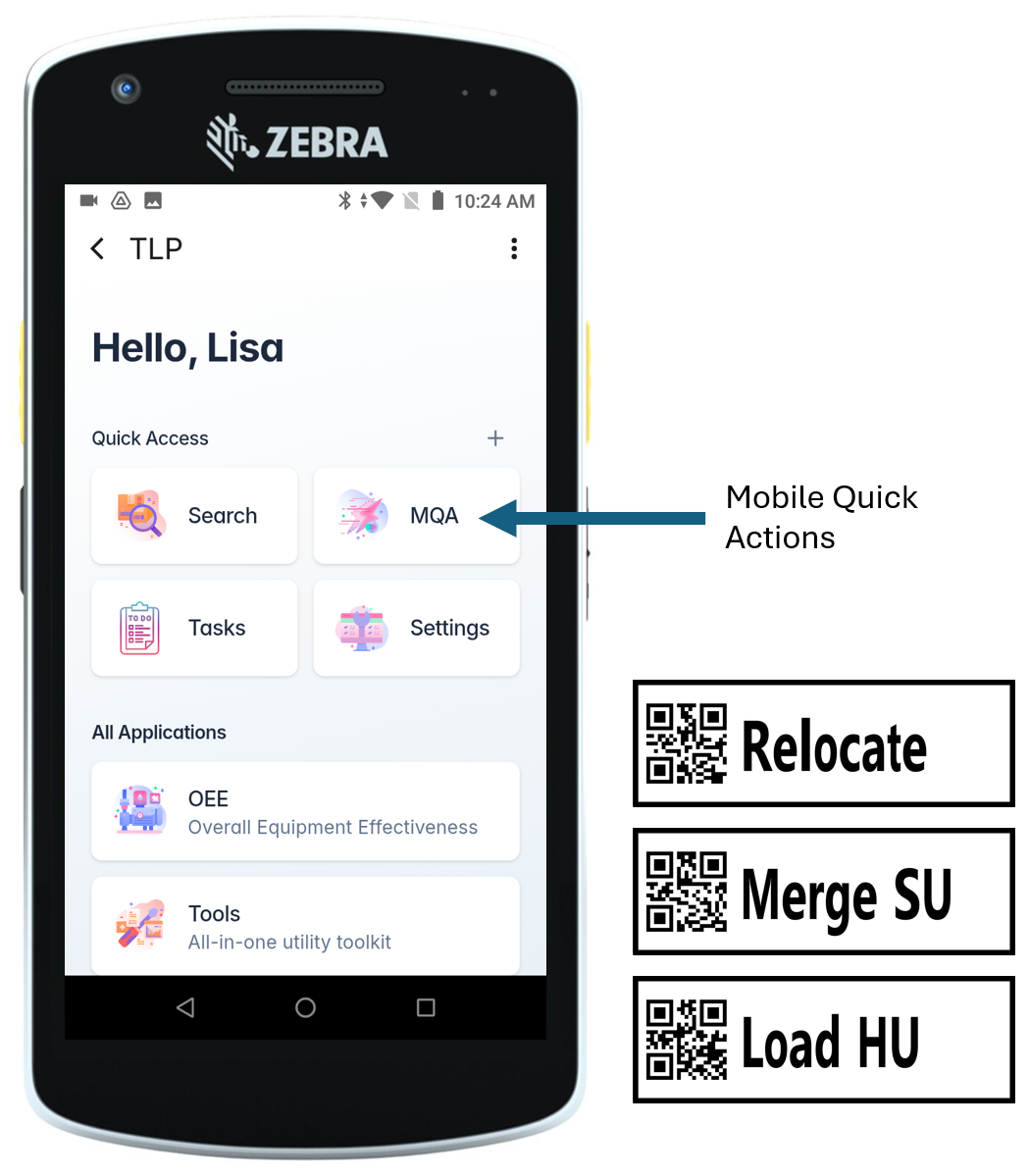
<p>The <strong>MQA</strong> application is displayed on the mobile home page as shown in <strong>Figure 3</strong>, by default its enabled for all users, however each user can see and execute only the actions to which he has the corresponding permission.</p>

<p>Another important aspect is the <strong>MQA</strong> label, such labels can be printed from the desktop application and placed physically where actions are executed, for example the <strong>Relocate MQA</strong> could be placed on shelves; users should <strong>double-scan</strong> the MQA barcode to confirm the operation.</p>

<figure>
	<img height="600" class="center" src="/assets/blog/tlp-mqa/mqa-application.png" />
	<figcaption><strong>Figure 3.</strong> Mobile Home Page with MQA application</figcaption>
</figure>

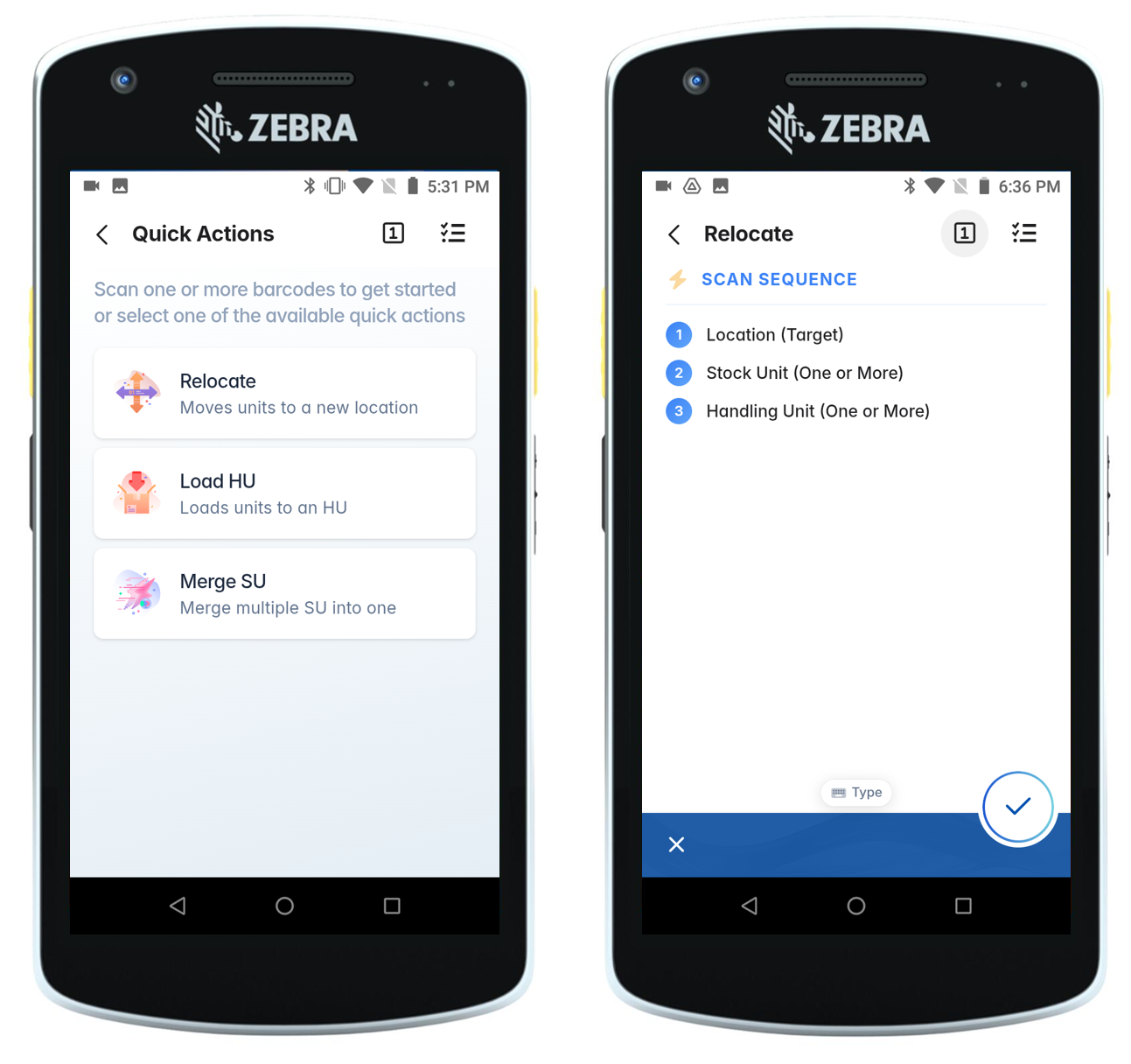
<p>Tapping on the <strong>MQA</strong> application you get the list of available actions, you don’t need to select an action; you can start scanning barcodes immediately and then <strong>double scan</strong> the desired action barcode.</p>

<div class="markdown-alert markdown-alert-note"><p class="markdown-alert-title"><svg data-component="Octicon" class="octicon octicon-info" viewBox="0 0 16 16" version="1.1" width="16" height="16" aria-hidden="true"><path d="M0 8a8 8 0 1 1 16 0A8 8 0 0 1 0 8Zm8-6.5a6.5 6.5 0 1 0 0 13 6.5 6.5 0 0 0 0-13ZM6.5 7.75A.75.75 0 0 1 7.25 7h1a.75.75 0 0 1 .75.75v2.75h.25a.75.75 0 0 1 0 1.5h-2a.75.75 0 0 1 0-1.5h.25v-2h-.25a.75.75 0 0 1-.75-.75ZM8 6a1 1 0 1 1 0-2 1 1 0 0 1 0 2Z"></path></svg> Note</p><p>The <strong>MQA</strong> list shows available actions and serves as a quick reference guide. If a user is unsure of the scanning sequence, they can simply tap an action to see exactly which barcodes are required and the order in which to scan them.</p>
</div>

<figure>
	<img height="600" class="center" src="/assets/blog/tlp-mqa/mqa-application-2.png" />
	<figcaption><strong>Figure 3.</strong> MQA application</figcaption>
</figure>

<p>Testing time, in this video we simulate relocating 10 handling units <strong>HU26-01, HU26-02</strong> up to <strong>HU26-10</strong> to a new target location named <strong>DOCK-01</strong>, we scan the barcodes in the following order:</p>

<ul>
  <li>Scan all 10 handling units.</li>
  <li>Scan target location <strong>DOCK-01</strong>.</li>
  <li><strong>Double scan</strong> the relocate <strong>MQA</strong> to confirm the operation.</li>
</ul>

<div class="markdown-alert markdown-alert-note"><p class="markdown-alert-title"><svg data-component="Octicon" class="octicon octicon-info" viewBox="0 0 16 16" version="1.1" width="16" height="16" aria-hidden="true"><path d="M0 8a8 8 0 1 1 16 0A8 8 0 0 1 0 8Zm8-6.5a6.5 6.5 0 1 0 0 13 6.5 6.5 0 0 0 0-13ZM6.5 7.75A.75.75 0 0 1 7.25 7h1a.75.75 0 0 1 .75.75v2.75h.25a.75.75 0 0 1 0 1.5h-2a.75.75 0 0 1 0-1.5h.25v-2h-.25a.75.75 0 0 1-.75-.75ZM8 6a1 1 0 1 1 0-2 1 1 0 0 1 0 2Z"></path></svg> Note</p><p>Since the <strong>MQA</strong> is super fast we enabled the continuous scan on the Zebra device, thus we just press and hold the scanner button and then go over all the desired barcodes.</p>
</div>

<iframe width="100%" height="400" src="https://www.youtube.com/embed/gdaw0if-Yac?si=mDKEyfZ-2J_d2Sn3" title="YouTube video player" frameborder="0" allow="accelerometer; autoplay; clipboard-write; encrypted-media; gyroscope; picture-in-picture; web-share" referrerpolicy="strict-origin-when-cross-origin" allowfullscreen=""></iframe>

<h1 id="summary">Summary</h1>

<p>This post introduced <strong>Mobile Quick Actions</strong>, a TLP framework designed to streamline repetitive shopfloor operations through barcode scanning. The key takeaways are:</p>

<ul>
  <li><strong>Scan-driven workflow</strong> — any multi-step shopfloor operation can be reduced to a sequence of barcode scans, letting operators rely on muscle-memory for fast and accurate execution.</li>
  <li><strong>MQA barcodes</strong> — actions are represented as physical barcodes placed at the point of use; a double-scan confirms the operation, eliminating the need to navigate menus.</li>
  <li><strong>Flexible scanning order</strong> — operators can scan handling units and the target location in any order before confirming with the MQA barcode.</li>
  <li><strong>Configuration over code</strong> — new actions can be introduced through scripting and configuration in a matter of hours, with no custom development required.</li>
</ul>]]></content><author><name>Omar Al Kababji</name></author><category term="TLP" /><category term="tlp" /><summary type="html"><![CDATA[An introduction to the TLP mobile application, how to install it and connect it to a TLP server.]]></summary><media:thumbnail xmlns:media="http://search.yahoo.com/mrss/" url="https://www.pragmatech.it/assets/blog/tlp-mobile-configuration/header.jpg" /><media:content medium="image" url="https://www.pragmatech.it/assets/blog/tlp-mobile-configuration/header.jpg" xmlns:media="http://search.yahoo.com/mrss/" /></entry><entry><title type="html">Driving Efficiency with Automated Task and Stock Management</title><link href="https://www.pragmatech.it/blog/2026/04/03/tlp-wms-2.html" rel="alternate" type="text/html" title="Driving Efficiency with Automated Task and Stock Management" /><published>2026-04-03T00:00:00+00:00</published><updated>2026-04-03T00:00:00+00:00</updated><id>https://www.pragmatech.it/blog/2026/04/03/tlp-wms-2</id><content type="html" xml:base="https://www.pragmatech.it/blog/2026/04/03/tlp-wms-2.html"><![CDATA[<p>Today’s post covers the implementation of a <strong>Material Reordering Process</strong> in a warehouse. We will explore several platform capabilities that apply to a wide range of processes, with a focus on our <strong>Scheduling Module</strong>.</p>

<p>The <strong>TLP Scheduling Module</strong> is a versatile engine designed to schedule (either manually or fully automated) various operational demands such as transport orders, picking and production orders. It generates a list of tasks assigned to available executors — for example: warehouse personnel, work-centers, AGVs … etc.</p>

<p>Imagine a WMS that doesn’t just store data, but actively orchestrates your floor. A system that directs every operator’s current task and future move, dynamically shifting priorities in real-time. Today, we’re exploring this ‘What If’ through the lens of stock replenishment—though the same logic can be scaled across your entire operation.</p>

<h1 id="scenario">Scenario</h1>

<p>In our scenario we will demonstrate how <strong>TLP</strong> can satisfy the following user requirements realted to WMS and scheduling:</p>

<table>
  <caption>Table 1: User Requirements</caption>
  <thead>
    <tr>
    	<th>REQ</th>
    	<th>Description</th>
	</tr>
  </thead>
  <tbody>
    <tr>
      <td>001</td>
      <td>The WMS shall support location-specific replenishment configurations, allowing unique reorder points and maximum stock thresholds to be defined at the individual bin level.</td>
    </tr>
    <tr>
      <td>002</td>
      <td>The WMS shall automatically initiate replenishment tasks once the inventory for a specific location falls to the predefined reorder point.</td>
    </tr>
    <tr>
      <td>003</td>
      <td>The WMS shall automatically trigger replenishment tasks upon stock depletion. These tasks must be dispatched to the operator's mobile device, featuring an optimized UI to ensure seamless task execution and confirmation.</td>
    </tr>
    <tr>
      <td>004</td>
      <td>The WMS shall dynamically schedule and assign tasks to active operators based on their validated certifications (e.g., forklift license) and defined skill levels to ensure optimal resource allocation.</td>
    </tr>
  </tbody>
</table>

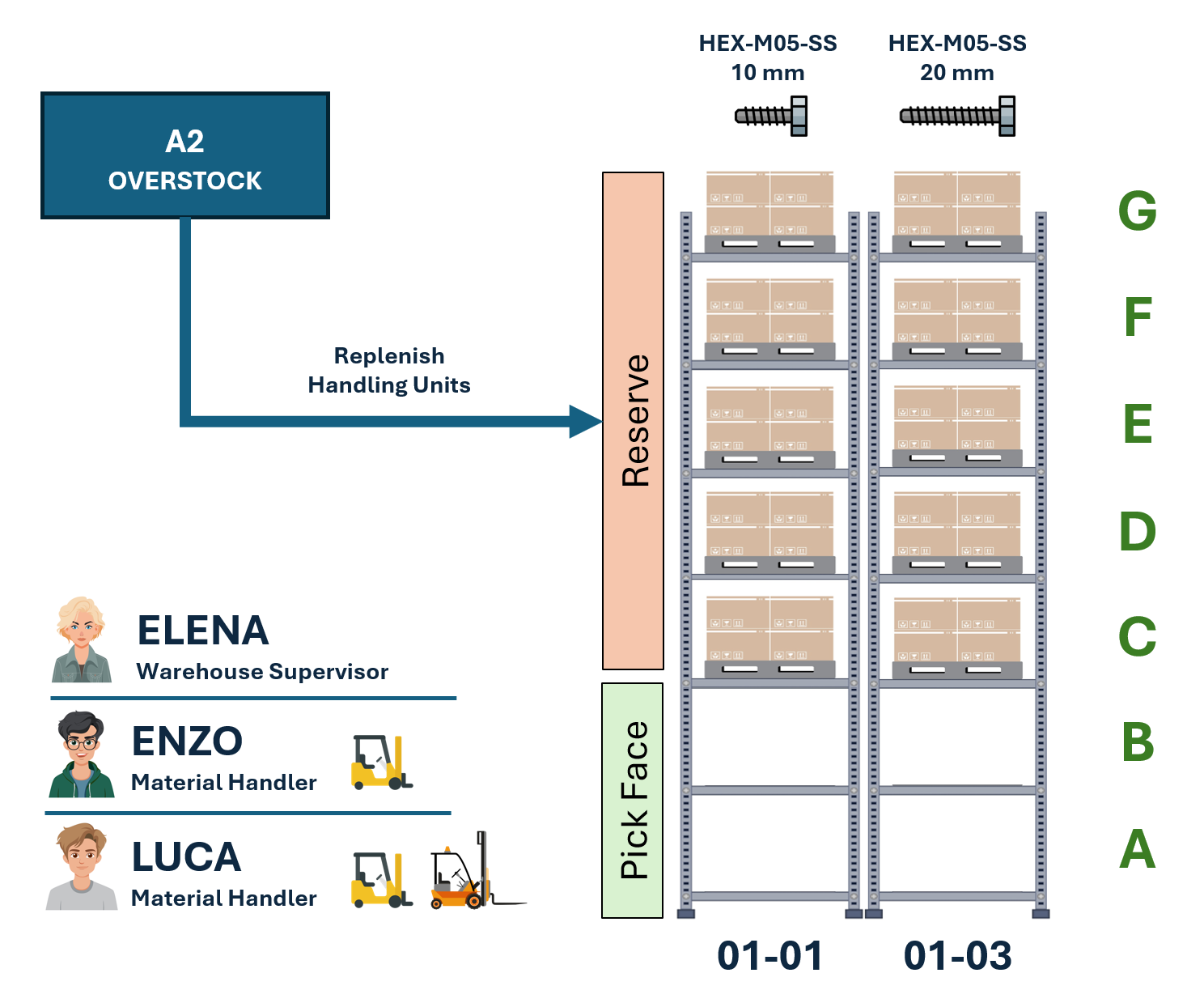
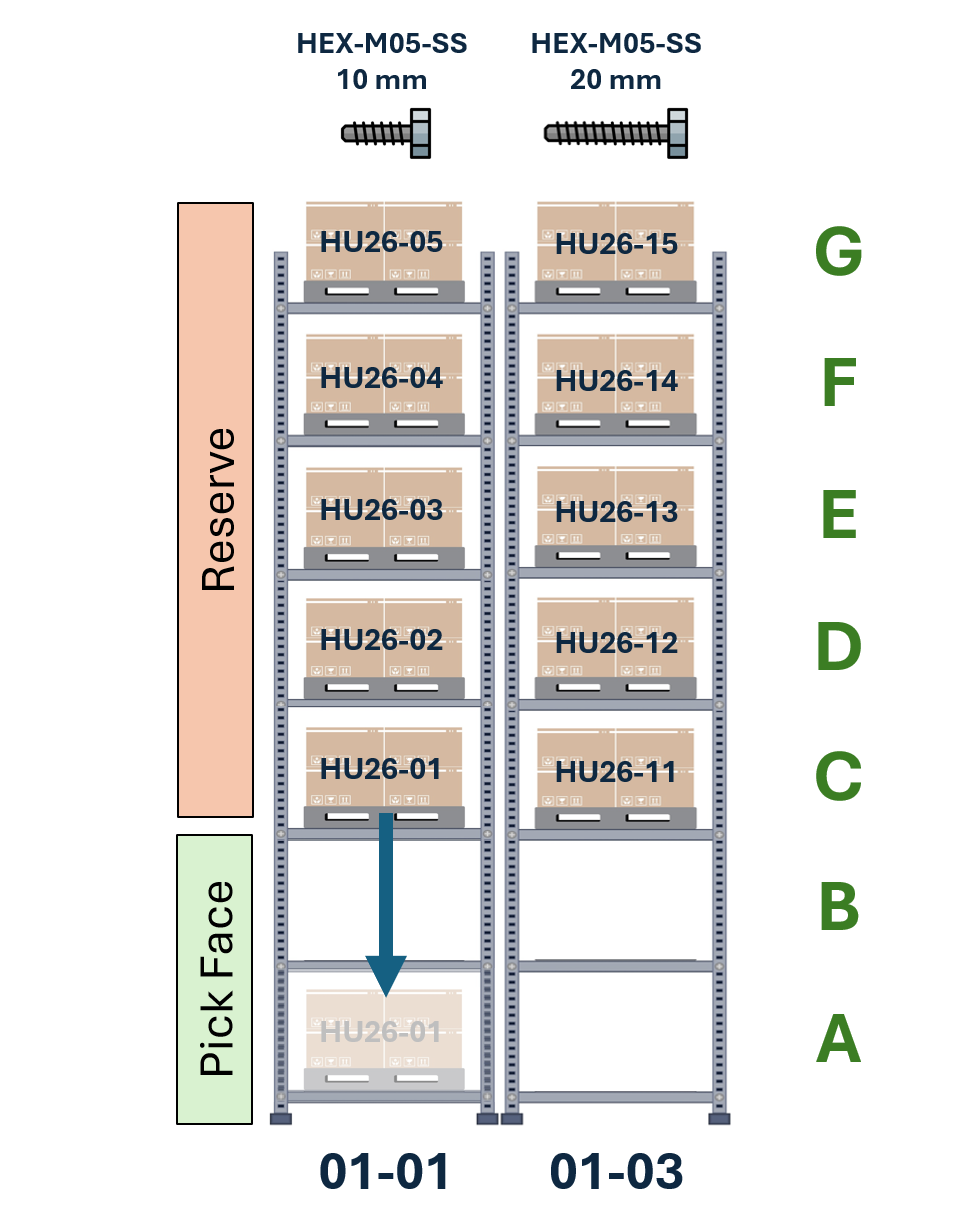
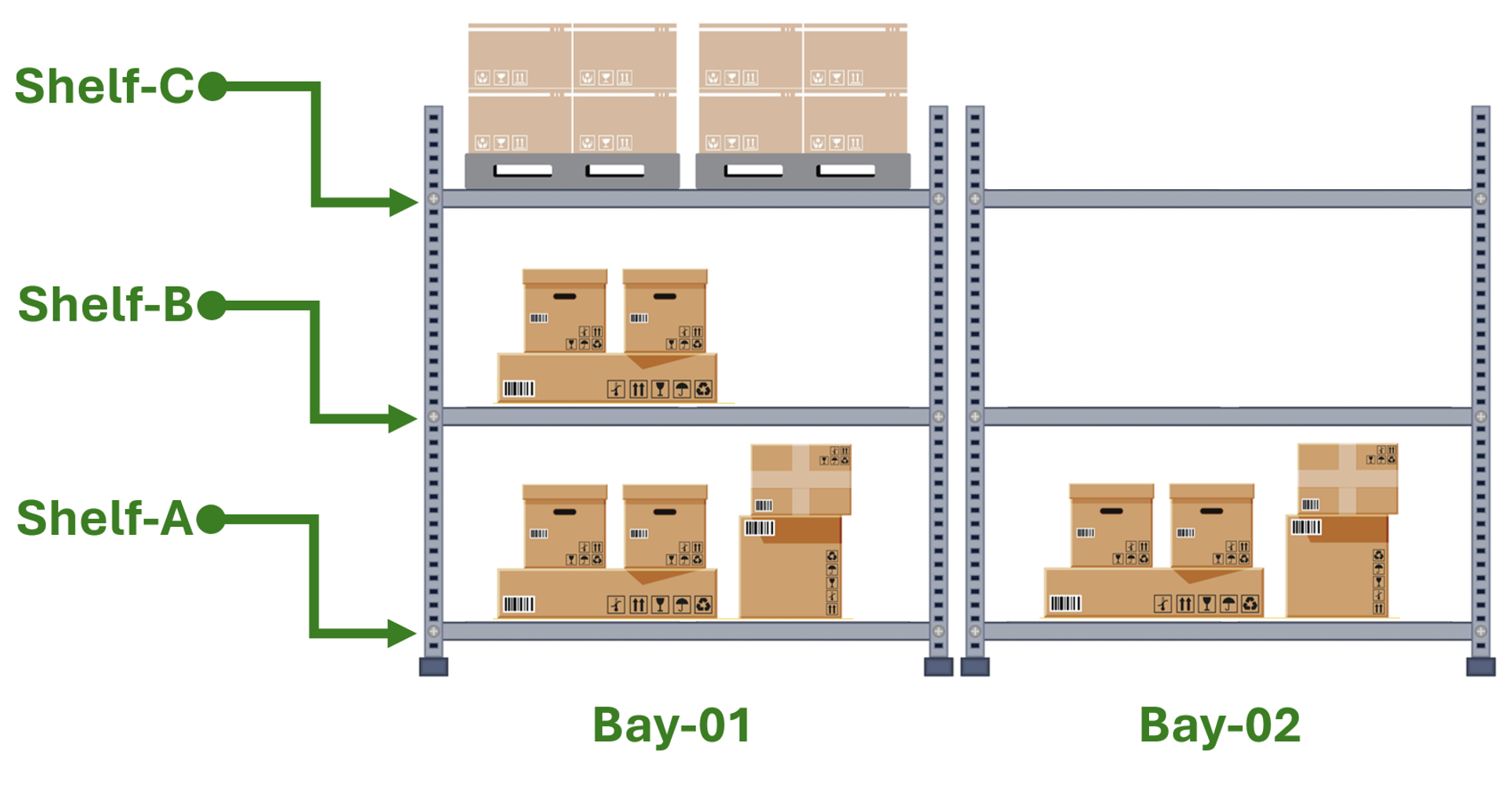
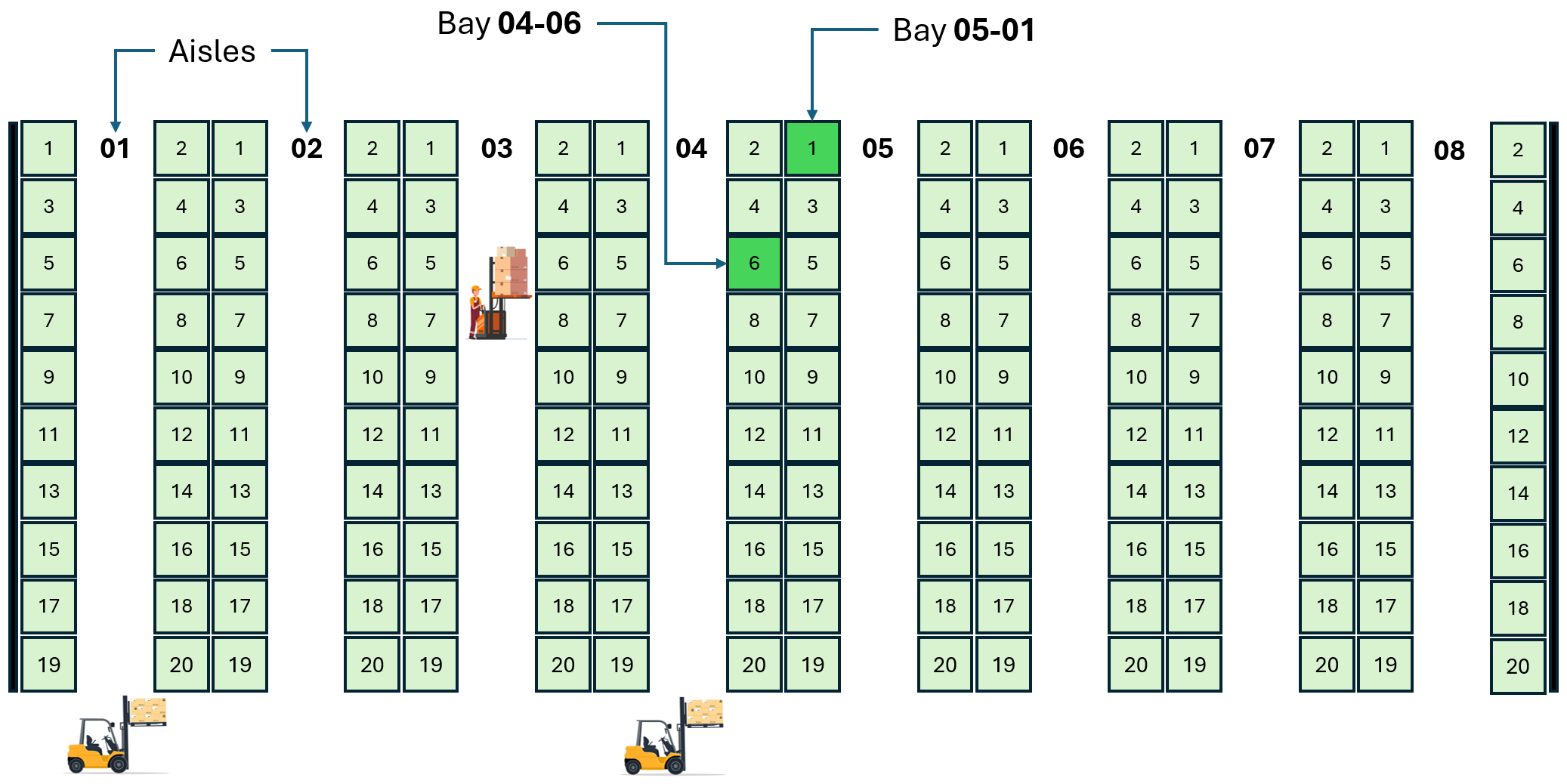
<p><strong>Figure 1</strong> gives a visual overview of how we want to manage material reordering in locations of bays <strong>01-01</strong> and <strong>01-03</strong> of area <strong>A1</strong>.</p>

<ol>
  <li>Bay <strong>01-01</strong> should store stock of material <strong>HEX-M05-010-SS</strong>, which represents stainless steel bolts of <strong>10mm</strong> length.</li>
  <li>Bay <strong>01-03</strong> should store stock of material <strong>HEX-M05-020-SS</strong>, which represents stainless steel bolts of <strong>20mm</strong> length.</li>
  <li>Shelves <strong>C-G</strong> act as <strong>reserve</strong> locations and have a capacity of <strong>1 pallet</strong>.</li>
  <li>When a pallet is removed from shelves <strong>C-G</strong>, the system should automatically pull a new pallet — of the same material — from the <strong>overstock</strong> area in <strong>A2</strong>.</li>
  <li>Execution of transport orders is restricted to users with the <strong>Material Handler</strong> role. Furthermore, picking pallets from high shelves <strong>H</strong>, <strong>I</strong>, and <strong>J</strong> requires a high-reach truck and the corresponding <strong>High Reach</strong> skill; standard forklifts cannot be used to pick from these locations.</li>
</ol>

<figure>
	<img width="" src="/assets/blog/tlp-wms-2/aisle-reorder.png" />
	<figcaption><strong>Figure 1.</strong> Warehouse Reorder Scenario</figcaption>
</figure>

<p>We will also assume we have the users listed in the table below. Note that <strong>Enzo</strong> can only operate a classic <strong>forklift</strong>, while <strong>Luca</strong> is also qualified to operate <strong>high-reach trucks</strong> for picking pallets from high shelves.</p>

<table id="warehouses">
  <caption>Table 2: Users</caption>
  <thead>
    <tr>
    	<th style="width:80px">Avatar</th>
    	<th style="">Username</th>
    	<th style="">Role</th>
    	<th style="">Description</th>
    	<th style="width:120">FL</th>
    	<th style="width:120">HR</th>
	</tr>
  </thead>
  <tbody>
    <tr>
      <td><img src="/assets/blog/tlp-wms-2/avatar-elena.jpg" class="center" /></td>
      <td>Elena</td>
      <td>Supervisor</td>
      <td style="text-align:left">The warehouse supervisor with NO training for driving forklifts or high-reach trucks.</td>
      <td>-</td>
      <td>-</td>
    </tr>
    <tr>
      <td><img src="/assets/blog/tlp-wms-2/avatar-enzo.jpg" class="center" /></td>
      <td>Enzo</td>
      <td>Material Handler</td>
      <td style="text-align:left">A material handler trained and certified to drive a <b>forklift</b>.</td>
      <td>x</td>
      <td>-</td>
    </tr>
    <tr>
      <td><img src="/assets/blog/tlp-wms-2/avatar-luca.jpg" class="center" /></td>
      <td>Luca</td>
      <td>Material Handler</td>
      <td style="text-align:left">A material handler trained and certified to operate both a <b>forklift</b> and a <b>high-reach truck</b>, the latter being required when picking from high shelves <b>H</b>, <b>I</b>, and <b>J</b>.</td>
      <td>x</td>
      <td>x</td>
    </tr>
  </tbody>
  <caption style="caption-side: bottom;">FL: Fork Lift | HR: High Reach</caption>
</table>

<h1 id="location-configuration">Location Configuration</h1>

<p>Now that the requirements are clear, let’s see how locations in bays <strong>01-01</strong> and <strong>01-03</strong> are configured in TLP to meet those business requirements.
Key points to note:</p>

<ul>
  <li>All locations are configured with a capacity of <strong>1 WHU</strong>, meaning at most one warehouse handling unit can be stored in each location.</li>
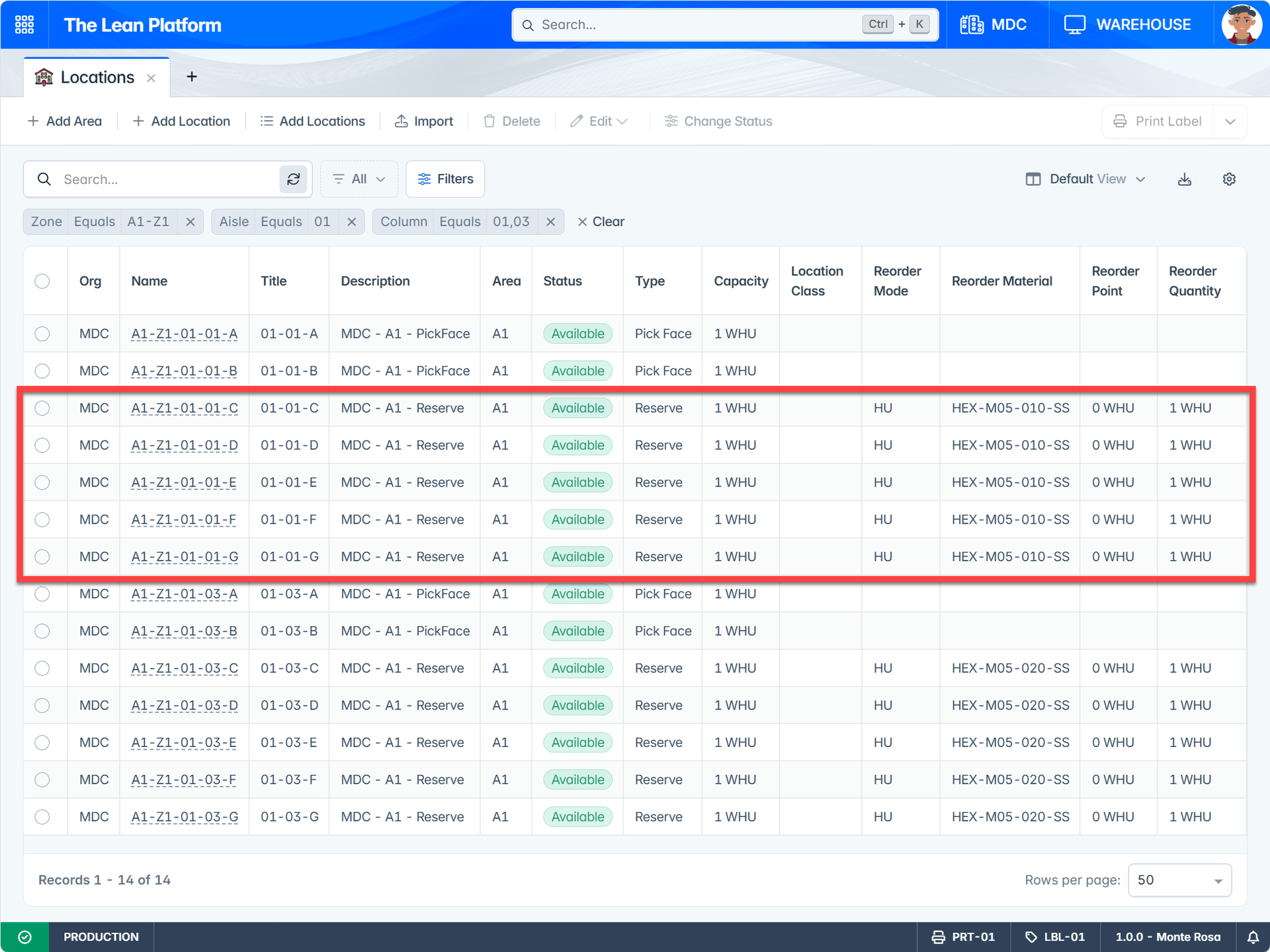
  <li>Locations <strong>01-01-C</strong> through <strong>01-01-G</strong> have their reorder attributes configured to match the scenario requirements: when the location quantity reaches or falls below the reorder point of <strong>0 WHU</strong>, a new <strong>HU</strong> with material <strong>HEX-M05-010-SS</strong> is automatically pulled from an <strong>overstock</strong> location.</li>
  <li>The same logic applies to locations <strong>01-03-C</strong> through <strong>01-03-G</strong>, but for material <strong>HEX-M05-020-SS</strong>.</li>
</ul>

<figure>
	<img width="" src="/assets/blog/tlp-wms-2/location-configuration.png" />
	<figcaption><strong>Figure 2.</strong> Location configuration</figcaption>
</figure>

<h1 id="triggering-reorder-logic">Triggering Reorder Logic</h1>

<p>For our first test, let’s assume the warehouse locations are in the state shown in <strong>Figure 3</strong>:</p>

<ul>
  <li>All <strong>reserve</strong> locations are currently filled with an <strong>HU</strong>. For simplicity, HU names follow the format <strong>HU26-01</strong> instead of <strong>HU26-0000000001</strong>.</li>
  <li><strong>Overstock</strong> locations in area <strong>A2</strong> contain enough handling units of materials <strong>HEX-M05-010-SS</strong> and <strong>HEX-M05-020-SS</strong> for our test.</li>
</ul>

<figure>
	<img width="70%" src="/assets/blog/tlp-wms-2/relocate-hu-from-reserve-to-pickface.png" class="center" />
	<figcaption><strong>Figure 3.</strong> Initial warehouse status</figcaption>
</figure>

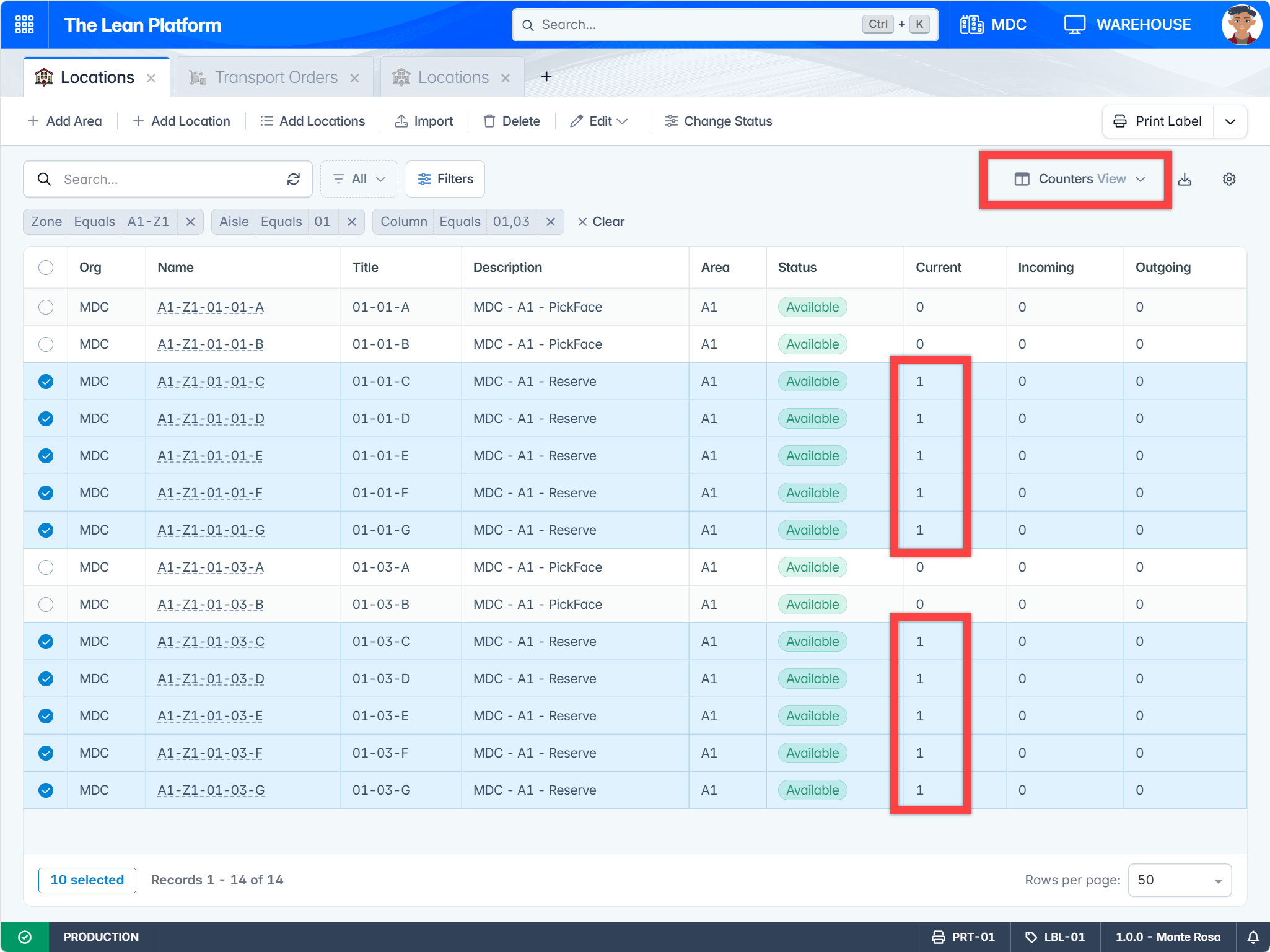
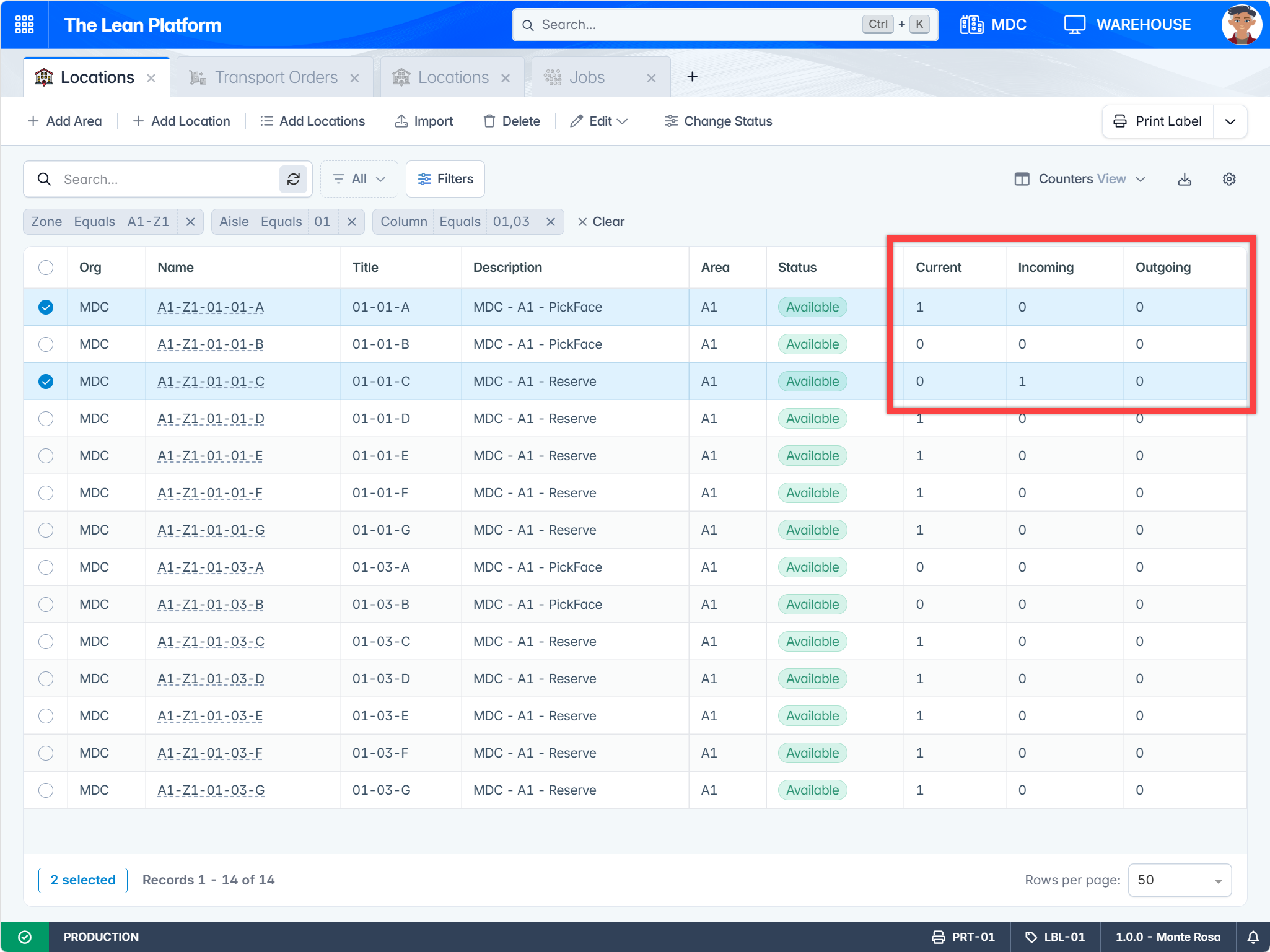
<p>We can observe location status in the system using the <strong>Counters View</strong>. The <strong>Current</strong> column shows <strong>0</strong> for <strong>pickface</strong> locations (shelves <strong>A</strong> and <strong>B</strong>) and <strong>1</strong> for <strong>reserve</strong> locations (shelves <strong>C-G</strong>).</p>

<figure>
	<img width="" src="/assets/blog/tlp-wms-2/bays-01-and-03-full.png" class="center" />
	<figcaption><strong>Figure 4.</strong> Bays 01-01 and 01-03 counters</figcaption>
</figure>

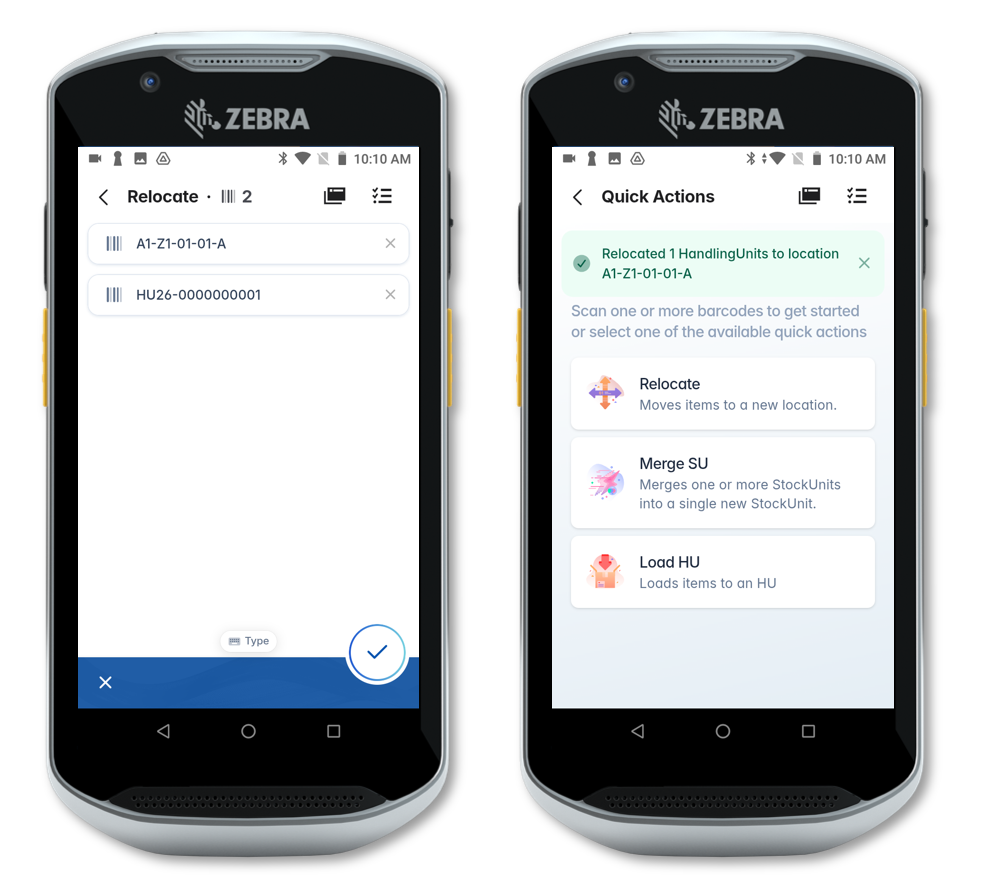
<p>To trigger the reorder logic, we use a mobile quick action to relocate handling unit <strong>HU26-01</strong> from <strong>01-01-C</strong> to <strong>01-01-A</strong>, thereby freeing location <strong>01-01-C</strong>.</p>

<figure>
	<img src="/assets/blog/tlp-wms-2/relocate-hu1.png" />
	<figcaption><strong>Figure 5.</strong> Relocate HU26-01 to location 01-01-A</figcaption>
</figure>

<p>Within a few seconds, the WMS reorder logic detects that location <strong>01-01-C</strong> is empty and generates a transport order to pull a new handling unit from overstock area <strong>A2</strong>. The effect is visible in <strong>Figure 6</strong>:</p>

<ul>
  <li>Location <strong>01-01-C</strong> current count changed from <strong>1</strong> → <strong>0</strong> (due to the relocation).</li>
  <li>Location <strong>01-01-A</strong> current count changed from <strong>0</strong> → <strong>1</strong> (due to the relocation).</li>
  <li>Location <strong>01-01-C</strong> incoming count changed from <strong>0</strong> → <strong>1</strong>, indicating a transport order was automatically created to bring a new <strong>HU</strong> to this location.</li>
</ul>

<div class="markdown-alert markdown-alert-note"><p class="markdown-alert-title"><svg data-component="Octicon" class="octicon octicon-info" viewBox="0 0 16 16" version="1.1" width="16" height="16" aria-hidden="true"><path d="M0 8a8 8 0 1 1 16 0A8 8 0 0 1 0 8Zm8-6.5a6.5 6.5 0 1 0 0 13 6.5 6.5 0 0 0 0-13ZM6.5 7.75A.75.75 0 0 1 7.25 7h1a.75.75 0 0 1 .75.75v2.75h.25a.75.75 0 0 1 0 1.5h-2a.75.75 0 0 1 0-1.5h.25v-2h-.25a.75.75 0 0 1-.75-.75ZM8 6a1 1 0 1 1 0-2 1 1 0 0 1 0 2Z"></path></svg> Note</p><p>In our tests the system is configured to trigger reorder logic as soon as the reorder point is reached. In a real warehouse, you may want to configure a delay (e.g., 60 minutes) between the time the reorder point is reached and when the system pulls new materials.</p>
</div>

<figure>
	<img src="/assets/blog/tlp-wms-2/test-2.png" />
	<figcaption><strong>Figure 6.</strong> Location counters after relocation</figcaption>
</figure>

<h1 id="transport-order-scheduling--execution">Transport Order Scheduling &amp; Execution</h1>

<p>Now to the interesting part: how are transport orders communicated to forklift operators and executed? TLP has a powerful and efficient <strong>Scheduling Module</strong> designed to create and assign tasks to available executors. In our scenario:</p>

<ul>
  <li>Tasks are Transport Orders.</li>
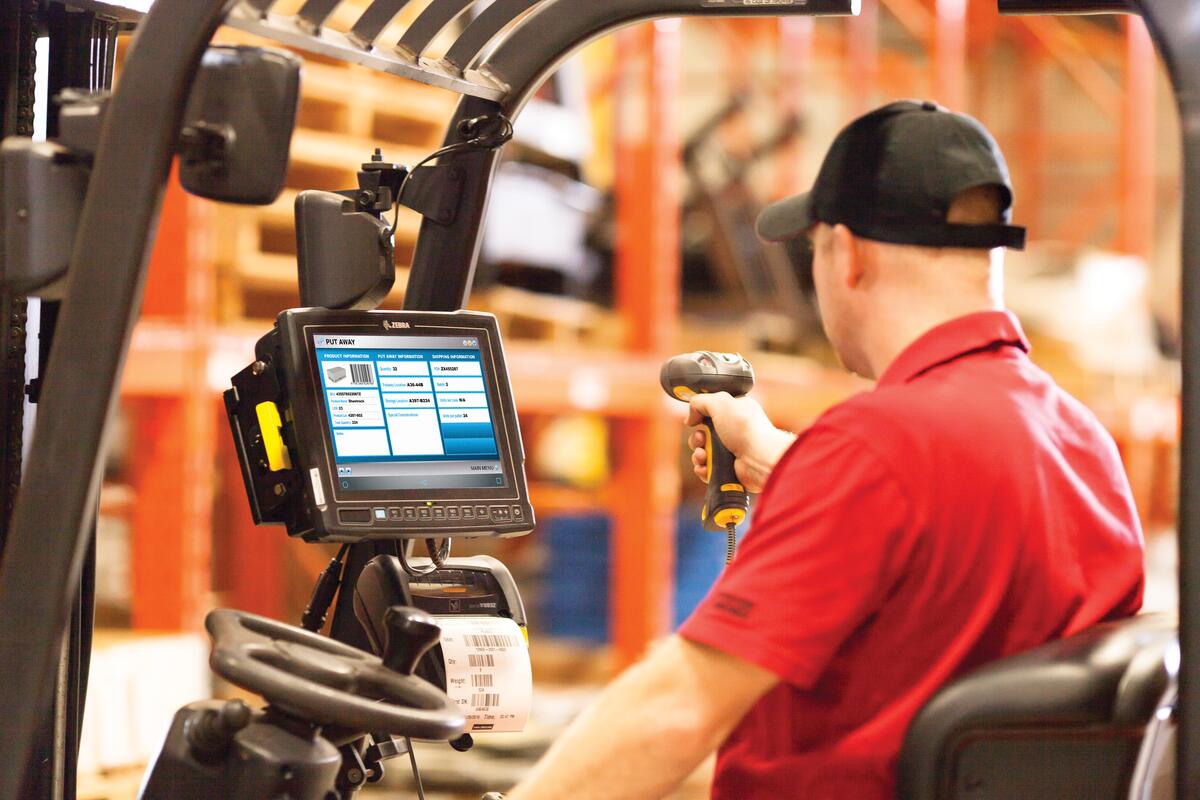
  <li>Executors are users with the <strong>Material Handler</strong> role connected to a handheld device — in other words, <strong>Enzo</strong> and <strong>Luca</strong>. The handheld device could also be a Vehicle Mount Computer such as the Zebra VC8300.</li>
</ul>

<figure>
	<img width="80%" src="/assets/blog/tlp-wms-2/vmd.jpeg" class="center" />
	<figcaption><strong>Figure 7.</strong> Zebra VC8300 mounted on a forklift</figcaption>
</figure>

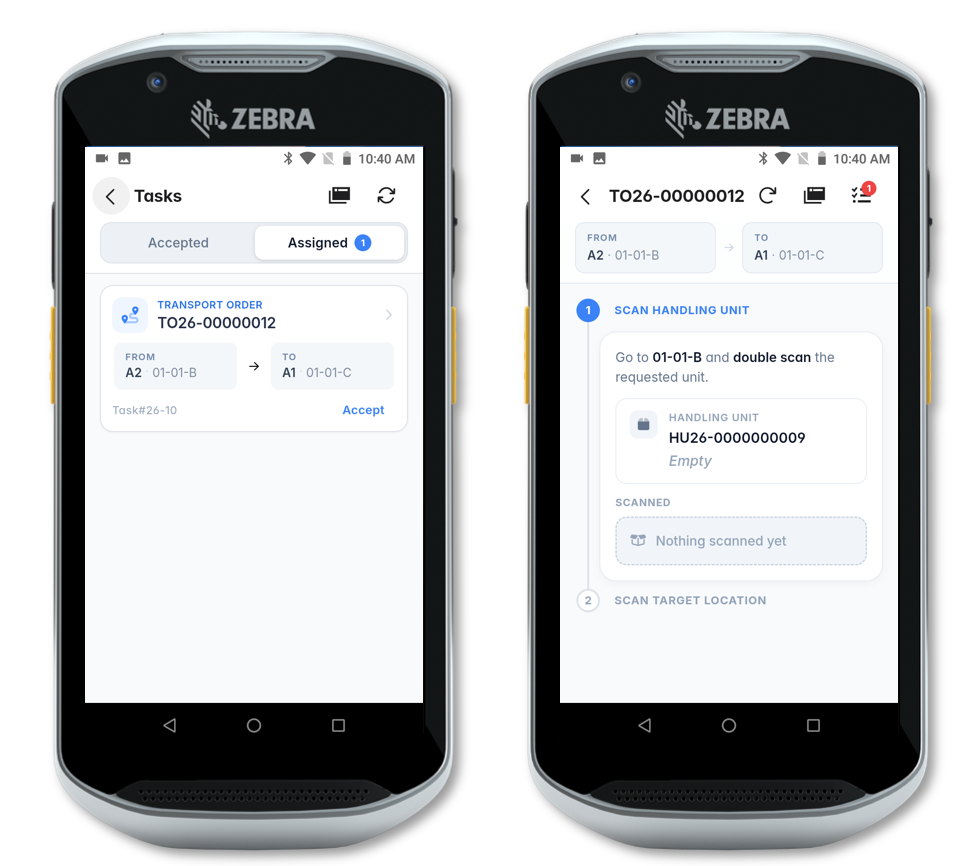
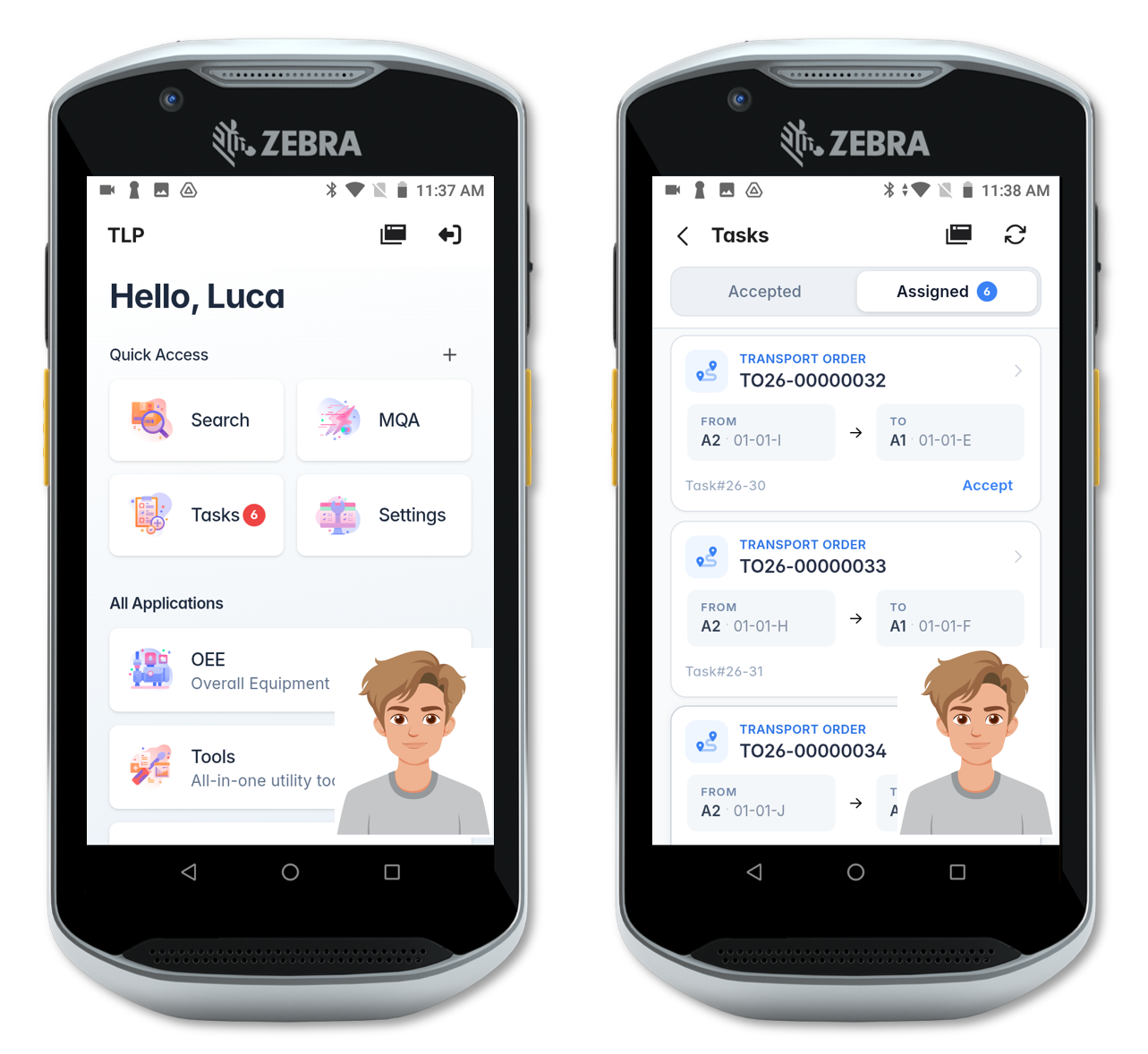
<p>The previously created transport order is scheduled automatically by the system and assigned to <strong>Enzo</strong>.</p>

<p>Following the system instructions, <strong>Enzo</strong> proceeds to location <strong>01-01-B</strong> in area <strong>A2</strong> and performs a double-scan of <strong>HU26-09</strong> to verify he picked the correct unit before transporting it to location <strong>01-01-C</strong> in area <strong>A1</strong>.</p>

<figure>
	<img src="/assets/blog/tlp-wms-2/task-1.png" />
	<figcaption><strong>Figure 8.</strong> Transport Order Task</figcaption>
</figure>

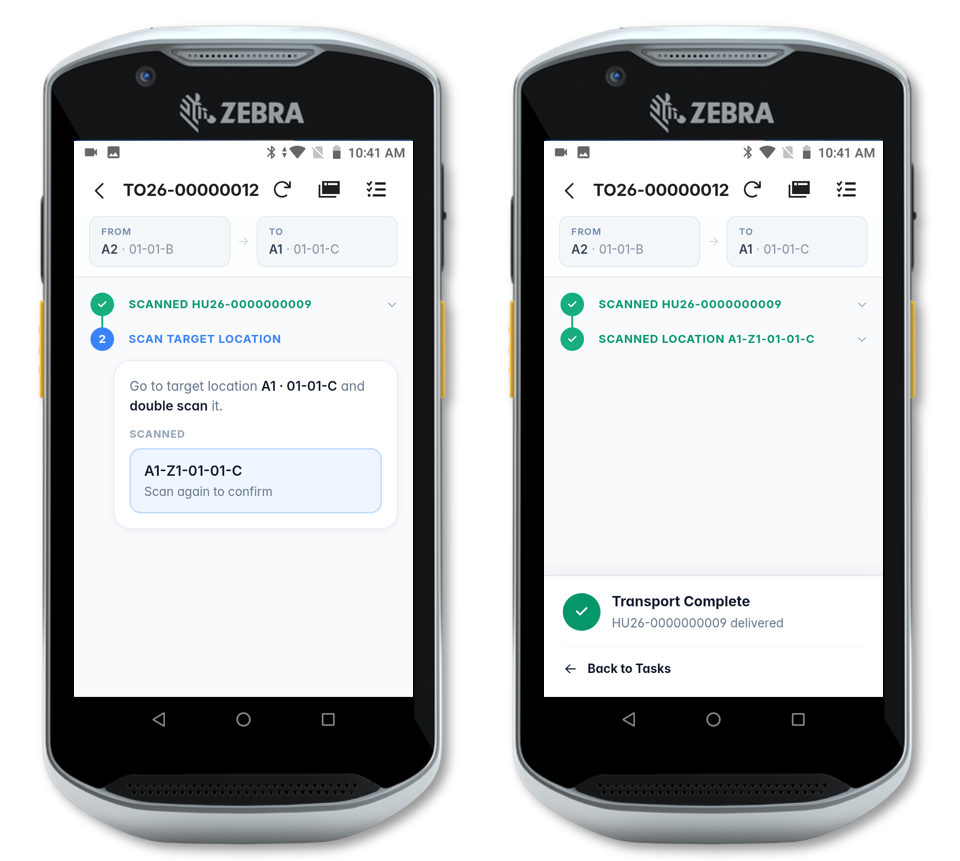
<p>Upon arriving at location <strong>01-01-C</strong>, <strong>Enzo</strong> double-scans the target location barcode to complete the transport order, physically deposits <strong>HU-09</strong> there, and moves on to the next task.</p>

<figure>
	<img src="/assets/blog/tlp-wms-2/task-2.png" />
	<figcaption><strong>Figure 9.</strong> Completing the Transport Order</figcaption>
</figure>

<p>After completing the transport order, location <strong>01-01-C</strong> counters update as follows:</p>

<ul>
  <li><strong>Current</strong> count changed from <strong>0</strong> → <strong>1</strong>.</li>
  <li><strong>Incoming</strong> count changed from <strong>1</strong> → <strong>0</strong>.</li>
</ul>

<figure>
	<img src="/assets/blog/tlp-wms-2/task-3.png" />
	<figcaption><strong>Figure 10.</strong> 01-01-C counters after completing the transport order</figcaption>
</figure>

<h1 id="multiple-transport-orders">Multiple Transport Orders</h1>

<p>Let’s ensure only <strong>Luca</strong> is connected to the system and relocate 6 handling units from <strong>reserve</strong> locations to outbound docking location <strong>DOCK-01</strong>. This action frees 6 locations, causing the system to pull 6 new handling units from overstock area <strong>A2</strong> and assign them all to <strong>Luca</strong>.</p>

<p>Of the 6 transport orders, 3 of them — <strong>TO26-32</strong>, <strong>TO26-33</strong>, and <strong>TO26-34</strong> — pick from high shelves <strong>I</strong>, <strong>H</strong>, and <strong>J</strong>.</p>

<figure>
	<img src="/assets/blog/tlp-wms-2/multiple-tasks-luca.png" />
	<figcaption><strong>Figure 11.</strong> 6 tasks assigned to Luca</figcaption>
</figure>

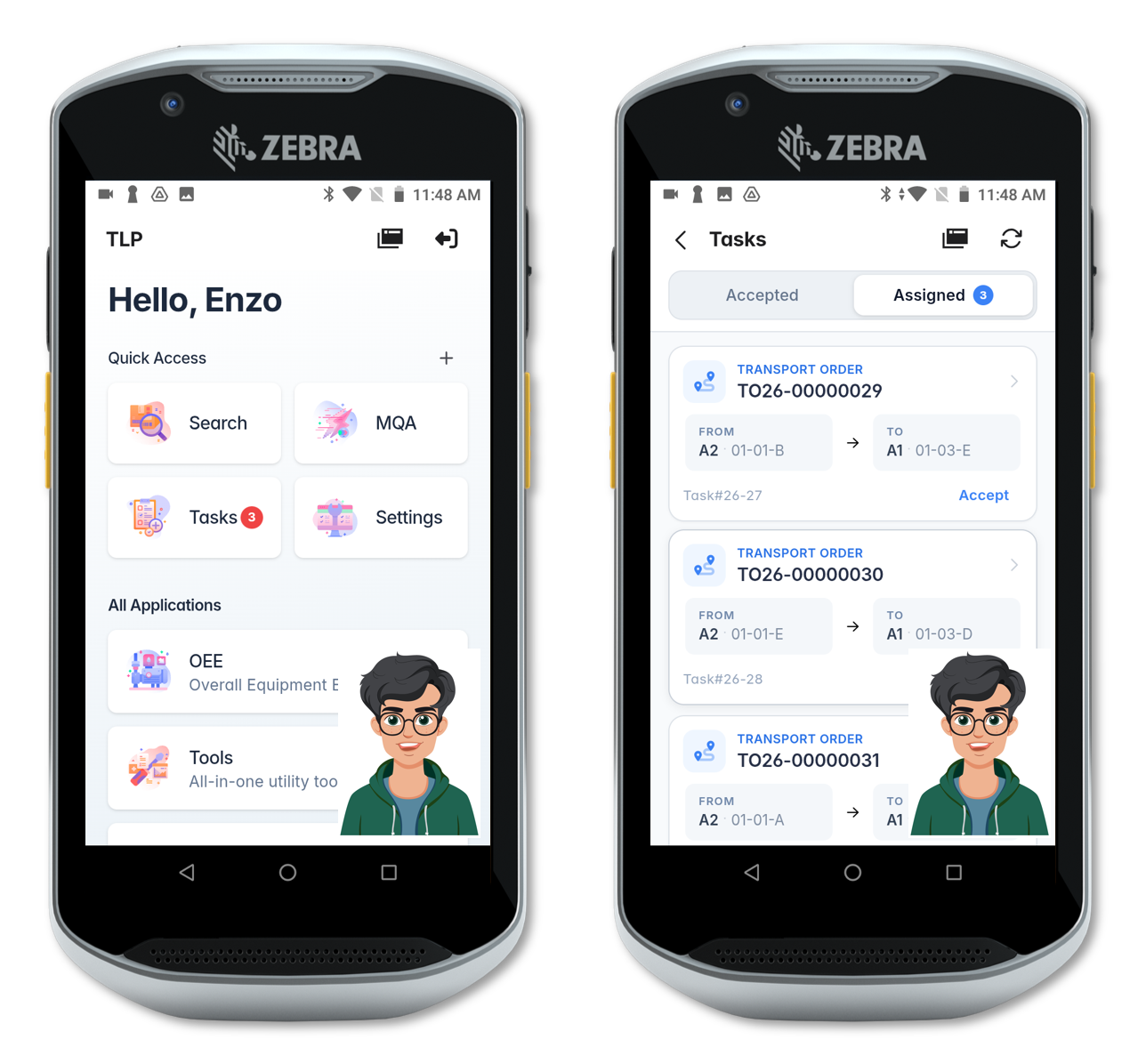
<p>Now let’s disconnect <strong>Luca</strong> and log in as <strong>Enzo</strong>. After a few seconds the <strong>Scheduling Module</strong> reschedules and reassigns tasks to <strong>Enzo</strong>.</p>

<p>Notably, only 3 of the 6 tasks are reassigned — because <strong>Enzo</strong> does not have the skill required to pick from high shelves.</p>

<figure>
	<img src="/assets/blog/tlp-wms-2/multiple-tasks-enzo.png" />
	<figcaption><strong>Figure 12.</strong> 3 tasks assigned to Enzo</figcaption>
</figure>

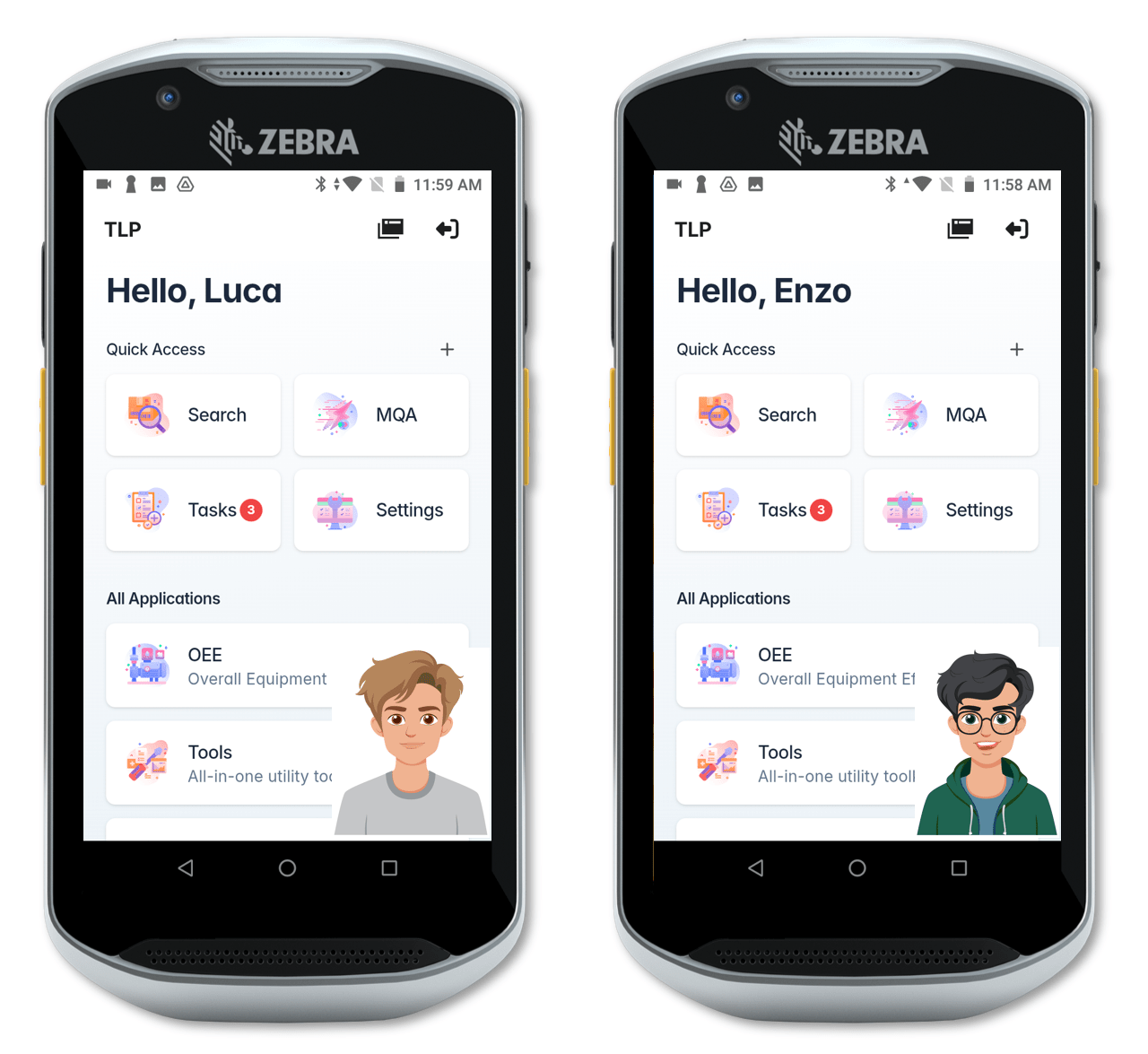
<p>Finally, connecting with two devices simultaneously — one for <strong>Enzo</strong> and one for <strong>Luca</strong> — the <strong>Scheduling Module</strong> distributes the workload across both operators, respecting each person’s skills.</p>

<figure>
	<img src="/assets/blog/tlp-wms-2/multiple-tasks-luca-and-enzo.png" />
	<figcaption><strong>Figure 13.</strong> Tasks distributed between Luca and Enzo</figcaption>
</figure>

<h1 id="summary">Summary</h1>

<p>This post demonstrated how TLP handles end-to-end material replenishment, from detecting an empty location to scheduling and executing transport orders on the warehouse floor. The key capabilities covered were:</p>

<ul>
  <li><strong>Location-level reorder configuration</strong> — each bin can have its own reorder point, quantity, and target material.</li>
  <li><strong>Automatic reorder triggering</strong> — the system monitors locations and generates transport orders without manual intervention.</li>
  <li><strong>Skill-aware task scheduling</strong> — the <strong>Scheduling Module</strong> considers operator certifications (e.g., High Reach) when assigning tasks, ensuring only qualified personnel receive specific jobs.</li>
  <li><strong>Dynamic rescheduling</strong> — as operators connect and disconnect, the scheduler continuously rebalances the workload across available executors.</li>
</ul>

<p>Smooth operations don’t happen by accident. That’s where <strong>Elena</strong> comes in. From system monitoring to exception management, her supervisory role is the glue that holds the workflow together—more on that in our next post!</p>]]></content><author><name>Omar Al Kababji</name></author><category term="TLP" /><category term="tlp" /><summary type="html"><![CDATA[Part two of a series exploring TLP capabilities for warehouse modeling and management.]]></summary><media:thumbnail xmlns:media="http://search.yahoo.com/mrss/" url="https://www.pragmatech.it/assets/blog/tlp-wms-2/header.jpg" /><media:content medium="image" url="https://www.pragmatech.it/assets/blog/tlp-wms-2/header.jpg" xmlns:media="http://search.yahoo.com/mrss/" /></entry><entry><title type="html">TLP Mobile Configuration &amp;amp; Testing</title><link href="https://www.pragmatech.it/blog/2026/03/24/tlp-mobile-configuration.html" rel="alternate" type="text/html" title="TLP Mobile Configuration &amp;amp; Testing" /><published>2026-03-24T00:00:00+00:00</published><updated>2026-03-24T00:00:00+00:00</updated><id>https://www.pragmatech.it/blog/2026/03/24/tlp-mobile-configuration</id><content type="html" xml:base="https://www.pragmatech.it/blog/2026/03/24/tlp-mobile-configuration.html"><![CDATA[<style>
	table caption {
		caption-side: top;
		font-weight: bold;
		font-size: 0.8rem;
    	padding-bottom: 0px;
	}
	td.centered {
		text-align:center;	
	}
	table#warehouses td:nth-child(n+4){
		text-align:center;	
	}
	.blog-area .blog-items .info > ul,
	.blog-area .blog-items .info > ol {
		margin-left: 40px;
	}
</style>

<p>If there’s one thing we’ve learned from years on the shop floor, it’s this: <strong>the most powerful WMS or MES solution is only as good as the device in the operator’s hand.</strong> too often, handheld integration is treated as an afterthought, for this reason we designed and built <strong>TLP Mobile</strong> to be straightforward to configure and seamless to operate.</p>

<p>In this post, I will walk you through the installation, configuration, and initial setup of <strong>TLP Mobile</strong>, along with some key concepts. As always, if you are in a hurry here is a quick video:</p>

<iframe width="100%" height="400" src="https://www.youtube.com/embed/PJfsgVezDTI?si=7p0yTl1ZWnz_UzCd" title="YouTube video player" frameborder="0" allow="accelerometer; autoplay; clipboard-write; encrypted-media; gyroscope; picture-in-picture; web-share" referrerpolicy="strict-origin-when-cross-origin" allowfullscreen=""></iframe>

<h1 id="installation">Installation</h1>

<p><strong>TLP Mobile</strong> is an Android application shipped as an <strong>APK</strong> file within the <strong>TLP distribution</strong>. While it can be installed directly on a handheld device, companies
  using MDM tools like Microsoft Intune, VMware Workspace ONE, or ManageEngine can distribute it automatically by:</p>

<ul>
  <li>Uploading the APK to the MDM’s app repository.</li>
  <li>Assigning it to the relevant device groups.</li>
  <li>Setting the installation type to “Required” or “Silent Install”.</li>
</ul>

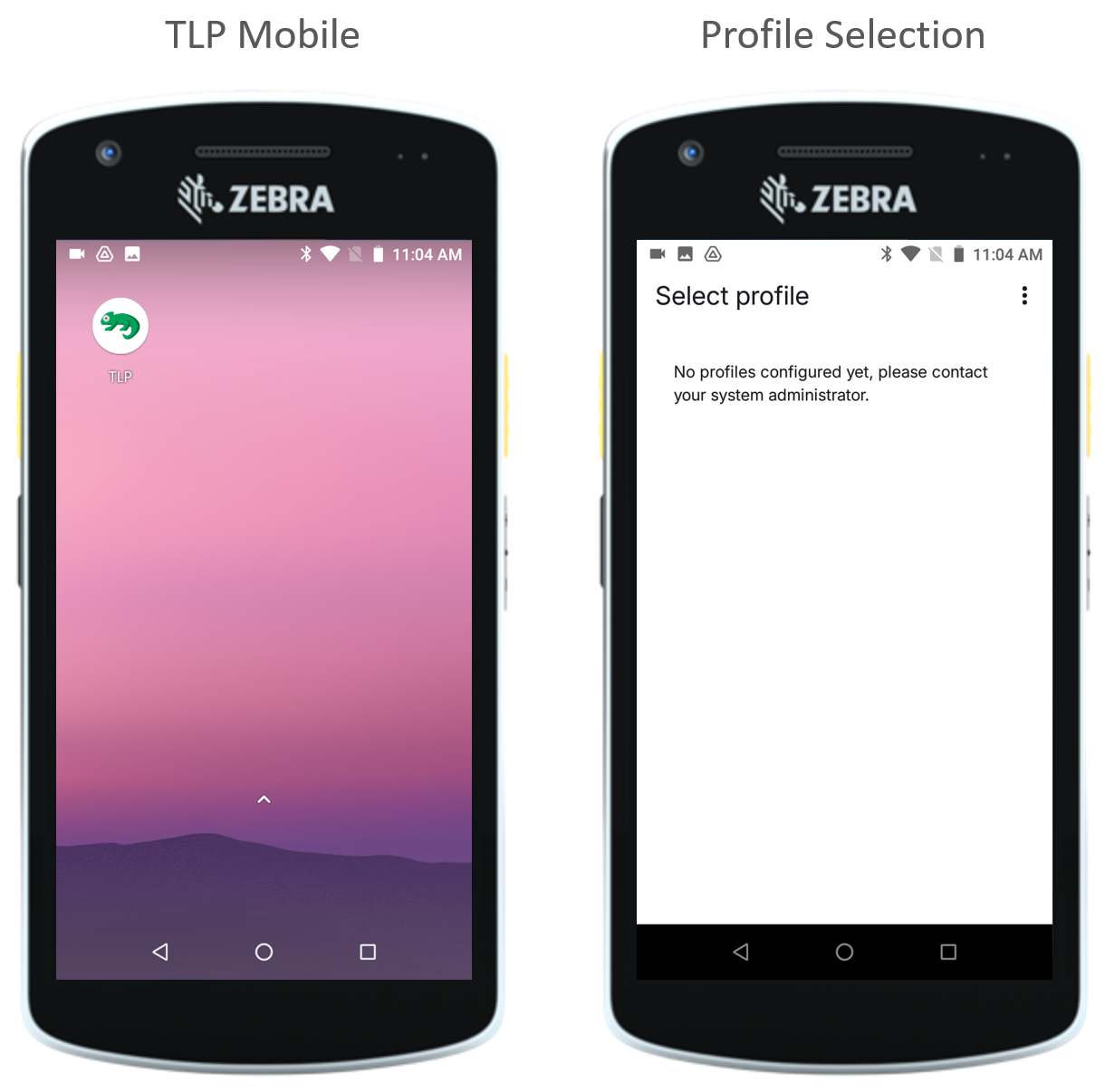
<p>Once installed, tap the application to open it. You will be taken to the <strong>Select Profile</strong> screen, if you see it, the installation was successful.</p>

<p><img width="70%" src="/assets/blog/tlp-mobile-configuration/tlp-mobile-installation.png" class="center" /></p>

<div class="markdown-alert markdown-alert-note"><p class="markdown-alert-title"><svg data-component="Octicon" class="octicon octicon-info" viewBox="0 0 16 16" version="1.1" width="16" height="16" aria-hidden="true"><path d="M0 8a8 8 0 1 1 16 0A8 8 0 0 1 0 8Zm8-6.5a6.5 6.5 0 1 0 0 13 6.5 6.5 0 0 0 0-13ZM6.5 7.75A.75.75 0 0 1 7.25 7h1a.75.75 0 0 1 .75.75v2.75h.25a.75.75 0 0 1 0 1.5h-2a.75.75 0 0 1 0-1.5h.25v-2h-.25a.75.75 0 0 1-.75-.75ZM8 6a1 1 0 1 1 0-2 1 1 0 0 1 0 2Z"></path></svg> Note</p><p>In PragmaTech we tested <strong>TLP Mobile</strong> with both <a href="https://www.zebra.com/us/en/products/mobile-computers/handheld/tc5x-series.html">Zebra TC5x (https://www.zebra.com)</a> and <a href="https://automation.honeywell.com/us/en/products/productivity-solutions/mobile-computers/handheld-computers/eda52-handheld-computer">Honeywell EDA52(https://automation.honewell.com)</a> models, but we can integrate new models if needed.</p>
</div>

<h1 id="configuration">Configuration</h1>

<h2 id="add-profile">Add Profile</h2>

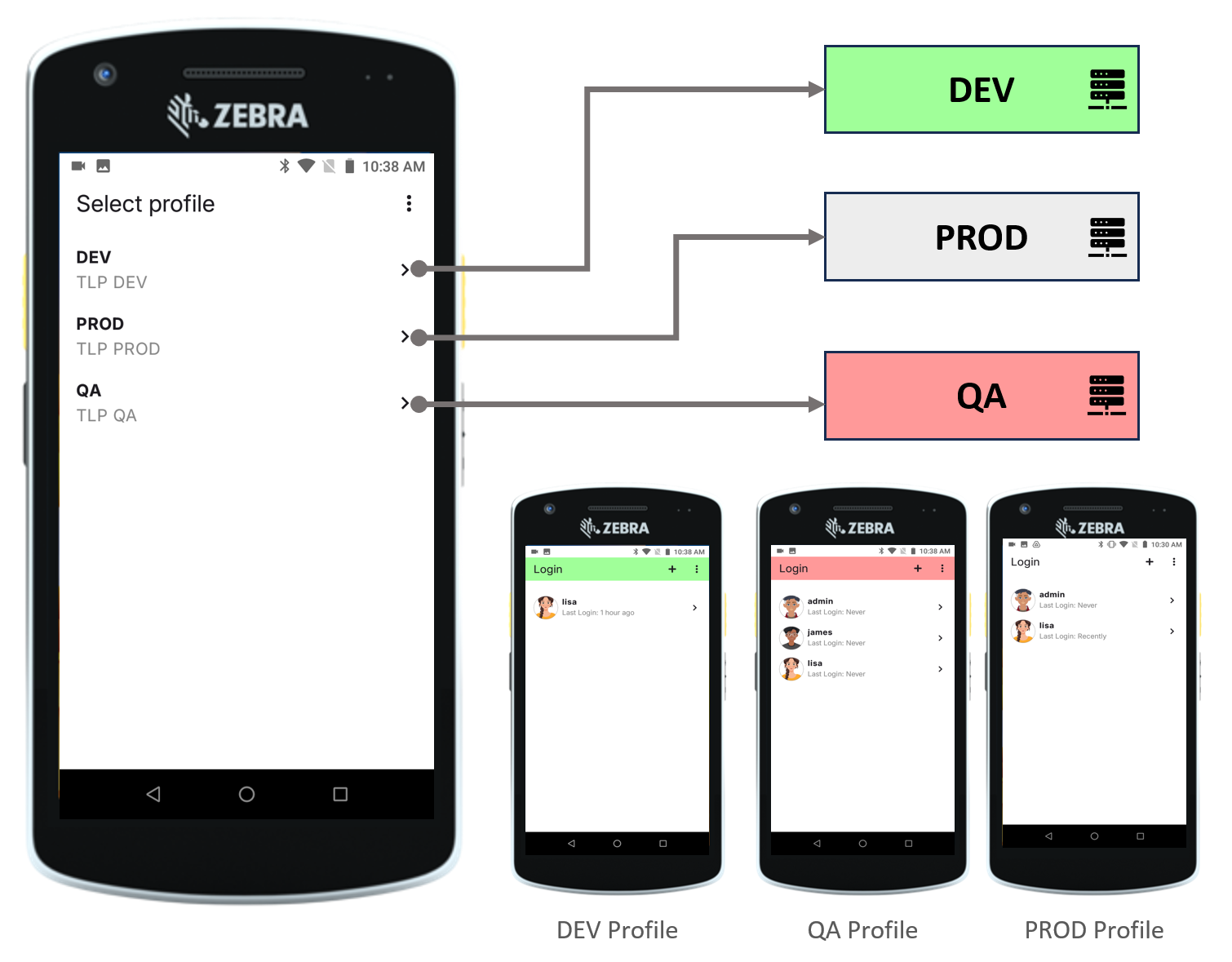
<p>You might be wondering — what is a <strong>Profile</strong>? A profile tells the mobile application which TLP Server to connect to. In most cases, a handheld device connects to a single server (the production server), but during implementation and testing you will typically point it to a Dev or Test server first.</p>

<p>The following image illustrates a mobile configured to connect to three different environments, Dev, QA, and Prod, to avoid logging on the wrong profile it is possible to configure each profile with a dedicated color.</p>

<p><img width="80%" src="/assets/blog/tlp-mobile-configuration/multiple-profiles.png" class="center" /></p>

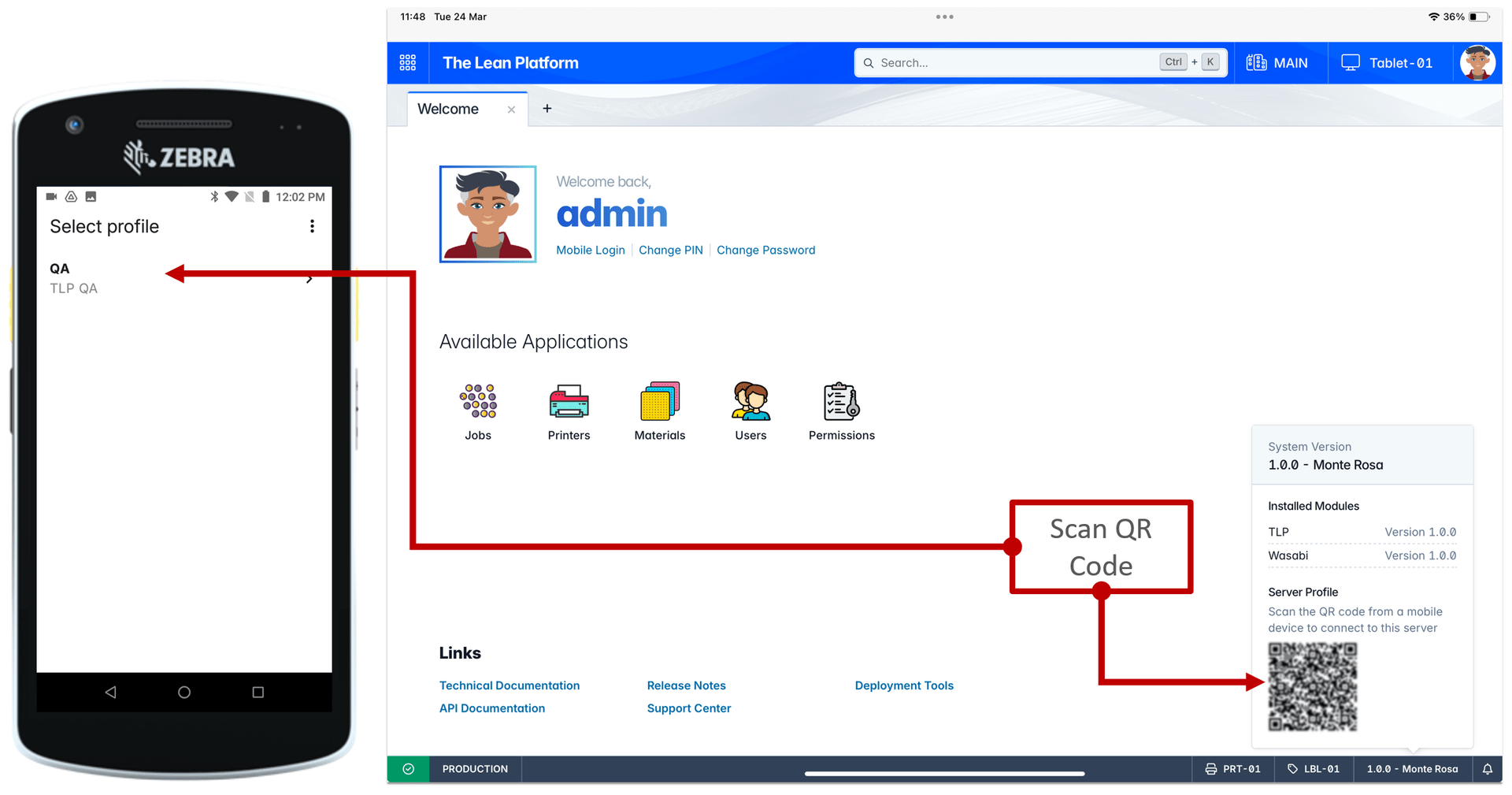
<p>Adding a profile is straightforward. An <strong>IT administrator</strong> logs into the TLP desktop application, clicks on the system version shown in the footer to reveal a QR code, and then scans it from the handheld device as shown in the example below.</p>

<p><img width="100%" src="/assets/blog/tlp-mobile-configuration/server-profile-qr.png" class="center" /></p>

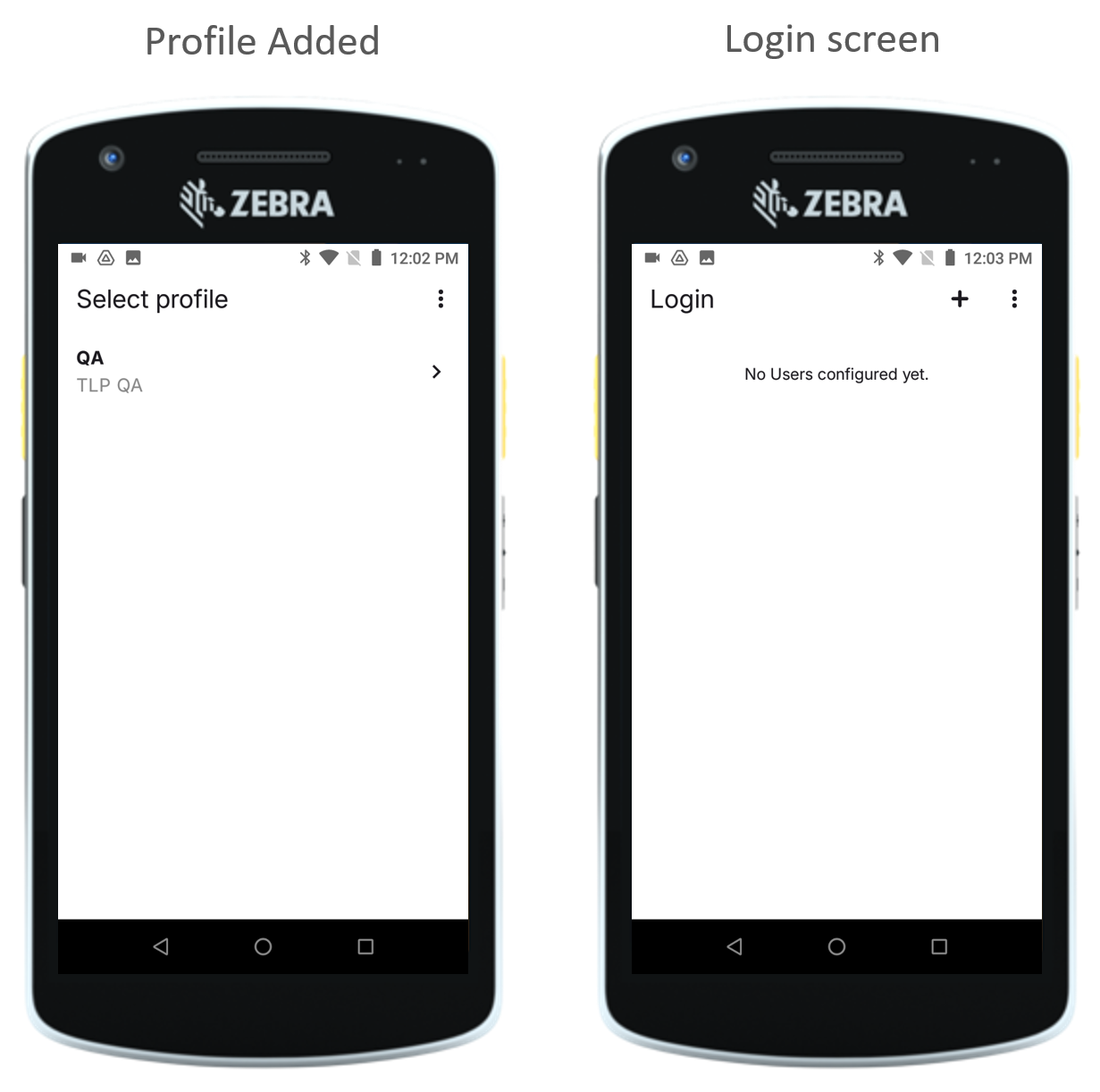
<p>After scanning the QR code, you will see the new profile added to the list — in this example, it is called <strong>QA</strong>. Tap on it to proceed to the login step.</p>

<p><img width="70%" src="/assets/blog/tlp-mobile-configuration/tlp-mobile-configuration-1.png" class="center" /></p>

<h2 id="add-login">Add Login</h2>

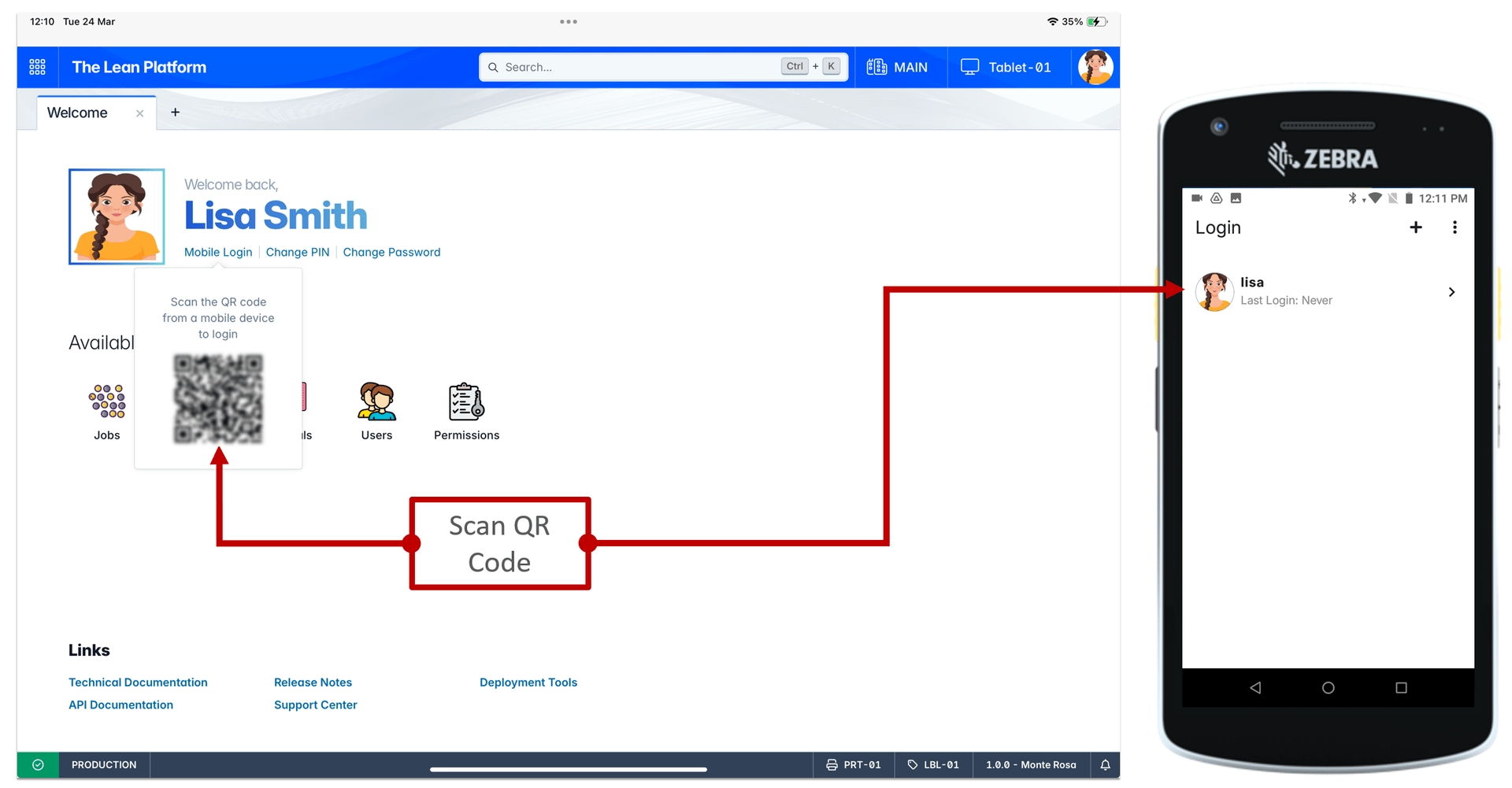
<p>Adding a login (or user) is also straightforward, the user — in this example we will use <strong>lisa</strong>, logs into the TLP desktop application using her credentials, clicks on the <strong>Mobile Login</strong> to reveal a QR code that represents a <strong>PAT</strong> (Personal Access Token), and then scans it from the handheld device. See the example below.</p>

<p><img width="100%" src="/assets/blog/tlp-mobile-configuration/add-user.png" class="center" /></p>

<p>After scannng the QR code, you will see the new user added to the list. Tap on it and specify either the PIN or password to login to the mobile application.</p>

<p><img width="70%" src="/assets/blog/tlp-mobile-configuration/login-by-pin.png" class="center" /></p>

<p><strong>Congratulations!</strong> you just installed and configured the TLP mobile application.</p>

<h1 id="testing">Testing</h1>

<p>To test the mobile lets try to relocate multiple handling units <strong>HU</strong>(s) using the <strong>MQA (Mobile Quick Action)</strong> application, here is what we will do:</p>

<ol>
  <li>Open the <strong>MQA</strong> application</li>
  <li>Scan the barcodes of the handling units to relocate</li>
  <li>Scan the barcode of the target location</li>
  <li>Scan the barcode of the desired action — in our case <strong>Relocate</strong></li>
  <li>Scan the barcode of the desired action — in our case <strong>Relocate</strong> a second time to confirm the operation</li>
</ol>

<div class="markdown-alert markdown-alert-note"><p class="markdown-alert-title"><svg data-component="Octicon" class="octicon octicon-info" viewBox="0 0 16 16" version="1.1" width="16" height="16" aria-hidden="true"><path d="M0 8a8 8 0 1 1 16 0A8 8 0 0 1 0 8Zm8-6.5a6.5 6.5 0 1 0 0 13 6.5 6.5 0 0 0 0-13ZM6.5 7.75A.75.75 0 0 1 7.25 7h1a.75.75 0 0 1 .75.75v2.75h.25a.75.75 0 0 1 0 1.5h-2a.75.75 0 0 1 0-1.5h.25v-2h-.25a.75.75 0 0 1-.75-.75ZM8 6a1 1 0 1 1 0-2 1 1 0 0 1 0 2Z"></path></svg> Note</p><p>Mobile Quick Actions or simply <strong>MQA</strong> is a barcode-driven mobile application designed to allow executing configurable actions, any shop-floor action that could be represented by a sequence of scanned barcodes could be configured as an <strong>MQA</strong>, we will explain them in a future post.</p>
</div>

<p><img width="100%" src="/assets/blog/tlp-mobile-configuration/test-mobile-mqa.png" /></p>

<h2 id="summary">Summary</h2>

<p><strong>TLP Mobile</strong> is a core module of our <strong>TLP platform</strong>, we designed it to maximize operator efficiency in the shop-floor. It supports both handheld devices (eg. Zebra and Honeywell), as well as vehicle-mounted devices (VMDs).</p>]]></content><author><name>Omar Al Kababji</name></author><category term="TLP" /><category term="tlp" /><summary type="html"><![CDATA[An introduction to the TLP mobile application, how to install it and connect it to a TLP server.]]></summary><media:thumbnail xmlns:media="http://search.yahoo.com/mrss/" url="https://www.pragmatech.it/assets/blog/tlp-mobile-configuration/header.jpg" /><media:content medium="image" url="https://www.pragmatech.it/assets/blog/tlp-mobile-configuration/header.jpg" xmlns:media="http://search.yahoo.com/mrss/" /></entry><entry><title type="html">Warehouse Location Management</title><link href="https://www.pragmatech.it/blog/2026/03/03/tlp-wms-1.html" rel="alternate" type="text/html" title="Warehouse Location Management" /><published>2026-03-03T00:00:00+00:00</published><updated>2026-03-03T00:00:00+00:00</updated><id>https://www.pragmatech.it/blog/2026/03/03/tlp-wms-1</id><content type="html" xml:base="https://www.pragmatech.it/blog/2026/03/03/tlp-wms-1.html"><![CDATA[<p>In this post series we explore how our TLP platform is used to manage warehouse operations of a hypothetical company named <strong>Pragma-Bolts</strong>. Today’s post focuses on location management, but before we get started with locations lets have a brief introduction about <strong>Pragma-Bolts</strong> and how its organized.</p>

<p>If you are in a hurry, you can watch this video, the first part provides an explanation about the warehouse we are going to model, while the second part shows how our TLP platform is used to create the warehouse locations, if you are not in a hurry then I suggest to read through this article and then watch the video.</p>

<iframe width="100%" height="400" src="https://www.youtube.com/embed/xueYUGzer_Q?si=uMiUGLUESe7B9XZ4" title="YouTube video player" frameborder="0" allow="accelerometer; autoplay; clipboard-write; encrypted-media; gyroscope; picture-in-picture; web-share" referrerpolicy="strict-origin-when-cross-origin" allowfullscreen=""></iframe>

<h1 id="pragma-bolts">Pragma-Bolts</h1>

<p><strong>Pragma-Bolts</strong> is a leading company that produces and sells bolts, company operations spans four geographically distributed warehouses, produced bolts are shipped and stocked in the Main Distribution Center known as <strong>MDC</strong>.</p>

<p>The <strong>MDC</strong> serves as a central hub, replenishing stock for three retail shops <strong>MILANO</strong>, <strong>ROMA</strong>, and <strong>VENEZIA</strong> which handle B2C consumer sales. Additionally, <strong>MDC</strong> manages a B2B channel by shipping products directly to other businesses.</p>

<p><img width="" src="/assets/blog/tlp-wms-1/pragma-bolts-diagram.png" /></p>

<h1 id="what-is-a-location">What is a Location?</h1>

<p>A Location represents the physical (or virtual) places within a warehouse. These can include bays, shelves, bins, floor locations and so on. In a WMS, each location is defined with attributes such as unique name, capacity, storage policies and rules.</p>

<p>By mapping the physical warehouse into a logical system, the WMS gains real time visibility and control over inventory movement and storage. An accurate mapping of physical warehouses locations provides multiple benefits such as:</p>

<ul>
  <li><b>Improved Inventory Accuracy</b>: Accurate locations are the backbone of inventory accuracy. When every inventory item is assigned to a specific location, the WMS can track stock levels in real time.</li>
  <li><b>Faster Operations</b>: Storage locations directly impact picking and putaway efficiency, WMS uses location data to guide warehouse operators to the optimal place to store incoming goods (put-away or check-in) and the fastest path to retrieve them during the picking process.</li>
  <li><b>Better Space Utilization</b>: Warehouse space is expensive. A WMS that leverages accurate storage location data can optimize how space is used by considering factors such as item dimensions, weight, turnover rate, and compatibility with other products.</li>
  <li><b>Enhanced Traceability and Compliance</b>: For industries such as food, pharmaceuticals, and manufacturing, traceability is critical. Storage locations allow the WMS to track where each batch, or stock unit is stored at any point in time.</li>
  <li><b>Scalability and Operational Consistency</b>: As warehouses grow or change, having a standardized location structure within the WMS ensures consistency across operations. New staff can be trained faster, processes become repeatable, and expansion or reconfiguration becomes easier to manage.</li>
</ul>

<h2 id="naming-locations">Naming Locations</h2>

<p>Generally locations are identified by their coordinates, for example assuming that the following rack is physically located in a zone named <strong>A1-Z1</strong> and aisle <strong>01</strong>, we could model it with 6 locations following the pattern <strong>{Zone}-{Aisle}-{Column}-{Level}</strong> as follows:</p>

<ul>
  <li>A1-Z1-01-01-A</li>
  <li>A1-Z1-01-01-B</li>
  <li>A1-Z1-01-01-C</li>
  <li>A1-Z1-01-02-A</li>
  <li>A1-Z1-01-02-B</li>
  <li>A1-Z1-01-02-C</li>
</ul>

<p><img width="" src="/assets/blog/tlp-wms-1/location-1.png" /></p>

<p>The following is an example of a location label, labels have a barcode that is scanned by operators when moving or picking stock from the location.</p>

<p><img src="/assets/blog/tlp-wms-1/location-label-1.png" class="center" width="300" /></p>

<p>When a single shelf is partitioned into multiple locations, we can include a <strong>{Bin}</strong> coordinate into the naming schema: <strong>{Zone}-{Aisle}-{Column}-{Level}{Bin}</strong>. For instance, if shelf <strong>A1-Z1-01-01</strong> contains four distinct bins, they would be identified as:</p>

<ul>
  <li>A1-Z1-01-01-A1</li>
  <li>A1-Z1-01-01-A2</li>
  <li>A1-Z1-01-01-A3</li>
  <li>A1-Z1-01-01-A4</li>
</ul>

<h1 id="modeling-in-tlp">Modeling in TLP</h1>

<p>Now that we have a basic understanding about <strong>Pragma-Bolts</strong> operations and what locations are and how they are named, let’s deep dive in a practical example in which we model the different warehouse areas.</p>

<h2 id="organizations">Organizations</h2>

<p>Initially, we modeled each <strong>Pragma-Bolts</strong> plant as a distinct <strong>Organization</strong> to ensure data segregation. This structure allows for overlapping naming conventions; for example, both <strong>MDC</strong> and <strong>MILANO</strong> organizations can maintain independent locations named <strong>A1-Z1-01-01-A</strong> without conflict.</p>

<p>The following organizations were created:</p>

<ul>
  <li>MDC</li>
  <li>MILANO</li>
  <li>ROMA</li>
  <li>VENEZIA</li>
</ul>

<div class="markdown-alert markdown-alert-note"><p class="markdown-alert-title"><svg data-component="Octicon" class="octicon octicon-info" viewBox="0 0 16 16" version="1.1" width="16" height="16" aria-hidden="true"><path d="M0 8a8 8 0 1 1 16 0A8 8 0 0 1 0 8Zm8-6.5a6.5 6.5 0 1 0 0 13 6.5 6.5 0 0 0 0-13ZM6.5 7.75A.75.75 0 0 1 7.25 7h1a.75.75 0 0 1 .75.75v2.75h.25a.75.75 0 0 1 0 1.5h-2a.75.75 0 0 1 0-1.5h.25v-2h-.25a.75.75 0 0 1-.75-.75ZM8 6a1 1 0 1 1 0-2 1 1 0 0 1 0 2Z"></path></svg> Note</p><p>Users can be granted access to multiple organizations, for example some users in the <strong>MDC</strong> organization will have access to all organizations, organizations will be discussed in detail in a dedicated tutorial.</p>
</div>

<p>Users assigned to multiple organizations can switch between them using the organization selector in the header.</p>

<p><img src="/assets/blog/tlp-wms-1/organization.png" class="center" /></p>

<p>The following table summarizes warehouses of all four organizations, and how they are structured, next sections will provide more insights about each one of them:</p>

<table id="warehouses">
  <caption>Table 1: Pragma-Bolts Warehouses</caption>
  <thead>
    <tr>
    	<th>Organization</th>
    	<th style="width:40px;">Area</th>
    	<th style="width:80px;">Zones</th>
    	<th style="width:80px;">Aisle</th>
    	<th style="width:80px;">Bays</th>
    	<th style="width:80px;">Shelves</th>
    	<th style="width:80px;">Bins</th>
    	<th style="width:80px;">Total</th>
	</tr>
  </thead>
  <tbody>
    <tr>
      <td>MDC</td>
      <td>A1</td>
      <td>Z1</td>
      <td>8</td>
      <td>20</td>
      <td>7</td>
      <td>--</td>
      <td>1120</td>
    </tr>
    <tr>
      <td>MDC</td>
      <td>A2</td>
      <td>Z1-Z4</td>
      <td>6</td>
      <td>20</td>
      <td>10</td>
      <td>--</td>
      <td>1200</td>
    </tr>
    <tr>
      <td>MILANO</td>
      <td>A1</td>
      <td>Z1</td>
      <td>4</td>
      <td>16</td>
      <td>3</td>
      <td>8</td>
      <td>1088</td>
    </tr>
    <tr>
      <td>ROMA</td>
      <td>A1</td>
      <td>Z1</td>
      <td>4</td>
      <td>16</td>
      <td>3</td>
      <td>8</td>
      <td>1088</td>
    </tr>
    <tr>
      <td>VENEZIA</td>
      <td>A1</td>
      <td>Z1</td>
      <td>4</td>
      <td>16</td>
      <td>3</td>
      <td>8</td>
      <td>1088</td>
    </tr>
  </tbody>
</table>

<h2 id="mdc-area-a1">MDC Area A1</h2>

<p>The image below illustrates a top view of MDC area A1 which is composed of 8 aisles; each aisle consists of 10 bays on each side; and each bay has 7 levels of shelves; in total area A1 has a capacity of <strong>8 x 20 x 7 = 1120 HUs</strong>.</p>

<p><img width="" src="/assets/blog/tlp-wms-1/mdc-a1-top-view.png" /></p>

<p>The image below illustrates a front-view of one of the racks in aisle <strong>01</strong>, we can observe that shelves <strong>A</strong> and <strong>B</strong> are configured as <strong>pick-face</strong> locations, while shelves <strong>C-G</strong> are configured as <strong>reserve</strong> locations, the process is designed as follows:</p>

<ul>
  <li>Operators pick <strong>StockUnits</strong> from shelves <strong>A</strong> and <strong>B</strong> only.</li>
  <li>When quantities in <strong>pick-face</strong> locations <strong>A</strong> and <strong>B</strong> go below a certain level known as <strong>reorder-point</strong> WMS generates an automatic task to replenish it by transferring stock from the reserve locations.</li>
  <li>When a <strong>reserve</strong> location is emptied, WMS generates an automatic task to replenish it by transferring stock from an overstock location (see MDC Area A2).</li>
</ul>

<p><img width="" src="/assets/blog/tlp-wms-1/mdc-a1-front-view.png" /></p>

<div class="markdown-alert markdown-alert-note"><p class="markdown-alert-title"><svg data-component="Octicon" class="octicon octicon-info" viewBox="0 0 16 16" version="1.1" width="16" height="16" aria-hidden="true"><path d="M0 8a8 8 0 1 1 16 0A8 8 0 0 1 0 8Zm8-6.5a6.5 6.5 0 1 0 0 13 6.5 6.5 0 0 0 0-13ZM6.5 7.75A.75.75 0 0 1 7.25 7h1a.75.75 0 0 1 .75.75v2.75h.25a.75.75 0 0 1 0 1.5h-2a.75.75 0 0 1 0-1.5h.25v-2h-.25a.75.75 0 0 1-.75-.75ZM8 6a1 1 0 1 1 0-2 1 1 0 0 1 0 2Z"></path></svg> Note</p><p>Reorder logic will be explained in the next tutorials of this series.</p>
</div>

<h2 id="mdc-area-a2">MDC Area A2</h2>

<p>MDC area A2 is configured as an <strong>over-stock</strong> that replenish area A1 <strong>reserve</strong> locations, it is composed of 4 identical zones <strong>Z1</strong>, <strong>Z2</strong>, <strong>Z3</strong>, and <strong>Z4</strong>; each zone is composed of <strong>6 aisles</strong>; each aisle has <strong>20 bays</strong>; each bay has <strong>10</strong> shelves, total capacity of area A2 is <strong>4 x 6 x 20 x 10 = 4800 pallets</strong>.</p>

<p><img width="" src="/assets/blog/tlp-wms-1/mdc-a2-top-view.png" /></p>

<h2 id="shop-area-a1">Shop Area A1</h2>

<p>All shops <strong>MILANO</strong>, <strong>ROMA</strong>, and <strong>VENEZIA</strong> have an identical warehouse that is composed of 4 aisles; each aisle consists of 8 bays on each side; each bay has 3 levels of shelves; shelves A and B has 8 plastic bins; in total the warehouse  has a capacity of <strong>1088 Locations</strong> of which 1024 are plastic bins.</p>

<p><img src="/assets/blog/tlp-wms-1/shop-a1-top-view.png" width="80%" class="center" /></p>

<p>The following is a front-view of one of the racks, note that shelves <strong>A</strong> and <strong>B</strong> have 8 plastic bins each, each <strong>bin</strong> stores bolts of the same SKU.</p>

<p><img src="/assets/blog/tlp-wms-1/shop-a1-frontview.png" /></p>

<h2 id="creating-areas-and-locations">Creating Areas and Locations</h2>

<p>Now that we know how the <strong>MDC</strong> warehouse is structured, let’s see how those locations can be created, for this we prepared a video, at high level the steps are:</p>

<ol>
  <li>Log to the desired organization, for example <strong>MDC</strong></li>
  <li>Create area <strong>A1</strong></li>
  <li>Create locations of area <strong>A1</strong></li>
  <li>Configure location details</li>
  <li>Print labels</li>
  <li>Release locations</li>
  <li>Repeat the same process for area <strong>A2</strong> and then for the other organizations.</li>
</ol>

<iframe width="100%" height="400" src="https://www.youtube.com/embed/xueYUGzer_Q?si=uMiUGLUESe7B9XZ4" title="YouTube video player" frameborder="0" allow="accelerometer; autoplay; clipboard-write; encrypted-media; gyroscope; picture-in-picture; web-share" referrerpolicy="strict-origin-when-cross-origin" allowfullscreen=""></iframe>

<h2 id="summary">Summary</h2>

<p>In this tutorial we saw how to model warehouse locations using TLP, in the next tutorial we will take a look on the replenishment process.</p>]]></content><author><name>Omar Al Kababji</name></author><category term="TLP" /><category term="tlp" /><summary type="html"><![CDATA[Part one of a series exploring TLP capabilities for warehouse modeling and management.]]></summary><media:thumbnail xmlns:media="http://search.yahoo.com/mrss/" url="https://www.pragmatech.it/assets/blog/tlp-wms-1/header.jpg" /><media:content medium="image" url="https://www.pragmatech.it/assets/blog/tlp-wms-1/header.jpg" xmlns:media="http://search.yahoo.com/mrss/" /></entry><entry><title type="html">Job ZILLA and MATMAS</title><link href="https://www.pragmatech.it/blog/2025/08/09/tlp-job-engine.html" rel="alternate" type="text/html" title="Job ZILLA and MATMAS" /><published>2025-08-09T00:00:00+00:00</published><updated>2025-08-09T00:00:00+00:00</updated><id>https://www.pragmatech.it/blog/2025/08/09/tlp-job-engine</id><content type="html" xml:base="https://www.pragmatech.it/blog/2025/08/09/tlp-job-engine.html"><![CDATA[<style>
	table caption {
		caption-side: top;
		font-weight: bold;
		font-size: 0.8rem;
    	padding-bottom: 0px;
	}
	td.centered {
		text-align:center;	
	}
	.blog-area .blog-items .info > ul,
	.blog-area .blog-items .info > ol {
		margin-left: 40px;
	}
</style>

<p>Today I am thrilled to uncover a new <strong>TLP</strong> module … introducing our powerful <strong>Jobs Engine</strong> module! The <strong>Jobs Engine</strong> is used whenever you need to execute background tasks (we call them jobs).</p>

<p>Jobs come to rescue in many scenarios, here are some:</p>

<ul>
  <li><strong>Receiving messages from external systems</strong>, for example receiving <strong>MATMAS</strong> IDOCs from <strong>SAP</strong>.</li>
  <li><strong>Executing long running tasks</strong>, for example when exporting grid data to an excel from the UI.</li>
  <li><strong>Executing maintenance tasks</strong>, for example every week-end a job to archive records that exceeded their retention period.</li>
  <li><strong>Monitoring a local or FTP directory</strong> and process any files placed in it.</li>
  <li><strong>When sending data to external systems</strong>, messages are typically created as jobs and dispatched asynchronously. This job-based delivery ensures that if the external system is temporarily unavailable, the data stays safely queued preventing any data loss.</li>
</ul>

<p>So lets deep dive into the jobs engine module, as usual we will do it with a real case scenario. today we are going to implement a <strong>MATMAS</strong> channel to receive material master data from SAP and create/update materials in TLP.</p>

<h1 id="architecture">Architecture</h1>

<p>The <strong>Job Engine</strong> architecture is flexible, powerful, and super fast, the image below followed by the key-concepts will help you better understand at high level the engine architecture:</p>

<p><img width="" src="/assets/blog/tlp-job-engine/engine-architecture.png" /></p>

<ul>
  <li><strong>Orchestrator</strong>: the orchestrator periodically fetches jobs, organizes them in logical <strong>queues</strong> and dispatches them to available TLP nodes. At any given time one and only one TLP node can act as the <strong>orchestrator</strong>, by default any TLP node can act as the orchestrator (see TLP node1), orchestrator election is managed automatically by TLP.</li>
  <li><strong>Executor</strong>: the orchestrator dispatches jobs to executors, executors processes them, each TLP node is by default an executor node (see TLP node1, node2, and node3). To increase parallelism each TLP executor node instantiates multiple threads to process jobs in parallel.</li>
  <li><strong>Queue</strong>: is a logical grouping of jobs whose execution must be sequential, for example if <strong>SAP</strong> creates two materials: <strong>A</strong> and <strong>B</strong> and soon after updates material <strong>A</strong>, we will receive three jobs. The two jobs related to material <strong>A</strong> will form a logical queue <strong>Q1</strong> while material <strong>B</strong> job will form  <strong>Q2</strong>. Processing <strong>Q1</strong> jobs the engine must first process the job that created material <strong>A</strong> and then the job that updated it, if the creation job fails for whatever reason it will block <strong>Q1</strong>; the 2nd job will not be processed until the 1st is either successfully processed or archived. <strong>Q2</strong> jobs can be processed any time even before <strong>Q1</strong>.</li>
  <li><strong>Job</strong>: is a single task, jobs are created by external systems or by the engine itself in case of scheduled jobs.</li>
  <li><strong>Job Type</strong>: defines a specific type of job, for example <strong>MATMAS</strong> is one job type, while <strong>BATMAS</strong> is another, the <strong>Job Type</strong> specifies the <strong>processor</strong> that knows how to process that specific job.</li>
</ul>

<p>In the above architecture, if <strong>node1</strong> goes down for whatever reason (e.g. maintenance) available nodes - in a matter of seconds - will automatically elect a new orchestrator (e.g. <strong>node2</strong>) and any dispatched queues to <strong>node1</strong> will be re-dispatched to available nodes.</p>

<p><img width="" src="/assets/blog/tlp-job-engine/engine-architecture-node1-down.png" /></p>

<h1 id="matmas-job">MATMAS job</h1>

<p>Now it is time to implement logic to receive and process <strong>MATMAS</strong> IDOCS from SAP, the job type will be named <strong>SAP-I-01</strong> and its processor class is very simple.</p>

<div class="markdown-alert markdown-alert-tip"><p class="markdown-alert-title"><svg data-component="Octicon" class="octicon octicon-light-bulb" viewBox="0 0 16 16" version="1.1" width="16" height="16" aria-hidden="true"><path d="M8 1.5c-2.363 0-4 1.69-4 3.75 0 .984.424 1.625.984 2.304l.214.253c.223.264.47.556.673.848.284.411.537.896.621 1.49a.75.75 0 0 1-1.484.211c-.04-.282-.163-.547-.37-.847a8.456 8.456 0 0 0-.542-.68c-.084-.1-.173-.205-.268-.32C3.201 7.75 2.5 6.766 2.5 5.25 2.5 2.31 4.863 0 8 0s5.5 2.31 5.5 5.25c0 1.516-.701 2.5-1.328 3.259-.095.115-.184.22-.268.319-.207.245-.383.453-.541.681-.208.3-.33.565-.37.847a.751.751 0 0 1-1.485-.212c.084-.593.337-1.078.621-1.489.203-.292.45-.584.673-.848.075-.088.147-.173.213-.253.561-.679.985-1.32.985-2.304 0-2.06-1.637-3.75-4-3.75ZM5.75 12h4.5a.75.75 0 0 1 0 1.5h-4.5a.75.75 0 0 1 0-1.5ZM6 15.25a.75.75 0 0 1 .75-.75h2.5a.75.75 0 0 1 0 1.5h-2.5a.75.75 0 0 1-.75-.75Z"></path></svg> Tip</p><p>Job processor classes can be implemented in <strong>java</strong> or <strong>groovy</strong>, in this example we are going implement them in <strong>java</strong>.</p>
</div>

<p>The following is a simplified example of a <strong>MATMAS</strong> IDOC generated by <strong>SAP</strong>, our <strong>SAP-I-01</strong> processor will parse such XML and create or update materials in <strong>TLP</strong>, in our case we are interested only in the following attributes:</p>

<ul>
  <li>MATNR: Material  number</li>
  <li>MTART: Material type, we will use the same type of SAP.</li>
  <li>MEINS: Base unit of measure, we will use the same UM of SAP.</li>
  <li>MAKTX: Default material description</li>
</ul>

<div class="language-plaintext highlighter-rouge"><div class="highlight"><pre class="highlight"><code>&lt;MATMAS05&gt;
  &lt;IDOC BEGIN="1"&gt;
  
    &lt;!-- IDOC header --&gt;
    &lt;EDI_DC40 SEGMENT="1"&gt;
    	...
    &lt;/EDI_DC40&gt;

    &lt;!-- Mandatory Base Segment --&gt;
    &lt;E1MARAM SEGMENT="1"&gt;
      &lt;MSGFN&gt;005&lt;/MSGFN&gt;        
      &lt;MATNR&gt;A000123&lt;/MATNR&gt;   &lt;!-- Material Number --&gt;
      &lt;ERSDA&gt;20250804&lt;/ERSDA&gt;  
      &lt;ERNAM&gt;SMITHJ&lt;/ERNAM&gt;    
      &lt;MTART&gt;FERT&lt;/MTART&gt;      &lt;!-- Material Type --&gt;
      &lt;MBRSH&gt;01&lt;/MBRSH&gt;        
      &lt;MATKL&gt;1010&lt;/MATKL&gt;      
      &lt;MEINS&gt;EA&lt;/MEINS&gt;        &lt;!-- Base UoM --&gt;
      &lt;COMPL&gt;00&lt;/COMPL&gt;        
    &lt;/E1MARAM&gt;

    &lt;E1MAKTM SEGMENT="1"&gt;
      &lt;MSGFN&gt;005&lt;/MSGFN&gt;
      &lt;SPRAS&gt;E&lt;/SPRAS&gt;            
      &lt;MAKTX&gt;Standard Widget&lt;/MAKTX&gt;	&lt;!-- Material Description --&gt;
    &lt;/E1MAKTM&gt;

  &lt;/IDOC&gt;
&lt;/MATMAS05&gt;

</code></pre></div></div>

<p>Based on the above, here is the code of our processor the <strong>calculateQueue</strong> is responsible to calculate the logical queue which in our case is the material number, while the <strong>process</strong> method will upsert the received material.</p>

<div class="language-plaintext highlighter-rouge"><div class="highlight"><pre class="highlight"><code>public class SapI01MaterialMasterDataProcessor extends BaseJobProcessor {

	@Override
	public String calculateQueue(Job job) throws Exception {
		var doc = parse(job);
		var xpath = XPathFactory.newInstance().newXPath();
		
		return xpath.evaluate("/MATMAS05/E1MARAM/MATNR", doc);
	}

	@Override
	public void process(Job job) throws Exception {

		var doc = parse(job);
		var xpath = XPathFactory.newInstance().newXPath();

		var matnr = xpath.evaluate("/MATMAS05/E1MARAM/MATNR", doc);
		var mtart = xpath.evaluate("/MATMAS05/E1MARAM/MTART", doc);
		var meins = xpath.evaluate("/MATMAS05/E1MARAM/MEINS", doc);
		var maktx = xpath.evaluate("/MATMAS05/E1MAKTM/MAKTX", doc);
	
		// Create material if it doesn't exist
		var material = materialRepo.findByName(matnr);
		if (material == null) {
			var ctx = new CreateMaterialCtx();
			ctx.setNumber(matnr);
			ctx.setVersion("1");

			material = materialService.create(ctx).getMaterial();
		}

		// Update the material
		var ctx = new UpdateMaterialCtx();
		ctx.setMaterial(material);
		ctx.setStockUom(Optional.ofNullable(uomCache.getByName(meins)));
		ctx.setDescription(Optional.ofNullable(maktx));
		ctx.setMaterialType(Optional.ofNullable(mtart));

		materialService.update(ctx);
	}
	
	
}
</code></pre></div></div>

<h1 id="testing-the-job">Testing the job</h1>

<p>Its testing time! in this video we explain the architecture of <strong>Job ZILLA</strong> and simulate receiving multiple <strong>MATMAS</strong> messages from SAP using a simple python script.</p>

<iframe width="100%" height="450" src="https://www.youtube.com/embed/3K53QkMGxlc?si=ho2CYN2LKWPthh6D" title="YouTube video player" frameborder="0" allow="accelerometer; autoplay; clipboard-write; encrypted-media; gyroscope; picture-in-picture; web-share" referrerpolicy="strict-origin-when-cross-origin" allowfullscreen=""></iframe>

<h1 id="stress-test">Stress test</h1>

<p>In this test we will process <strong>10000 jobs</strong> in an attempt to stress the system, for our test we used an old <strong>Lenovo ThinkCentre M720q</strong> with an Intel(R) Core (TM) i5-8400T CPU @ 1.70 GHz , 6 logical processors, and 16 GB of RAM, the computer runs all TLP nodes and the database.</p>

<p><img class="center" width="300" src="/assets/blog/tlp-job-engine/lenovo.jpg" /></p>

<p>To better observe what is happening, we conducted the test as follows:</p>

<ul>
  <li>We paused the <strong>Orchestrator</strong>, <strong>Poller</strong>, and <strong>Executor</strong> this way jobs remain in status created.</li>
  <li>We started the <strong>Orchestrator</strong> to see how jobs will be dispatched, in a couple of seconds jobs were dispatched to all three nodes.</li>
  <li>Finally we started the <strong>Poller</strong> and <strong>Executor</strong> so jobs got processed, overall it took the system <strong>70 seconds</strong> to process all <strong>10000 materials</strong>.</li>
</ul>

<iframe width="100%" height="450" src="https://www.youtube.com/embed/ipPE1TcN_bg?si=U1bprnN60-NUaBBZ" title="YouTube video player" frameborder="0" allow="accelerometer; autoplay; clipboard-write; encrypted-media; gyroscope; picture-in-picture; web-share" referrerpolicy="strict-origin-when-cross-origin" allowfullscreen=""></iframe>

<h1 id="resilience">Resilience</h1>

<p><strong>Job ZILLA</strong> was crafted on the premise that <strong>TLP</strong> is a distributed platform, in an event of a node failure for whatever reason one of the following happens:</p>

<ul>
  <li>If the node is NOT the <strong>Orchestrator</strong>, then the <strong>Orchestrator</strong> will re-dispatch all jobs assigned to the failing node to available executor nodes.</li>
  <li>If the node is an <strong>Orchestrator</strong>, then available nodes will elect a new orchestrator which in turn will re-dispatch all jobs assigned to the failing node.</li>
</ul>

<p>To see it in action, <a href="https://www.youtube.com/watch?v=3K53QkMGxlc&amp;t=974s">you can watch this video on our YouTube channel</a>.</p>

<h1 id="summary">Summary</h1>

<p><strong>Job ZILLA</strong> is an important module in our <strong>TLP</strong> platform, we use it to manage asynchronous tasks efficiently, it was crafted from scratch taking in consideration:</p>

<ul>
  <li>That the TLP platform is a distributed system, thus it utilizes all nodes to quickly process jobs.</li>
  <li>Resiliency, maintenance activities or un-expected failures of some application nodes MUST NOT impact jobs processing.</li>
  <li>User friendly management, a simple and intuitive UI to manage jobs and easily see what is happening in the system when needed.</li>
  <li>Years of experience in implementing solutions that require message exchanges between systems.</li>
</ul>]]></content><author><name>Omar Al Kababji</name></author><category term="TLP" /><category term="tlp" /><summary type="html"><![CDATA[An introduction to the TLP Jobs Engine, a powerful module used to schedule and process asynchronous tasks.]]></summary><media:thumbnail xmlns:media="http://search.yahoo.com/mrss/" url="https://www.pragmatech.it/assets/blog/tlp-job-engine/header.jpg" /><media:content medium="image" url="https://www.pragmatech.it/assets/blog/tlp-job-engine/header.jpg" xmlns:media="http://search.yahoo.com/mrss/" /></entry></feed>